

文档Docs
获取 Gmail App PasswordGet a Gmail App Password
给 Agent J 创建单独的 Gmail 应用专用密码,在手机弹窗中粘贴,随时可以撤销。Create a separate Gmail password for Agent J, paste it on your phone, and revoke it whenever you want.
Agent J 通过 IMAP/SMTP 连接邮箱。给它单独创建一个 App Password(应用专用密码),别用 Google 主密码,这样以后能单独撤销。它依然能正常收发邮件,请妥善保管。
先开两步验证
打开 Google 账号安全设置,按 Google 官方两步验证说明 完成设置,再创建应用专用密码。
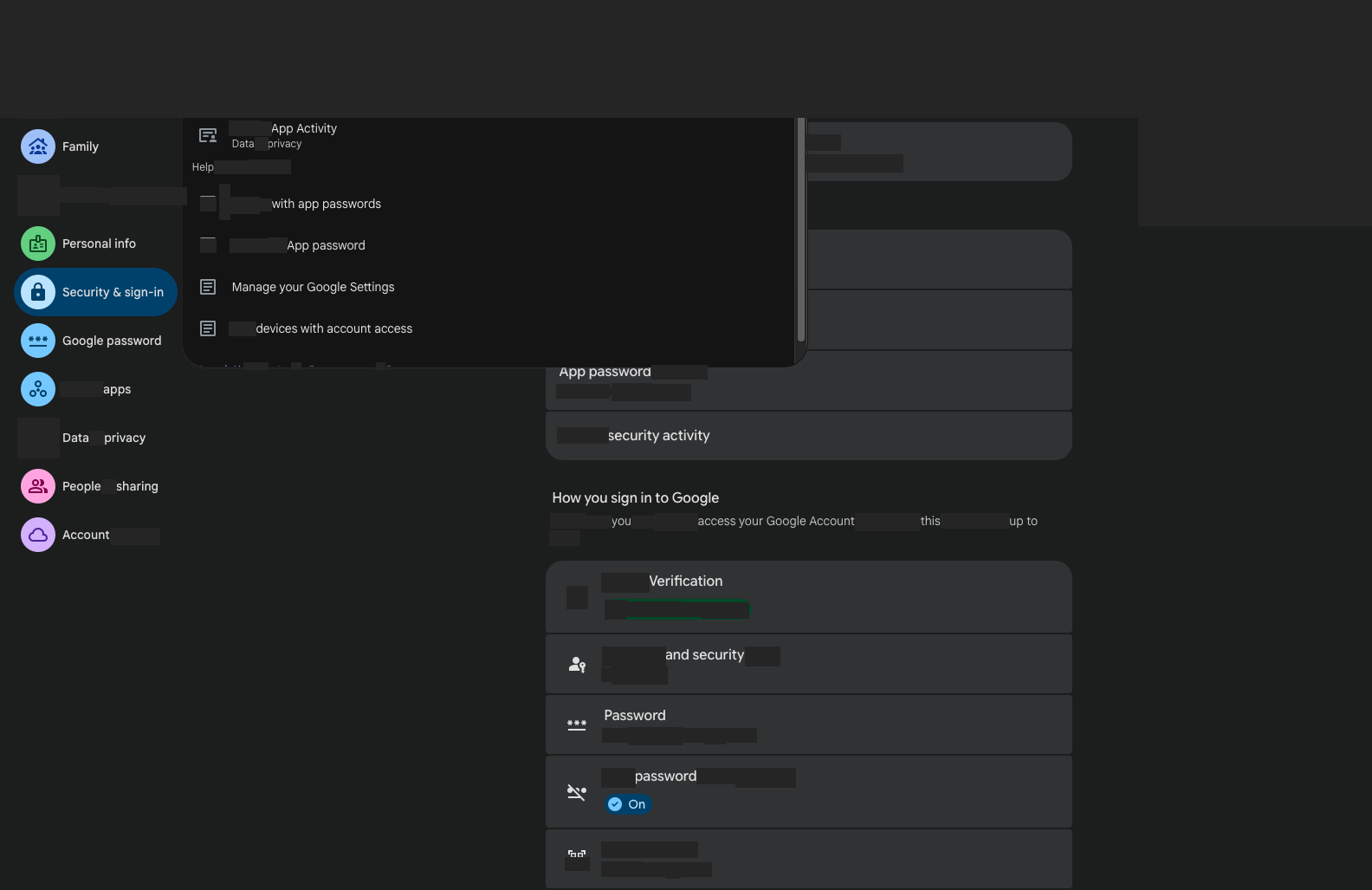
确认当前账号
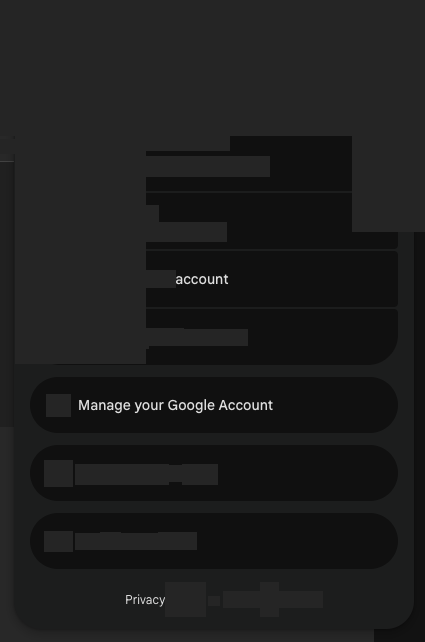
Google 账号得跟填给 Agent J 的 Gmail 地址一致。你可以从头像菜单切换账号。示例图里的姓名、邮箱和头像,都已经用实色块遮住了。
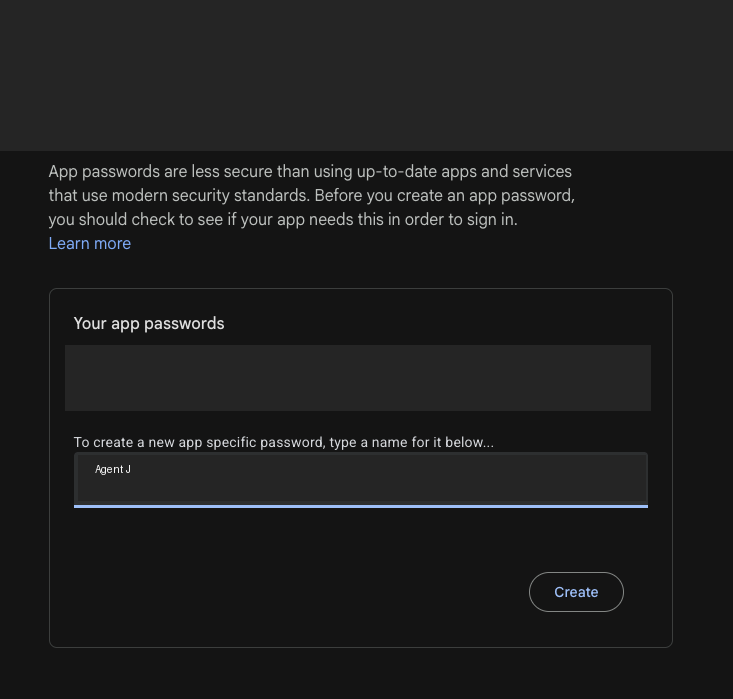
起名并创建
打开 Google 应用专用密码页面,可能需要重新登录。名称填 Agent J,点击 Create(创建)。
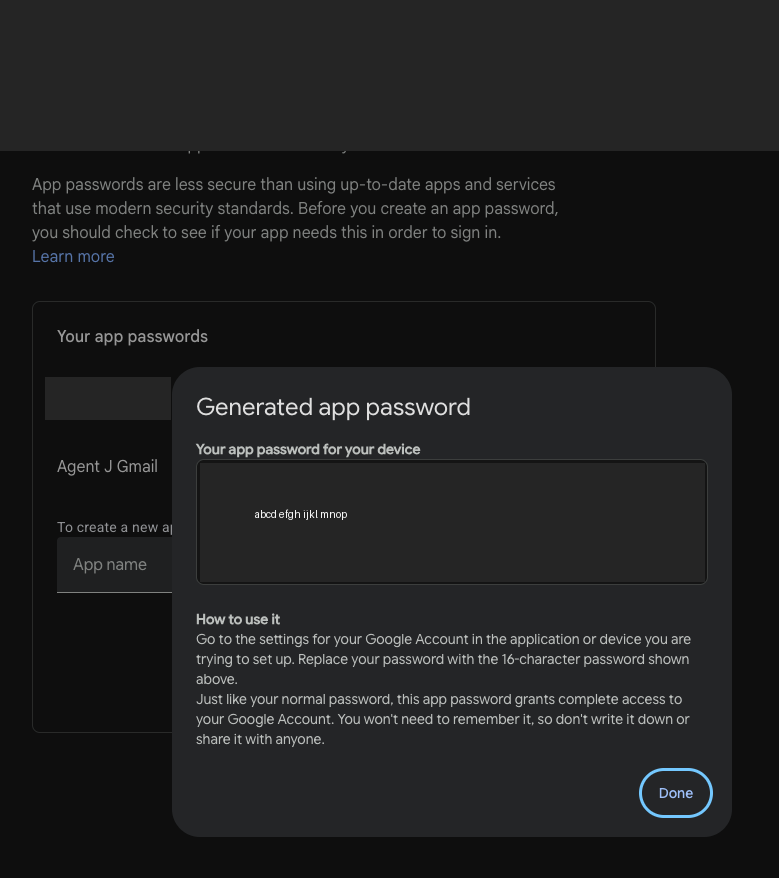
完整复制,保留空格
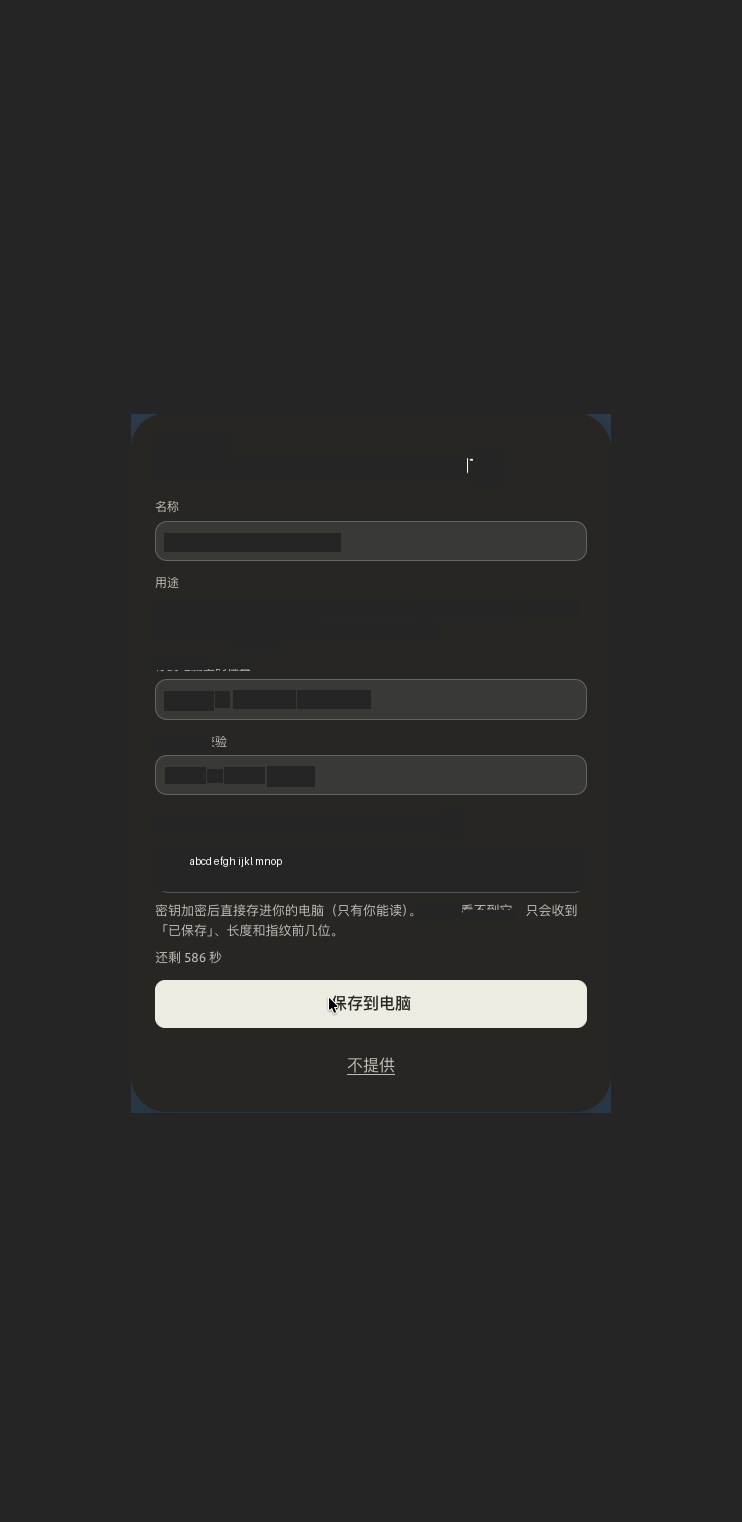
复制刚生成的整段密码。空格不用删,原样粘贴。 下图的 abcd efgh ijkl mnop 只是示例,不能用于登录;原密码已被完整实色覆盖并替换。
粘贴到 Agent J
打开手机设置,找到邮件通道,填上 Gmail 地址,点设置邮箱授权码。弹窗里有个框叫 Gmail App Password,把密码粘进去保存就行。保存后会自动测 IMAP 和 SMTP 连接,不实际发信,结果就一句话。下次再进来,只看到已设置和更换,不会回显密码。
你也可以用自然语言把邮箱地址、服务器这些非密码信息告诉 Agent J,让它先配好,再输入 agentj mail password 弹出同一张密钥卡。不要把密码发到聊天里。 密码会加密直送 Agent J 工作主机,以加密私有文件保存。
出错怎么办
- 找不到应用专用密码入口:先确认两步验证已开启。Google Workspace 管理策略、高级保护计划,或者只用了安全密钥的账号,可能不支持这个功能;请联系管理员,或者换个支持的邮箱试试。
- 登录失败:核对一下账号,重新生成并复制应用专用密码,再检查电脑网络和 IMAP/SMTP 设置。注意,修改 Google 主密码会让原来的应用专用密码失效。
- 连接失败时,密码还保存在那里。点 已设置 · 更换 重新填写;测试没有发出邮件。
- 更多限制见 Google 官方应用专用密码说明。
如何撤销
回到 Google 应用专用密码页面,找到给 Agent J 创建的条目并删除。Agent J 就不能再用它登录。不再使用邮件通道时,也在 Agent J 设置中关闭;以后需要时重新生成即可。
Agent J uses IMAP/SMTP to work with your mailbox. Give it a separate App Password rather than your main Google password. You can revoke this password separately. It still gives access to your mailbox: keep it private.
Turn on 2-Step Verification
Open Google security settings and follow Google’s 2-Step Verification instructions. Finish enabling it before continuing.
Choose the right account
Check that the Google account matches the Gmail address you gave Agent J. You can switch accounts from the profile menu. All identities and avatars in these examples are covered with solid blocks.
Create a password named Agent J
Open Google App passwords. Google may ask you to sign in again. Name the new password Agent J and choose Create.
Copy, keeping the spaces
Copy the entire generated value. Keep the spaces; paste as copied. The value below is only an example, not a working password. The original value was completely covered before this image was saved.
Paste into Agent J
On your phone, open Settings → Email, enter your Gmail address, then tap Set email authorization code. The popup says Gmail App Password. Paste the value and save. After saving, Agent J checks IMAP and SMTP without sending mail and shows the result. The saved value never appears again; use Set · Change to replace it.
You can also tell Agent J your address and server details in chat. It configures those first, then opens the same key card with agentj mail password. Never send a password in chat. It travels encrypted to your Agent J computer and is stored there in an encrypted private file.
If it does not work
- No App passwords option? Check 2-Step Verification. Workspace policy, Advanced Protection or an account using only security keys may prevent it; ask your administrator or use another supported mailbox.
- Login failed? Check the account, copy a fresh app password, and check the computer’s network and IMAP/SMTP settings. A changed main Google password invalidates existing app passwords.
- A failed connection check still means the password was saved. Replace it through Set · Change; no test message was sent.
- Gmail setup details and policy exceptions: Google’s official App Password help.
Revoke it
Return to Google App passwords, find the entry you created for Agent J and delete it. Agent J can no longer use that password. Turn off the email channel in Agent J if you no longer need it; create a new app password if you want to reconnect later.