

文档Docs
手机上怎么用Using it on your phone
打开哪个网址、加到主屏幕、配对;看颜色知道它在干嘛,翻页看回复,发图片文件和语音,长按批准,全部停下,锁屏提醒,断线了怎么办。Which address to open, adding it to the Home Screen, pairing; what the colours mean, browsing replies, sending pictures, files and voice, hold to approve, Stop everything, lock-screen alerts, and what to do when the connection drops.
打开哪个网址
手机浏览器打开:https://m.agentj.app
- iPhone 用 Safari,安卓手机用 Chrome。
- 手机这边不用注册,也不用登录。跟电脑配对一次,电脑就认得它了。
- 邮箱验证码和通行密钥(passkey)是登录账号后台用的,跟手机上这个页面无关。见 账号与付款。
注意:现在没有安卓或 iPhone 的安装包,应用商店里也搜不到。手机上用的是网页版 App。把它加到主屏幕以后,点开就跟 App 一样。
建议的顺序:先加到主屏幕,再从主屏幕图标打开,然后在里面配对。 在 iPhone 上,从主屏幕图标打开的和在 Safari 里打开的,是两个互不相通的地方:在 Safari 里配好了,主屏幕图标那边还是「还没配对」。锁屏提醒也只有从主屏幕图标打开才能开。
加到主屏幕:iPhone
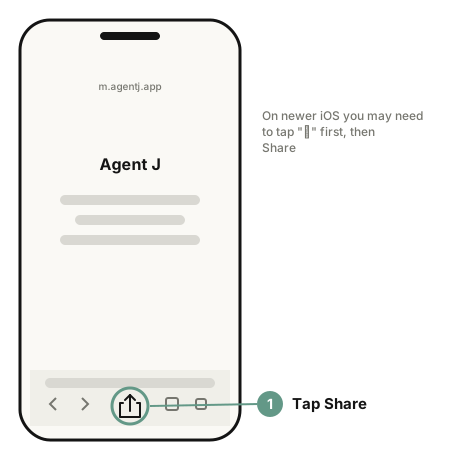
- 用 Safari 打开 https://m.agentj.app ,点屏幕下方的「分享」按钮(方框里有个向上箭头)。新版 iOS 上,可能要先点「⋯」,再点「分享」。
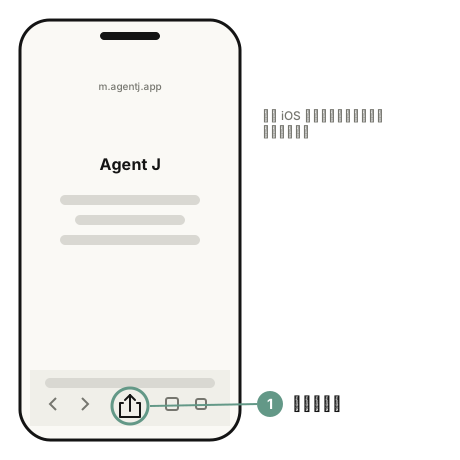
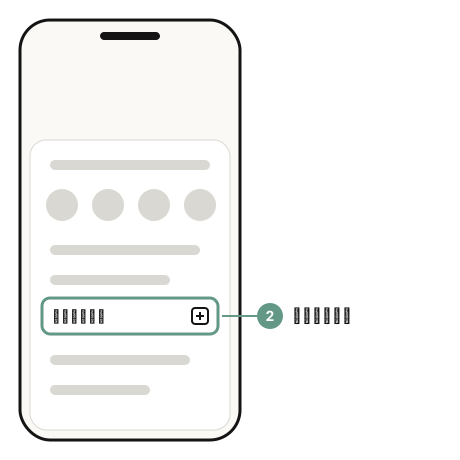
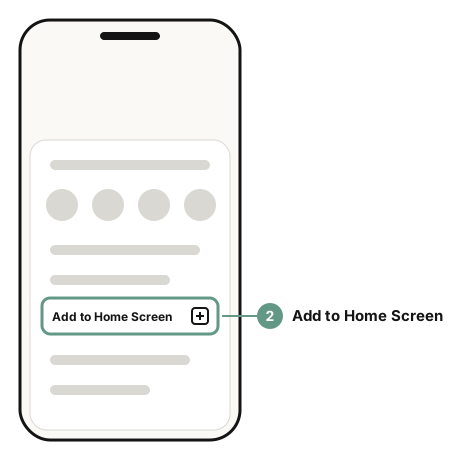
- 在弹出的菜单里往下滑,点「添加到主屏幕」。
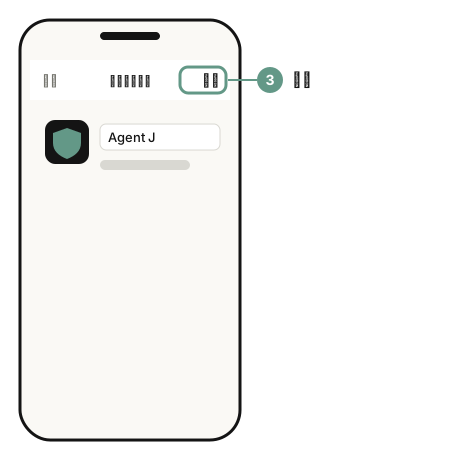
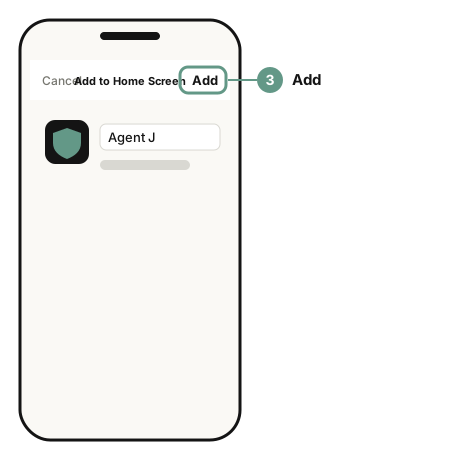
- 名字默认是 Agent J,不用改,点右上角「添加」。主屏幕上会多一个图标,以后就从这个图标打开。
加到主屏幕:安卓
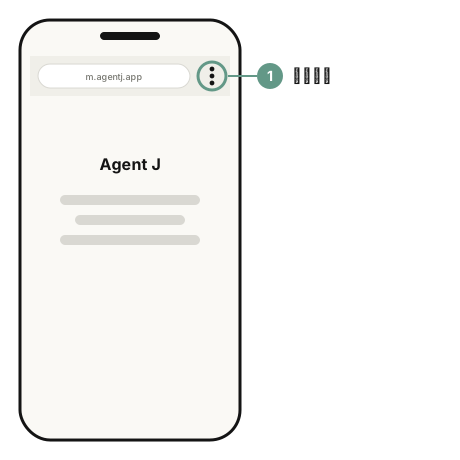
- 用 Chrome 打开 https://m.agentj.app ,点右上角的「⋮」(三个竖着的点)。
- 点「添加到主屏幕」。有的手机和 Chrome 版本上叫「安装应用」。
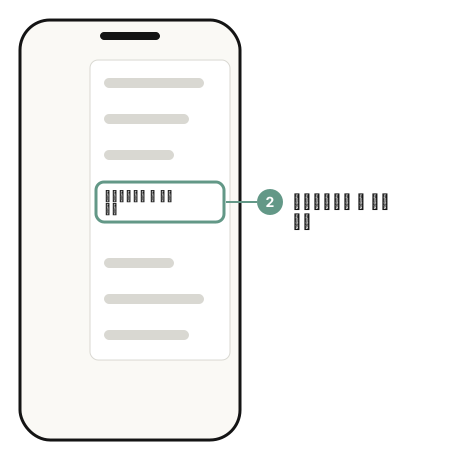
- 在确认框里点「安装」或「添加」。主屏幕上会多一个 Agent J 图标。
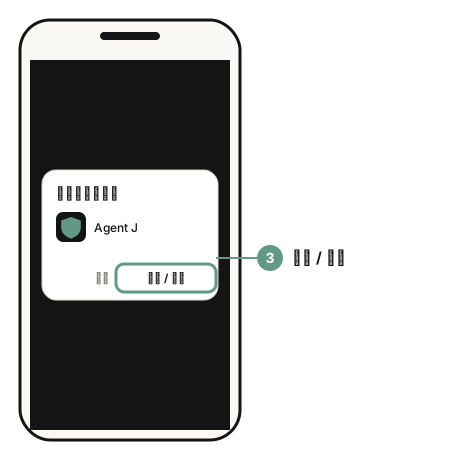
不同品牌的手机,菜单文字和位置可能不太一样。找不到时,在 Chrome 菜单里找带「主屏幕」或「安装」字样的那一项。
配对:让手机认识你的电脑
打开 m.agentj.app 还没配对时,「连上你的电脑」页面分成几张编号的卡片,任选一种就行:
- 方法一:用已经配好的遥控器扫这台设备上的码。手边已经有一台配好的手机时最省事,见下文的被扫码配对一节。
- 方法二:在电脑的终端里运行
agentj pair。第一次配对用这个,就是本节下面的步骤。终端是电脑上输命令的窗口:macOS 上叫终端(Terminal),Windows 用 PowerShell 或 Windows Terminal,Linux 上也叫终端。扫不了码就运行agentj pair --link,把终端里打印的、以https://开头的链接粘贴到配对页的链接框,再点「开始配对」。 - 方法三:在账号后台添加。电脑已经加入 Agent J 账号时可以用,见下文从另一台电脑给席位添加遥控器那一节。
以前配过、只是换了浏览器或清了网站数据:看配对页最下面的「以前在这台设备上配过?」,点「用 Face ID 连回电脑」就行,不用重新配对。
配对一次就行。换手机、多加一部手机时再做。你需要:电脑在旁边、电脑上的 Agent J 在运行,以及遥控器配对密码(还没设的话,agentj pair 会先请你设一个,至少 8 位)。
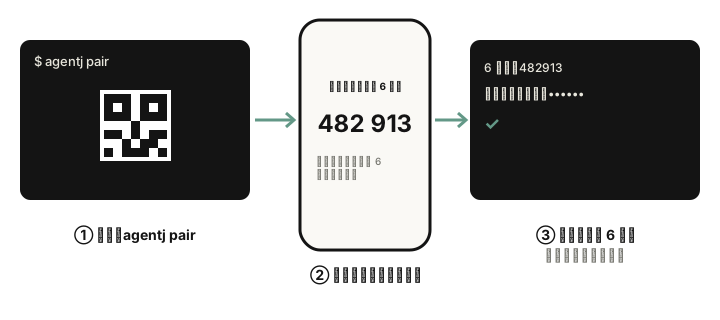
- 在电脑终端里运行:
agentj pair屏幕上会出现一个二维码。iPhone 改用
agentj pair --link,它会同时显示二维码和一个配对链接。也可以运行agentj admin,在打开的 Agent 管理页里点「添加手机遥控器」。如果终端里提示 Agent J 现在没在这台电脑上运行,先运行
agentj service install,再运行一次agentj pair。
- 打开手机上的 Agent J(点主屏幕图标),页面上方显示「还没配对」。
iPhone 和安卓都可以在主屏幕 App 里面点「扫二维码」,允许相机权限后,会打开一个全屏相机页。相机一打开就开始扫:取景框只画四个圆角,一道灰色的光从上往下刷,对准电脑上的二维码就行,不用再点按钮。底下三个图标分别是返回、暂停扫描、停止扫码;不扫了就点返回,回到配对页。浏览器没有自带二维码识别功能也能扫。相机不可用时,看完配对说明,把链接粘贴到下方的输入框,再点「开始配对」。请用 App 里的扫码按钮:系统相机会打开另一份浏览器页面。
- 手机上会显示一个 6 位数字,标题写着「在电脑上输入这 6 位码」。把这 6 位数字输进电脑终端,按回车。接着,再输入你的遥控器配对密码。
- 手机上先显示「等电脑批准」,然后变成「已连接」,自动进入对话页面,配对完成。
在已配好的遥控器上添加另一台
已经有一台配好的手机或电脑浏览器时,再加一台不用回到电脑,也不用输码:
- 在已配好的那台上打开「设置」,在「电脑」一栏点「添加遥控器」。屏幕上会出现一个二维码,5 分钟内有效,只能用一次。
- 用新手机打开 Agent J,点「扫二维码」扫它。新设备是电脑浏览器的话,在「添加遥控器」页点「复制配对链接」,再把链接粘贴到新浏览器的配对页。
- 新设备上显示「已申请,请在任意一台已绑定的遥控器上确认」,下面是一串 6 位对照码。这里什么都不用输。
- 你所有配好的遥控器上都会弹出一张「有新遥控器申请绑定」卡片,写着设备名、类型、申请时间和同一串对照码。两边数字一样,就在任意一台上按住「确认」;那台登记过 Face ID 的话,会先请你验证本人。数字对不上就点「取消」。
- 一台确认后,其他遥控器上的卡片自动收起,新设备直接进入对话。5 分钟内没人确认,这次申请就作废。
用终端 agentj pair 或账户页「添加遥控器」配对时,已配好的遥控器上也会弹出这张卡片。直接在卡上确认就行,不用再在电脑上输 6 位码和遥控器配对密码。
怎么把配对链接弄到 iPhone 上
这个链接就是钥匙:谁在 5 分钟内打开它,谁就能来配对。它只能用一次,5 分钟后就作废。所以别把它发到微信、任何群里、邮件里,也别发给任何 AI(包括帮你装 Agent J 的那个)。
- 有 Mac,而且和 iPhone 登录的是同一个 Apple ID:在 Mac 上复制链接,直接在 iPhone 上粘贴(这叫「通用剪贴板」,两边都要打开无线局域网、蓝牙和「接力」)。也可以把链接粘贴到「备忘录」的一条笔记里,在 iPhone 上打开这条笔记,长按复制。别直接点这个链接。
- 别用隔空投送(AirDrop):iPhone 收到链接会马上用 Safari 打开,配对的就成了 Safari 里的页面,不是主屏幕图标,链接也就用掉了。
- Linux、Windows 或别的电脑(Mac 也行):
agentj pair --link画出来的二维码里就是这个链接。打开 iPhone 自带的「相机」,对准二维码,屏幕上会出现一个黄色的链接按钮。按住它(别直接点),选拷贝链接,再回到主屏幕图标里粘贴。直接点的话会在 Safari 里打开,配好的是 Safari 里的页面,也能用,只是收不到锁屏提醒。 - 超时了或者弄错了,就在电脑上再运行一次
agentj pair --link。每次都会生成新链接,旧的马上作废。
远程(SSH)配对:在终端里发起,也在终端里完成
电脑已经绑定账号时,用 SSH 远程登录也能一口气配完,不用回到网页上:
- 安全码输错了可以再试,一共 3 次。还没设遥控器配对密码的话,
agentj pair一开始就会先请你设一个。
6 位码证明连上的是你手里这部手机,遥控器配对密码证明批准的是你本人。Agent 自己的终端、脚本或管道设不了这个密码,也批准不了,只能等你到账户页批准。一定要在提示出现时输入:命令结束以后再敲 6 位数字,会被当成一条命令。超过 120 秒没批准,就重新运行 agentj pair --link,在手机上打开新链接。
几点要知道
- 忘了遥控器配对密码:在电脑上运行
agentj passphrase reset。它会删掉旧密码,同时解绑所有手机;之后设新密码,再重新配对。
看颜色就知道它在干嘛
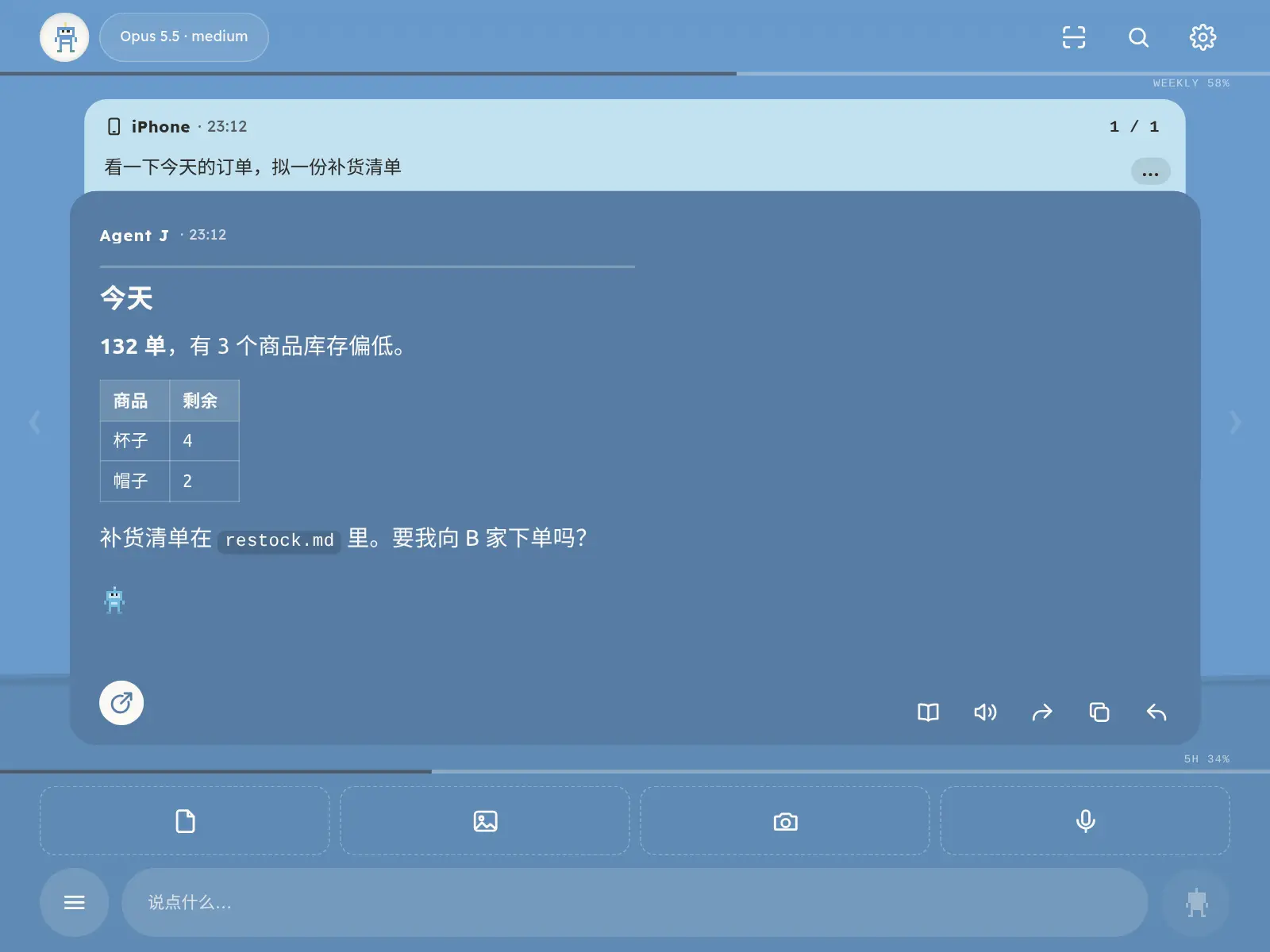
配对好以后,整个屏幕的颜色就是 Agent 现在的状态,不用细看字:
| 颜色 | 意思 |
|---|---|
| 绿色 | 等你下一句 |
| 蓝色,顶上有一道光在跑 | 正在工作 |
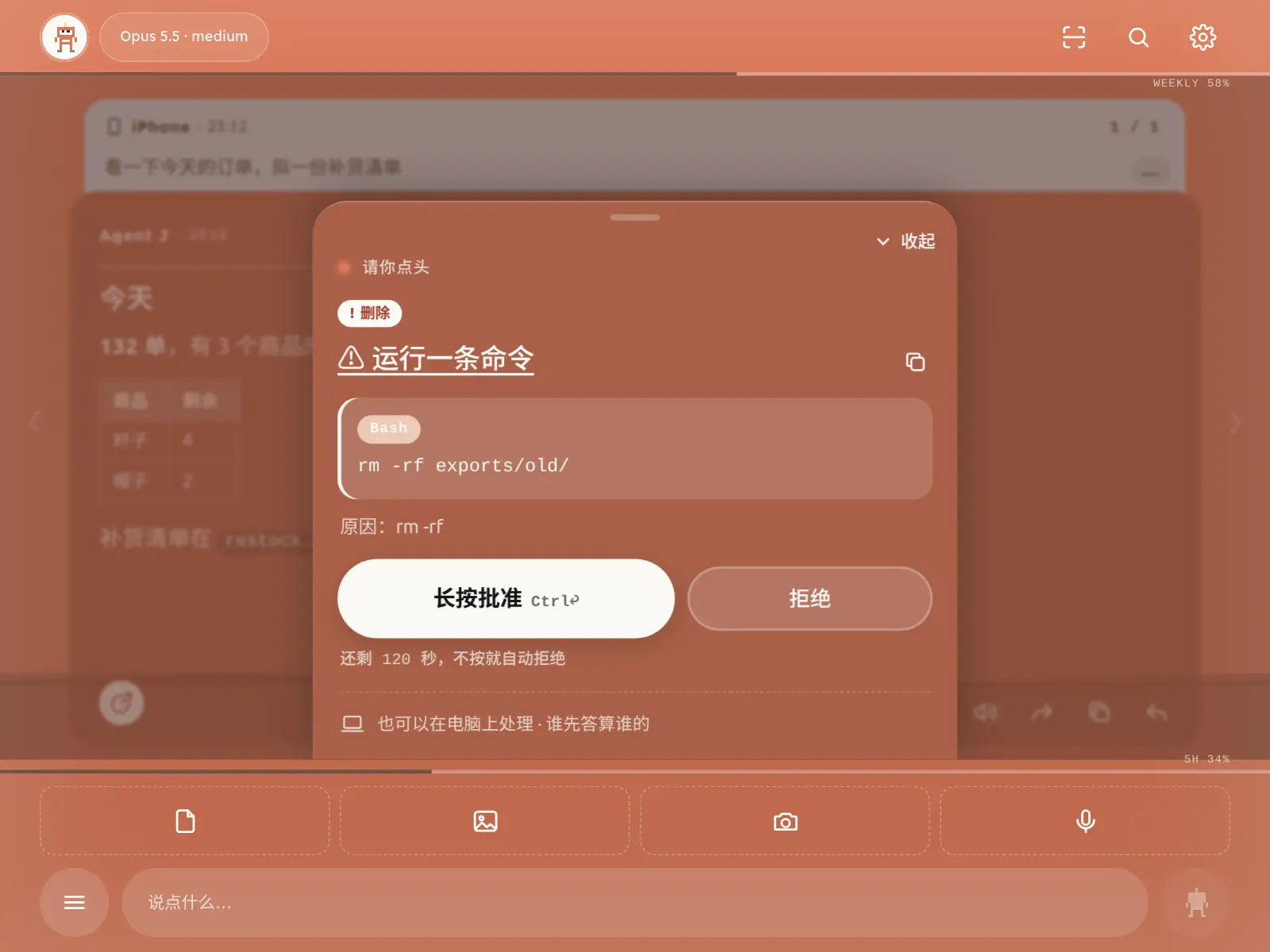
| 橙色,边缘一明一暗 | 有一个操作等你批准 |
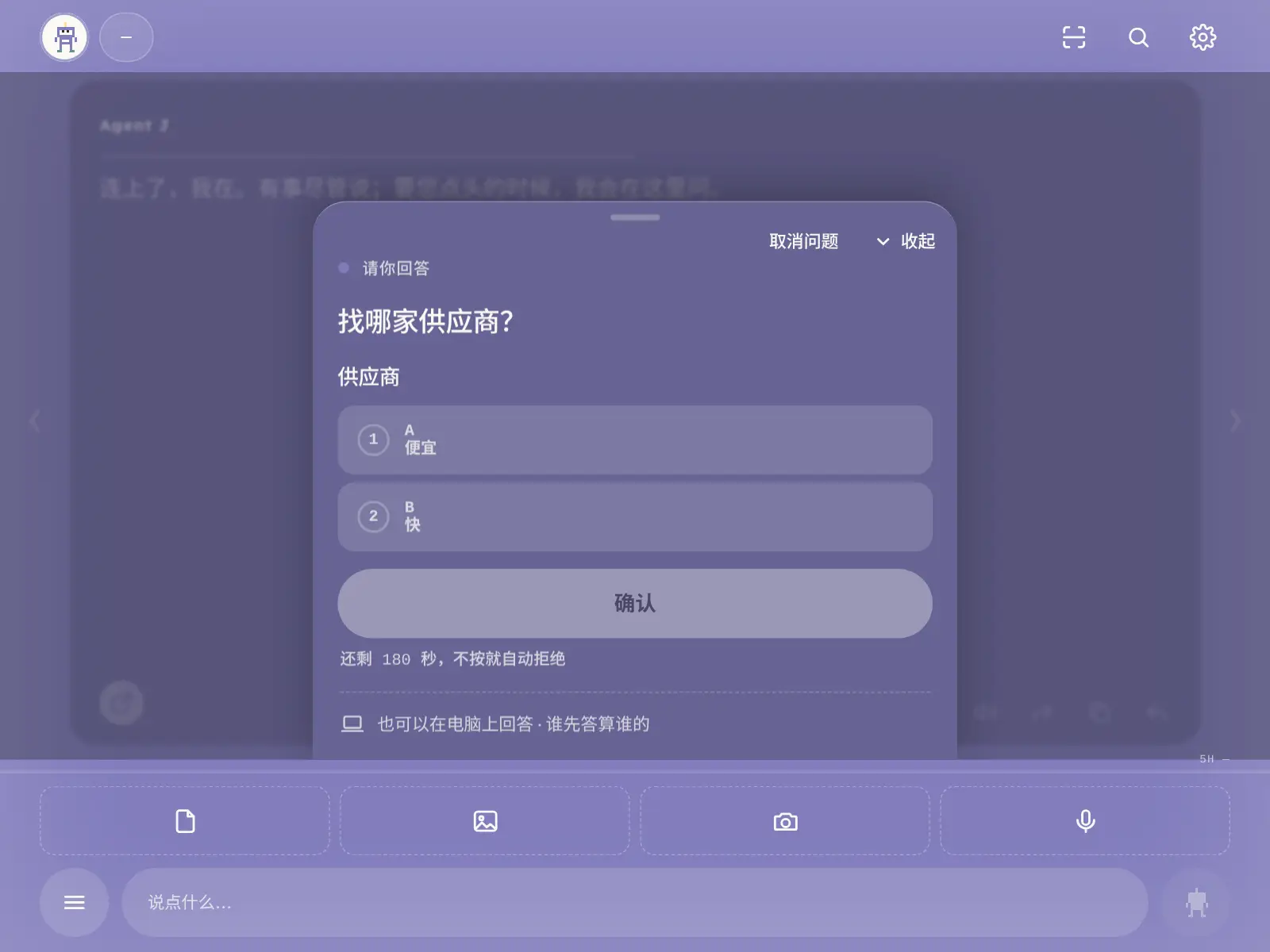
| 紫色 | 有一个问题等你回答 |
| 灰色 | 没连上电脑,或者已经全部停下 |
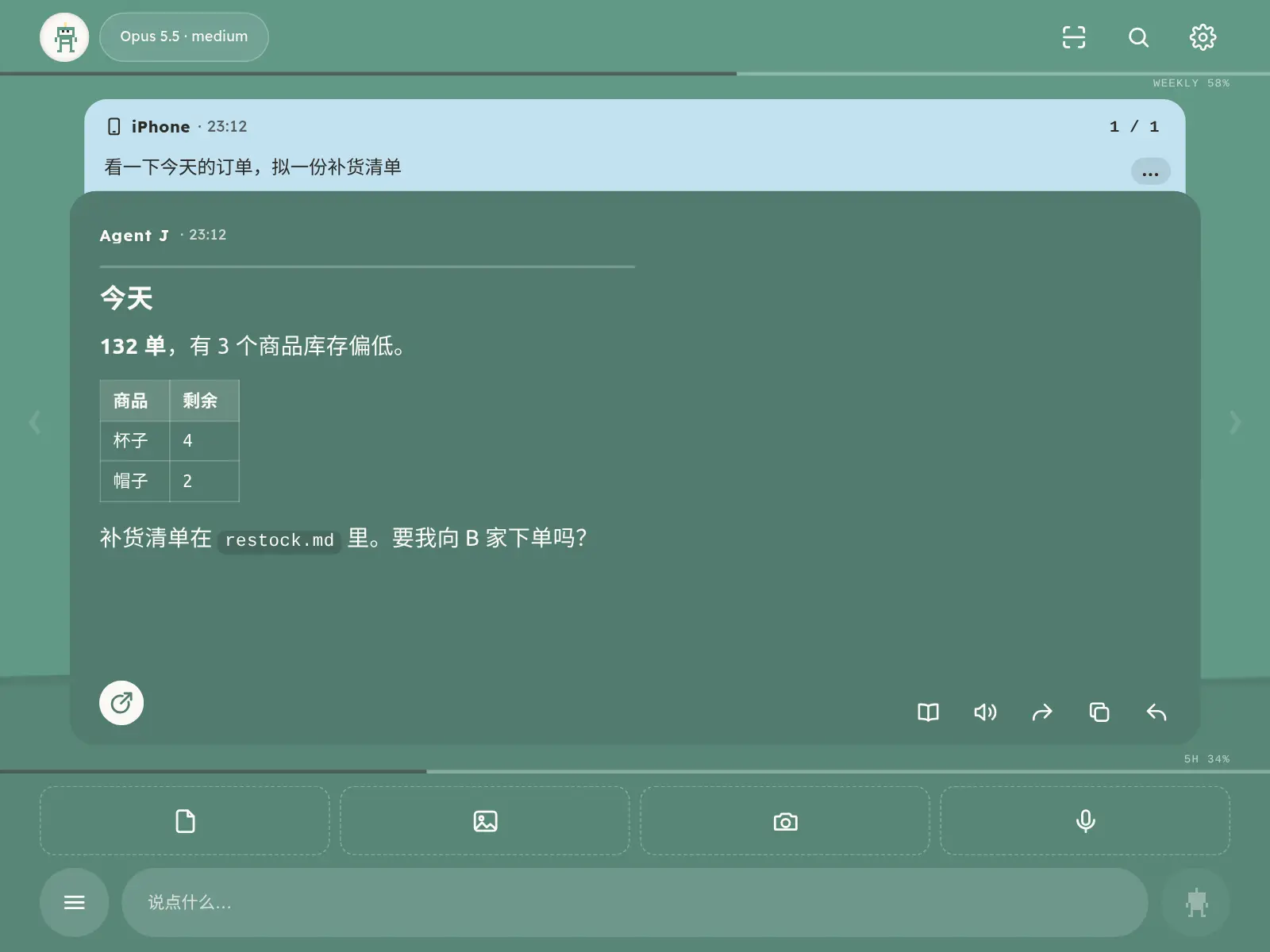
- 顶部和输入框上方各有一条细线,分别显示 AI 账号的「本周额度」和「5 小时额度」。线越长,用得越多。
- 背景里慢慢升高的水位,代表这段对话占了多少上下文(Agent 一次能记住的内容)。快满时,在 ≡ 菜单里点
/compact压缩一下。 - 顶部显示当前用的模型和思考强度。点一下切换下一个,按住恢复默认。连着点只会改显示:某一半停手 5 秒不再点,才真正切换(等待时这一半会变淡,下方有条细线逐渐缩短);点回原来的选项则什么都不发送。按住恢复默认、输入
/model 名字都会立刻生效。OpenCode 会列出电脑上已配置的服务商和模型;也可以在菜单里的「模型和 API Key」中切换模型或更换 Key。如果 Key 失效或缺少,手机会自动弹出对应服务商的密钥卡。请只在卡里粘贴,不要发到聊天框。 - 左上角图标:点一下调整字号(中 → 大 → 中 → 小),按住跳到第一条未读(没有未读时提示「没有未读」)。设置好的字号只记在这台手机上,刷新页面或从主屏幕重新打开都不会变。
点一下这两条线会弹出「用量」卡。本周额度后面的括号里写着现在是 7 天重置周期里的第几天;卡里还有一条「重置周期」,写着还有多久重置、几点重置,以及按现在的速度到重置时大概用到多少。数字平时不发光:本周额度用得比平均速度(每天约 14%)快时,会微微发一点蓝光;本周或 5 小时额度用到 80% 以上发淡橙色的光,90% 以上发橙红色的光,说明余量紧张了。拿不到重置时间的服务商不显示第几天。
一条消息一页,左右滑着看
每一页上面是你说的话,下面是 Agent 的回复。手机上只给你看结果,不刷它中间调了哪些工具、跑了哪些命令。
- 往右滑看更早的,往左滑看更新的。双击回复就是「全屏阅读」。
- 回复下面有几个按钮:「朗读这一条」(用手机自己的语音读,文字不发给别人)、「分享这一条」(走手机自带的分享)、复制,还有回复这一条。
- 在回复里选中一段文字,就会引用这一段来回复,同时复制下来。
- 页面上还会写明这条是谁发的:你、另一台设备、电脑、定时任务、命令,或者是一条「提示」。
- 对话记录存在你的电脑上,换一部手机、关掉再打开,都还能翻到。不想在电脑上留:在电脑上运行
agentj config history off。
模型额度和上下文
OpenCode 顶栏会显示当前用的服务商和模型。如果服务商支持查套餐用量,手机上就能看到 5 小时、周、日或月的额度,标签跟着实际周期变:Kimi Code 会员、智谱 GLM Coding Plan、MiniMax Coding Plan 都能读到;火山方舟和阿里百炼的 Coding Plan 没有拿 API Key 就能查的用量接口。查不到时两条额度线照样留着,只是不显示文字。顶栏下面的细线,显示这段对话用了多少上下文,以及模型的上限是多少。语言在设置里选一次就行,错误提示和 Agent 的下一条回复都会用你选的语言。
发消息、图片和文件
- 打字,按回车或点发送。Agent 还没收到之前,可以点「取消」撤回,文字会放回输入框。
- 输入框上方三个按钮:「文件」「相册」「拍照」。也可以直接粘贴图片;在电脑浏览器里,把文件拖进来就行。
- 打字,按回车或点发送。Agent 收到前可以点「取消」撤回,文字会回到输入框。
- 输入框上方有「文件」「相册」「拍照」三个按钮。也可以直接粘贴图片;电脑浏览器里,把文件拖进来就行。
- 一次最多发 10 个附件,每个不超过 200 MB,什么类型的文件都行。录音和视频会在电脑上转成文字,原件一起交给 Agent。太长的文字粘进来会自动变成附件。
- 在电脑的 Chrome 或 Edge 里,可以在「设置」打开「截图自动进附件」:用截到剪贴板的方式截图(比如 Windows 的 Win+Shift+S),回到这个页面,截图就自动进附件,等你点发送。手机浏览器做不到,因为网页感知不到手机截屏;手机上截完图点「相册」选它就行。
- 附件和文字一样加密,直接送到你的电脑,放在 Agent 的工作文件夹里,30 天后自动清掉。
- 没网也能发:消息先加密存在手机上,页面显示「网络恢复后自动发送」,网一通就按顺序发出去。
- Agent 回复里提到的图片、音视频、PDF、网页和文件,会直接显示在回复里;代码、公式和流程图也会排好版。见 使用说明。
说话:按住说,松开变成文字
- 按住麦克风按钮开始说,松开就转成文字放进输入框,你看一眼再发。说一半想算了,手指明显滑出按钮(离开约 80 像素,或往上滑过一个按钮高)再松手就取消;手抖不算。
- 要说很久:双击锁定,松开手也一直录,再点一下结束。长的录音会作为语音附件发过去,到电脑上再转成文字。
- 长录音(开会、讲课):锁定后最长能录 200 分钟。每满 20 分钟自动切成一段,这一段马上放进附件栏、在后台上传,录音不停;录音卡上显示现在是第几段、最长能录多久。结束后所有段按顺序作为一组附件发出。20 分钟一段大约 7 MB,200 分钟大约 70 MB。
- 录到一半刷新了页面、浏览器崩了、断网了,都不会白录:每隔几秒就把刚录的加密存在手机上,下次打开页面会问你要放回附件栏还是丢弃。发出去以后,手机上的这份就删掉。
- 锁屏会打断录音:iPhone(Safari 和主屏幕 App)锁屏或切到别的 App,麦克风就被系统停掉;安卓不同机型行为不一样。所以录音时页面会尽量让屏幕常亮(iOS 18.4 及以上、安卓 Chrome 支持),请不要按电源键。万一被打断,已经录下的部分会放进附件栏,不会丢;想接着录,再按一次麦克风,新录的会接在后面。
- 录音卡:不管是按住说、双击锁定还是长录音,屏幕正中都是同一张深色圆形录音卡,麦克风外圈跟着你的音量跳动。录音时(按住说和锁定都一样),录音卡后面的整个页面连同顶部小字都会变模糊,颜色跟着当前状态走(绿色就是绿色的模糊,蓝色就是蓝色的模糊)。锁定后圆卡下面只有三个按钮:左边 ✕ 取消(这次录的全部擦掉,按 Esc 也一样)、中间 ■ 停止(文字放进输入框,长的放进附件栏,你看过再发)、右边 ➤ 停止并发送(一步结束并直接发出去,不用再点发送)。原来的手势照样能用。
- 哪段可能没录上,会告诉你:安卓手机熄屏太久或按了电源键,有的机型会让麦克风只送来一片静音(系统限制,网页没法绕开)。录音里出现这种静音,录完会提示哪一段没有声音、可能没录上(比如 0:07–0:30);回到页面时录音还在继续,也会马上提示;长录音的附件名后面也会标出可能缺的时段。
- 语音在你自己的电脑上转成文字,不经过我们,也不交给别的语音服务。
- 第一次用之前,电脑上需要一个语音模型,下载大约 180 MB。手机提示还没装时,可以直接点安装,等电脑装好后再录音;不会让你回电脑输命令。装不了也没关系,用手机输入法自带的听写,一样能说。
≡ 菜单和 / 命令
输入框左边的 ≡(「全部命令」)里有:
- 常用命令,点一下就执行:
/compact压缩上下文、/clear清空对话、/model看看能换哪些模型、/context上下文用了多少、/cost花费、/usage用量额度、/status状态、/stop中断当前这一轮。 - 「全部停下」,见下文。
- Agent 自己的技能,点一下插到输入框里。
- 「键盘快捷键」。
在输入框开头打 /,会弹出能用的命令,边打边筛。「开新对话」会先问你,发下一条消息前还能「撤销清空」。改设置类的命令要回电脑上做。
设置
点右上角的齿轮打开「设置」,它占满整个屏幕。在电脑浏览器里,也可以按 s,或者 ⌘, / Ctrl+,;按 Esc 或右上角的 ✕ 关掉。手机上是一列从上往下排,电脑宽屏上左边是分区目录,右边分两栏。以前右上角还有一个三条横线的菜单,现在它的内容都并进了「设置」:
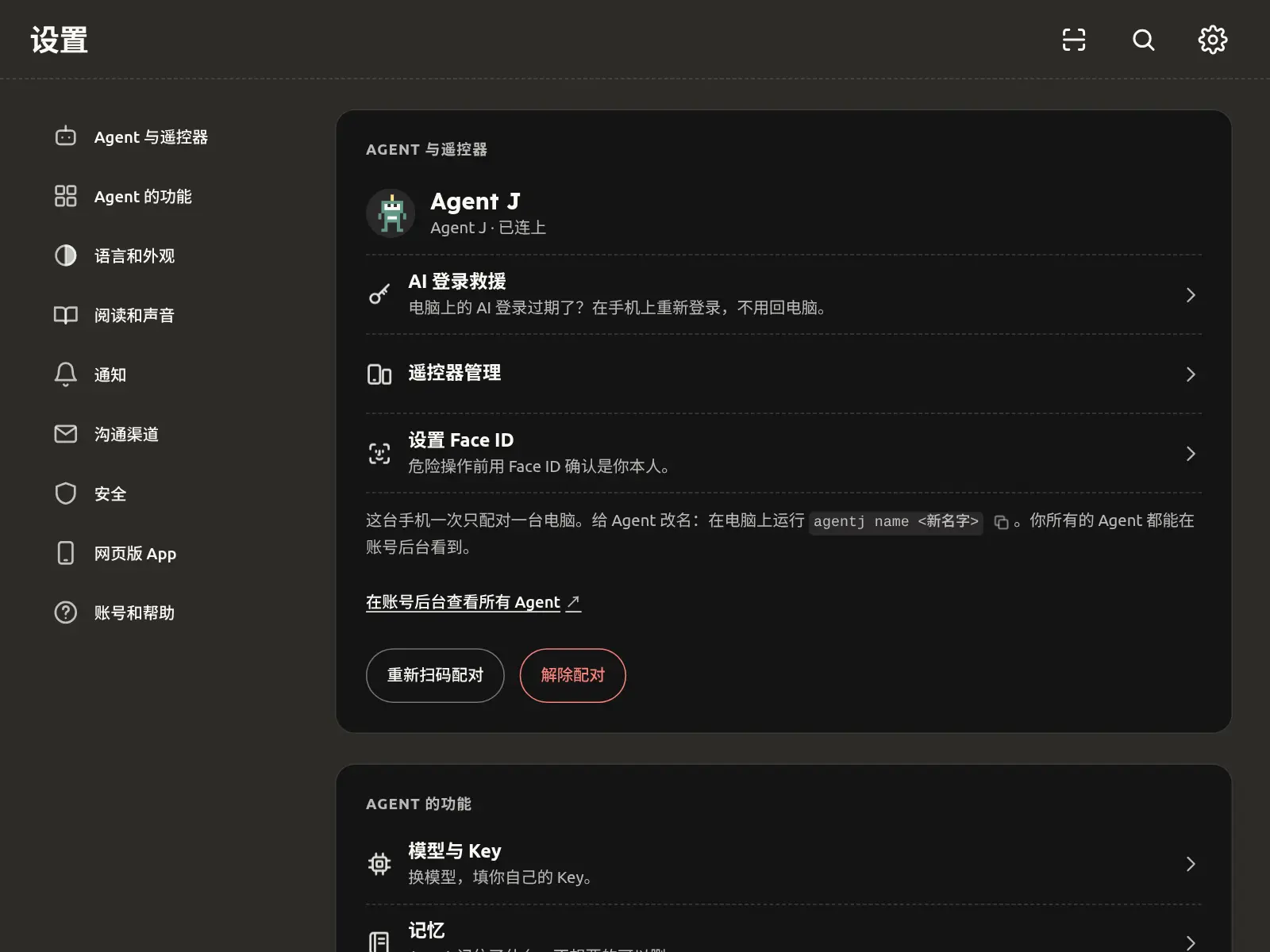
- 「Agent 与遥控器」:显示 Agent 名字、连接状态,还有「遥控器管理」(见下一节)、「设置 Face ID」、「重新扫码配对」和「解除配对」。
- 「Agent 的功能」:包括「模型和 API Key」「记忆」「记录」「定时任务」「好友」「Bots / 客服」「首次准备清单」,点一下就能进对应页面。
- 「语言和外观」:「语言」只有一个设置项,手机界面、发给你的邮件、Agent J 跟你说话,全用它;改完电脑和账号后台会自动同步。「语言」左边中文、右边 English,中间有个小拨动开关,拨到哪边就是哪种语言。「外观」一行三个选项:跟随系统、浅色、深色,点哪个选哪个。
- 「阅读和声音」:「回复字号」范围 80% 到 160%,只改回复卡片里的字,只记在这台手机上;下面标着「预览」的灰框是示范,按 − / + 马上能看到大小。「提示音音量」是发消息时响的那一声,它跟着手机的媒体音量走,跟铃声音量无关,所以调低铃声没用,要在这里调;默认 15%,拉到最左就是静音,「试听」可以听一下。更快的办法:输入框空着时,按住灰色的发送按钮(电脑上用鼠标按住),它上面会长出一根音量条,手指不松开往上滑变大、往下滑变小,松手就定了;电脑上也可以用 ↑ / ↓ 调,Esc 收起。还有「自动朗读」「语音唤起」,电脑浏览器上还有「截图自动进附件」。
- 「沟通渠道」:「邮件通道」(见用邮件指挥 Agent J),「通讯录」(朋友的邮箱和电话,可以一键加进邮件白名单,见通讯录),「我的联系方式」。
- 「通知」:「锁屏提醒」。
- 「安全」:「高风险提醒」(默认关)、「会话模式」(左边「独立会话」、右边「共享会话」,中间拨动开关,默认独立)、「隔离运行」、「允许使用 Docker」(默认关)。「隔离运行」只管 Agent J 自己启动的 Agent,也就是独立会话和定时任务:它们看不到 Agent J 的密钥和配对数据;用共享会话时,电脑上已经开着的那个会话不受它影响,设置里会有一行提示。「允许使用 Docker」依附于隔离运行,隔离运行关掉时它会变灰、不生效。隔离和 Docker 改了以后,下次启动 Agent 时生效。还有「这个网页版有多安全」。
- 「网页版 App」:「升级方式」(左边「自动」:有新版就等电脑闲下来再升级;右边「先问我」:只告诉你、由你决定;中间拨动开关;紧急安全修复总是马上升级,见 官方通知),「升级电脑上的 Agent J」(先列出会被打断的事再让你确认,见下面的一键升级一节),网页版和电脑端程序的版本号,「更新并刷新」(网页版升级以后点它拉取新版本、重新打开),「添加到主屏幕」,「键盘快捷键」。
- 「账号和帮助」:「账号和订阅」「邀请与积分」「帮助和反馈」,以及数据安全、隐私、条款。
改设置时,手机得连着电脑。如果电脑上的程序版本太旧,有些设置没法从手机改,会显示一条命令,让你去电脑上运行;命令旁边的复制图标一点就复制。
遥控器管理
在「设置」→「Agent 与遥控器」里点「遥控器管理」,进入单独的一页:
- 上面是「已用 N / 10」:每个 Agent 最多 10 台遥控器(手机、平板,或者电脑上的浏览器)。满了以后再添加,会自动解绑最久没用的那台(离线的先走)。
- 「已绑定的遥控器」列出每一台:名字、在线还是离线、什么时候配对的、最近什么时候用过、是怎么加进来的,还有设备标识。你正拿着的这台标着「这台」。
- 「改名」:直接在这一行里改,点「保存」。
- 「解绑」:会先问你一次。被解绑的那台马上断开,要再用得重新配对。解绑「这台」,等于这台手机也忘掉这台电脑。
- 「添加遥控器」(它右边的扫码图标是反过来扫新设备上的码,见下一节):页面上会出现一个二维码和「复制配对链接」,5 分钟内有效,只能用一次。用新手机的相机扫码(或者在另一台电脑的浏览器里打开链接),新设备上会出现 6 位安全码,在这里输入这 6 位数字,点「批准」。只能输一次,输错这次配对就作废,重新生成一个再来。
每次添加或解绑,所有遥控器都会收到一条提醒,锁屏提醒也会响一下。不想让手机添加遥控器,在电脑上运行 agentj remote-pair off(这也会关掉从账号后台添加)。电脑上的程序版本太旧时,这一页只能看列表,要添加、改名或解绑,就在电脑上运行 agentj pair、agentj devices 或 agentj revoke <设备>。
被扫码配对:新设备亮码,已配对的手机来扫
像微信付款一样,可以扫别人的码,也可以让别人扫你的码。新设备(比如另一台电脑上的浏览器、一台平板)打开 m.agentj.app,配对页「方法一」那张卡片里就有一个二维码,标题是「用已经配好的遥控器,扫这台设备上的码」。
- 拿起已经配对好的手机,打开 Agent J,点右上角的扫码图标(或者在「设置」→「遥控器管理」里点「添加遥控器」右边的扫码图标,或者按住输入区的拍照按钮)。
- 扫新设备上的码。手机上会弹出一张卡片「把这台设备加为遥控器?」,写着新设备自己报的名字(没有核实过),还有一个 6 位数。
- 新设备的屏幕上也会显示 6 位数。两边一样,就在手机上点「一致,加为遥控器」;不一样就点「不一致,取消」。
- 新设备会自动连上电脑,进入对话。电脑上不用输入任何东西。
- 只扫你自己眼前那台设备上的码。别人发给你的码、网页上让你扫码登录的码,都不要扫。
- 码 5 分钟后自动换新,只能用一次;过期的、扫过的、格式不对的码,手机会直接拒绝。
- 满 10 台时照样能加,卡片上会写明会自动解绑哪一台。
- 手机上提示「那台设备已经收到了另一份配对」,说明有人抢先给它发了配对:别在那台设备上继续,刷新它的页面重新开始。
- 电脑上的程序要 0.20.0 或更新的版本;旧版本会提示先升级。
agentj remote-pair off也会关掉这个方式。
扫到的不是配对码时,内容会原样放进输入框(网址也不会自动打开),你看过再决定发不发。扫到电脑的配对码,不会放进对话。
官方通知和管理员卡片
我们发来的官方通知(新版本、安全修复等)在对话里单独占一页,开头标着 Agent J 官方,见 官方通知。
Agent 要管理员密码或 API key 时,手机会弹出「需要管理员权限」或「需要一个密钥」的卡片。直接在卡片上输入就行。内容加密后传给电脑,Agent 看不到。详见 手机上完成管理员授权和密钥录入。
需要你点头的时候
需要你点头的环节,它会在手机上弹窗问你:屏幕变成橙色,下面升起一张卡片,标题是「请你点头」,写着它要做什么。
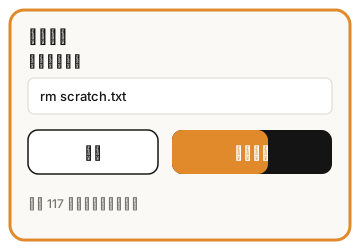
- 同意要按住「长按批准」,大约一秒,等按钮填满再松手。只点一下不算,免得误触。这个按钮在最前面:手机上在上面,电脑上在左边。
- 不同意就点「拒绝」(手机上在下面,电脑上在右边)。
- 按完卡片马上收起,不用等电脑回话。万一没送到电脑,或者电脑那边已经超时,卡片会再弹出来告诉你。
- 命令很长时只显示两行,按钮不会被挤到下面。想看全部点「展开全部」;标题右边的复制按钮会复制完整的命令,可以贴到别处看。
- Agent 没写这条命令是干什么的,命令上方会补一句大白话,比如「删除文件或文件夹」「把代码推送到远端仓库」「把文件复制到另一台电脑」。命令本身始终照原样显示。
- 2 分钟内没处理,就算拒绝。 卡片上有倒计时。你的遥控器全都不在线时例外:卡片会留 30 分钟,见下面的遥控器都不在线时。
- 先不想管,可以点「收起」,请求还在等你。电脑上也能处理,谁先答算谁的。
- Agent 派出去的子 Agent(主对话已经回完、它还在后台干活也一样)要你点头时,也照样弹卡;卡片最后一行写着是哪个(「来自子 Agent:……」),在你或电脑答复之前一直留着。
- 打开了「高风险提醒」时,花钱、删除、对外发送、改密码或密钥、改价格,这五类事每一次都要你亲自点头:卡片上标着 ⚠,「原因:…」写明为什么。按钮还是「长按批准」,每次只批这一条。
- 别的操作,卡片上会多一个「长按:批准,并在这一轮里自动批准同类低风险操作」。按钮下面写着「同类」指什么、最多几次。这一轮对话结束就失效,随时可以点「收回授权」。上面那五类事永远不会被一起批准。
手机在后台待过、断过网,或者刚打开时,会先向电脑要一份还在等你的卡片清单:漏掉的审批卡、问题卡、密钥卡、sudo 卡、联系人卡会补上来;已经在别的遥控器上处理过的会自己收起;你不在时超时的,卡片上写「已过期」。这份清单只给已配对、能批准的手机,而且要用这台手机的批准密钥签名来要。
哪些事会问你?先看你自己在 AI 编程工具里的设置。Claude Code 本来就会问你的,现在改到手机上问。「设置」里的「高风险提醒」默认是关的;打开以后多两条加严:上面那五类事,就算你在 AI 编程工具里放行过,也照样要在手机上批;用 OpenCode 或 Codex 时,除了读文件这类只读操作,每一步都会先问手机。你在设置里禁止的事,手机上也批不了。用 Codex 时还有一种情况,见 常见问题。
共享会话里,「改密码或密钥」只在真的改了密码或密钥文件时才问你(写入、替换、删除,gh auth、aws configure、ssh-keygen、passwd 等);「查看密码或密钥」在要把它显示到屏幕上时问你(cat .env、grep KEY .env、head ~/.ssh/id_ed25519 等),因为共享会话的内容会到你手机上。程序按名字读取 .env 但不显示出来,或者笔记、提交说明里只是提到 .env,都不再弹窗。想用原来更严的规则,在电脑上运行 agentj config approvals strict,agentj config approvals standard 改回来。花钱、对外发送、公开删除的规则两种都一样。审批卡片跟随你的语言设置,只显示中文或只显示英文。
0.20.0 及以前,共享会话只有打开可选的额外提醒(agent.high_risk_warnings)才会为这五类动作问你,和本页的说法不符;从 0.20.1 起默认就会问(你自己启动的 OpenCode 服务器上,仍要打开这个设置才问)。共享会话里只想用 AI 编程工具自己的权限提示,在电脑上运行 agentj config approvals native(改 Agent J 的钩子文件仍会问你);agentj config approvals standard 改回来。
只有真正危险的动作才弹卡。上面五类事要「明确命中」才算:git push、部署上线(wrangler deploy、vercel 等)、调付款或发消息的接口、删云上的数据、写进密码或密钥文件,这些一律弹卡。下面这些不弹:往普通文件里写东西(cat >> 笔记.md <<'EOF' … EOF 这类 heredoc,正文里写了「deploy」「git push」「密钥」这些字也不算,只看它写到哪个文件);python3 - <<'EOF' 这类改文件的小脚本;--dry-run、list、status 这类演练或只读命令(真正的 deploy 照样弹);systemctl --user、systemd-run --user 起停你自己派的后台任务;for … sleep … done 这样的等待轮询。heredoc 正文交给 shell 执行的(bash <<EOF、cat <<EOF | sh、先写成脚本再运行),或者正文里用 $( ) 执行命令的,照样按命令判。
看不清的命令(比如程序名写成 $PY 这样的变量)原来一律弹「看不清要做什么」。在电脑上配好 Jev(OPENROUTER_API_KEY)以后,Agent J 会先把你最近的原话、Agent 这一回合说要做的事和这条命令交给 Jev,问它是否与任务一致:概率不低于「设置」里的「Jev 判断阈值」(默认 0.70,可在 0.50–0.95 之间调)就直接放行,「记录」里写着「Jev 放行」和原因;不够、超时或出错就照常弹卡。阈值只影响这类看不清的命令,上面五类明确危险的动作不受影响,Jev 放行不了;编码或拼接后执行的命令(curl … | sh、base64 -d | bash)也不交给 Jev,照样弹卡。嫌弹窗多,可以跟 Agent 说「弹窗太多了」,它会解释一句并运行 agentj config set approval.jev_threshold 0.6,手机上会弹一张确认卡。
审批档位:安全、中等、全放行
在「设置 → 安全」的「审批档位」里选一档,决定 Agent 什么时候来问你:
- 安全:多问几次——看不清的命令、批量批准、目标模式的倒计时都改成等你点。最稳,但卡片最多。
- 中等(默认):只在花钱、删除、对外发送、改密码或密钥、改价时问你。和以前一样。
- 全放行:像 Claude Code 的
--dangerously-skip-permissions,几乎不弹卡,全部记进记录。疑似被攻击、动密码或密钥、花钱这几类仍然问你。
选「安全」时具体多了这些:看不清的命令不交给 Jev,一律弹卡;卡片上不再有「长按:批准,并在这一轮里自动批准同类低风险操作」;目标模式里电脑能撤回的步骤不再 10 秒倒计时,改成普通卡等你点;共享会话按 agentj config approvals strict 那样更严,删除任何文件(包括电脑上的文件)也要问你。
选「全放行」时,本来要弹卡的 Agent 操作直接执行,每一条都记进「记录」,手机上只出一行小字。删除、推送、部署、发消息这些不再问你,请想清楚再选。下面这些仍然一条一条问你:
- 疑似被攻击:
curl … | sh、先解码再执行的命令、下载后直接运行(eval "$(curl …)",或者先下载一个脚本再马上运行它)、改 Agent J 的钩子或审批文件、agentj config …、动 Agent J 自己的设置或状态文件夹; - 改密码或密钥,把它们显示到屏幕上,或者把它们发出去(比如
cat ~/.aws/credentials | curl -d @-、env | curl …)——命令里只要碰到密码或密钥文件就会问; - 花钱、改价。
Agent J 自己的卡片也照常弹:配对新遥控器、不隔离运行、AI 登录救援,以及 Agent J 自己的命令(比如通过 Agent J 发邮件、开始一个目标)。Agent 问你的选择题、OpenCode 提醒它可能在原地打转的卡和子任务卡也照常弹。Codex 要跳出沙箱或联网的请求,全放行时直接批准,和 Codex 自己的完全访问一样。全放行要至少有一部已配对、能批准的遥控器。
档位只能在已配对的手机上切换,Agent 自己改不了。每次切换,手机都会用它的批准密钥签名,电脑核对无误后立刻生效。改成「全放行」时,如果这部手机设了通行密钥,还要再过一次 Face ID;改回「中等」「安全」不用。选「全放行」前会先弹一张确认单,写清哪些事仍然问你,并说明从现在起 Agent 做的所有事(包括定时任务)都按这一档,直到你改回来。切换以后,每个遥控器上都会出现一行通知,写明改成了哪一档、由哪部手机确认,同时发一条锁屏提醒。Agent 在电脑上运行 agentj config set approval.level full,不会直接生效,只会在你手机上弹一张确认卡。在电脑上直接把配置文件改成全放行也不算数:只要没有手机的签名,就按「中等」处理,并提醒你一次。
遥控器都不在线时
Agent 要你点头,可是你所有已配对的遥控器都没打开 Agent J(页面关着,或者在后台断开了)。这时:
- 卡片照常发出,锁屏提醒照常发。你一打开 Agent J,卡片就在那里。
- 你接了 Telegram 并开着转发,或者设好了邮箱,Agent J 还会给你的 Telegram 私聊和你自己的邮箱各发一句提醒:有几张审批卡在等你、你的遥控器都不在线、打开手机上的 Agent J 就能处理。提醒里不写卡片内容,15 分钟最多发一次。
- 等了 20 秒还是没人在线,Agent 就会知道你不在。它先去做不依赖这一步的活,不会干等。
- 卡片在你手机上留 30 分钟。这期间你批准了,Agent 会收到一条系统提示,再做同一步时直接执行;你拒绝了,它就不再做。30 分钟没处理,卡片过期。
- 你还没上线时 Agent 又试了同一步,不会再弹第二张卡。
- 你的批准只放行原来那个请求方:同一个主对话或同一个定时任务、同一个 AI 编程工具、同一个文件夹。点「全部停下」,没用掉的批准一起作废。
在这之前,遥控器都不在线时卡片 2 分钟后就算拒绝,Agent 一直卡在那里等,也没有 Telegram 或邮件提醒。
目标模式:交代一次,睡觉时也能做完(/goal)
在 ≡ 菜单里点 /goal,接着写要做成什么、什么时候前做完,例如「/goal 今晚把报告改完发给王总,明早 8 点前」。Agent 会先发来一张「开工授权卡」:目标、验收标准、截止时间,以及它预计要用到的危险动作,按类逐项列出并带上限,例如「推送到 GitHub 仓库 X」「部署到 agentj.app」「花钱:只买一个域名」「发邮件:只发给王总」「删除:仅 worktree 和临时文件」。你长按批准一次,就是签了名:目标期内这些动作不再弹卡,每一条都记进「记录」。卡上没列的不算授权;改密码或密钥永远不能预先批准。
目标期内,审批由电脑判断,不听 Agent 自己怎么说:授权范围内的直接做;范围外、但电脑能撤回的(git 里有提交且没有未提交的改动、移到回收站、推到这个仓库已有的远端、用 scp 或 rsync 往你 ~/.ssh/config 里起过名字的机器上传一个那边还没有的新文件)弹一张 10 秒倒计时卡,卡上写着「目标模式:10 秒后自动批准」,你不点就算同意,点「拒绝」就取消;撤不回的(部署、付款、新的收件人、新的仓库、强制推送、改凭据、覆盖远端机器上已有的文件)照常弹卡,不会自动批准,这一步先放着,其他不依赖它的活照做,结束时在结果卡里列出「卡在这里,等你决定」;看起来像注入或攻击的(curl … | sh、base64 -d | bash、改钩子或审批设置)一律标红弹卡,不会自动批准。
等你决定的卡和结果卡都用大白话写:谁(比如 Codex)想做什么、为什么没自动批准、不点会怎样、怎么批准。到时间没批,这一步就跳过,结果卡上写「已跳过这一步,其余照做」;想补批,回复「允许第 N 件」,Agent 会重做这一步,再弹一张卡给你批。原始命令收在「详情」里,点开才看到。
目标做到一半冒出计划里没写的活(比如去测试机上跑一遍),不用一步一张卡:在等你决定的卡上长按「批准,并加进目标授权」,这一步放行,之后同类的步骤也按授权直接做,最多 20 次,目标结束就作废。Agent 也可以用 agentj goal grant 申请追加一项授权,手机上只弹一张卡,你签了才算数。涉及花钱、密码或密钥的卡没有这个按钮。
目标默认 8 小时,最长 72 小时,或者到你写的截止时间为止;到期自动回到平常的审批。/goal status 看进度,/goal stop 立刻结束,一次性授权随之撤销,之后同样的命令又会弹卡。点「全部停下」或者解绑签名的那台手机,也会结束目标。Agent 每做完一段会发一句进度;结束时发一张结果卡:达成还是没达成、用了哪些授权、自动批准了几次、还有哪些事等你决定。公司或团队用的话,可以在「设置 → 安全」关掉「目标模式 10 秒自动批准」,关掉后倒计时卡只会等人点。审批档位选「安全」时也没有倒计时。
「设置 → 安全」里还有一个开关「设了目标就不弹窗」,默认关:
- 关(默认):
/goal开工前先弹一张总卡,你签一次,目标里就按授权去做。 - 开:设了目标就直接开工、过程中不弹卡(仍全部记录,最后照样出结果卡);疑似被攻击、动密码或密钥、花钱仍然问你。只认打开它的这台手机。
不弹总卡只限你自己发的 /goal:Agent 在 30 分钟内交上来的那一份目标。目标里要花钱或改价的,照样先弹总卡给你看。关掉开关,没弹总卡就开始的目标会马上结束。
打开它和切换审批档位一样,要在已配对的手机上签名确认(这部手机设了通行密钥的,还要过一次 Face ID),Agent 自己打不开。打开它的那部手机被解绑或重新配对以后,开关就不算数了,/goal 又会先弹总卡;在电脑上直接改配置打开的,也不算数。
它问你问题的时候
Agent 有时会让你选一个答案。屏幕变成紫色,卡片标题是「回答一个问题」:点选你要的,再点「确认」。几个选项都不合适,就点「取消问题」,然后直接打字回答。
全部停下
在 ≡ 里点「全部停下」,再点「确定,全部停下」:
- 它正在做的事马上中断;
- 所有等你批准的请求都拒绝;
- 批量授权全部收回;
- 定时任务全部暂停。
页面上方会显示「已全部停下」。之后它不再接新消息,直到你点「恢复」,或者在电脑上运行 agentj resume(要输遥控器配对密码)。电脑重启后也还是停着的。
记忆、记录、定时任务
在「设置」→「Agent 的功能」里:
- 模型和 API Key:最上面选模型;下面是「基座模型」(每个服务商一张卡,列出订阅和按量的 Key,以及 Claude / Codex 的登录状态)和「第三方 API Key」(电脑上的其他 Key,点 + 添加)。填好的一行只显示 •••• 加最后 4 位,右边是拷贝、修改、删除;没填的只有 +。拷贝和删除要先过 Face ID,拷贝时值直接进剪贴板,不显示出来。每次拷贝、修改、删除都有记录,Agent 看不到 Key。装好以后在这里把 Key 填好,就可以离开终端了。
- 记忆(页面标题「它记住了什么」):Agent 每次开工都会读的记忆,一条一条列出来。可以删,删了 7 天内可以撤销。
- 记录(页面标题「操作和审批记录」):它最近做了什么:每轮对话、每次请求批准、谁批准了、谁拒绝了。最新的在上面。只存在你的电脑上,保留 30 天。
- 定时任务:上面是 Agent J 的定时任务,按时运行的工作流。在这里「启用」或「停用」;你让 Agent 开,它也能开。下面是「这台电脑上的其它定时任务」:电脑上原本就有的定时任务,每次打开这一页自动读一遍(Linux 的 systemd 用户定时器和 crontab,Mac 的 LaunchAgents 和 crontab,Windows 的任务计划程序),列出名字、什么时间运行、下次和上次运行、状态。这一部分只能看,不能修改或删除;也不显示任务要执行的命令。
看完点「返回对话」。
首次准备清单
刚装好时,聊天上方可能有一条细横幅:「首次准备 3/12 · 继续」。它不会挡住聊天。点它打开独立的清单页:这些步骤在电脑上做,手机上看进度,卡住了直接在聊天里告诉 Agent。每一项都标明「在电脑上做」「在手机上点」「我来做」或「本版还不支持」;没通过的项会写明查到了什么、下一步点哪里。横幅右边的 ✕ 立即收起,之后不再自动弹出;在「设置」→「Agent 的功能」→「首次准备清单」里可以重新打开。详见离开电脑前,先把这些事一次做好。
在电脑浏览器里用
电脑上打开 https://m.agentj.app 也能用,还多了键盘快捷键。按 ?,或者在「设置」里点「键盘快捷键」。常用的几个:j / k 翻上一条、下一条,f 全屏阅读,r 回复这一条,按住 M 说话。
锁屏提醒
想锁屏时也知道它回话了:在「设置」→「通知」→「锁屏提醒」里点「开启」,浏览器问你是否允许通知时,选允许。打开后会显示「已开启,提醒里不含聊天内容。」
- 提醒里只有两句话:「有新回复」或「有一个请求等你批准」,不带具体内容。
- 你正看着这个页面时不会提醒,切走或锁屏后才会。
- iPhone:必须先加到主屏幕,从主屏幕图标打开,才看得到「锁屏提醒」的「开启」按钮。系统要 iOS 16.4 或更新。在 Safari 里直接打开时,页面会提示你先「分享」→「添加到主屏幕」。
- 安卓:提醒是通过 Google 的推送服务送来的。没有 Google 服务的手机(在中国大陆买的很多华为、小米等手机就是这样)一般收不到锁屏提醒,页面可能提示「没开成:这个浏览器不支持网页推送,或者连不上推送服务。」。聊天和审批不受影响,打开页面就能用。
- 页面提示「浏览器禁止了通知」:去手机的设置里,给这个网站或 Agent J 打开通知权限。
在中国大陆用
手机页面和转发服务器都在 Cloudflare 上,从大陆访问有时会慢,偶尔连不上,多试几次就好。iPhone 用 Safari,安卓手机有 Chrome 就用 Chrome。安卓收锁屏提醒的事见上一节。
断线了怎么办
| 你看到的 | 意思 | 怎么办 |
|---|---|---|
| 「电脑离线」「等电脑上线…」 | 电脑关机、睡眠、断网,或者后台程序没在运行 | 打开电脑,联网。在电脑上运行 agentj service status 看看服务在不在运行。电脑开着的话,点卡片上的「紧急修复」,从 ①「重置连接」开始(详见) |
| 「电脑上的 Agent J 没响应,救援守护在线」 | 电脑上的 Agent J 卡死或停了,由一个小小的救援守护替它接手机 | 点横幅上的「紧急修复」,先试 ①「重置连接」;不行再试 ②「请 Agent J Father 远程帮忙」 |
| 「连接断了,N 秒后重连…」 | 网络不稳,几秒内没连上,它会自己重连(一两秒的抖动会悄悄连回,不显示) | 等一会儿;手机切回这个页面时也会立刻重连 |
| 对话下方一行「Telegram 暂时连不上,这个页面照常可用。」 | 电脑上的 Telegram 渠道连续几次连不上 Telegram | 不用管,手机照常用;恢复后这行自动消失 |
| 「连接断开了」页面,按钮「重新连接」或「重试」 | 连接出了问题 | 点按钮。还不行,关掉页面重新打开 |
| 「这台手机已被电脑移除」 | 这部手机在电脑上被解绑了 | 点「重新配对」,在电脑上运行 agentj pair 再配一次 |
| 「另一边接管了」 | 主屏幕 App、另一浏览器或新设备接管了连接 | 从刚才连接的主屏幕图标或浏览器继续使用,不需要再用 Face ID 认回 |
| 「这个浏览器清掉了本机保存的配对数据……」 | 浏览器把这个网页存的数据删了(比如关掉了无痕标签页,或者清理了网站数据)。电脑没有移除这部手机 | 在电脑上运行 agentj pair 再配一次。同一个浏览器重新配对会替换旧记录,不多占名额 |
| 「还没配对」 | 这个浏览器或图标还没配对过 | 按上面的步骤配对 |
| 「链接无效或已过期。请在电脑上重新运行 agentj pair」 | 配对链接用过了或者超过了 5 分钟 | 在电脑上重新运行 agentj pair(iPhone 用 agentj pair --link) |
| 「这个浏览器不支持需要的加密算法。换最新版 Chrome、Safari 或 Firefox 再试。」 | 浏览器太旧 | 换最新版的 Safari 或 Chrome |
| 「没法在这台手机上保存设备密钥(可能开了无痕模式)。换普通窗口再试。」 | 开着无痕或隐私模式 | 换普通窗口打开 |
更多问题见 常见问题。
一键升级
发送 /update、在 ≡ 菜单点「⬆ 升级 Agent J」,或者在「设置」→「网页版 App」点「升级电脑上的 Agent J」,就是授权安装、重启和自检。动手前电脑会先列出这次重启会打断的事:正在进行的回合、排队的消息、等你处理的卡片、在跑或 15 分钟内要跑的定时任务、后台任务、好友会话。没有就直接升级;有的话弹一张「现在升级会打断一些事」的卡,点「现在升级」才升,点「先不升」就算了。你跟 Agent 说「升级 Agent J」也一样:有要打断的事,它不会硬升,只在手机上给你出这张卡。菜单显示本机与最新版本,已是最新时置灰;升级中的断线属于正常重启,重连后会显示版本变化和 doctor 检查结果。失败时按提示在电脑运行 agentj update check 或 agentj doctor。
后台记录与锁屏重连
静默回合不占正常聊天页,在菜单的「查看静默记录」里只读查看;清空对话时同步清空。锁屏期间的临时断线不解除配对,回到前台会自动重连。若另一台遥控器已接管,按页面提示处理;不需要为普通断线反复扫码。
从另一台电脑给席位添加遥控器
目标电脑安装完成、绑定账号且在线后,在账户页找到它的席位卡,点「添加遥控器」,确认是你本人后用手机扫码即可,不用去目标电脑的终端。确认方式二选一:通行密钥(这台电脑上没有的话,在弹窗里选「使用手机或平板」,用手机确认);或者输入那台电脑的遥控器配对密码。用通行密钥确认后,同一会话十分钟内免重复确认;二维码五分钟内只可添加一台设备。待批准设备也可在席位卡查看、批准;席位卡「更多」里的「查看电脑上等你处理的事」只在两种时候用:电脑被「全部停下」后要恢复,或 Agent 新建的定时任务等你启用;它跟席位和付费无关,欠费也不会停掉电脑上的任务。
默认允许账户页添加;目标电脑的主人可用 agentj remote-pair off 关闭。离线时不排队,开机后重试;旧版本按提示运行 agentj update apply 或从已有手机升级。新设备来源显示「经账户页添加」,其他遥控器收到通知。
账户页配对依赖签名控制平面。配对材料只以浏览器临时公钥加密回传,后端不保存明文;签名服务被攻破仍可能增加设备,关闭开关可拒绝此路径。遥控器配对密码只在那台电脑上散列保存。在账户页输入它时,浏览器先用那台电脑临时给出的一次性公钥把它加密,只有那台电脑能解开、核对;我们的服务器只转发看不懂的密文,也不保存。连续输错 5 次,那台电脑会锁定一段时间。
看历史消息时,新回复不会打断你:输入消息卡右上角显示新消息提示,点它回到最新消息。有新消息时,页码胶囊在浅绿与杏橙色之间闪烁,单击或双击均回到最新;回到最新后停止闪烁。减少动态效果时显示静态浅绿色。平时双击右上角页码回到最新,双击输入消息卡左上角回到第一条;没有新消息时,单击这两个角落不翻页。发送后先显示「送到了,等电脑接手…」,开始后显示「董事长,您的最新指示已经收到,小助理正在处理,请稍候。」(想换个称呼,跟 Agent 说「以后叫我 X」);没有文字的已完成请求显示「(无文字回复)」。空白后台回合不会新增页面或通知。
页头横着分成三等份:双击左边 1/3 回到第一条(最早的一条),双击右边 1/3(页码)回到最新;中间 1/3 留给未读。这台遥控器上次看到之后又来了回复,页头正中会出现一个闪烁的小圆标,里面是未读的条数;点它跳到第一条未读,再一张张往后翻,翻到最新,圆标就消失。没有未读时圆标不显示,点中间也没反应。按住左上角的 logo,或者在电脑上按 u,也是跳到第一条未读。每台遥控器各记各的未读,静默回合不算。
每一页都有页头。没有你输入的那一页(例如 Agent 主动汇报、定时检查、后台任务完成),在原来输入卡的位置显示同样大小的页头卡,写明这一页从哪来:「Agent 主动汇报」「定时检查」「后台任务完成」「电脑上的输入」。页码、双击右上角回到最新、双击左上角回到第一条、新消息闪烁,都和输入卡一样。你停在最新一页时,新的一页到了会自动翻过去;你在翻历史时不会被打断,只有页码胶囊闪烁并提示「有新消息」,点一下回到最新。静默回合(〔不回群〕)不推送、不计新消息、不新增页面。
长按输入消息卡左上角的来源(按住半秒),可以给你手上这台遥控器改名,改完后别的遥控器和账户页马上显示新名字;别的遥控器只能由主人在账户页改名。主人改过名的遥控器,消息来源显示主人起的名字,后面跟着设备类型(例如「张伟(老板)· iOS Safari」);账户页、手机设置和 agentj devices 在名字后面注明「(主人改的名字)」,点一下能看到设备自己填的原名。没改过名的仍注明「(名字是设备自己填的)」。Agent 也按主人起的名字分辨是谁在说话,但这个名字只是标签,不是身份证明。
语音转写支持手机的十分钟录音,处理预算包含冷启动并随录音时长增长。处理超时仍把原音频交给 Agent,并明确提示失败原因。窄屏上的文字按钮组会纵向排列。
每次都要重新配对 / 没有 Face ID 按钮
配对一次就够了。只要电脑没有解绑这台手机,以后打开就会自动连上。iPhone 上的 Safari 会清理网页存的数据,从 0.17.4 起,这种情况下网页会凭你手机上的一个自动登录凭证悄悄连回同一台电脑,不用扫码,也不用验 Face ID。这个凭证只有你的电脑认得,每用一次就换一个新的。只有电脑解绑了这台手机(比如手机丢了),才需要重新扫码。
先确认是在 Safari(iPhone)或 Chrome(Android)的普通窗口里打开。微信、QQ、微博、Telegram、LINE、Facebook、Instagram 等 App 内置浏览器可能无法保留配对,或无法使用手机的通行密钥;请从右上角菜单选择用 Safari / Chrome 打开。若没有这个选项,点「复制网页链接」再粘贴到浏览器。
关闭无痕浏览,允许 Cookie 和网站数据,再「添加到主屏幕」。以后从同一个主屏幕图标进入,并在这里完成一次配对。Safari 网页与主屏幕 App 各自保存配对记录,添加图标不会迁移原来那份配对。复制的是网页入口,不包含一次性配对密钥;需要时在电脑重新运行 agentj pair。
配对后在「设置」→「Agent 与遥控器」里点「设置 Face ID」,即使之前点过「以后再说」也能重新设置。安卓使用手机解锁。按钮是否可用取决于浏览器的平台认证器支持,并非手机有 Face ID 就一定能用。浏览器不给持久存储许可也不等于正在无痕浏览;页面会提供指引,无法保证网站数据永远不被系统或用户清理。
Face ID 不可用时,请检查 iOS「设置→通用→自动填充与密码」:打开「自动填充密码和通行密钥」并勾选「密码」;检查「iCloud→密码(钥匙串)」「面容 ID 与密码」,以及「屏幕使用时间」或设备管理描述文件是否限制通行密钥。每次扫码或点配对链接都会新建配对;完成后请从同一个主屏幕图标进入。
分享截图
安卓系统分享与 iPhone 剪贴板快捷指令。分享内容先进入输入框,补一句话后再发送。
云端朗读:缺 key 时,在电脑服务环境中添加 key 并重启;供应商拒绝时核对 key、额度和音色;供应商忙或不可用时稍后重试。iPhone 首次点朗读会启用播放;若提示「点一下播放」,再点一次即可,播放重试复用已合成音频。
本地朗读只使用这台手机的音色。云端/电脑音色保留在 voice.tts.voice,手机音色单独用 voice.tts.phone_voice(留空按回复语言选默认本地音色)。切换模式不会串用音色;指定本地音色不可用时自动回落并提示一次。iPhone 首次打开会等待本机语音加载,仍没有同语言本地语音时才提示不可用。
0.18.1:旧版已有效登记的 Telegram 沿用本机 bot 环境变量名。鸿蒙华为设备名称会正确识别;电脑在线时,主人可在账户页用通行密钥确认给遥控器改名。
密钥领取卡里的文件
普通报告里的变量名、secret=true 或 JSON 占位符,不会让报告变成密钥文件。真密钥仍通过密钥领取卡领取,不随邮件附件发送。验证 Face ID 后,点预览右上角的全屏图标,或双击预览文字,就能全屏阅读;Markdown 会排版,可滚动、复制原文。按 Esc、返回按钮或浏览器返回,回到领取卡。点「完成」、切到后台或两分钟后,预览会清掉。
主人消息卡收起时,有引用就显示两行引用加一行正文;没引用最多显示三行正文,超出的用省略号。附件不显示缩略图或文件卡,只在右下角“…”按钮左边显示回形针图标和附件总数(图片、文件、语音合计);没有附件就不显示。双击正文、点右下角的“…”按钮或按 o 展开,查看全部文字、引用和附件。
The address
Open this in your phone's browser: https://m.agentj.app
- Use Safari on an iPhone and Chrome on Android.
- There is no account and no sign-in on the phone. You pair the phone with your computer once, and from then on the computer knows it.
- The email code and the passkey are for signing in to the account dashboard, which is a different page. See Account and billing.
Note: there is no Android or iPhone app to download, and you won't find one in an app store. The phone side is a web app. Add it to your Home Screen and it opens just like an app.
The order that works best: add it to the Home Screen first, open it from the new icon, and pair from there. On an iPhone the Home Screen icon and a Safari tab are two separate places that don't share anything: pair in Safari and the icon still says "Not paired yet". Lock-screen alerts also only work from the Home Screen icon.
Add it to the Home Screen: iPhone
- Open https://m.agentj.app in Safari and tap the Share button at the bottom (a square with an arrow pointing up). On newer iOS versions you may have to tap "⋯" first, then Share.
- Scroll down the menu that opens and tap "Add to Home Screen".
- The name is already "Agent J"; tap "Add" at the top right. A new icon appears on your Home Screen — open it from there from now on.
Add it to the Home Screen: Android
- Open https://m.agentj.app in Chrome and tap ⋮ (three vertical dots) at the top right.
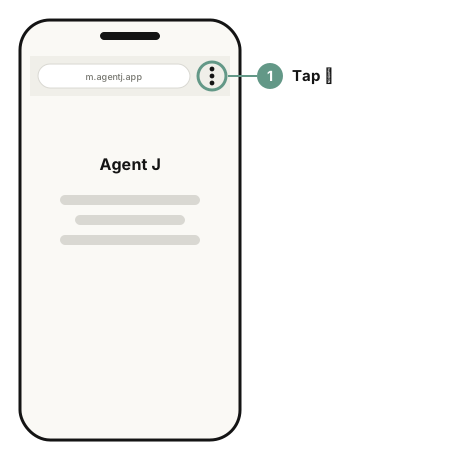
- Tap "Add to Home screen". On some phones and Chrome versions it is called "Install app".
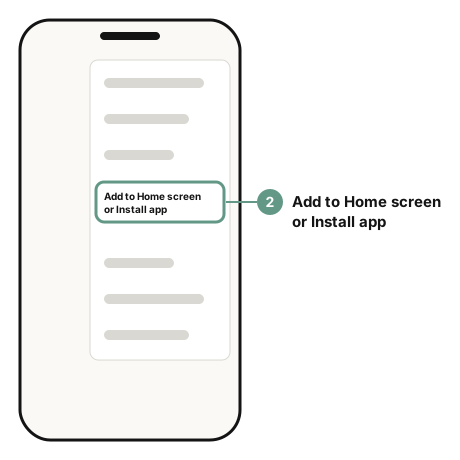
- Confirm with "Install" or "Add". An Agent J icon appears on your Home Screen.
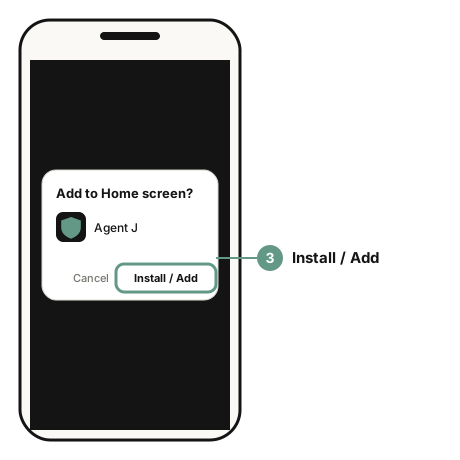
The wording and position of the menu differ a little between phone brands. If you can't find it, look in Chrome's menu for the item that mentions "Home screen" or "Install".
Pairing: introduce your phone to your computer
When m.agentj.app is not paired yet, its "Connect to your computer" page shows numbered cards. Pick any one of them:
- Way 1: scan this device's code with a remote that is already paired. The quickest when a paired phone is at hand; see the be-scanned section below.
- Way 2: run
agentj pairin your computer's terminal. Use this for your first pairing; it is the steps in this section. The terminal is the window where you type commands: Terminal on macOS, PowerShell or Windows Terminal on Windows, your terminal app on Linux. If you can't scan, runagentj pair --link, paste the link it prints (it starts withhttps://) into the pairing page's link box and tap "Pair". - Way 3: add it in the account dashboard. For computers already in an Agent J account; see the section on adding a remote to a seat from another computer below.
Paired before and only switched browsers or cleared website data? See "Paired this device before?" at the bottom of the pairing page and tap the Face ID button to reconnect, no new pairing.
You pair once, and again only for a new or an extra phone. You need the computer next to you, Agent J running on it, and the remote pairing password (if none is set yet, agentj pair asks you to set one first, at least 8 characters).
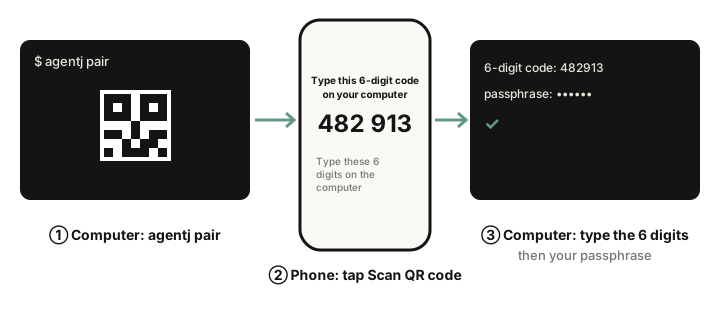
- In a terminal on the computer, run:
agentj pairA QR code appears. For an iPhone run
agentj pair --linkinstead: it shows the QR code and a pairing link. You can also runagentj adminand tap "Add a phone remote" on the Agent settings page it opens.If the terminal says Agent J is not running on this computer, run
agentj service installfirst, thenagentj pairagain.
- Open Agent J on the phone (from the Home Screen icon). The top of the page says "Not paired yet".
Tap "Scan QR code" inside this Home Screen app on either iPhone or Android. Allow camera access to open a full-screen camera page. It starts scanning at once: the viewfinder is drawn as four rounded corners with a grey bar sweeping from top to bottom; point it at the computer’s QR code, no button to tap. The three icons below are back, pause scanning and stop scanning; back returns to the pairing page. The app includes a decoder for browsers without native QR support. If camera access is unavailable, paste the pairing link into the field below the pairing instructions under "Or paste the pairing link" and tap "Pair". Use the app’s scanner: the system Camera app opens a separate browser tab.
- The phone shows 6 digits under "Type this 6-digit code on your computer". Type those 6 digits in the terminal on the computer, press Enter, then type your remote pairing password.
- The phone says "Waiting for your computer to approve", then "Connected", and opens the chat by itself. You're paired.
Add another remote from one you already paired
Once one phone or computer browser is paired, the next one needs no trip to the computer and nothing typed:
- On the paired one, open Settings and tap "Add a remote" under Computer. A QR code appears; it works once, for 5 minutes.
- On the new phone, open Agent J and tap "Scan QR code". If the new device is a computer browser, tap "Copy pairing link" on the Add a remote page and paste the link into the new browser's pairing page.
- The new device says "Request sent — confirm it on any remote that is already paired" above a 6-digit match code. Nothing to type there.
- Every paired remote shows an "A new remote asks to pair" card with the device name, type, time and the same match code. If the digits match, hold "Confirm" on any one of them; if that remote has Face ID saved, it asks you to verify it's you first. If they don't match, tap "Cancel".
- As soon as one remote confirms, the card folds away on the others and the new device opens the chat. If nobody confirms within 5 minutes, the request expires.
When you pair with agentj pair in a terminal or with "Add a remote" on the account page, the same card appears on your paired remotes, so you can confirm there instead of typing the 6 digits and your remote pairing password on the computer.
Getting the pairing link onto an iPhone
The link is the key: whoever opens it within 5 minutes can pair. It works once, and after 5 minutes it's dead. So never send it through WeChat, any group chat or email, and never to any AI (not even the one that set up Agent J for you).
- A Mac on the same Apple ID as the iPhone: copy the link on the Mac and paste it on the iPhone (Universal Clipboard: Wi-Fi, Bluetooth and Handoff on, on both). Or paste it into a note in Notes, open that note on the iPhone and press and hold to copy it. Don't tap the link.
- Not AirDrop: the iPhone opens an AirDropped link in Safari right away, so it pairs a Safari tab instead of the Home Screen icon, and the link is used up.
- Linux, Windows or any other computer (a Mac too): the QR code that
agentj pair --linkdraws contains the same link. Open the iPhone's Camera app and point it at the QR code; a yellow link button appears. Press and hold it (don't tap it), choose to copy the link, then paste it in the Home Screen icon. Tapping it opens Safari and pairs a Safari tab — that works too, only without lock-screen alerts. - Too slow, or something went wrong? Run
agentj pair --linkon the computer again. Each run makes a new link, and the old one stops working.
Pairing over SSH: start in the terminal, finish in the terminal
When the computer is bound to your account you can pair over SSH in one go, without going back to a web page:
- In the SSH terminal run
agentj pair --link, get the printed link onto the phone your own way, and open it in the Home Screen icon. - Once the phone connects, the terminal offers two ways at once, and whichever comes first wins: approve on this computer's seat card on the account page with your passkey, or look at the phone and type the 6 digits it shows after the prompt "Type the 6-digit code shown on the phone", then press Enter.
- A wrong code can be retried, 3 tries in all; then type the remote pairing password. If none is set yet,
agentj pairasks you to set one before anything else.
Being able to type commands in this computer's terminal shows you already own it; the 6 digits show that the phone that connected is the one in your hand. An Agent's own shell, a script or a pipe cannot approve this way; they can only wait for you on the account page. Type the code while the prompt is showing: digits typed after the command has ended go to the shell as a command. After 120 seconds without approval, run agentj pair --link again and open the new link on the phone.
Good to know
- A wrong 6-digit code on the admin page ends that pairing attempt; in the terminal you get 3 tries. A wrong remote pairing password doesn't: the phone keeps waiting and you can try again, but 5 wrong tries in a row lock pairing for a while.
- Each Agent takes up to 10 phones or browsers. When all 10 are taken you don't have to unlink one first: approving a new phone on the computer unlinks the one unused the longest (offline ones first), and the terminal says which. To choose yourself, run
agentj revoke <id>first. - A paired phone reconnects by itself when you close the page, kill the browser, or reopen it from a bookmark or your history; no new pairing. On iPhone, don't use Safari's Private Browsing: closing a private tab throws the pairing away. Better, add the page to your Home Screen and open it from the icon.
- After a pairing the phone asks once whether to remember it with Face ID. Save it, and the Home Screen icon, a new private tab or a browser whose data you cleared on the same phone can reconnect with Face ID from the pairing screen: no QR code, and the computer still counts one phone. See the User guide.
- The QR code only ever appears on your own computer. Never scan a QR code sent to you by the account dashboard, by email or by someone claiming to be support.
- Lost your phone? On the computer run
agentj devicesto find its id, thenagentj revoke <id>; it is cut off at once. Away from the computer, tap "Unlink" next to that phone on the Agent card in the account dashboard. See the FAQ. - Forgot the remote pairing password? Run
agentj passphrase reseton the computer. It deletes the old password and unpairs every phone; then set a new one and pair again.
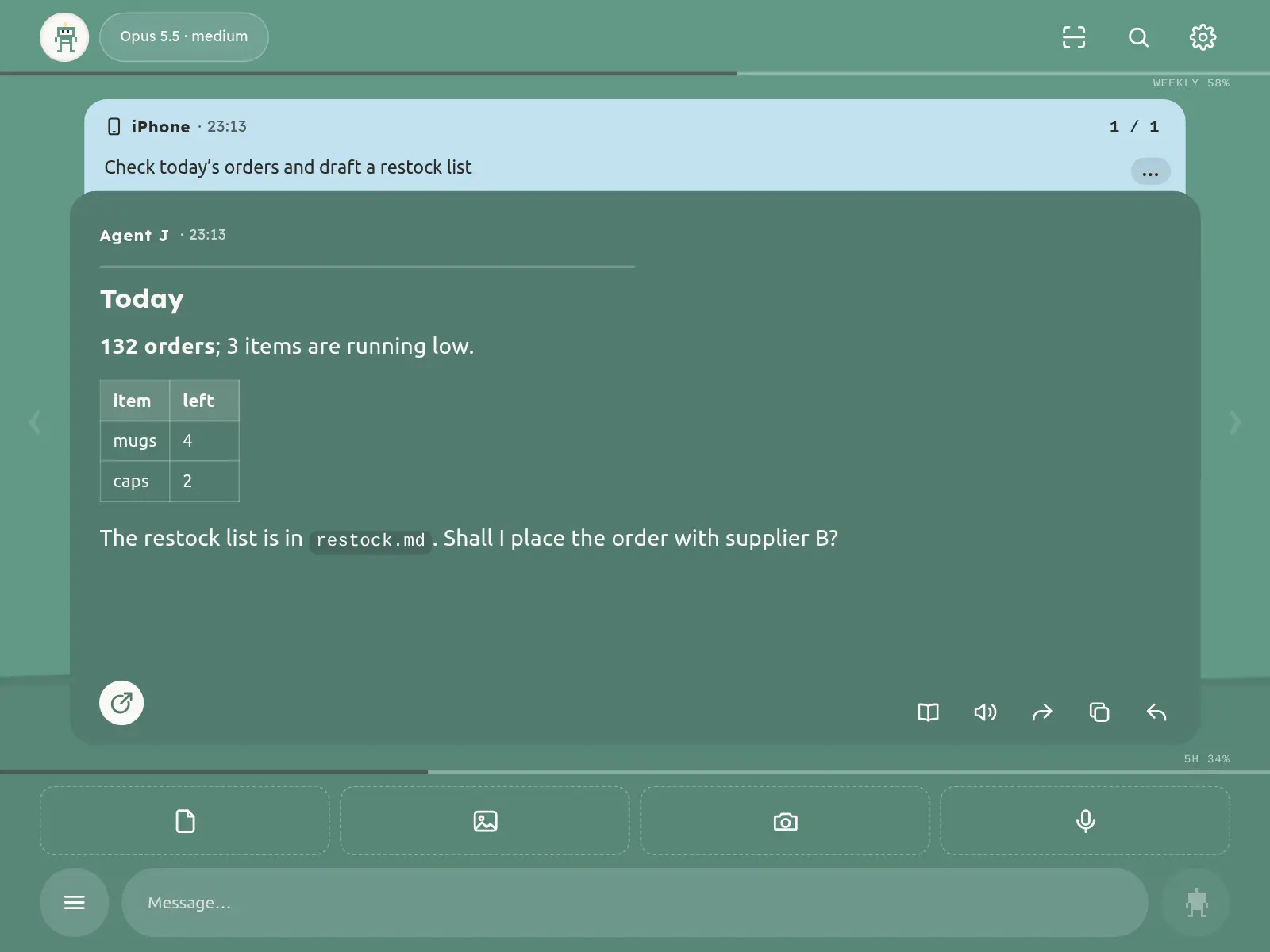
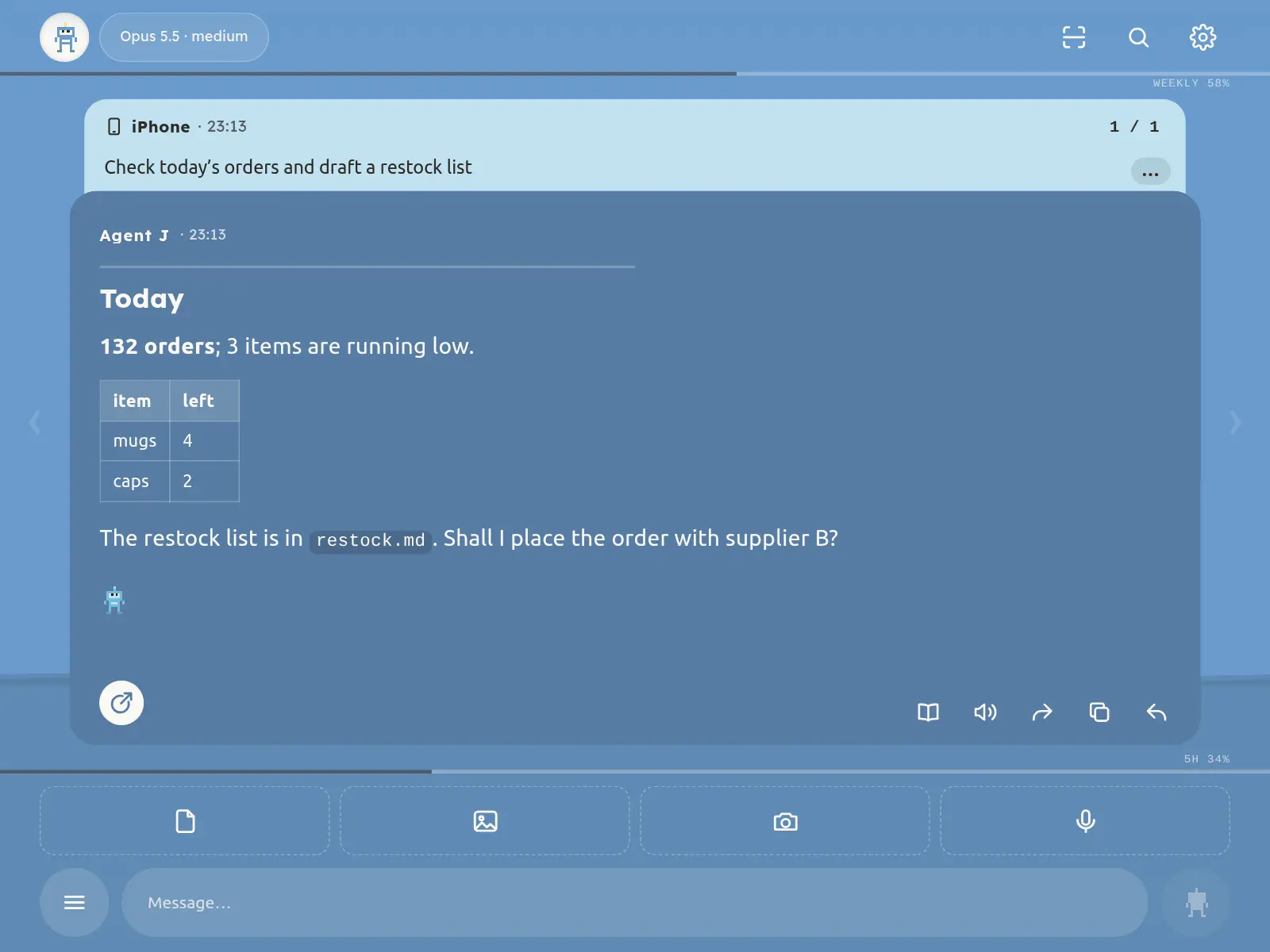
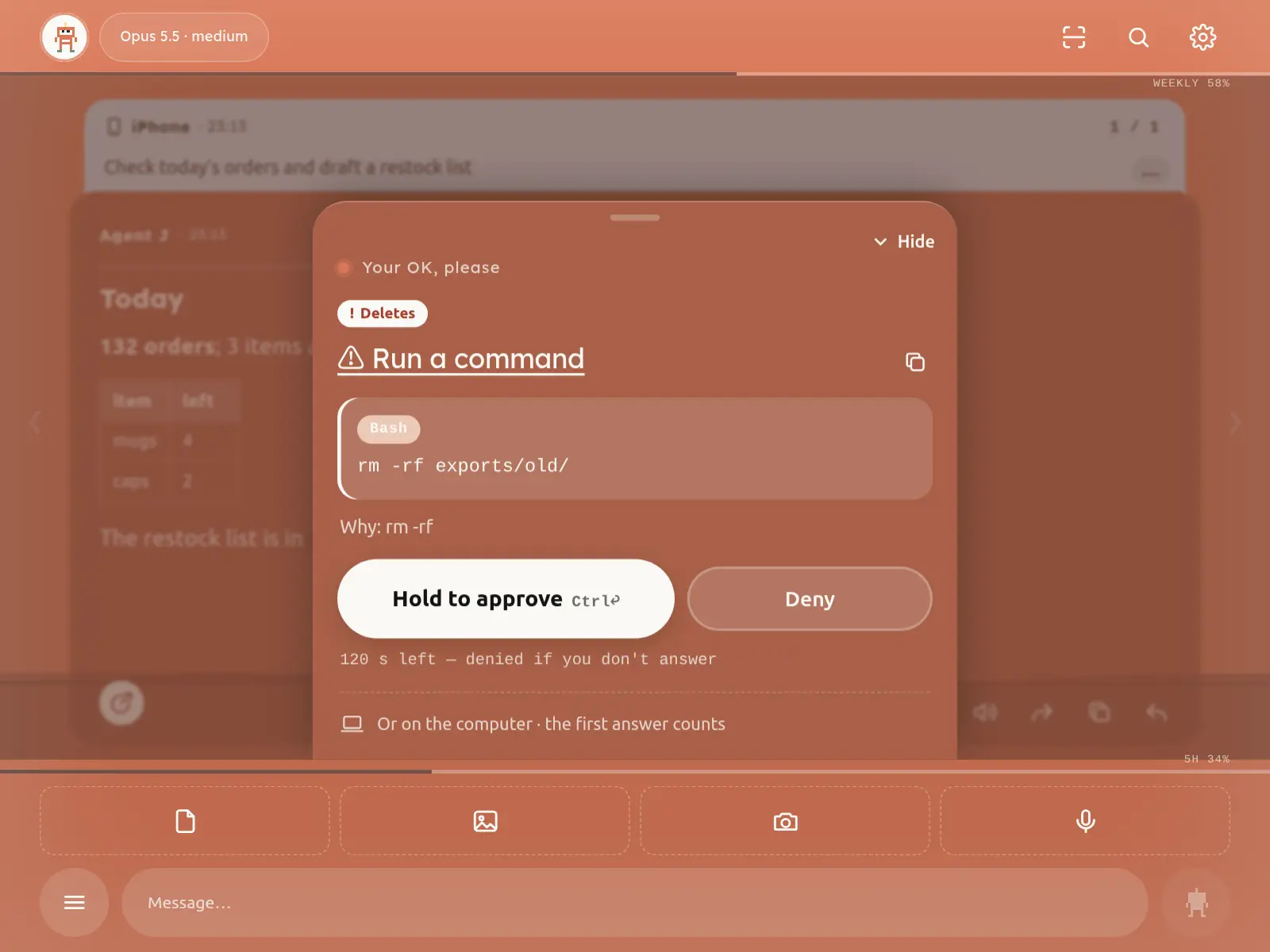
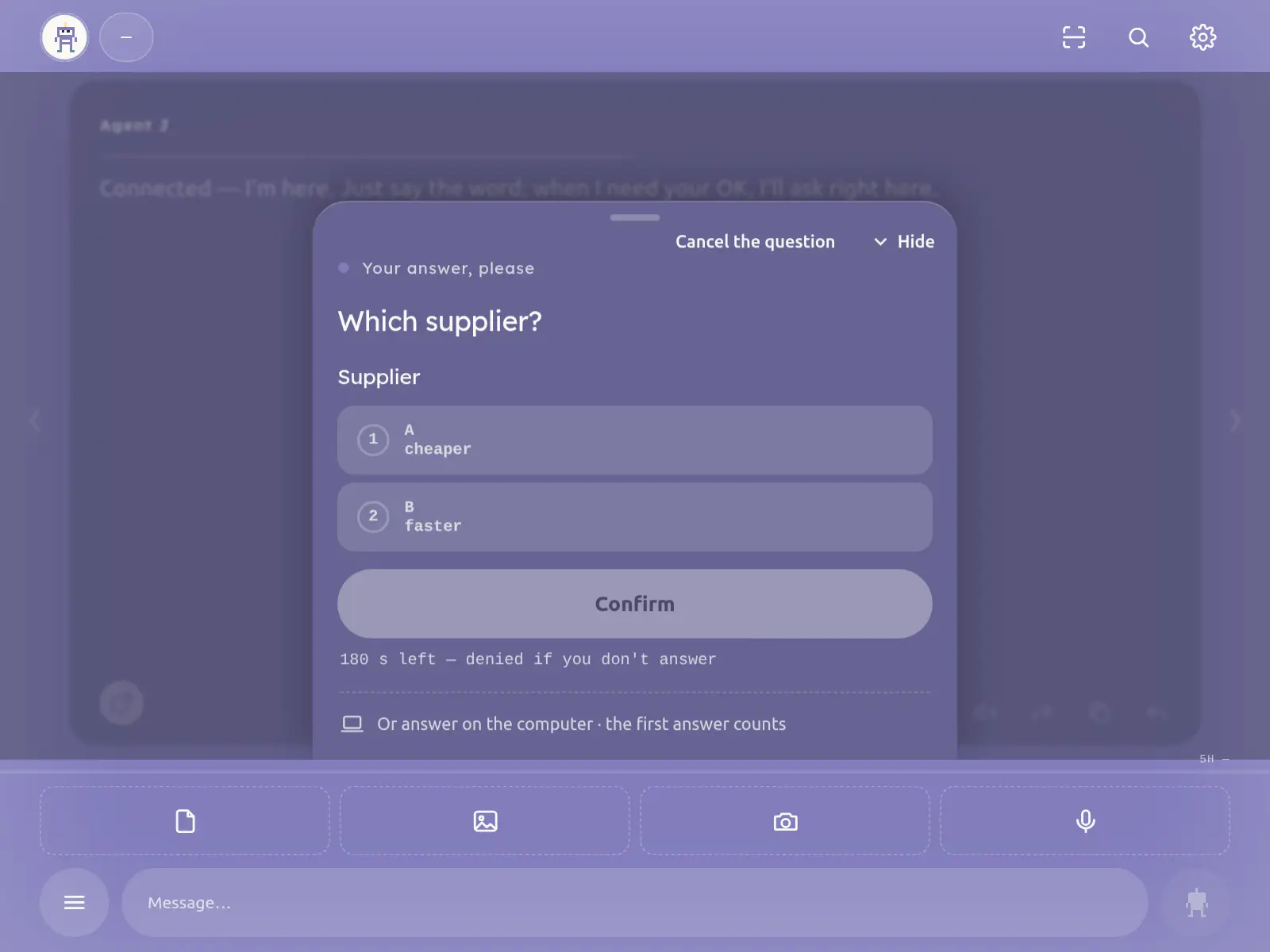
The colour tells you what it's doing
Once paired, the whole screen is the Agent's state, so you don't have to read anything:
| Colour | Meaning |
|---|---|
| Green | Waiting for your next message |
| Blue, with a light running along the top | Working |
| Orange, with the edges slowly pulsing | An action is waiting for your approval |
| Purple | A question is waiting for your answer |
| Grey | Not connected to the computer, or everything is stopped |
- The thin line under the top bar and the one above the message box are your AI account's "Weekly quota" and "5-hour quota": the longer, the more is used.
- The water level rising in the background is how much of the context (what the Agent can keep in mind at once) this conversation uses. When it is nearly full, tap
/compactin the ≡ menu. - The top bar shows the model and the effort level in use. Tap to switch to the next one, hold to go back to the default. Taps only change the label: a half is switched once you leave it alone for 5 seconds (meanwhile it fades, with a thin line running out underneath); tapping back to the one in use sends nothing. Holding for the default and typing
/model nametake effect at once. OpenCode lists providers and models configured on your computer. "Models & API keys" in the menu also switches models or requests a replacement key. A missing or invalid key opens the matching provider’s secret card: paste only into the card, never into chat. - The logo at the top left: tap to change the text size (medium → large → medium → small); hold it to jump to the first unread reply ("No unread" when there is none). The size is remembered on this phone, so a reload or reopening from the home screen keeps it.
Tap either line for the Usage card. The day in brackets after the weekly figure is where you are in the 7-day reset cycle; the card adds a "Reset cycle" bar with how long until the reset, when it happens, and how much you will have used by then at the current pace. The figures do not glow normally: the weekly one glows faint blue when it is used faster than the even pace (about 14% a day); either quota glows soft orange from 80% and orange-red from 90%, meaning little is left. Providers that do not report a reset time show no day.
One message per page — swipe to browse
Each page shows what you said on top and the Agent's reply below it. The phone shows you results, not every tool call and command it ran along the way.
- Swipe right for older pages, left for newer ones. Double-tap a reply to open the "Full-screen reader".
- Under each reply: "Read this one aloud" (the phone's own voice reads it; the text goes nowhere), "Share this one" (the phone's own share sheet), copy, and reply to this one.
- Select a few words in a reply to quote just that part in your answer (it is copied as well).
- Each page says who it came from: you, another device, the computer, a scheduled task, a command, or a "Notice".
- The conversation is kept on your computer, so a new phone, or the page opened again, can still scroll back through it. Don't want it kept there? Run
agentj config history offon the computer.
Model usage and context
OpenCode reports its selected provider and model. When a provider supports plan usage, the phone displays 5-hour, weekly, daily or monthly windows with matching labels: Kimi Code membership, Zhipu GLM Coding Plan and MiniMax Coding Plan are read; the Volcano Ark and Alibaba Bailian Coding Plans have no usage query that works with the API key. Without a figure both quota lines stay in place, just without text. The thin line below the top bar shows context used against the model limit. The selected language applies to error messages and the Agent’s next reply.
Sending messages, pictures and files
- Type, then press Enter or tap send. Until the Agent has it, "Cancel" takes it back and puts the text back in the box.
- Above the message box: "File", "Photos" and "Camera". You can also paste a picture, or, in a desktop browser, drag files onto the page.
- Up to 10 attachments at a time, 200 MB each, of any file type. Recordings and videos are transcribed on your computer and the Agent gets the original too. Very long pasted text becomes an attachment by itself.
- In Chrome or Edge on a computer, turn on "Screenshots to attachments" in Settings: take a screenshot that goes to the clipboard (Win+Shift+S on Windows, for example), come back to this page, and it lands in the attachments, waiting for you to send it. Phone browsers can't do this — a web page is never told about a phone screenshot; on a phone, tap "Photos" and pick it.
- Attachments are encrypted just like text and go straight to your computer, into the Agent's work folder; they are cleaned up after 30 days.
- No network? Send anyway: the message is kept encrypted on the phone, the page says "Will send when you're back online", and it goes out in order once you're connected.
- Pictures, audio, video, PDFs, web pages and files the Agent mentions show up right in its reply; code, maths and diagrams are laid out too. See the User guide.
Talking: hold, speak, let go
- Hold the microphone button and speak; let go and your words appear as text in the box, so you can check them before sending. Changed your mind? Slide clearly off the button (about 80 px, or up by more than its height) and let go there; a shaky hand does not cancel.
- For a long take: double-tap to lock, keep talking without holding, tap again to finish. A long take goes over as an audio attachment and is turned into text on the computer.
- Long recordings (meetings, lectures): a locked take runs up to 200 minutes. Every 20 minutes it is cut into a part that goes straight into the tray and uploads in the background while you keep talking; the recording card shows which part is recording and the limit. When you finish, all parts go together, in order. A 20-minute part is about 7 MB; 200 minutes about 70 MB.
- A reload, a browser crash or a dropped connection does not lose the recording: every few seconds what was just recorded is stored, encrypted, on the phone, and the next time the page opens it asks whether to put it back in the tray or discard it. Once sent, the phone's copy is deleted.
- Locking the screen interrupts recording: on iPhone (Safari and the Home Screen app) locking the screen or switching apps stops the microphone; Android differs by phone. While recording, the page keeps the screen awake where it can (iOS 18.4 and later, Chrome on Android) — don't press the power button. If the recording is interrupted anyway, what was recorded goes to the tray; tap the microphone again to continue, and the new part follows.
- The recording card: holding to talk, a double-tap lock and a long take all show the same dark round card in the middle of the screen, with a ring around the microphone that follows your voice. While you record (holding to talk or locked, the same), the whole page behind the card, top line included, blurs in the colour of the current state (green stays a green blur, blue a blue one). A locked take adds three buttons under the card: on the left ✕ cancel (erases the take; Esc does the same), in the middle ■ stop (the words go into the message box, a long take into the tray, so you can check before sending), on the right ➤ stop and send (ends the take and sends it in one tap). The gestures still work.
- You are told if a stretch may be missing: on some Android phones a long dark screen or the power button makes the microphone deliver only silence (a system limit a web page cannot get around). When a take contains such silence you are told when it ends — “0:07–0:30 of the recording came in silent and may be missing” — and right away if you come back while it is still recording; a long take's tray item is marked “may be missing …” too.
- Your voice is turned into text on your own computer. It doesn't pass through us or any other speech service.
- Before the first time, the computer needs a speech model, about a 180 MB download. If it is missing, tap the install action on the phone and wait for the computer to finish before recording. If installation fails, your phone keyboard’s dictation works just as well.
The ≡ menu and / commands
The ≡ button left of the message box ("All commands") holds:
- One-tap commands:
/compactcompact the context,/clearstart a new conversation (undo until your next message),/modelsee which models you can switch to,/contexthow much context is used,/costcost,/usageusage limits,/statusstatus,/stopinterrupt the current turn. - "Stop everything" (see below).
- The Agent's own skills — a tap puts one into the message box.
- "Keyboard shortcuts".
Type / at the start of the message box and the matching commands pop up as you type. Clearing asks first and can be undone ("Undo clear"). Commands that change settings have to be run on the computer.
Settings
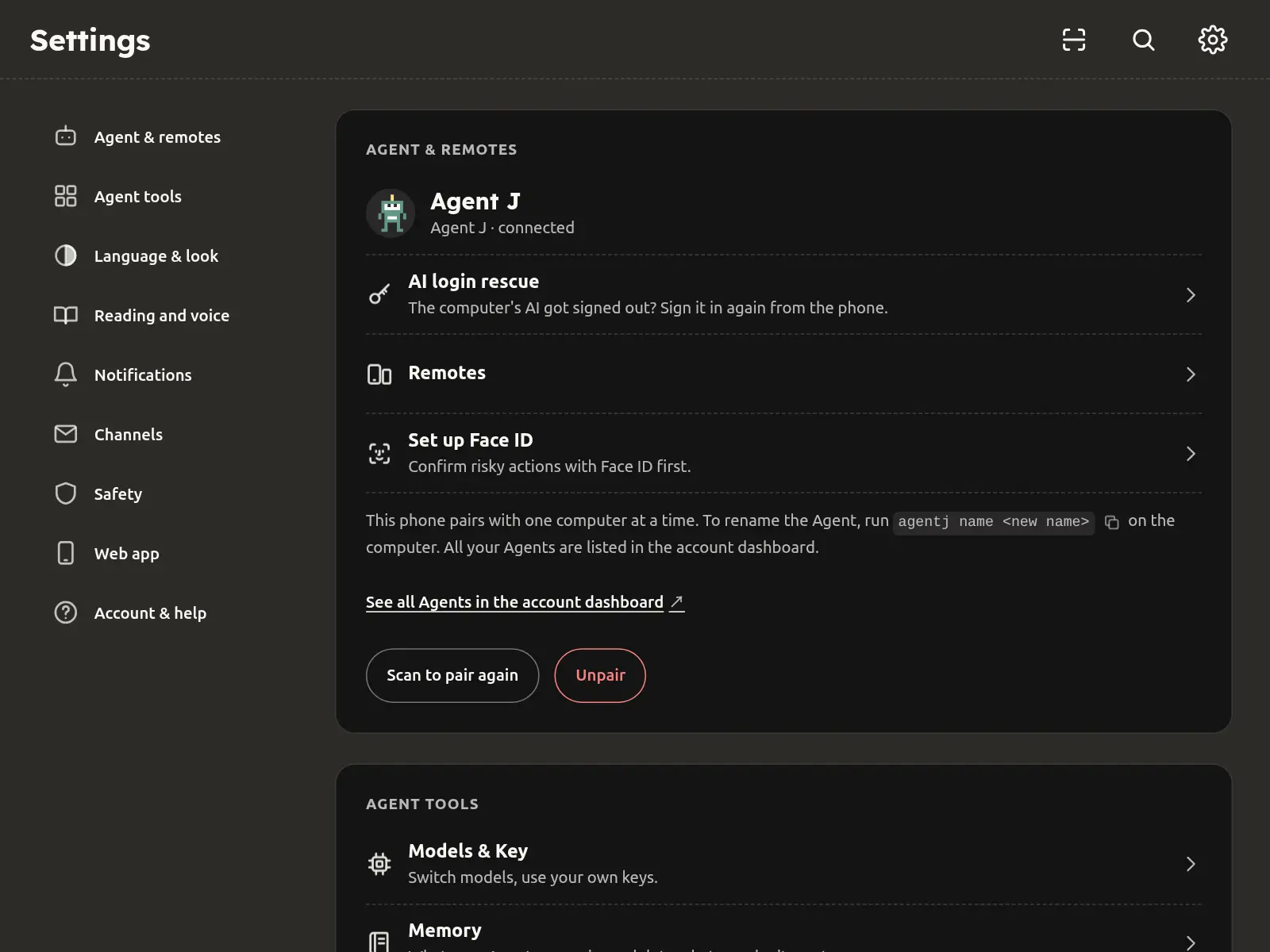
Tap the gear at the top right to open "Settings"; it fills the whole screen. In a desktop browser you can also press s, or ⌘, / Ctrl+,; Esc or the ✕ at the top right closes it. On a phone it is one column; on a wide screen the sections are listed on the left and the cards sit in two columns. The three-line menu that used to sit at the top right is gone: everything in it now lives in "Settings".
- "Agent & remotes": your Agent's name and whether it is connected, "Remotes" (next section), "Set up Face ID", "Scan to pair again" and "Unpair".
- "Agent tools": "Models & API keys", "Memory", "Activity", "Schedules", "Friends", "Bots / Customer service" and the "First-run checklist" — tap one to open its page.
- "Language & look": "Language" is the only language setting. The phone screens, the emails we send you and the way Agent J talks to you all follow it, and the computer and the account dashboard pick up the change by themselves. "Language" has 中文 on the left and English on the right with a small sliding switch between them: slide it to the side you want. "Appearance" is one row of three small options — System, Light, Dark; tap one.
- "Reading and voice": "Reply text size" (80% to 160%; it only changes the text in reply cards and is remembered on this phone only). The grey box marked "Preview" shows the result as you tap − / +. "Send sound volume": the whoosh when you send. It follows the phone's media volume, not the ringer, so turning the ringer down does nothing; set it here. 15% by default, all the way left mutes it, and "Play" lets you hear it. Faster: with the message box empty, press and hold the grey Send button (hold the mouse on a computer) and a volume slider grows up out of it; keep your finger down and slide up for louder, down for quieter, and let go to keep it. On a computer ↑ / ↓ also work, and Esc closes it. Also "Read replies aloud", "Voice wake" and, in a computer browser, "Screenshots to attachments".
- "Channels": "Email" (see Command Agent J by e-mail), "Contacts" (your friends' e-mails and phones, one tap adds them to the e-mail allowlist; see Contacts), "My contact details".
- "Notifications": "Lock-screen alerts".
- "Safety": "High-risk warnings" (off by default), "Session mode" ("Separate" on the left, "Shared" on the right, a sliding switch between; separate by default), "Isolated sandbox", "Allow Docker" (off by default). "Isolated sandbox" covers the Agents that Agent J starts itself — independent sessions and scheduled tasks: they can't see Agent J's keys or pairing data. On a shared session the session already open on your computer isn't affected, and Settings says so in a line under the switch. "Allow Docker" works with Isolated sandbox and greys out while it is off. Isolation and Docker changes apply the next time the Agent starts. Also "How safe is this web app?".
- "Web app": "Upgrade method" ("Automatic" on the left: a new version installs once the computer is idle; "Ask first" on the right: you're only told and decide when; a sliding switch between; urgent security fixes always upgrade right away, see Official notices), "Upgrade Agent J on the computer" (lists what would be interrupted and asks first, see the upgrade section below), the versions of the web app and of the computer program, "Update and reload" (after the web app is updated, tap it to fetch the new version and reopen), "Add to Home Screen", "Keyboard shortcuts".
- "Account & help": "Account and subscription", "Invites and points", "Help and feedback", and the data security, privacy and terms pages.
Changing a setting needs the phone connected to the computer. Where the program on the computer is too old to take a setting from the phone, the screen shows the command to run on the computer instead, with a copy icon next to it.
Remotes
In "Settings" → "Agent & remotes", tap "Remotes" to open its own page:
- At the top, "N / 10": each Agent takes up to 10 remotes (phones, tablets, or a browser on a computer). With all 10 in use, adding one more unbinds the one unused the longest (offline ones first).
- "Paired remotes" lists each one: its name, online or offline, when it was paired, when it was last used, how it was added, and its device ID. The one in your hand is marked "This one".
- "Rename": edit the name right in its row and tap "Save".
- "Unbind": asks once first. That remote disconnects right away and must be paired again to use. Unbinding "This one" also makes this phone forget the computer.
- "Add a remote" (the scan icon on its right works the other way round: it scans a code shown on the new device, see the next section): a QR code and "Copy pairing link" appear; they work once, for 5 minutes. Scan the code with the new phone's camera (or open the link in another computer's browser). The new device shows a 6-digit safety code: type those 6 digits here and tap "Approve". One try: a wrong code ends that pairing, so make a new code and try again.
Every add and unbind is announced to all your remotes and sends a lock-screen alert. To stop phones from adding remotes, run agentj remote-pair off on the computer (this also turns off adding from the account page). If the program on the computer is too old, this page only shows the list; to add, rename or unbind, run agentj pair, agentj devices or agentj revoke <device> on the computer.
Be scanned: the new device shows a code, a paired phone scans it
Like paying with WeChat — you can scan a code, or let your code be scanned. On a new device (a browser on another computer, a tablet) open m.agentj.app: the code is in the pairing page's "Way 1" card, titled "Scan this device’s code with a remote that is already paired".
- On a phone that is already paired, open Agent J and tap the scan icon at the top right (or Settings → Remotes → the scan icon right of "Add a remote", or hold the camera button above the message field).
- Scan the new device's code. A card asks "Add this device as a remote?", with the name the device gives itself (not verified) and 6 digits.
- The new device shows 6 digits too. If they match, tap "They match — add it" on the phone; if not, tap "They don't match".
- The new device connects to your computer by itself and opens the chat. Nothing to type on the computer.
- Only scan a code on a device right in front of you. Never scan a code someone sent you, or a code a web page asks you to scan to sign in.
- A code changes every 5 minutes and works once; an expired, already scanned or malformed code is refused on the phone.
- With 10 remotes already, it still works: the card says which one will be unpaired.
- If the phone says "That device already received another pairing", someone got there first: stop using that device and reload its page.
- Needs Agent J 0.20.0 or later on the computer (an older one says to update first).
agentj remote-pair offturns this off too.
Anything else you scan goes into the message field as it is (links are not opened) — read it, then decide whether to send it. A computer's pairing code never goes into the chat.
Official notices and admin cards
Official notices from us (new versions, security fixes and so on) get a page of their own in the conversation, marked Agent J official — see Official notices.
When the Agent needs an admin password or an API key, a card titled "Admin rights needed" or "A key is needed" appears on your phone. Type or paste it there: it goes encrypted straight to your computer and the Agent never sees it. See Admin rights and API keys, from your phone.
When it needs your OK
Whenever it needs your OK, it pops up a question on your phone: the screen turns orange and a card slides up, titled "Your OK, please", saying what it wants to do.
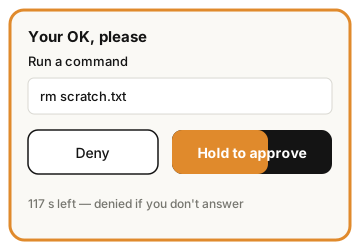
- To say yes, press and hold "Hold to approve" for about a second, until the button fills up. A quick tap never approves, so a stray touch can't either. It comes first: on top on a phone, on the left on a computer.
- To say no, tap "Deny" (below it on a phone, to its right on a computer).
- The card goes away as soon as you answer; it does not wait for the computer. If your answer did not reach the computer, or the request had already timed out there, the card comes back to tell you.
- A long command shows only two lines, so the buttons stay in view. "Show all" opens it; the copy button at the right of the title copies the whole command so you can read it elsewhere.
- If the Agent did not say what a command is for, one plain line above it says what it does (delete files, push code, copy files to another computer, …). The command itself is always shown exactly as written.
- No answer within 2 minutes counts as deny. The card shows the countdown. The exception is when none of your remotes is online: then the card stays for 30 minutes — see When no remote is online.
- Not now? "Hide" puts the card away; the request keeps waiting. You can also answer on the computer — the first answer counts.
- A sub-agent the Agent sent off (even one still running in the background after the main reply) asks the same way: the card's last line says which one ("From sub-agent: …"), and the card stays until you or the computer answer it.
- With "High-risk warnings" on, spending money, deleting, sending anything out, changing passwords or keys, and changing prices always need your own OK, one at a time: the card is marked ⚠, a "Why: …" line gives the reason. The button is still "Hold to approve", and it approves only this one.
- For other actions the card has one more button: "Hold: approve, and auto-approve the same low-risk kind for the rest of this turn". Below it the card says what "similar" means and how many times at most. It ends with the turn, you can withdraw it any time with "Cancel approval", and those five kinds are never included.
When the phone comes back from the background, after a network drop, or when you open it, it first asks the computer which cards are still waiting: missed approval, question, secret, sudo and contact cards come back; ones already handled on another remote close by themselves; ones that timed out while you were away say "Expired". The computer answers only a paired phone that can approve, and the request is signed with that phone's approval key.
Which actions ask you starts from your own settings in the AI coding tool: whatever Claude Code would normally ask you about is now asked on the phone. "High-risk warnings" in "Settings" are off by default; turning them on adds two stricter rules: the five kinds above always ask on the phone, even if your AI coding tool allows them; and with OpenCode or Codex every step except read-only ones (like reading files) asks the phone first. Anything your settings forbid stays forbidden — the phone can't approve it. Codex has one more case, explained in the FAQ.
In a shared session, "Changes passwords or keys" asks only when a password or key file really changes (written, replaced or deleted; gh auth, aws configure, ssh-keygen, passwd and the like), and "Shows passwords or keys" asks when one would be printed on the screen (cat .env, grep KEY .env, head ~/.ssh/id_ed25519 …), because the shared conversation reaches your phone. A program that reads .env by name without printing it, or a note or commit message that only mentions .env, no longer asks. Prefer the old, stricter rule? Run agentj config approvals strict on the computer; agentj config approvals standard switches back. Spending, sending out and public deletion work the same either way. Approval cards follow your language setting: all Chinese or all English.
Up to 0.20.0 a shared session only asked about these five kinds with the optional extra warnings on (agent.high_risk_warnings), although this page said they always ask; since 0.20.1 they ask by default (on an OpenCode server you started yourself, still only with that setting on). Want only your AI coding tool's own permission prompts in a shared session? Run agentj config approvals native on the computer (rewriting Agent J's hook files still asks); agentj config approvals standard switches back.
Only real danger asks. The five kinds above count only on a clear match: git push, a deploy (wrangler deploy, vercel …), a payment or messaging API call, deleting cloud data, writing a password or key file — those always ask. These don't: writing an ordinary file (a heredoc such as cat >> notes.md <<'EOF' … EOF — words like "deploy", "git push" or "key" in the text don't count, only the file it goes to); a small python3 - <<'EOF' script that edits files; rehearsal or read-only commands such as --dry-run, list, status (a real deploy still asks); systemctl --user / systemd-run --user starting or stopping your own background jobs; a for … sleep … done wait loop. A heredoc that a shell runs (bash <<EOF, cat <<EOF | sh, written to a script and then run) or that runs a command through $( ) is still judged as commands.
A command Agent J can't read clearly (say, the program name is a variable like $PY) used to always ask "Can't tell what this does". With Jev set up on the computer (OPENROUTER_API_KEY), Agent J first gives Jev your latest words, what the Agent said it is doing this turn and the command, and asks whether it fits the task: at or above the "Jev threshold" in "Settings" (default 0.70, adjustable from 0.50 to 0.95) it runs without a card and "Allowed by Jev" plus the reason goes into "Activity"; below it, on a timeout or an error, the card shows as usual. The threshold only affects these unclear commands: the five clear dangers above are not affected and Jev can't allow them, and encoded or assembled commands (curl … | sh, base64 -d | bash) never go to Jev — they still ask. Too many cards? Tell the Agent "too many approval cards"; it explains and runs agentj config set approval.jev_threshold 0.6, which shows one confirmation card on your phone.
Approval level: Safe, Standard, Full access
Pick a level under "Approval level" in Settings → Safety. It decides how often the Agent stops to ask you:
- Safe: asks more — unclear commands, batch approvals and goal-mode countdowns all wait for your tap. Safest, most cards.
- Standard (default): asks only before spending, deleting, sending out, changing passwords or keys, or changing prices. Same as before.
- Full access: like Claude Code's
--dangerously-skip-permissions— almost no cards, everything still logged. Suspected attacks, passwords or keys, and spending money still ask you.
What Safe adds, exactly: a command Agent J can't read clearly never goes to Jev, it always asks; cards no longer offer "Hold: approve, and auto-approve the same low-risk kind for the rest of this turn"; in goal mode, a step the computer could undo gets an ordinary card instead of the 10-second countdown; a shared session asks as strictly as agentj config approvals strict, and every deletion asks, files on this computer included.
With Full access, an Agent step that would have shown a card just runs. Each one goes into "Activity" and the phone shows a single quiet line. Deleting, pushing, deploying and sending messages no longer ask, so choose it on purpose. These still ask you, one at a time:
- anything that looks like an attack:
curl … | sh, decoding something and running it, downloading something and running it (eval "$(curl …)", or saving a script and running it straight away), changing Agent J's hook or approval files,agentj config …, touching Agent J's own settings or state folders; - changing a password or key, putting one on the screen, or sending one out (
cat ~/.aws/credentials | curl -d @-,env | curl …) — any command that touches a password or key file asks; - spending money or changing a price.
Agent J's own cards keep coming too: pairing a new remote, running without isolation, AI sign-in rescue, and Agent J's own commands (sending mail through Agent J, starting a goal and so on). So do the Agent's multiple-choice questions and OpenCode's cards for a possible loop and for sub-tasks. Codex's requests to leave its sandbox or use the network are approved under Full access, just like Codex's own full access. Full access needs at least one paired remote that can approve.
Only a paired phone can change the level; an Agent can't. The phone signs every switch with its approval key, and the computer checks the signature before the switch takes effect — at once. Switching to Full access also takes Face ID if this phone has a passkey; going back to Standard or Safe never does. Before Full access is turned on, a confirmation sheet lists what still asks and makes clear that the level covers everything the Agent does from then on, scheduled tasks included, until you switch back. After a switch, every remote shows one line saying which level is now on and which phone confirmed it, and a lock-screen alert goes out. If the Agent runs agentj config set approval.level full on the computer, nothing changes by itself: you get a confirmation card on your phone. Writing Full access into the configuration file on the computer doesn't count either: without the phone's signature it works as Standard, and you are told once.
When no remote is online
Sometimes the Agent needs your OK while none of your paired remotes has Agent J open (the page is closed, or it dropped its connection in the background). Here is what happens:
- The card goes out as usual, and so does the lock-screen alert. Open Agent J and it's there.
- If you've connected Telegram with forwarding on, or set up the e-mail channel, Agent J also sends one line to your private Telegram chat and to your own address: how many approval cards are waiting, that none of your remotes is online, and that opening Agent J on your phone shows them. It never says what a card is about, and it goes out at most once every 15 minutes.
- If nobody has come online after 20 seconds, the Agent is told you're away. It moves on to the work that doesn't depend on that step instead of sitting there.
- The card stays on your phone for 30 minutes. Approve it in that time and the Agent gets a system note; the next time it tries that exact step, it runs. Deny it and the Agent leaves it alone. After 30 minutes with no answer, the card expires.
- If the Agent tries the same step again before you're back, there's no second card.
- Your approval only lets the original requester through: the same main conversation or the same scheduled task, the same AI coding tool, the same folder. "Stop everything" cancels any approval not yet used.
Before this release, a card with no remote online was simply denied after 2 minutes. The Agent sat blocked the whole time, and nothing reached Telegram or your inbox.
Goal mode: say it once, it finishes while you sleep (/goal)
Tap /goal in the ≡ menu and add what to finish and by when, for example "/goal finish the report tonight and send it to Wang, before 8 am". The Agent first sends one opening card: the goal, how you'll know it's done, the deadline, and every dangerous action it expects, listed by kind with a limit — "push to GitHub repository X", "deploy to agentj.app", "spend: one domain only", "email: only to Wang", "delete: only worktrees and temp files". Hold to approve once and you've signed it: while the goal runs, those actions no longer ask, and each one goes into "Activity". Anything not on the card isn't approved, and changing passwords or keys can never be approved in advance.
During the goal the computer decides, not what the Agent says about a step. Inside the grant it just runs. Outside it, if the computer can undo the step (committed in git with nothing uncommitted, moved to the trash, a push to a remote this repository already has, a new file copied with scp or rsync to a machine named in your ~/.ssh/config that isn't there yet), you get a 10-second countdown card that says "Goal mode: approves itself in 10 s" — no tap means yes, Deny cancels. Steps that can't be undone (a deploy, a payment, a new recipient, a new repository, a force push, credentials, overwriting a file that already exists on a remote machine) ask as usual and never approve themselves; that step waits, the rest of the work carries on, and the result card lists it under "Waiting for your decision". Anything that looks like an injection or an attack (curl … | sh, base64 -d | bash, changing hooks or approval settings) shows a red card and is never approved automatically.
Cards that wait for you, and the result card, say it in plain words: who (Codex, say) wants to do what, why it wasn't approved automatically, what happens if you don't tap, and how to approve. Left unapproved, the step is skipped and everything else goes on, and the result card says so; to allow it afterwards, reply "allow item N" and the Agent redoes that step with a new card for you. The raw command is folded under "Details".
When work the plan didn't mention comes up mid-goal (a test run on another machine, say), you don't get one card per step: on a waiting card, press and hold "Hold: approve and add to the goal's grant". This step goes ahead and the same kind of step is covered from then on, up to 20 times, until the goal ends. The Agent can also ask for one extra grant with agentj goal grant: one card on your phone, nothing added until you sign. Cards about money, passwords or keys don't offer this button.
A goal lasts 8 hours by default, at most 72, or until the deadline you gave; then approvals go back to normal. /goal status shows progress; /goal stop ends it at once and withdraws the one-time grant — the same command asks again afterwards. "Stop everything", or unpairing the phone that signed, also ends it. The Agent sends one line at each milestone and, at the end, a result card: done or not, which grants it used, how many approvals happened automatically, and what is waiting for you. For a company or team, switch off "Goal mode: approve in 10 s" under Settings → Safety; the countdown cards then only wait for a tap. With the approval level set to Safe there is no countdown either.
Settings → Safety has one more switch, "Goal mode: no cards". It is off by default:
- Off (default):
/goalshows one opening card; you sign once and the goal runs within it. - On: a goal starts right away and runs without cards (all logged, result card at the end); suspected attacks, passwords or keys and spending still ask. Counts only while this phone stays paired.
Skipping the opening card applies only to your own /goal: the proposal the Agent sends back within 30 minutes. A goal that would spend money or change prices still shows you the opening card first. Switching it off ends at once any goal that started without a card.
Like the approval level, it is turned on with a signed confirmation on a paired phone (plus Face ID if the phone has a passkey); an Agent can't turn it on. Once the phone that turned it on is unpaired or paired again, the switch stops counting and /goal shows the opening card again. Turning it on by editing the configuration on the computer doesn't count either.
When it asks you a question
Sometimes the Agent wants you to pick an answer. The screen turns purple and the card says "Answer a question": tap your choice, then "Confirm". If none of the options fits, tap "Cancel the question" and just type your answer.
Stop everything
In the ≡ menu tap "Stop everything", then "Yes, stop everything". Then:
- whatever it is doing is interrupted at once;
- every request waiting for your approval is denied;
- all batch approvals are withdrawn;
- all scheduled tasks are paused.
The top of the page says "Everything is stopped". It takes no new messages until you tap "Resume", or run agentj resume on the computer (it asks your remote pairing password). It stays stopped even if the computer restarts.
Memory, Activity, Scheduled tasks
In "Settings" → "Agent tools":
- Models & API keys: the model picker at the top; below it "Base models" (one card per provider, its subscription and pay-as-you-go keys, and the Claude / Codex sign-in) and "Third-party API keys" (the other keys on your computer, + adds one). A filled row shows only •••• and the last 4 characters, with Copy, Edit and Delete; an empty row has +. Copy and Delete need Face ID, and the value goes straight to the clipboard without being shown. Every copy, edit and delete is logged, and the Agent never sees the value. After installing, fill your keys in here and you can leave the terminal.
- Memory (the page is titled "What it remembers"): what the Agent reads every time it starts work, listed entry by entry. You can delete entries and undo a deletion for 7 days.
- Activity (the page is titled "Activity and approvals"): what it has done lately — each conversation turn, each request, who approved and who denied. Newest first. It is stored only on your computer, for 30 days.
- Scheduled tasks: on top, Agent J's own scheduled tasks — workflows that run on a schedule. "Turn on" or "Turn off" each one here; your Agent can switch one on too when you ask. Below them, "Other scheduled tasks on this computer": what the computer already schedules by itself, read afresh each time the page opens (systemd user timers and crontab on Linux, LaunchAgents and crontab on a Mac, Task Scheduler on Windows) — name, when it runs, next and last run, and status. That part is read-only: nothing can be changed or deleted there, and the commands the tasks run are never shown.
"Back to chat" takes you back.
First-run checklist
Right after installing, a thin bar may sit above the chat: "First-run setup 3/12 · Continue". It never covers the chat. Tap it to open the checklist as its own page: the steps are done on the computer, the phone shows the progress, and if you get stuck you just tell your Agent in the chat. Each row says "On the computer", "Tap on the phone", "I do it" or "Not in this version", and a row that has not passed says what was found and what to tap next. The bar's ✕ closes it at once and it stops popping up; "Settings" → "Agent tools" → "First-run checklist" opens it again. See Before you leave your computer.
In a desktop browser
https://m.agentj.app works on a computer too, with keyboard shortcuts: press ?, or open "Settings" and choose "Keyboard shortcuts". A few favourites: j / k previous and next page, f full-screen reader, r reply to this one, hold M to talk.
Lock-screen alerts
To know when it answers while your phone is locked: in "Settings" → "Notifications" → "Lock-screen alerts", tap "Turn on" and allow notifications when the browser asks. The page then says "On. Alerts never include what was said."
- An alert says only "New reply" or "A request is waiting for your approval". It never contains the message itself.
- You won't get alerts while you are looking at the page — only after you switch away or lock the phone.
- iPhone: the "Turn on" button under "Lock-screen alerts" only appears once you have added it to the Home Screen and opened it from the icon, on iOS 16.4 or later. Opened in Safari, the page tells you to use Share → Add to Home Screen first.
- Android: alerts come through Google's push service. Phones without Google services (many phones sold in mainland China, such as Huawei or Xiaomi models) usually don't get lock-screen alerts; the page may say "Couldn't turn on: this browser doesn't support web push, or the push service can't be reached." Chat and approvals still work whenever the page is open.
- If the page says "Notifications are blocked", allow notifications for this site, or for Agent J, in your phone's settings.
In mainland China
The phone page and the relay server run on Cloudflare; from mainland China they can be slow and occasionally unreachable — just try again. Use Safari on an iPhone, and Chrome on Android if the phone has it. For lock-screen alerts on Android, see the section above.
When the connection drops
| You see | It means | What to do |
|---|---|---|
| "Computer offline" or "Waiting for your computer…" | The computer is off, asleep or offline, or the background program isn't running | Turn the computer on and get it online. On the computer, agentj service status shows whether the service is running. If the computer is on, tap Emergency repair on the card and start with ① Reset connection (more) |
| "Agent J on your computer isn't responding · rescue helper online" | Agent J on the computer is frozen or stopped; a small rescue helper answers for it | Tap Repair on the banner, then ① Reset connection; if that doesn't help, ② Ask Agent J Father for remote help |
| "Connection lost. Retrying in N s…" | A shaky network that has not come back within a few seconds; it reconnects by itself (a one- or two-second blip reconnects quietly and shows nothing) | Wait a moment. Switching back to the page also reconnects at once |
| A line under the chat: "Telegram can't be reached right now; this page keeps working." | Your computer's Telegram channel failed to reach Telegram several times in a row | Nothing to do; the phone keeps working and the line disappears once Telegram is back |
| A "Disconnected" page with a "Reconnect" or "Try again" button | Something went wrong with the connection | Tap the button. If that doesn't help, close the page and open it again |
| "This phone was removed by your computer" | The phone was unlinked on the computer | Tap "Pair again" and run agentj pair on the computer |
| "The other app took over" | The Home Screen app, another browser or a new device took over the connection | Continue in the Home Screen icon or browser you just connected; no Face ID recovery is needed |
| "This browser deleted the pairing it had saved on this phone…" | The browser deleted this page's saved data (a private tab was closed, or website data was cleared). Your computer did not remove the phone | Run agentj pair on the computer and pair once more. The same browser pairing again replaces its old entry instead of taking another slot |
| "Not paired yet" | This browser or icon hasn't been paired yet | Pair it as described above |
| "That link is invalid or has expired. Run agentj pair on your computer again." | The pairing link was already used, or more than 5 minutes old | Run agentj pair again on the computer (agentj pair --link for an iPhone) |
| "This browser doesn't support the encryption we need. Try the latest Chrome, Safari or Firefox." | The browser is too old | Use the latest Safari or Chrome |
| "Couldn't save this phone's device key (private browsing?). Try a normal window." | A private or incognito window | Open it in a normal window |
More in the FAQ.
One-tap upgrade
Send /update, tap “⬆ Upgrade Agent J” in the ≡ menu, or tap "Upgrade Agent J on the computer" in Settings → Web app to authorize installation, restart and doctor. First the computer lists what a restart now would interrupt: a turn in progress, queued messages, cards waiting for you, a scheduled task running or due within 15 minutes, background tasks, friend sessions. Nothing → it upgrades right away; something → a card "Upgrading now would interrupt something" lists it, and only "Upgrade now" upgrades ("Not now" drops it). Asking the Agent to upgrade Agent J works the same way: if something would be interrupted, it doesn't force the upgrade, it puts this card on your phone. The menu shows current/latest versions and disables the entry when up to date. Reconnect after restart to see the version change and doctor counts. Follow any failure instructions with agentj update check or agentj doctor on the computer.
Background records and lock-screen reconnection
Silent turns stay out of normal chat pages. Read them in View silent history in the menu; clearing the conversation clears them too. A temporary lock-screen disconnection does not unpair the phone; returning to the foreground reconnects automatically. If another remote has taken over, follow the on-screen message rather than pairing again for an ordinary disconnection.
Add a remote for another computer
Once the target computer is installed, account-bound and online, find its seat card on your account page and choose Add a remote. Confirm it's you, then scan with the phone; the target computer's terminal isn't needed. Confirm either way: with your passkey (none on this computer? choose Use a phone or tablet in the prompt and confirm on your phone), or with that computer's remote pairing password. After a passkey confirmation, the same session doesn't ask again for ten minutes; the QR expires after five minutes and adds one device. Pending devices can also be reviewed and approved on the seat card. Under More on the seat card, See what the computer is waiting on you for is only for two cases: resuming after Stop everything, or enabling a scheduled task the Agent created. It has nothing to do with seats or billing; an unpaid bill never stops the tasks on your computer.
Account-page pairing is on by default. The target computer’s owner can disable it with agentj remote-pair off. Offline hosts are never queued; turn them on and try again. Older hosts must run agentj update apply or update from a paired phone. Devices record “Added from account page” and other remotes receive a notice.
This route trusts the signing control plane. Pairing material is encrypted to an ephemeral browser key and its plaintext is never stored by the backend; compromise of the signing service could still add a device. The remote pairing password is stored only on that computer, as a hash. When you type it on the account page, the browser first encrypts it to a one-time public key that computer just handed out; only that computer can open and check it. Our servers pass on ciphertext they can't read and keep nothing. Five wrong tries in a row lock it on that computer for a while.
New replies keep you on the history page you are reading. Tap the new-message indicator at the top right of the input card to jump to the latest message. With unread messages, the page-number capsule pulses between sage green and buttery orange; a single or double tap jumps to latest and stops the pulse. Reduced motion shows a static sage-green capsule. Otherwise, double-tap the top-right page number to jump to the latest, or the top-left speaker and time to jump to the first message. Without new messages, single taps on these two corners do not change pages. After sending, “Delivered, waiting for the computer…” becomes “Chairman, your latest instruction is in — your assistant is on it.” when the agent starts (to be called something else, tell the agent “call me X”); a finished request without text shows “(No text reply)”. Empty background turns add no page or notification.
The header is split into three equal parts: double-tap the left third to go to the first (oldest) message, double-tap the right third (the page number) for the latest; the middle third is for unread replies. When replies arrived after this remote last looked, a small pulsing round badge in the middle of the header shows how many; tap it to jump to the first unread reply and page forward from there — the badge goes away once you reach the latest. With nothing unread there is no badge and a tap in the middle does nothing. Holding the logo at the top left, or pressing u on a computer, also jumps to the first unread reply. Each remote keeps its own unread count; silent turns do not count.
Every page has a header. A page without your input (the Agent reporting in, a scheduled check, a finished background task) shows a header card of the same size in the input card's place, saying where the page came from: “Agent reporting in”, “Scheduled check”, “Background task finished”, “Typed on the computer”. The page number, double-tapping the top right for the latest, double-tapping the top left for the first message and the new-message pulse work exactly as on the input card. When you are on the newest page, a new page turns to it automatically; while you page through history nothing interrupts you, only the page-number capsule pulses with “New message”, and one tap takes you to the latest. Silent turns (〔不回群〕) send no notification, count as no new message and add no page.
Press and hold the source at the top left of the input card (half a second) to rename the remote in your hand; other remotes and the account page show the new name right away. Only the owner can rename other remotes, on the account page. A remote the owner renamed shows that name as the message source, followed by the device type (for example "Alex (boss) · iOS Safari"); the account page, the phone's settings and agentj devices mark it "(name set by the owner)", and a tap shows the name the device gave itself. Remotes nobody renamed are still marked "(name set by the device)". The Agent also uses the owner's name to tell who is speaking, but the name is only a label, not proof of identity.
Voice transcription supports the phone's ten-minute recordings. Processing time includes cold start and scales with recording length. If processing times out, the original audio still reaches your Agent with a clear failure notice. Narrow screens stack text buttons vertically.
Repeated pairing / missing Face ID button
Pairing once is enough. As long as your computer hasn't unpaired this phone, opening the page connects by itself. Safari on iPhone clears what websites store; from 0.17.4 the page then quietly reconnects to the same computer with an automatic sign-in token kept on your phone — no QR code, no Face ID. Only your computer recognises the token, and it is replaced each time it is used. You only scan again when the computer has unpaired this phone (for example after you lost it).
Open a regular Safari window on iPhone or Chrome on Android. In-app browsers in WeChat, QQ, Weibo, Telegram, LINE, Facebook or Instagram may not retain pairing or support platform passkeys. Use the top-right menu to open in Safari / Chrome; if unavailable, tap “Copy page link” and paste it into that browser.
Leave Private Browsing / Incognito, allow cookies and website data, then Add to Home Screen. Open the same icon each time and pair once there. Safari and the Home Screen app keep separate pairing records; adding the icon does not transfer the earlier pairing. The copied page link excludes the one-use pairing secret; run agentj pair on the computer again if needed.
After pairing, choose “Set up Face ID” in "Settings" → "Agent & remotes", including after choosing “Later” on the invitation. Android uses screen unlock. Availability depends on the browser's platform authenticator support, even on a phone with Face ID. A denied persistent-storage grant does not prove private browsing; the page offers guidance and cannot guarantee that the system or user will never clear website data.
If Face ID is unavailable, check iOS Settings → General → AutoFill & Passwords: enable AutoFill Passwords and Passkeys and select Passwords. Check iCloud → Passwords (Keychain), Face ID & Passcode, and restrictions in Screen Time or device-management profiles. Each scan or pairing-link tap creates a new pairing; after pairing, open the same Home Screen icon.
Sharing screenshots
See Android sharing and the iPhone clipboard Shortcut. Shared content enters the composer; add a note before sending.
Cloud read-aloud: if a speech key is missing, add it to the computer service environment and restart. If the provider refuses, check the key, credit and voice. Busy or unavailable providers can be retried later. On iPhone, tap Read once to enable playback; if playback is blocked, tap again. A playback retry reuses the audio already synthesized.
Local read-aloud uses only voices on this phone. Host/cloud voices stay in voice.tts.voice; choose a phone voice separately with voice.tts.phone_voice (empty selects the local default for the reply language). Switching modes keeps both choices. An unavailable phone voice falls back with one notice. On first opening, iPhone waits for local voices to load before reporting that no voice is available.
0.18.1: Valid older Telegram enrollment continues with its local bot environment name. Huawei HarmonyOS devices have accurate names; account owners can rename a remote with a passkey while its host is online.
Files in secret pickup cards
Variable names, secret=true and placeholder JSON in ordinary reports do not make them credential files. Real keys still require a secret pickup card and are withheld from mail attachments. After Face ID, tap the preview’s top-right fullscreen icon or double-tap its text. Markdown is typeset; scroll to read and copy the original text. Esc, Back or browser Back returns to the card. Finish, hiding the page or two minutes clears the preview.
A collapsed input card shows two quote lines and one body line, or up to three body lines without a quote, with an ellipsis for overflow. Attachments appear as a line paperclip and total count beside “…” (images, files and audio together); zero attachments show no count. Double-click the body, tap “…” or press o to expand all text, the quote and attachments.