

文档Docs
让电脑保持唤醒Keep your computer awake
屏幕可以关闭,主机继续工作;按 Mac、Linux 和 Windows 设置,并保留恢复原值的方法。Keep the host reachable while its screen is off, with reversible commands and system settings for Mac, Linux and Windows.
手机遥控需要电脑持续开机、联网。屏幕关闭,不等于电脑休眠。 建议先接电源、保持笔记本开盖。电池供电时持续唤醒会增加耗电和发热,运行中的笔记本不要放进包里。这些设置不能防止关机、电池耗尽、固件保护或断网。
AI 工具手动安装 · 安装 Agent J · 电脑端说明 · 手动安装
交给你的 Agent
复制下面的请求,发到你的 Agent 对话里。使用 Agent J 时,管理员密码只填在已配对手机的密码卡里,不能发在聊天里。按钮会复制同一段请求并打开 Agent J 手机页面;选择已配对电脑后,由你粘贴并发送。官网不会直接向电脑发送命令。
请把这台电脑设置为适合远程 Agent 工作的持续在线状态,同时允许屏幕关闭。先判别 macOS、原生 Linux systemd 主机或 Windows/WSL,阅读 https://agentj.app/docs/keep-awake/zh.md。优先使用已安装的 agentj keep-awake 命令:先 status --json,再 on --dry-run --json,确认后执行 on --json;shell 超时设为 10 分钟,给手机审批留足时间。macOS 默认只调整接电源的策略,保持开盖;调整电池策略前说明耗电和发热,并确认主人的偏好。所有 root 操作必须走 Agent J 已有的手机密码卡,不在对话里索要密码,不让主人开终端敲命令,不使用 osascript with administrator privileges,也不触发电脑本机授权窗口。若命令尚未提供,先检查系统支持的原生命令并保存原设置,再通过 agentj sudo 做等价调整。WSL 内的修改不能阻止 Windows 宿主休眠,必须明确报告宿主侧需要的操作,不冒充已成功。不要自动修改 PAM、关闭 Touch ID/Apple Watch 或设置 disablesleep。若 sudo 报告本机生物验证风险,说明手机提交密码不能独立完成,只暂停依赖这项提权的操作。完成后读回有效设置,报告接电源/电池休眠策略、屏幕与合盖限制、验证是否通过、是否需要重启或宿主侧操作,以及用 agentj keep-awake off 恢复本次修改前设置的方法。不能只凭退出码宣称成功。这是候选功能:需安装包含本功能的主机版本。旧版本提示未知命令,不能据此判断密码错误。
macOS
命令行做法
内置命令使用 pmset,默认只改接电源时的主机休眠时间,保留屏幕和电池策略;先保存原值,完成后读回验证。不设置 disablesleep。
查看当前设置,分别看 AC Power 和 Battery Power:
pmset -g custom只预览,不写文件、不发密码卡:
agentj keep-awake on --dry-run --json执行,管理员密码填手机卡片:
agentj keep-awake on --json验证:
agentj keep-awake status --json明确需要电池供电时也不自动休眠,才使用这一项;它增加耗电,不能解决合盖问题:
agentj keep-awake on --power battery --json恢复本命令保存的原休眠时间:
agentj keep-awake off --json还没安装 Agent J、在电脑前手动安装时:先记录 pmset -g custom 的原值,再关闭接电源时的自动休眠。已安装的 Agent 应通过 agentj sudo 执行底层命令,不把你赶回终端。
sudo pmset -c sleep 0读回 AC Power 下的 sleep 0。恢复时把下面的 20 换成之前记录的接电源休眠分钟数,不是固定默认值:
sudo pmset -c sleep 20-c 表示接电源,-b 表示电池,-a 表示两种供电。sleep 0 关闭闲置自动休眠,不保证 MacBook 合盖后继续运行。优先开盖;合盖使用需满足对应机型的外接显示器与供电要求。不要常规设置 pmset disablesleep 1:它改变更广的休眠行为,可能增加发热和耗电,需要单独明确选择和验证。caffeinate -i 只在该进程运行期间临时有效。
图形界面做法
- 笔记本:苹果菜单 → 系统设置 → 电池 → 选项,开启接电源且显示器关闭时防止自动休眠的选项。台式 Mac:能源 → 防止自动休眠。名称随 macOS 和机型变化。
- 锁定屏幕 → 设置接电源时关闭显示器的时间。这是屏幕计时,与主机休眠不同,可以保持较短时间。
- 笔记本接电源、开盖,重新查看
pmset -g custom;屏幕关闭后确认手机仍能连接。 - 撤销时恢复之前记录的开关和时间。出厂默认值因机型和系统而异;
off只恢复 Agent J 自己保存的原值,不恢复手动改动的所有设置。
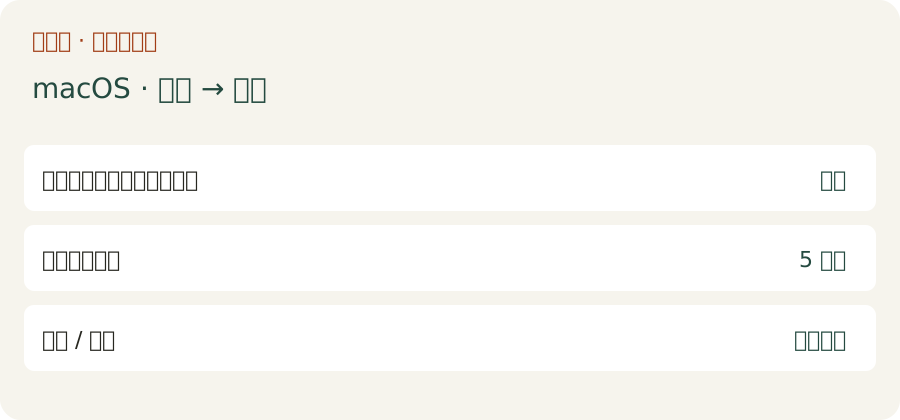
这是示意图,不是真实截图。本次环境无法截取 Mac 系统设置窗口。Apple 休眠设置说明
手机输密码后,电脑又弹验证
手机可能先用 Face ID/通行密钥批准卡片,再输入电脑登录密码;这是手机上的两项正常检查。如果之后Mac 本机又弹验证,则是另一条授权路径。sudo -S -k 从标准输入接收密码,但启用的 pam_tid.so、pam_reattach.so 或 Watch 模块可能先调用本机授权。Agent J 检测已知启用项,在签名卡片里提示风险,并拒绝密码 sudo 执行,避免远程卡在本机弹窗。此检查不能保证所有第三方 PAM 模块都安全。
只读检查,不改配置:
cat /etc/pam.d/sudocat /etc/pam.d/sudo_local若有未被注释的生物验证行,主人在电脑前可用下面的命令检查,先备份原文件,只注释相关生物验证行,保留密码认证。不要替换整个 PAM 文件。这是本机恢复指引,不是让 Agent 远程自动修改。
sudoedit /etc/pam.d/sudo_local旧配置可能写在 /etc/pam.d/sudo,则在电脑前检查该文件。不要删除密码认证。如果没有相关行,应查清究竟哪条命令引发弹窗:osascript … with administrator privileges、系统设置 GUI,以及部分 security、softwareupdate 操作可能独立调用 macOS 授权服务,手机密码不能替代。Agent J 应改用支持的直接命令,通过手机 sudo 卡执行;确需本机操作则如实报告。没有已验证的通用旁路。Apple pam_tid 源码
Linux
命令行做法
适用于原生 systemd 主机。内置命令持久屏蔽休眠、挂起、冬眠、混合休眠与先挂起后冬眠的 targets,读回状态及 logind 合盖/闲置配置;只撤销自己加的屏蔽,不重启 logind,避免断开桌面。如果原本已有临时屏蔽,会保留它,重启可能使它失效,状态会区分临时与持久屏蔽。容器和 WSL 都不是宿主电源管理器。
查看:
agentj keep-awake status --json预览:
agentj keep-awake on --dry-run --json执行,通过已配对手机密码卡审批:
agentj keep-awake on --json验证各 target:
systemctl is-enabled sleep.target suspend.target hibernate.target hybrid-sleep.target suspend-then-hibernate.target查看 logind 配置:
systemd-analyze cat-config systemd/logind.conf恢复本命令的修改:
agentj keep-awake off --json未安装 Agent J、在电脑前手动设置时,先记录已有屏蔽,再执行:
sudo systemctl mask sleep.target suspend.target hibernate.target hybrid-sleep.target suspend-then-hibernate.target手动撤销时,只解除这次新加的屏蔽。例如 sleep.target 原来未被屏蔽:
sudo systemctl unmask sleep.targetlogind 的 HandleLidSwitch、HandleLidSwitchExternalPower、HandleLidSwitchDocked、IdleAction 控制默认合盖和闲置行为,桌面电源管理器也可能接管这些事件。屏蔽 target 能阻止正常 systemd 休眠请求,包括许多合盖请求,但不能承诺覆盖所有固件和桌面行为。建议开盖,保留屏幕自动关闭,实测自己的电脑。本命令不自动重启 logind,不整体替换配置。systemd logind 文档
图形界面做法
- GNOME:设置 → 电源 → 自动挂起,关闭接电源时自动挂起。KDE Plasma:系统设置 → 电源管理 → 接电源,关闭挂起会话。名称随发行版和版本变化。
- 保留屏幕空白/显示器节能;电池休眠策略按需要单独设置。若桌面提供合盖选项,在电源设置里调整。
- 等待超过原挂起时间,确认手机仍能连接,再读回命令状态。
- 恢复之前记录的开关和时间。Linux 没有统一出厂默认值。若桌面没有图形电源面板,使用命令行方式,不为本页额外安装桌面组件。
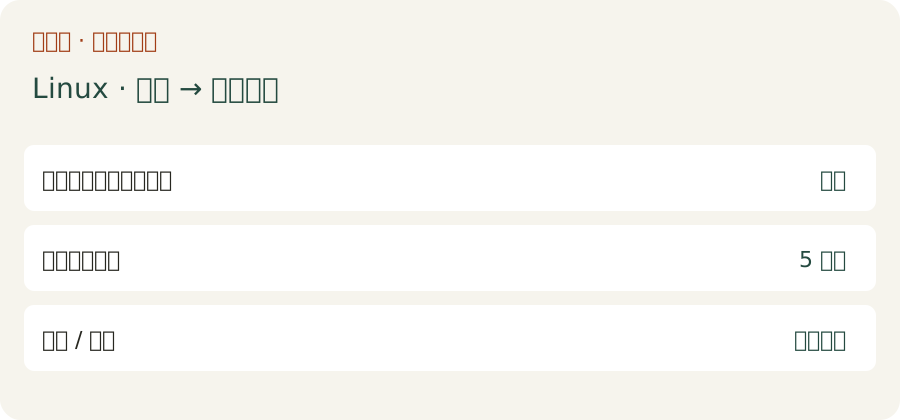
这是示意图,不是真实截图。本机 Linux 没有 GNOME/KDE 电源设置面板。
Windows
命令行做法(含 WSL 宿主)
下面的命令必须在 Windows 宿主的 PowerShell 执行。WSL 中的 agentj keep-awake 只输出指引,不修改 Windows,也不弹本机 UAC 窗口。若设备策略要求管理员权限,请在电脑前完成宿主侧操作;Agent J 的 Unix 手机 sudo 卡不能批准 Windows UAC。
记录当前电源计划、休眠/冬眠和合盖设置:
powercfg /getactiveschemepowercfg /query SCHEME_CURRENT SUB_SLEEPpowercfg /query SCHEME_CURRENT SUB_BUTTONS接电源时不自动睡眠:
powercfg /change standby-timeout-ac 0接电源时不自动冬眠:
powercfg /change hibernate-timeout-ac 0读回同一电源计划的 AC 值,0 表示没有计时:
powercfg /query SCHEME_CURRENT SUB_SLEEP恢复原睡眠分钟数,下面的 20 只是已记录原值的示例:
powercfg /change standby-timeout-ac 20恢复原冬眠分钟数,下面的 60 也只是示例:
powercfg /change hibernate-timeout-ac 60/query 的索引以十六进制秒数显示,/change 接收分钟;准确换算,或用 /setacvalueindex 恢复精确原秒数。电池模式用 -dc,仅在明确需要时设置;AC 设置不改变电池策略。避免 powercfg /restoredefaultschemes,它会删除自定义电源计划。睡眠计时不改变合盖行为,也不能覆盖受管理设备策略和 Modern Standby。屏幕可以关闭,笔记本建议开盖、接电源。Microsoft powercfg 文档
设置与控制面板
- Windows 11:设置 → 系统 → 电源和电池 → 屏幕、睡眠和休眠超时(旧版本叫屏幕和睡眠),把接电源时设备睡眠设为从不;屏幕关闭时间按需保留。Windows 10:设置 → 系统 → 电源和睡眠。
- 控制面板 → 硬件和声音 → 电源选项 → 选择关闭盖子的功能;只有在笔记本通风良好时,才把接电源的合盖行为改为不采取任何操作。电池策略默认保留。
- 再读回宿主 powercfg 设置,保持 WSL 运行,屏幕关闭后确认手机仍能连接。
- 恢复之前记录的电源计划原值和开关。即使禁用了休眠,关闭 WSL 或重启电脑也会停止主机。
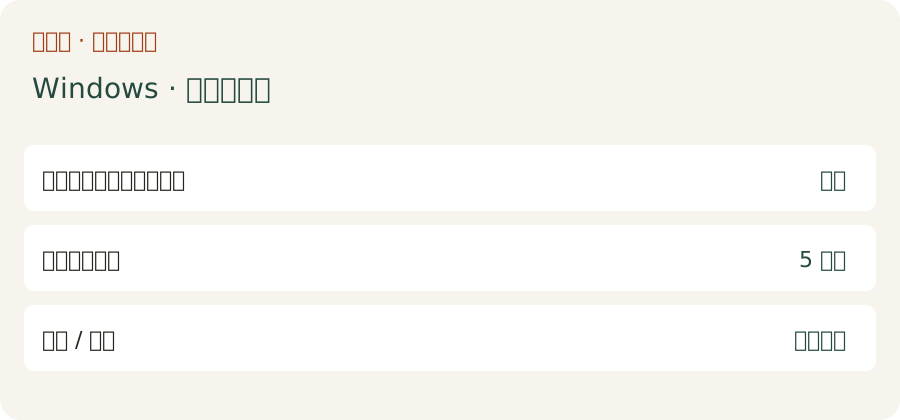
这是示意图,不是真实截图,仍需补一台 Windows 真机截图。
防休眠是离开电脑前清单里的一项;Agent 会在清单里检查它是否真的生效。
Your phone needs the computer to stay on and connected. The screen can turn off while the computer keeps working. Start with mains power and an open laptop lid. Keeping a battery-powered laptop awake increases heat and drain; never put a running laptop in a bag. This does not prevent shutdown, battery exhaustion, firmware safety actions or network outages.
AI tool setup · Install Agent J · On your computer · Manual installation
Give this to your Agent
Copy this request into your Agent conversation. With Agent J, the administrator password belongs on the paired phone card, never in chat. The button copies the same request and opens your Agent J phone page; select your paired computer and paste/send it yourself. The website does not send commands to a host.
Configure this computer to remain reachable for remote Agent work while allowing its display to turn off. Identify macOS, a native Linux systemd host, or Windows/WSL first. Read https://agentj.app/docs/keep-awake/en.md. Prefer the installed agentj keep-awake command: status --json, on --dry-run --json, then on --json; allow the shell call up to 10 minutes for paired-phone approval. Default to AC power on macOS; keep the lid open and do not change battery policy without explaining heat/drain and obtaining the owner's preference. Root operations must use Agent J's existing phone password card; never request a password in chat, ask the owner to type terminal commands, use osascript with administrator privileges, or open a local authorization dialog. If the command is unavailable, inspect supported OS-native commands and preserve original settings before applying equivalent changes through agentj sudo. WSL changes cannot keep Windows awake: report the host operation needed, never claim success inside WSL. Do not edit PAM, disable Touch ID/Watch or set disablesleep automatically. If sudo reports local biometric authorization, explain that remote password submission alone cannot finish it and stop only that dependent operation. Read back the effective settings after applying; report AC/battery sleep policy, screen/lid limitations, whether verification passed, any reboot or host-side step needed, and how to restore the saved originals with agentj keep-awake off. Never infer success from an exit code alone.Candidate command: available after installing the host release that contains this feature. An older host may report an unknown command; it does not mean your password is wrong.
macOS
Command line
Agent J's command uses pmset, defaults to AC only, leaves display and battery timers unchanged, saves the original sleep timers, and verifies the readback. No disablesleep is set.
View the current settings (AC and Battery sections):
pmset -g customPreview without writes or phone cards:
agentj keep-awake on --dry-run --jsonApply using the phone password card:
agentj keep-awake on --jsonVerify:
agentj keep-awake status --jsonFor deliberate battery use (more drain; not a lid workaround):
agentj keep-awake on --power battery --jsonRestore the original timers saved by this command:
agentj keep-awake off --jsonWithout Agent J, for local manual installation only: record pmset -g custom first, then disable idle sleep on mains. An installed Agent should run the underlying command through agentj sudo instead of sending you to Terminal.
sudo pmset -c sleep 0Read back sleep 0 under AC. To restore, replace 20 below with the original AC sleep minutes you recorded, not an assumed default:
sudo pmset -c sleep 20-c = charger, -b = battery, -a = both. sleep 0 disables idle sleep; it does not guarantee a MacBook stays awake when closed. Prefer an open lid; supported closed-display operation requires the model's external-display/power setup. Do not use pmset disablesleep 1 as a routine fix: it changes broader sleep behavior, can cause heat/drain, and needs separate explicit choice and verification. caffeinate -i is temporary and lasts only while its process runs.
System Settings
- Apple menu → System Settings → Battery → Options (laptops). Enable “Prevent automatic sleeping on power adapter when the display is off”. Desktop Macs: Energy → prevent automatic sleeping; wording varies by macOS/model.
- Lock Screen → choose a display-off timer for the power adapter. This is separate from computer sleep; you may leave the display timer short.
- Keep the laptop open and plugged in. Read
pmset -g customagain and check the phone remains connected after the display turns off. - To undo, put the switch/timers back to the values you recorded. Factory defaults differ by hardware/macOS;
offrestores Agent J's own saved values only, not manual GUI changes.
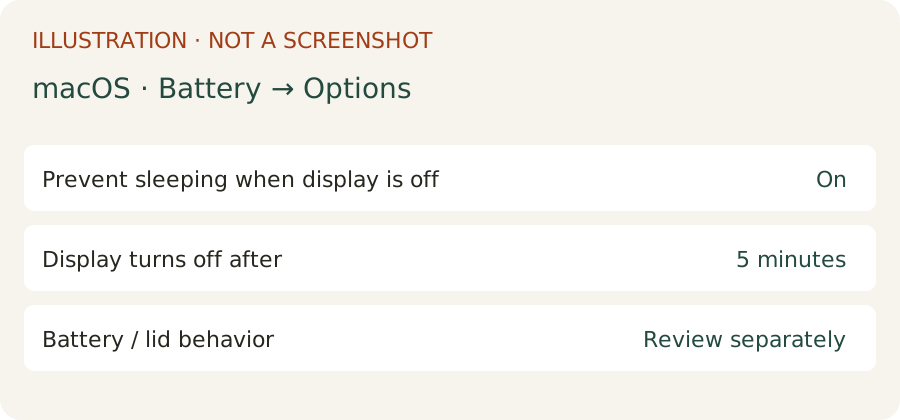
Illustration, not a real screenshot. Mac window capture was unavailable in this environment. Apple sleep settings
A second password or Touch ID dialog on the computer
The phone may ask Face ID/passkey to approve its card, then a computer login password. Those are separate expected checks on the phone. A further dialog on the Mac is different. sudo -S -k accepts a password on stdin, but a configured pam_tid.so/pam_reattach.so/Watch module may request local authorization before password authentication. Agent J detects known enabled modules, warns on the signed card and refuses the password sudo execution rather than hanging on a remote dialog. The preflight cannot prove arbitrary third-party PAM modules are safe.
Inspect without changing anything:
cat /etc/pam.d/sudocat /etc/pam.d/sudo_localIf active biometric lines are present, an owner at the computer can review them with the commands below and comment only those biometric lines, preserving the password path. Back up the file first; do not replace the entire PAM file. This is a local recovery instruction, not an Agent's remote action.
sudoedit /etc/pam.d/sudo_localOld configurations may put the lines directly in /etc/pam.d/sudo; review that file locally instead. Never remove password authentication. If no such lines exist, inspect which exact command caused the dialog: osascript … with administrator privileges, GUI System Settings, and some security/softwareupdate operations can use macOS Authorization Services independently of the phone password. Agent J must choose a supported direct CLI via its phone sudo card, or clearly report the local requirement. There is no verified universal bypass. Apple pam_tid source
Linux
Command line
For a native systemd host, Agent J persistently masks sleep, suspend, hibernate, hybrid-sleep and suspend-then-hibernate targets. It reads their status and logind lid/idle configuration, restores only masks it added, and does not restart logind (which could disconnect you). An already existing runtime mask remains runtime-only; reboot can remove it, so status reports that distinction. A container/WSL is not the host power manager.
View current settings:
agentj keep-awake status --jsonPreview:
agentj keep-awake on --dry-run --jsonApply through the paired-phone password card:
agentj keep-awake on --jsonVerify targets:
systemctl is-enabled sleep.target suspend.target hibernate.target hybrid-sleep.target suspend-then-hibernate.targetRead logind configuration:
systemd-analyze cat-config systemd/logind.confRestore only this command's changes:
agentj keep-awake off --jsonFor manual installation without Agent J: record existing masks first, then:
sudo systemctl mask sleep.target suspend.target hibernate.target hybrid-sleep.target suspend-then-hibernate.targetTo undo a manual mask, unmask only the targets you added. Example if sleep.target was originally unmasked:
sudo systemctl unmask sleep.targetlogind's HandleLidSwitch, HandleLidSwitchExternalPower, HandleLidSwitchDocked and IdleAction determine default lid/idle actions. A desktop power manager can take over these events. Masking targets blocks normal systemd sleep requests, including many lid requests; it cannot promise every firmware or desktop behavior. Keep the lid open, leave screen blanking enabled, and test your actual machine. No logind restart or broad config replacement is automated. systemd logind reference
Graphical settings
- GNOME: Settings → Power → Automatic Suspend → turn off “Plugged In”. KDE Plasma: System Settings → Power Management → On AC Power → disable Suspend Session. Names vary by version/distribution.
- Leave screen blanking/display power saving enabled. Set battery suspend separately only when needed; set lid behavior in your desktop's power settings if exposed.
- Wait past the old suspend timeout and confirm your paired phone still reaches the host; read the command status as well.
- Restore the switches/timers you recorded. There is no one Linux-wide factory default. If your desktop has no graphical power panel, use the command route; do not install a desktop panel just for this page.
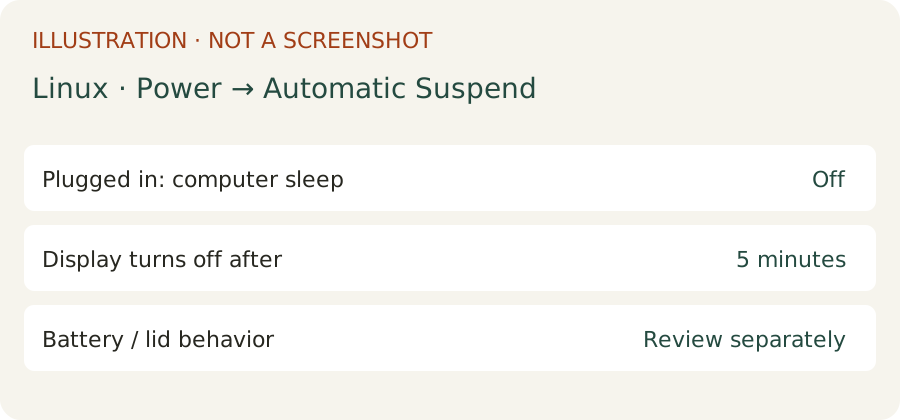
Illustration, not a real screenshot. This Linux machine has no GNOME/KDE power settings panel.
Windows
Command line (Windows host, including WSL users)
Run these in Windows PowerShell on the host. WSL's agentj keep-awake prints guidance and does not execute Windows power changes or open a local UAC prompt. If elevated rights are required by your policy, perform that host-side step while at the computer; Agent J's Unix phone sudo card cannot approve Windows UAC.
Record the active plan and its sleep/hibernate/lid values:
powercfg /getactiveschemepowercfg /query SCHEME_CURRENT SUB_SLEEPpowercfg /query SCHEME_CURRENT SUB_BUTTONSDisable idle sleep on AC:
powercfg /change standby-timeout-ac 0Disable AC idle hibernation:
powercfg /change hibernate-timeout-ac 0Verify the two AC values in the same plan (0 means no timer):
powercfg /query SCHEME_CURRENT SUB_SLEEPRestore original sleep minutes, for example 20 only if that was your recorded value:
powercfg /change standby-timeout-ac 20Restore original hibernate minutes, for example 60 only if recorded:
powercfg /change hibernate-timeout-ac 60/query displays setting indexes in hexadecimal seconds; /change takes minutes. Convert seconds to minutes accurately, or use /setacvalueindex for an exact original seconds value. Use -dc variants only deliberately for battery mode; AC settings do not change battery policy. Avoid powercfg /restoredefaultschemes: it deletes custom power plans. Standby timers do not change lid actions or override managed device policies/Modern Standby. Let the display turn off and keep a laptop open and plugged in. Microsoft powercfg reference
Settings and Control Panel
- Windows 11: Settings → System → Power & battery → Screen, sleep & hibernate timeouts (older builds: Screen and sleep). Set “When plugged in, put my device to sleep after” to Never. Keep the screen-off timer as desired. Windows 10: Settings → System → Power & sleep.
- Control Panel → Hardware and Sound → Power Options → Choose what closing the lid does. On AC, choose “Do nothing” only if the laptop stays ventilated; leave battery behavior unchanged unless you intend otherwise.
- Read the host powercfg settings again; leave WSL running and confirm the phone remains connected after the display turns off.
- Restore your recorded plan values/switches. WSL shutdown or computer restart stops the host even when sleep is disabled.
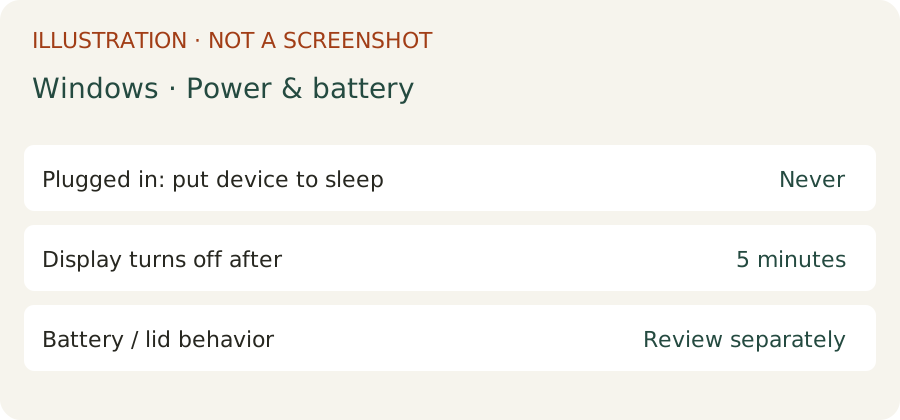
Illustration, not a real screenshot. A physical Windows screenshot is still needed.
Keeping the computer awake is one item of the first-run checklist; your Agent checks there that it actually took effect.