

文档Docs
断线很久?请人帮忙恢复 Agent J 主机Reconnect help from someone at the Agent J host
先在遥控器菜单里尝试紧急恢复,再请主机旁边的人按图打开终端。说明命令做什么、会发送什么以及如何确认恢复。Try Emergency recovery from the remote first, then ask someone at the host to open a terminal. Understand the rescue command, privacy boundary and recovery checks before running it.
这个地址会长期保留,方便把页面转给帮手。如果断线很久,而且重试和菜单里的方案都试过了,再按下面做。
先从遥控器的菜单开始
- 确认 Agent J 主机开着、联网,没有休眠;检查遥控器自己的网络,点「立即重试」。
- 在断线弹窗点「打开紧急恢复」,或打开菜单 → 设置 → 紧急修复。先点「重置连接」,再按页面提示请 Agent J Father 远程帮忙;AI 账号掉线则使用登录恢复。
- 仍不能恢复,再请 Agent J 主机旁边的人阅读本页。不要把设置码、配对链接、密码或完整聊天转给帮手。
哪台才是 Agent J 主机?
Agent J 主机是安装 Agent J、运行 AI Agent、存放工作文件的那台机器,可以是 Mac、Windows、Linux 或 Olares。你手里的手机、平板、正在看网页的浏览器是遥控器;遥控器也可能运行在另一台Agent J 主机上。下面的命令必须在 Agent J 主机上运行,并登录安装 Agent J 时使用的同一个系统账户。
请帮手打开终端
下面是按钮位置示意图,系统主题和版本可能不同。
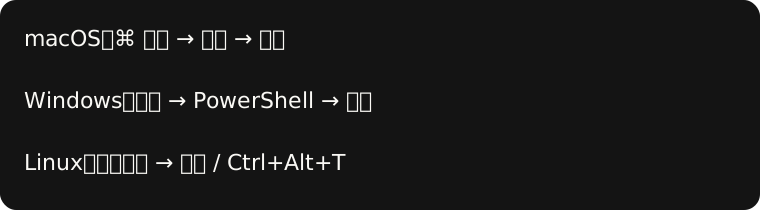
- macOS:按 Command + 空格,输入终端或 Terminal,回车。在打开的窗口中粘贴下面 macOS/Linux 命令,再按回车。
- Windows:打开开始,搜索 PowerShell,点 Windows PowerShell 或终端里的 PowerShell 标签。粘贴下面 Windows 命令,再按回车。如果 Agent J 装在 WSL 中,先从开始菜单打开对应的 Ubuntu/WSL 终端,使用 macOS/Linux 命令。不要选择以管理员身份运行。
- Linux:打开应用菜单,搜索终端或 Terminal;Ubuntu 等系统通常也可按 Ctrl + Alt + T。粘贴下面 macOS/Linux 命令,再按回车。
- Olares:在 Olares 中打开 Agent J Terminal,再用 macOS/Linux 命令。
系统界面参考截图
以下是真实系统界面的参考截图,版本或语言可能与你的主机不同。只看窗口或按钮的位置,不用运行图片里的示例命令;救援命令在下一节。
macOS Terminal 窗口(图中是 top 的输出,不需要运行它):
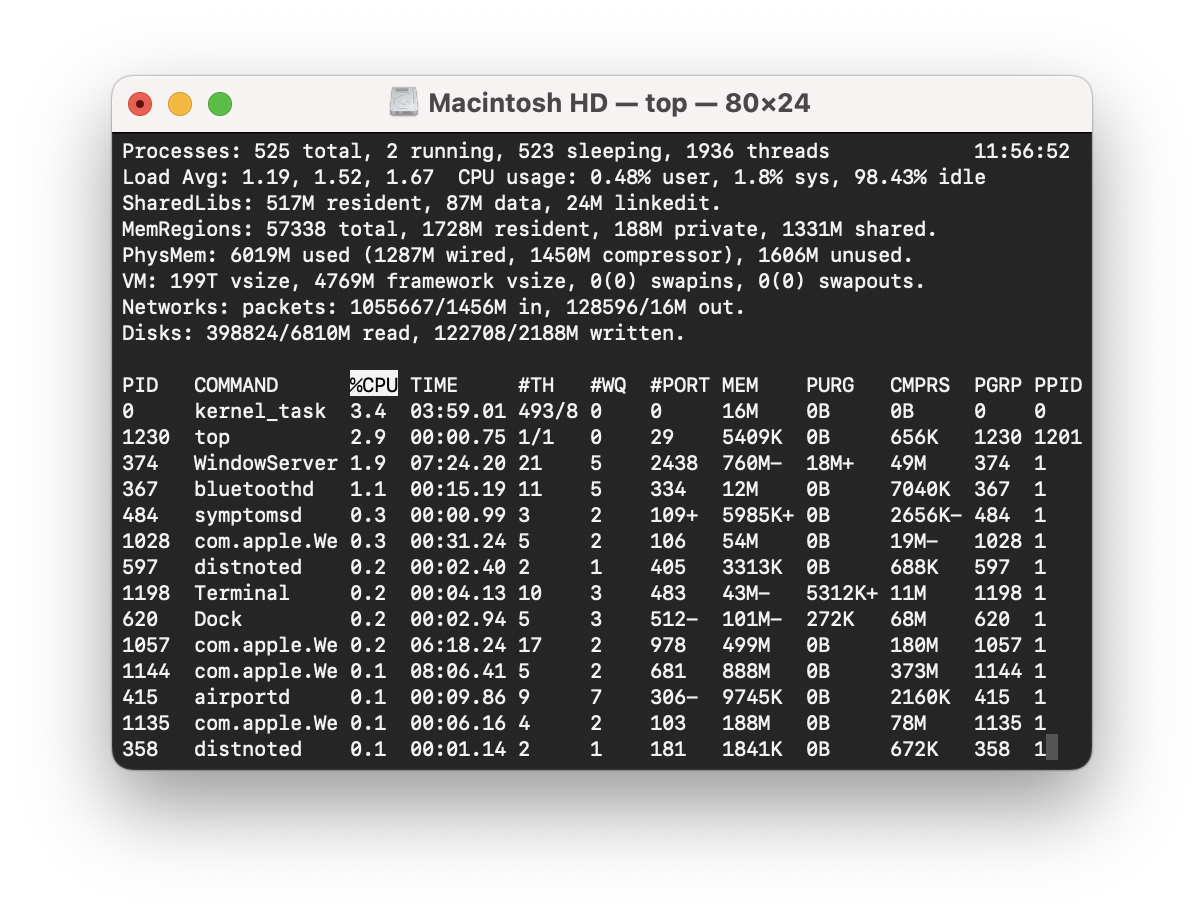
来源:StreetcarEnjoyer 的原始截图,CC0 1.0,未修改。打开方法见 Apple 终端指南。

Windows Terminal 中的 PowerShell 窗口:
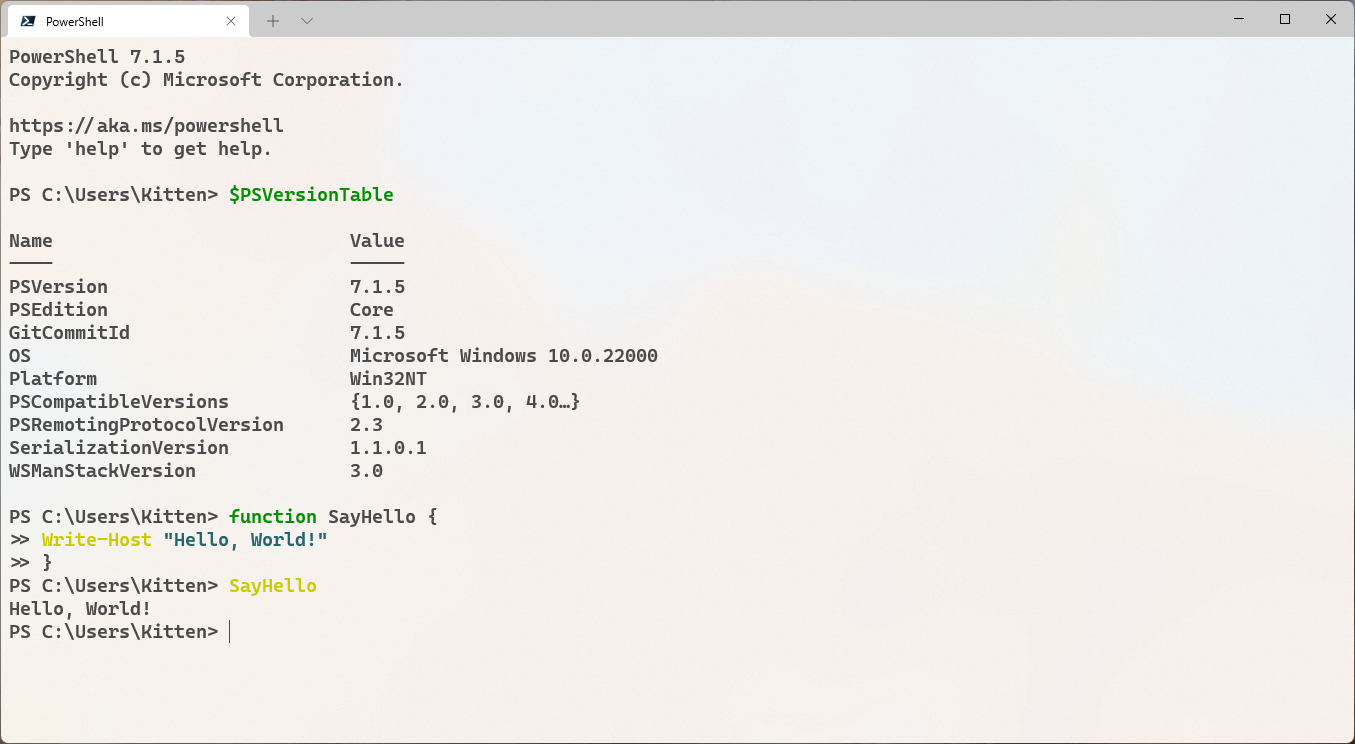
来源:Microsoft Corporation / Cindercat,MIT,未修改。搜索和打开步骤见 Microsoft PowerShell 指南。

Ubuntu 在应用搜索中输入 terminal 后的启动器:
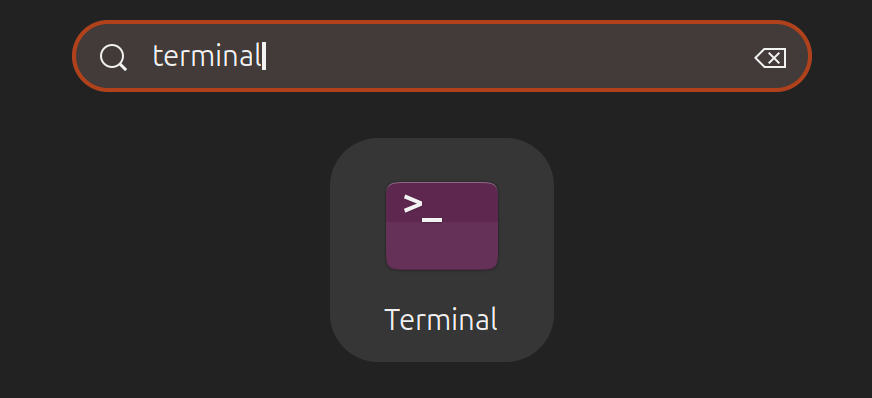
来源:Canonical / Ubuntu Desktop 文档,CC BY-SA 4.0,未修改。其他 Linux 桌面可能有不同的应用菜单。
粘贴哪一行?
macOS / Linux / WSL / Olares:
curl -fsSL https://agentj.app/rescue | shWindows 原生安装,在 PowerShell 中:
irm https://agentj.app/rescue.ps1 | iex它做什么?为什么要先看懂?
命令通过 HTTPS 下载并执行 Agent J 官方救援程序。这会在主机上运行代码,请先核对网址确实是 https://agentj.app/。它检查 Agent J 服务、连接与 AI 账号状态,尝试范围有限、可恢复的修复(如重连或重启服务),并把在主机上过滤隐私后的诊断报告发给 Agent J Father,返回工单号。它不要求管理员权限,不删除工作文件;修复可能短暂中断连接。不能承诺任意诊断文字都绝无敏感信息,发送截图和手工日志前也要自己检查。
希望先检查脚本内容,可以先在浏览器打开 macOS/Linux 脚本 或 Windows 脚本,再决定是否运行。不了解时先联系支持,不要执行陌生人发来的替代命令。完整救援机制见 紧急救援。
怎样确认恢复?
- 等命令结束,记下工单号,不要反复启动多份救援程序。
- 回到遥控器,点「立即重试」。断线弹窗应消失、恢复在线;发一条简短消息并确认收到回复。
- 如果还不行,写信给 feedback@agentj.app,附工单号、系统类型、断线开始时间和经过检查的截图。不要附凭据、设置码、配对二维码或私人文件。主机无法联网或已关机时,请帮手先处理电源和网络。
Agent J Father 是官方反馈平台,需要客服时请把问题汇报给 Agent J 开发者(客服平台)。
已重新连上时,也可以在聊天里用 /feedback-to-agentj-father 把问题汇报给 Agent J 开发者。
Windows 参考截图的 MIT 许可
Copyright (c) Microsoft Corporation.

Permission is hereby granted, free of charge, to any person obtaining a copy of this software and associated documentation files (the "Software"), to deal in the Software without restriction, including without limitation the rights to use, copy, modify, merge, publish, distribute, sublicense, and/or sell copies of the Software, and to permit persons to whom the Software is furnished to do so, subject to the following conditions:

The above copyright notice and this permission notice shall be included in all copies or substantial portions of the Software.

THE SOFTWARE IS PROVIDED "AS IS", WITHOUT WARRANTY OF ANY KIND, EXPRESS OR IMPLIED, INCLUDING BUT NOT LIMITED TO THE WARRANTIES OF MERCHANTABILITY, FITNESS FOR A PARTICULAR PURPOSE AND NONINFRINGEMENT. IN NO EVENT SHALL THE AUTHORS OR COPYRIGHT HOLDERS BE LIABLE FOR ANY CLAIM, DAMAGES OR OTHER LIABILITY, WHETHER IN AN ACTION OF CONTRACT, TORT OR OTHERWISE, ARISING FROM, OUT OF OR IN CONNECTION WITH THE SOFTWARE OR THE USE OR OTHER DEALINGS IN THE SOFTWARE.
This address stays fixed so you can share it with a helper. Use these instructions after a long disconnection when retry and the menu recovery steps have failed.
Start with the remote’s menu
- Check that the Agent J host is awake and online. Check the remote’s own network, then tap Try now.
- Tap Open emergency recovery in the offline dialog, or open the menu → Settings → Emergency repair. Try Reset connection, then the offered Agent J Father remote help. Use AI login recovery for a signed-out AI account.
- If that does not work, ask someone at the Agent J host to read this page. Never share setup codes, pairing links, passwords or your conversations with the helper.
Which machine is the Agent J host?
The Agent J host runs Agent J and the AI agent and holds your work files. It may be a Mac, Windows, Linux or Olares machine. Your phone, tablet or web browser is the remote; a remote can also run on another computer. Run the commands on the Agent J host, signed in as the same OS user that installed Agent J.
Open a terminal
This is a diagram of the controls, not an OS screenshot. Labels may differ by system version and theme.
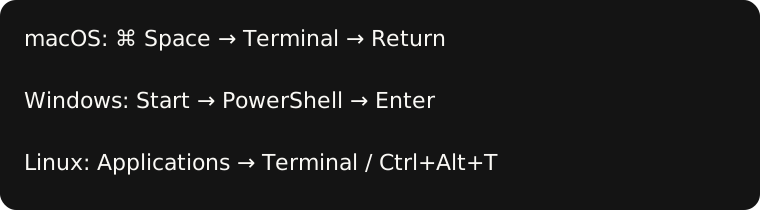
- macOS: press Command + Space, type Terminal and press Return. Paste the macOS/Linux command below and press Return.
- Windows: open Start, search for PowerShell and open Windows PowerShell or the PowerShell tab in Terminal. Paste the Windows command below and press Enter. If Agent J runs in WSL, open its Ubuntu/WSL terminal instead and use the macOS/Linux command. Do not run as administrator.
- Linux: open the application menu and search for Terminal. Ubuntu and some other desktops also accept Ctrl + Alt + T. Paste the macOS/Linux command and press Enter.
- Olares: open Agent J Terminal in Olares and use the macOS/Linux command.
Real system reference screenshots
These are screenshots of real systems; versions and language may differ from your host. Use them to recognise the window or launcher. Do not run the example commands shown in the pictures; the rescue commands are in the next section.
macOS Terminal (showing top output; there is no need to run top):
Original screenshot by StreetcarEnjoyer, CC0 1.0, unchanged. See Apple’s opening instructions.
PowerShell in Windows Terminal:
Microsoft Corporation / Cindercat, MIT, unchanged. See Microsoft’s opening instructions.
Ubuntu’s launcher after searching for terminal:
Canonical / Ubuntu Desktop documentation, CC BY-SA 4.0, unchanged. Other Linux desktops may use a different application menu.
The command to paste
macOS / Linux / WSL / Olares:
curl -fsSL https://agentj.app/rescue | shNative Windows, in PowerShell:
irm https://agentj.app/rescue.ps1 | iexWhat it does and what to check first
These commands download and execute the official Agent J rescue program over HTTPS. They run code on the host: first check that the domain is https://agentj.app/. The program checks the service, connection and AI login, tries limited reversible repairs such as reconnecting or restarting the service, and sends a locally privacy-filtered diagnostic report to Agent J Father. It prints a ticket number. It does not request administrator privileges or delete work files; a repair can briefly interrupt the connection. Filtering is not a guarantee that arbitrary diagnostic text contains no private information. Check screenshots and manually shared logs yourself.
To inspect the code first, open the macOS/Linux script or Windows script in your browser before deciding to run it. Contact support if unsure; do not run replacement commands from strangers. See Emergency rescue for the complete mechanism.
Confirm recovery
- Wait for the command to finish and keep the ticket number. Do not start several rescue processes.
- Return to the remote and tap Try now. The offline dialog should close and the connection should return. Send a short message and check that the agent replies.
- If it still fails, email feedback@agentj.app with the ticket, OS, outage start time and a checked screenshot. Do not attach credentials, setup codes, pairing QR codes or private files. If the host is offline or powered down, the helper must fix power or networking first.
Agent J Father is the official feedback platform for Agent J’s developers (support platform).
Once reconnected, /feedback-to-agentj-father in chat reports the issue to Agent J’s developers.
MIT license for the Windows reference screenshot
Copyright (c) Microsoft Corporation.

Permission is hereby granted, free of charge, to any person obtaining a copy of this software and associated documentation files (the "Software"), to deal in the Software without restriction, including without limitation the rights to use, copy, modify, merge, publish, distribute, sublicense, and/or sell copies of the Software, and to permit persons to whom the Software is furnished to do so, subject to the following conditions:

The above copyright notice and this permission notice shall be included in all copies or substantial portions of the Software.

THE SOFTWARE IS PROVIDED "AS IS", WITHOUT WARRANTY OF ANY KIND, EXPRESS OR IMPLIED, INCLUDING BUT NOT LIMITED TO THE WARRANTIES OF MERCHANTABILITY, FITNESS FOR A PARTICULAR PURPOSE AND NONINFRINGEMENT. IN NO EVENT SHALL THE AUTHORS OR COPYRIGHT HOLDERS BE LIABLE FOR ANY CLAIM, DAMAGES OR OTHER LIABILITY, WHETHER IN AN ACTION OF CONTRACT, TORT OR OTHERWISE, ARISING FROM, OUT OF OR IN CONNECTION WITH THE SOFTWARE OR THE USE OR OTHER DEALINGS IN THE SOFTWARE.