

文档Docs
使用说明User guide
手机上每种颜色、每条线、每个按钮是什么意思;命令、附件、语音、快捷键、设置;审批卡、管理员密码卡、密钥卡;上下文过半了怎么办。What every colour, line and button on the phone means; commands, attachments, voice, shortcuts, settings; approval, admin-password and key cards; what to do when the context is past half.
这页按手机屏幕上能看到的东西,一样一样讲。还没装好或者还没配对,先看 安装 和 手机上怎么用。
不想看也没关系:直接问 Agent J「这个颜色是什么意思」「怎么发文件」。它读的就是这一份说明。
第一次使用:两个遥控器和第一条消息
装好以后,帮你安装的那个 Agent 会带你把这台电脑加进你的席位,然后配两个遥控器,这两个是必须的:
- 这台电脑的浏览器:在这台电脑上打开 m.agentj.app 配对,最快,也方便你在大屏幕上看清楚每一步。
- 你的主力手机:每天带在身边的那一台,先添加到主屏幕,再从主屏幕图标里扫码配对。
其他手机、平板、电脑不急。以后想用了,跟 Agent J 说一声「再配一台」,它会带你配。
所有遥控器都连着同一个 Agent,看到的是同一段对话:在手机上说了一半,回到电脑浏览器上接着说就行。遥控器是给你一个人的几台设备用的;同事要用,就各开一个席位,像公司里每人一张办公桌,见席位、Agent 和主机。几个人共用同一台电脑也行,每人一个席位,见一台电脑多人使用。
第一个遥控器配好后,窗口里第一条消息是 Agent J 发的。它会介绍自己是你的董事长助理,是你和所有工作流、所有 Agent 之间唯一的入口,建议以后都在这个窗口里跟它说话。接着它会分几小步带你认识这个窗口:屏幕颜色、额度线和水位、语音和附件、审批卡,最后告诉你还差哪个遥控器没配。每一步你回一句「好」或「下一步」它再讲下一步;不想看了就说「跳过」。
这条欢迎消息只发一次。之后再配的设备,只会收到一句「这台也连上了」。两个必做的遥控器没配齐之前,Agent J 偶尔会在回复末尾提醒一句,配齐以后就不再提。在电脑上运行 agentj onboarding,也能看到还差哪一步。
背景颜色:Agent 现在在干什么
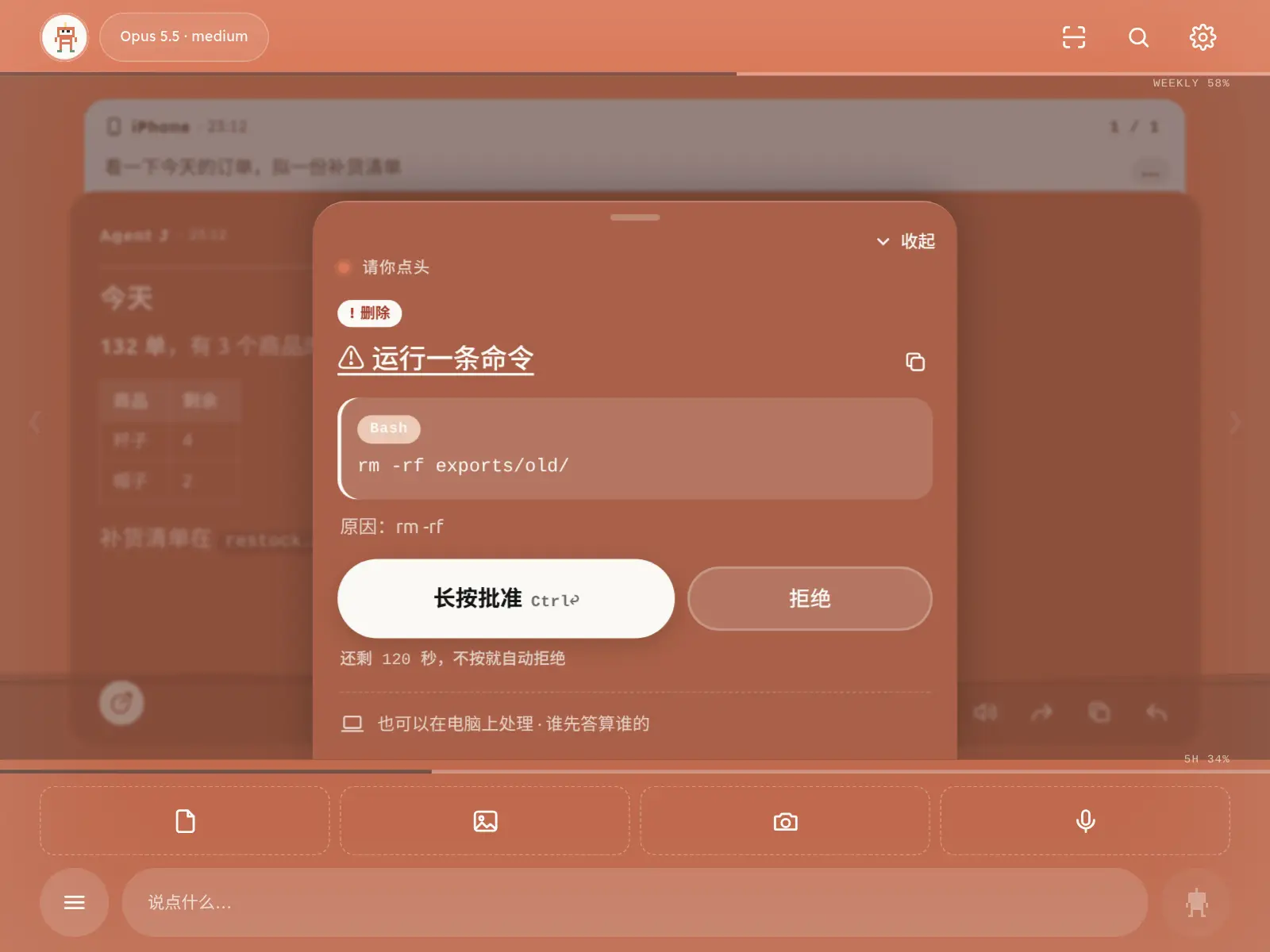
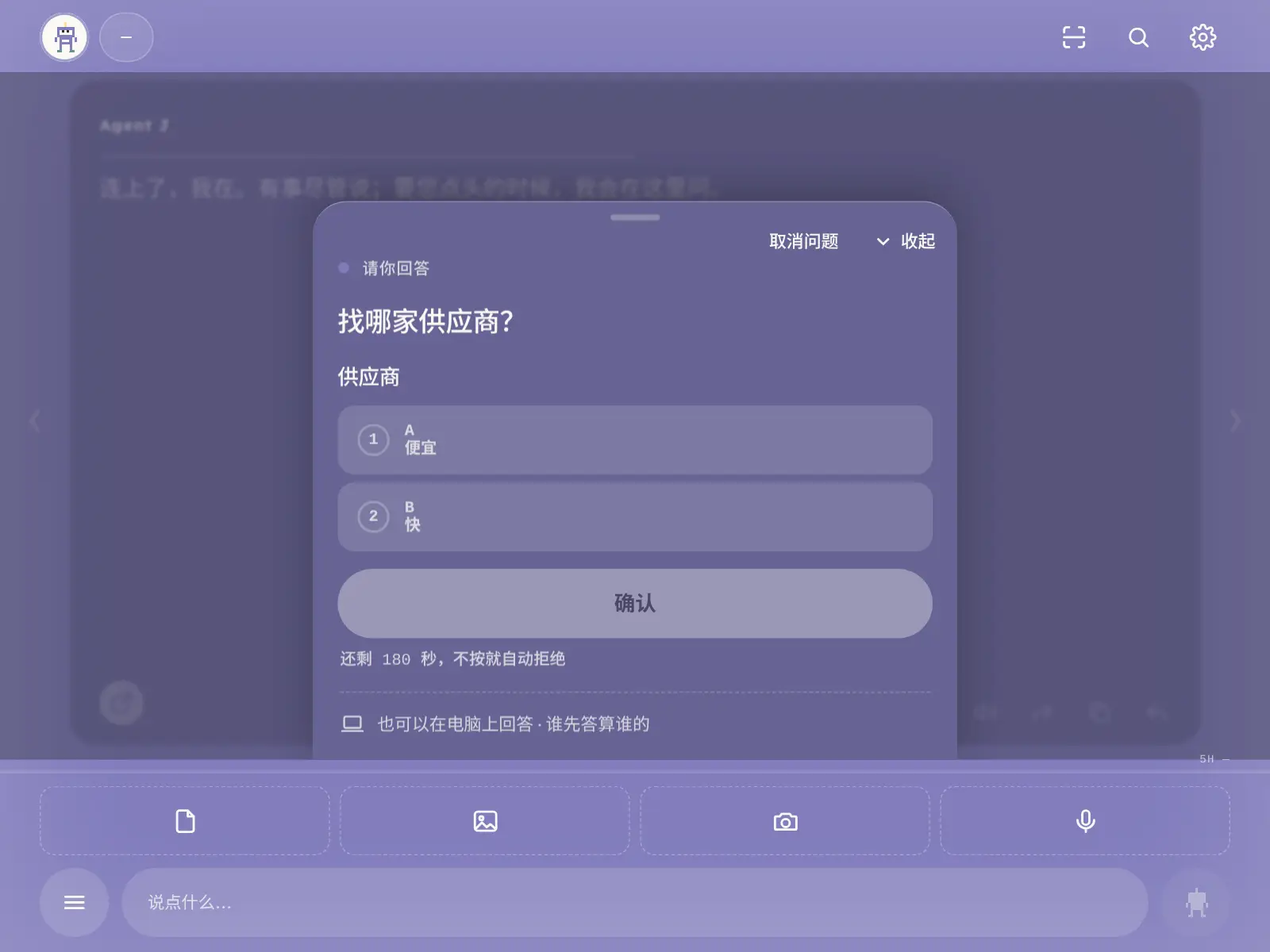
整个屏幕的颜色只说一件事:你电脑上那个主 Agent 现在的状态。它在后台调动的其他 Agent、定时任务,都不改这个颜色。
| 颜色 | 意思 | 你要做什么 |
|---|---|---|
| 绿色 | 等你下一句 | 想说就说 |
| 蓝色,顶上有一道光在跑 | 正在工作 | 等它;也可以接着发,消息会排队 |
| 橙色,边缘一明一暗 | 有一个操作等你批准 | 看卡片,批准或拒绝 |
| 紫色 | 有一个问题等你回答 | 选一个答案,或者取消后直接打字 |
| 灰色 | 没连上电脑、还不确定状态,或者已经「全部停下」 | 看顶上那行字 |
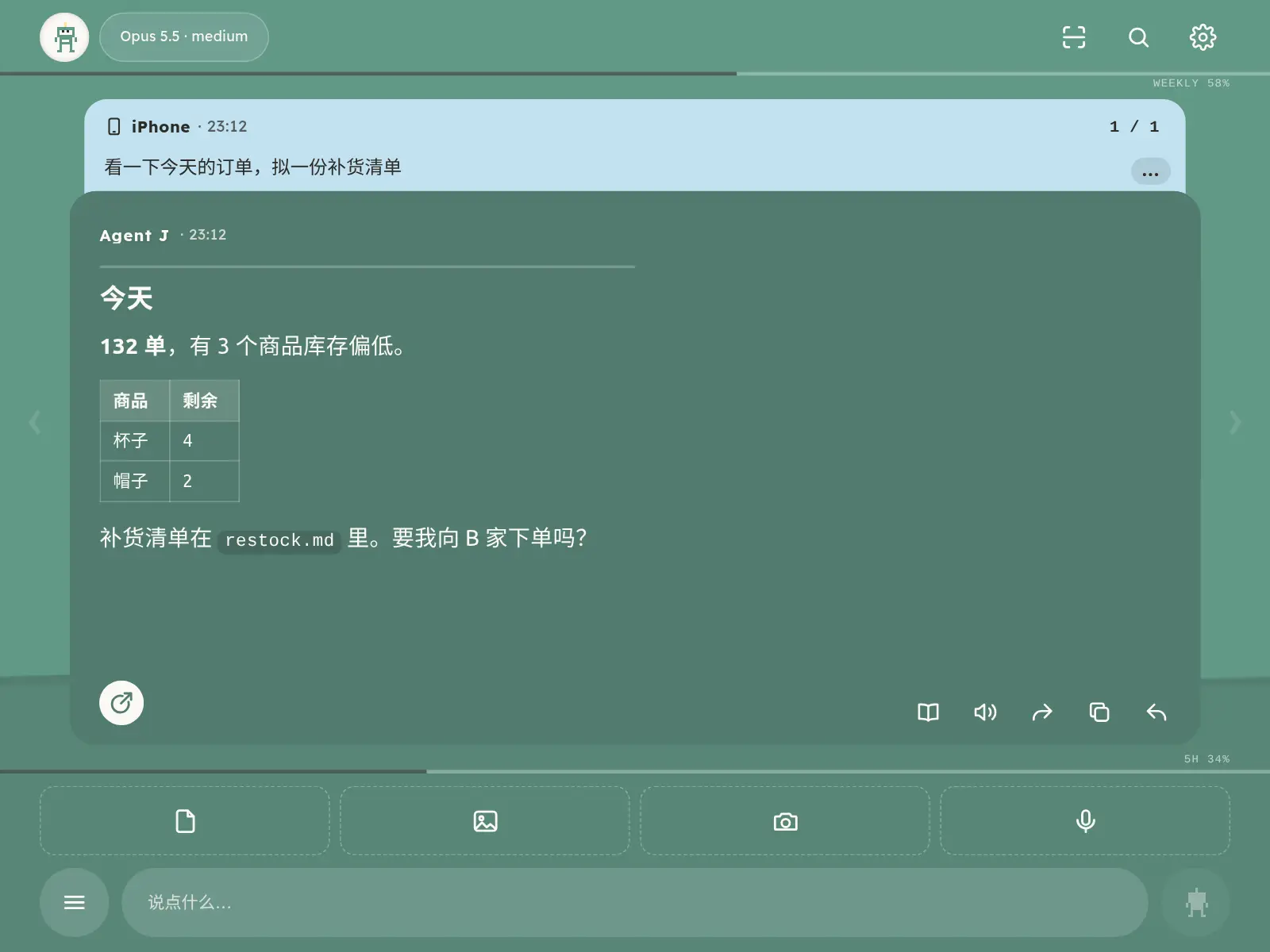
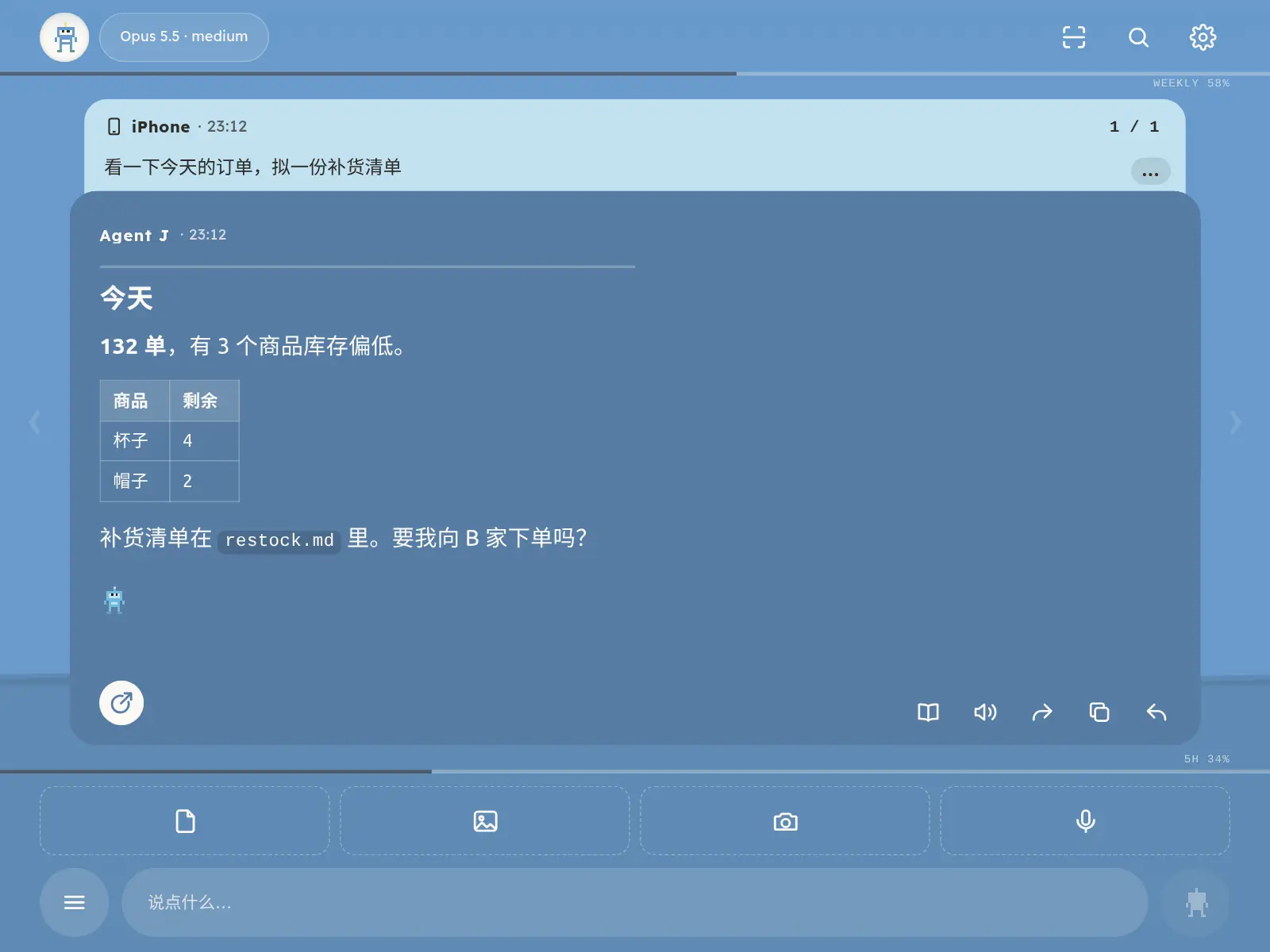
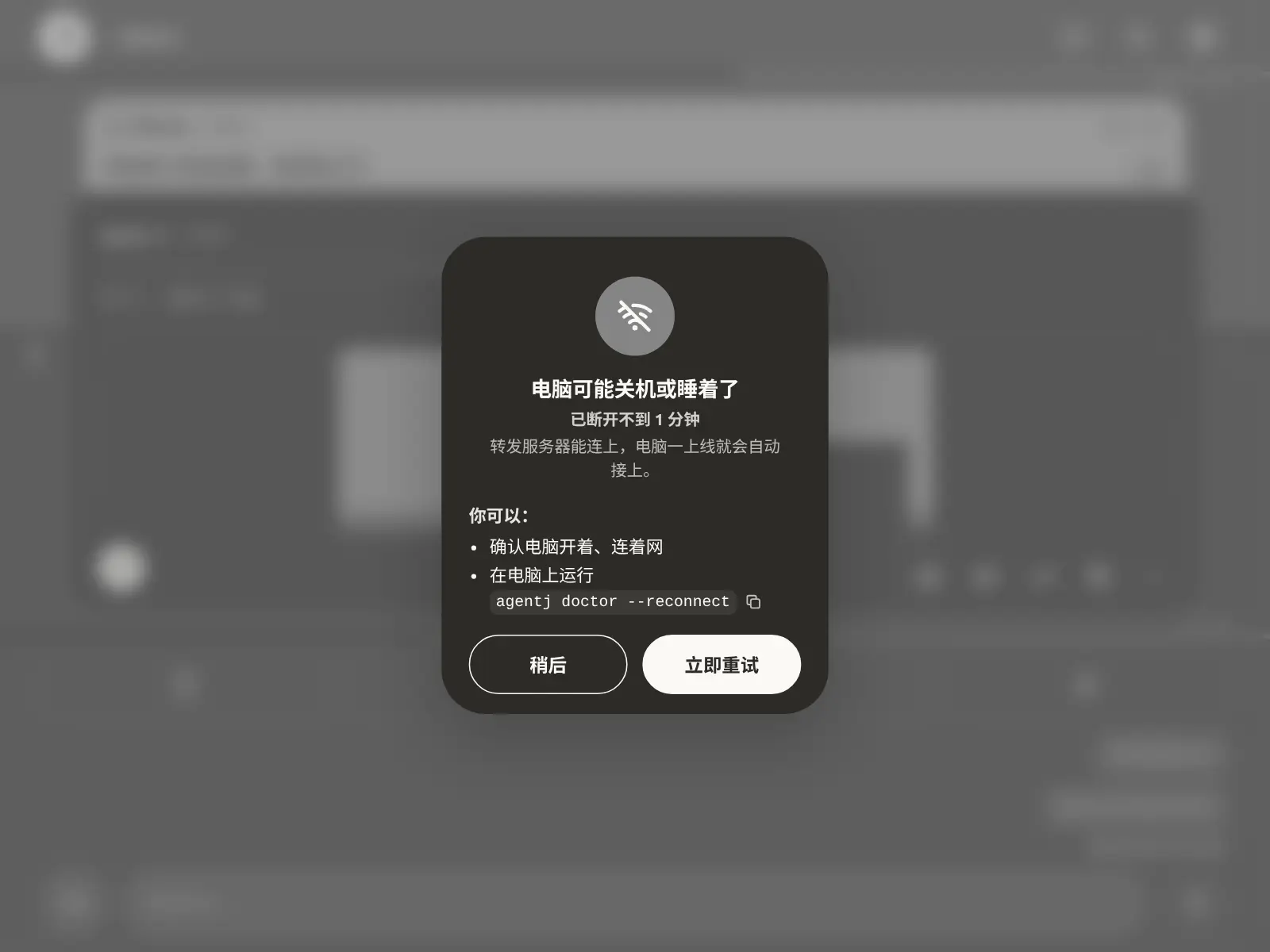
- 左上角的图标跟着状态变。点一下换字号(中 → 大 → 中 → 小),按住跳到第一条未读(没有未读时提示「没有未读」)。字号记在这台手机上,刷新后不变。
- 输入框空着时,按住灰色的发送按钮,会弹出「提示音音量」条,上滑变大、下滑变小,松手就定了。
- 顶上那行小字用文字再说一遍状态,比如「正在工作」「请你批准一个操作」。
- 状态一变,手机会轻轻震一下。
三条线:额度和上下文
- 顶上标题栏下面那条细线(右边写着 weekly):你 AI 账号的本周额度用了多少,越长用得越多。
- 输入框上方那条细线:5 小时额度用了多少。
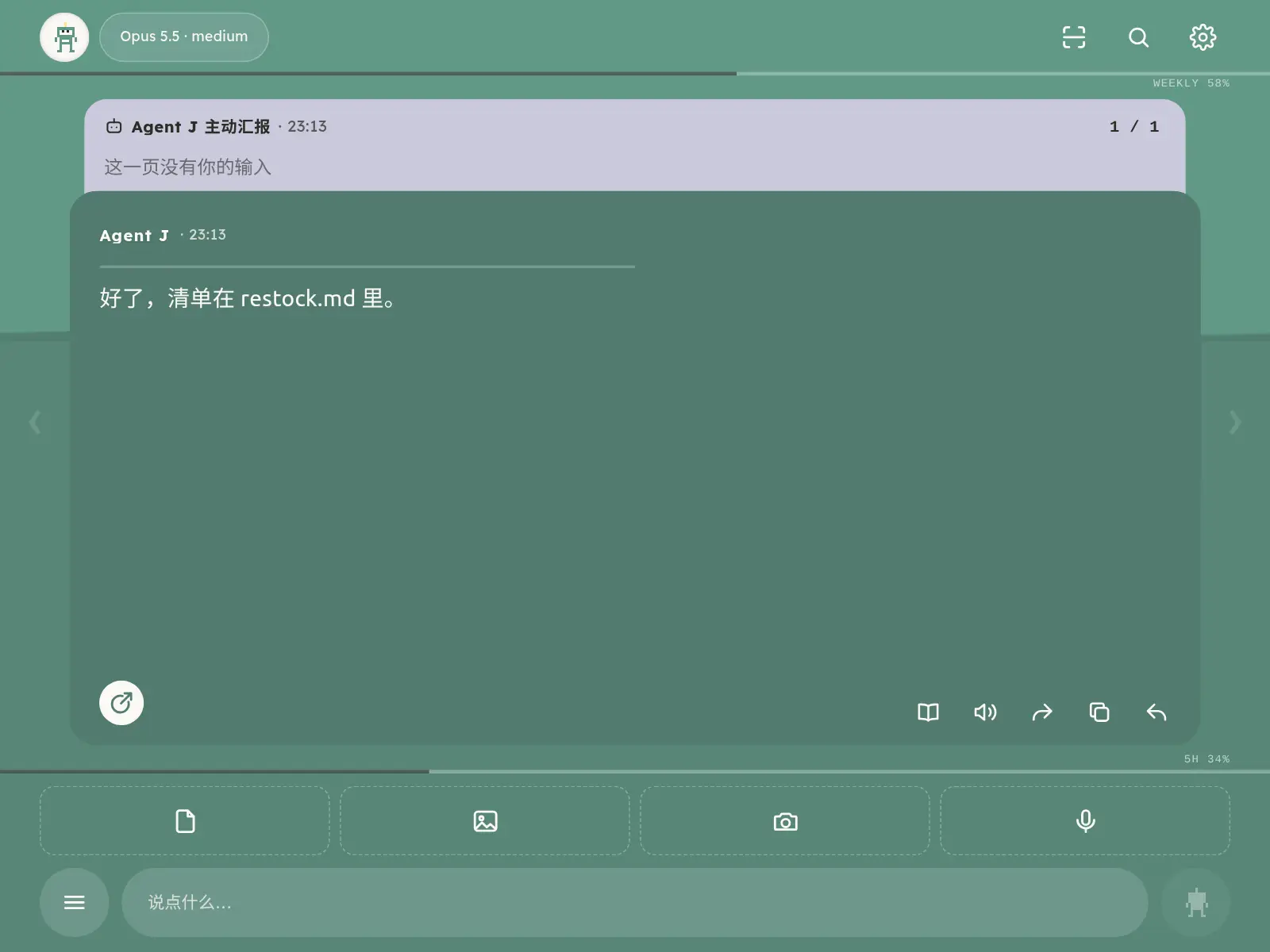
- 背景里慢慢升高、带波纹的水面:这段对话占了多少上下文,也就是 Agent 一次能记住的内容。水越高,越接近装满。压缩以后,水面落回底部。
点一下顶上或输入框上方那条线(或者线旁边的数字),屏幕中间会弹出「用量」方框,列出具体的百分比,例如:周 58% · 5 小时 34% · 上下文 64%,还写着这些数字是多久以前报上来的。点「知道了」、点方框外面或按 Esc 就关掉。点一下顶上或输入框上方那条线,会弹出具体的百分比,比如:周 58% · 5 小时 34% · 上下文 64%。
本周额度后面的括号里写着现在是 7 天重置周期里的第几天。「用量」方框里还有一条「重置周期」,写着还有多久重置、几点重置;每一项下面一行小字说明按现在的速度到重置时大概用到多少。数字平时不发光:本周额度用得比平均速度(每天约 14%)快时,会微微发一点蓝光,方框里已用的那段变成浅蓝;任何一项用到 80% 以上发淡橙色的光,90% 以上发橙红色的光,说明余量紧张了。拿不到重置时间的服务商不显示第几天。
这两条额度线一直都在,也当作页面上下的分隔线。线旁边没有文字,就是这一项现在没有数据,通常是:①你的套餐本身没有这个窗口的限额(例如 ChatGPT Pro 200 美元档,OpenAI 只下发周窗口和点数余额,没有 5 小时窗口);②服务商没有提供用量查询(例如火山方舟、阿里百炼的 Coding Plan,用量请到它们的控制台看);③暂时拿不到数据。都不影响正常使用,换了模型或 AI 编程工具后一有数据就会自动显示。
水位过半了怎么办
上下文快满的时候,Agent 会开始忘掉最早的细节。水位过半后,Agent J 会在某次回复的最后提醒你一句(一段对话只提醒一次)。
- 方便的时候说一句「压缩一下」,或者在 ≡「全部命令」里点
/compact,或者直接发/compact。 - 不用自己先做准备。 Agent J 收到压缩命令后,会先把正在做的事、已经定下的决定、待办和要用到的文件路径写进一份交接文件,写好了再压缩。
- 压缩完,它先读这份交接文件,再接着干。
如果交接没写成,比如 Agent 卡住了,压缩照常进行。手机上会提示一行「交接没来得及写,已经直接压缩了。」
交接文件路径固定、可以在手机上直接复制:共享模式是 ~/.local/state/agentj/handoff/compact.md,Agent J 自己的主对话是 <工作目录>/.agentj/handover/compact.md。压缩完如果你没再发消息,Agent J 会自己提醒 Agent 先读交接再接着干,手机上显示一行「压缩好了,我在翻交接笔记,马上接上思路」。详见文档里的压缩与交接一页。
输入 /clear 会开一段新对话。开之前先问你一声;在你发出下一条消息之前还能「撤销清空」。新对话一开始,按钮就换成一行「来不及撤销了:新对话已经开始,旧对话存在这台电脑上。」,旧对话仍存在电脑上。想保留进度时用 /compact,别用 /clear。开新对话、压缩完成这类状态提示会用你设定的称呼(默认「董事长」),想换就运行 agentj config set owner.address 老板。
心跳:Agent 自己醒来看一眼
空闲满一段时间(默认 60 分钟),Agent J 会叫醒电脑上的 Agent,看看后台任务和你的待办。一切正常,手机上什么都不会出现;有事要告诉你,会收到一页简短的消息,标着心跳检查。想改就说一句「以后每 30 分钟看一次」「每天早上 7:30 叫醒你看一眼」或「别再定时叫醒了」,也可以在设置 → 心跳里改:空闲多久醒来从下拉框选(30 分钟到 24 小时,或者自定义),还能打开「每天固定时间唤醒」。每次心跳都会用掉一次模型调用。详见文档里的心跳一页。
一条消息一页,左右滑着看
每一页上面是你说的话,下面是 Agent 的回复。往右滑看更早的,往左滑看更新的;右上角的 1 / 1 是第几页、一共几页。翻页要手指一按下就快速横划;按住不动超过三分之一秒再拖,就是在选字,不会翻页,拖选区两头的小柄也不会。回复很长往下滚时,顶上的名字、负载线和机器人一直固定在卡片顶部。
页头横着分成三等份。双击左边 1/3,回到第一条(最早的一条);双击右边 1/3(页码),回到最新。中间 1/3 留给未读。你上次看完之后又来了回复,页头正中会出现一个闪烁的小圆标,里面是未读的条数。点它跳到第一条未读,再一张张往后翻,翻到最新,圆标就消失。没有未读时圆标不显示,点中间也没反应。在电脑上按 u,也是跳到第一条未读。未读在你自己的全部遥控器之间同步:任何一台看到某条回复,其他遥控器上这条及此前的未读提示也会消失;离线遥控器回来会先同步。升级后已有的回复都算已读,不会一打开就是 99+;哪台遥控器的已读没送到电脑,它会自己补发。只有一点例外:这台遥控器正停在旧页、新回复刚到,它自己还没翻到这条,那么就算另一台已经看过,这台的页码照样闪、圆标照样显示,翻到那条才消失。静默回合不算。
你翻到旧消息时,不管是自己发了一条,还是 Agent 来了新回复,页面都停在原来那一页、原来的位置,不会跳走;新回复只让右上角的页码闪动,你接着往后读就行。只有本来就停在最新一页时,发出去的消息才会翻到新的一页。
回复下面一排按钮,从左到右:
| 按钮 | 作用 |
|---|---|
| 书本 | 全屏阅读(双击回复也行),里面可以调字号 |
| 喇叭 | 朗读这一条,用手机自己的语音读,文字不发给别人 |
| 箭头 | 分享这一条,走手机自带的分享 |
| 两张纸 | 复制整条回复 |
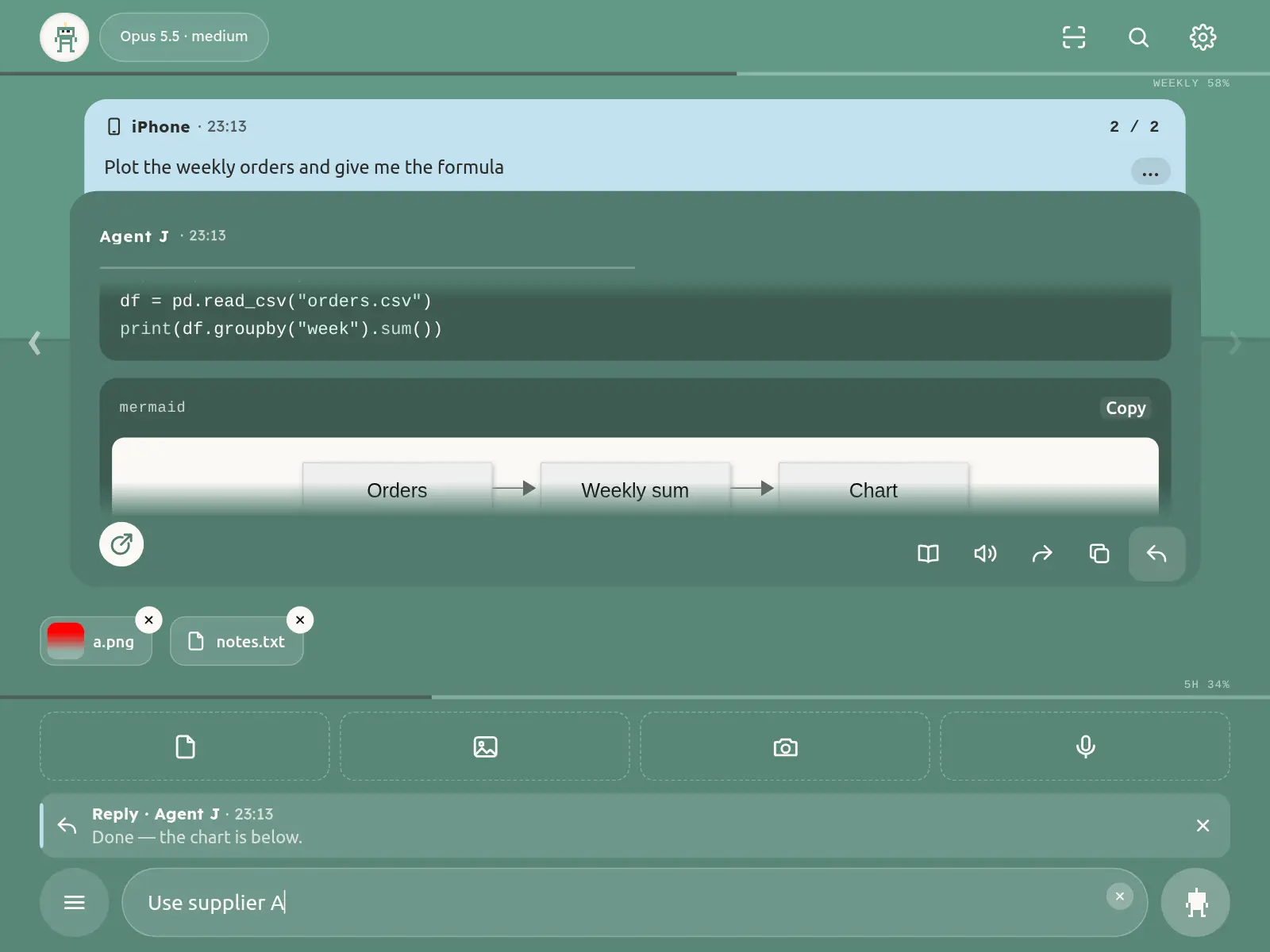
| 弯箭头 | 回复这一条,引用会出现在输入框上方 |
在回复里选中一段文字,就会引用这一段来回复。再选别处会再加一段,不会覆盖,最多 5 段(可以来自不同的回复,翻页或全屏阅读里选都算),在输入框上方并排;点一段的文字看全文,点它的时间跳回原文并高亮,右上角 ✕ 删这一段,最右边 ✕ 或 Esc 全部清空。剪贴板里始终是最后一次选中的文字。
发出去的消息带了两段以上引用时,消息卡上的引用先折叠成一行:写着一共引用了几段、第一段的开头和还剩几段,跟发送前输入框上方的样子一致。点这一行展开全部引用,每段点一下仍能跳回原文;再点一次顶上那行就收起来。只引用一段时照旧直接显示。
回复卡左下角单独有一个白色圆形按钮(圆里一个带缺口的圈和斜出的箭头),是「分享成网页报告」:把对话里的结论做成一个好看的网页发给别人。点一下,输入框里会放好 /web-page-report,光标停在后面,不会自动发送。你可以接着补一句,比如「只分享定价那部分,给公司同事看,7 天有效」;也可以什么都不写直接发,Agent 会先问你:分享整段对话、某几个主题还是只这一条,谁能看(公开、访问码、只限公司邮箱、任意邮箱登录),多久有效,要不要隐去名字和数字。说清楚了它就不再问。在更早的一条回复上点,这一条会作为引用一起发过去,Agent 就知道从哪里开始。电脑上还没装网页报告技能时,Agent 会先问你要不要从广场装上。
按住这个圆形按钮不放,会从下面弹出「快捷技能键」:先写着它现在绑定的是什么、点一下会做什么,下面列出手机 / 菜单里的全部命令和技能(一键执行的命令、你自己的命令、Agent 的技能),可以搜索。它可以换成任何你常用的:选一个,再点「确认绑定」,以后这个按钮就是它,图标不变。绑定命令(比如 /status、/compact)后,点一下直接执行;/clear 这种会清空对话的,照旧先弹确认,不会因为是快捷键就跳过。绑定技能后,点一下会把这个技能放进输入框,你补一句再发,Agent 就对这条回复执行它。列表最上面的「恢复默认」换回分享成网页报告。也可以让 Agent 帮你改,或在电脑上运行 agentj config set ui.card_hot_action status。
回复卡左上角是你给 Agent 起的名字。按住名字不放,会弹出改名的方框,和在电脑上运行 agentj name 一样,手机和电脑上都会换成新名字。右上角有时会站着几个跳舞的像素小机器人:每个机器人是一个正在后台替你干活的 Agent,比如一个工作流 CEO,或者主 Agent 临时派出去的助理。来了新活就蹦出一个新的,干完的鞠个躬飘走。手机上最多并排 6 个,再多显示 +N。点一下机器人,屏幕中间弹出一个方框,写着有几个 Agent 在干活、谁在替你监控,并列出全部:每一行是它的机器人、是谁、在干什么(完整的任务标题,太长的在行尾用省略号)。点某一行,打开这个 Agent 自己的卡片:它在哪里干活、干了多久、最近一步做了什么,后台派单还有报告路径和报告第一行;卡片只用来看,点「返回」回到列表。Claude Code、Codex、OpenCode 派出去的子 Agent 都会这样显示。主 Agent 没在回复时也照样显示;后台明明在干活却没有机器人,说明那件活没登记,让 Agent 用 agentj busy run 包装后再跑。方框底下有个「换个样子」按钮:点一下,等于你亲自给 Agent 发了一条消息说想定制外观,它会先问你想把机器人、配色、logo 或发送按钮改成什么样,做好后先校验,通过了才换上。直接按住机器人不放也是一样。按 ESC 或点方框外面就关掉。机器人图鉴和显示规则见后台小机器人。
名字下面那条细灰线是负载线:一段亮色(浅色)在线上来回滑,滑得越快说明电脑越忙。快的时候,不急的话可以等一等再发。点一下这条线,屏幕中间会弹出说明,写着现在的综合负荷,下面分五行写 CPU、内存、GPU、硬盘、网络各用了多少:硬盘是读写有多忙和还剩多少空间,网络是现在每秒收发多少。没有显卡或读不到时写「—(未检测到)」。这五项只在方框开着时每 2–3 秒量一次,关掉就停,不给电脑添负担。最后是闲置、正常、很忙各是什么速度(大约 6 秒、3 秒、1 秒滑一趟)。和电脑断开时它不动。
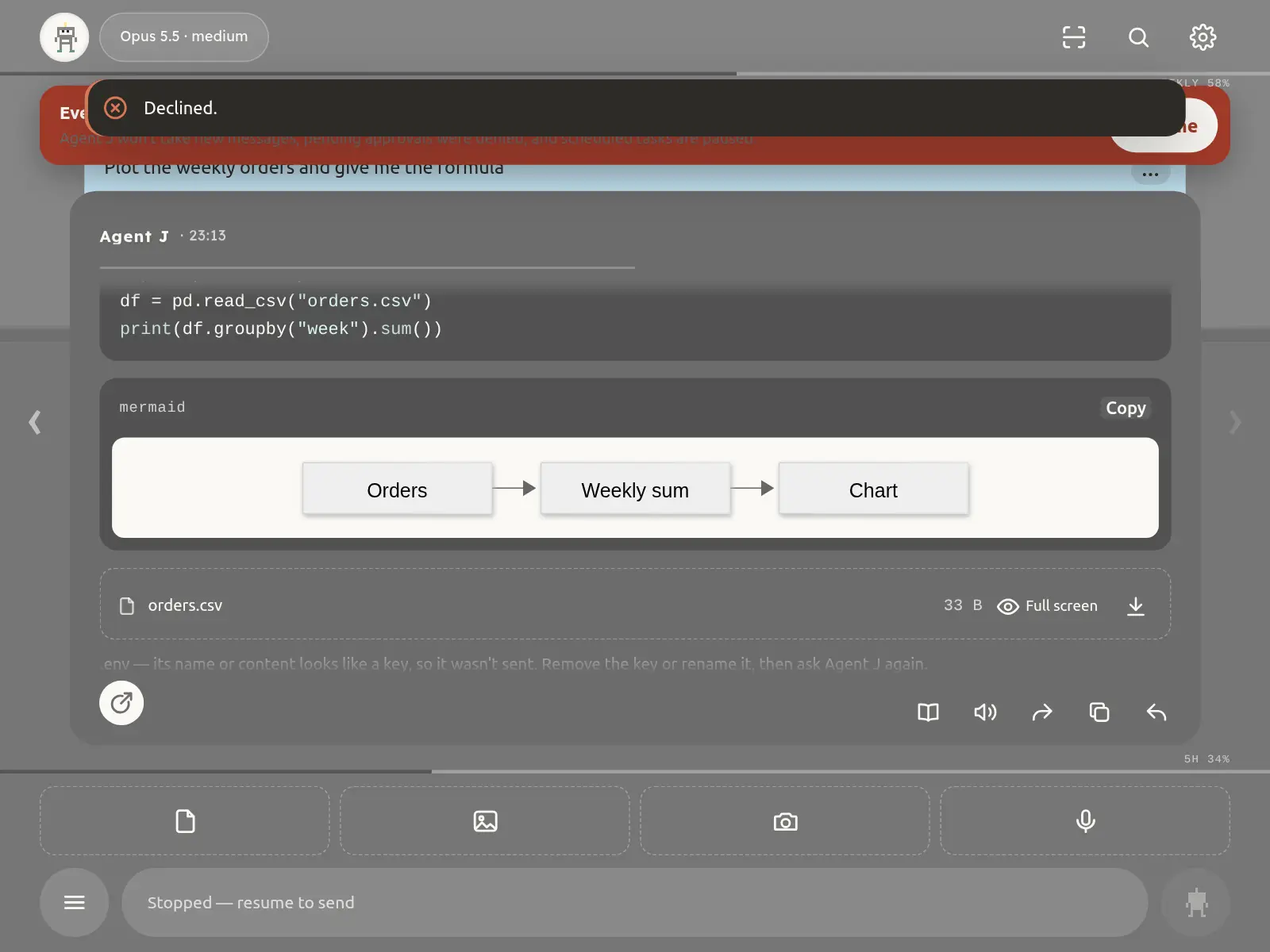
Agent 回复里的内容会自动排好版:
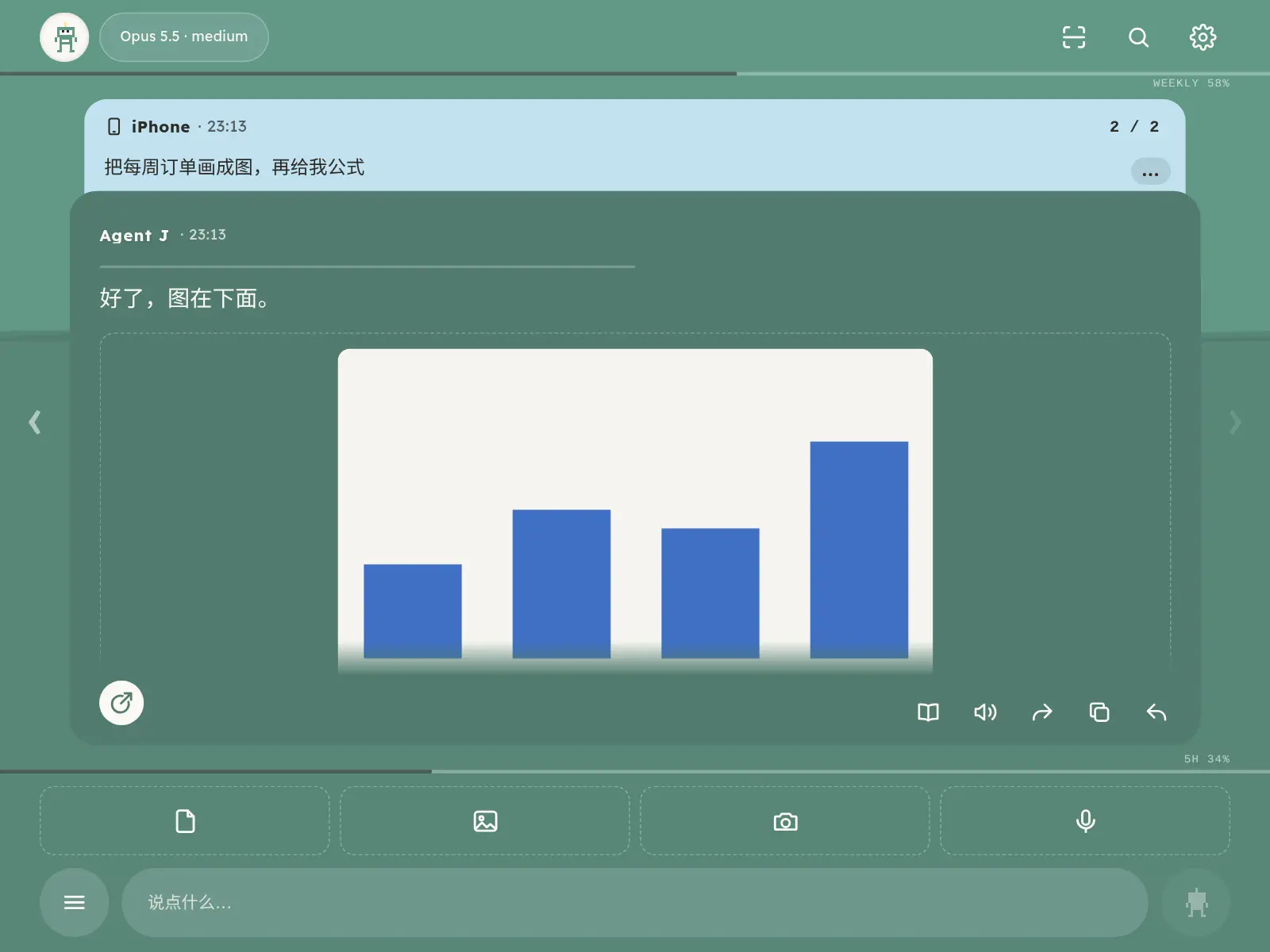
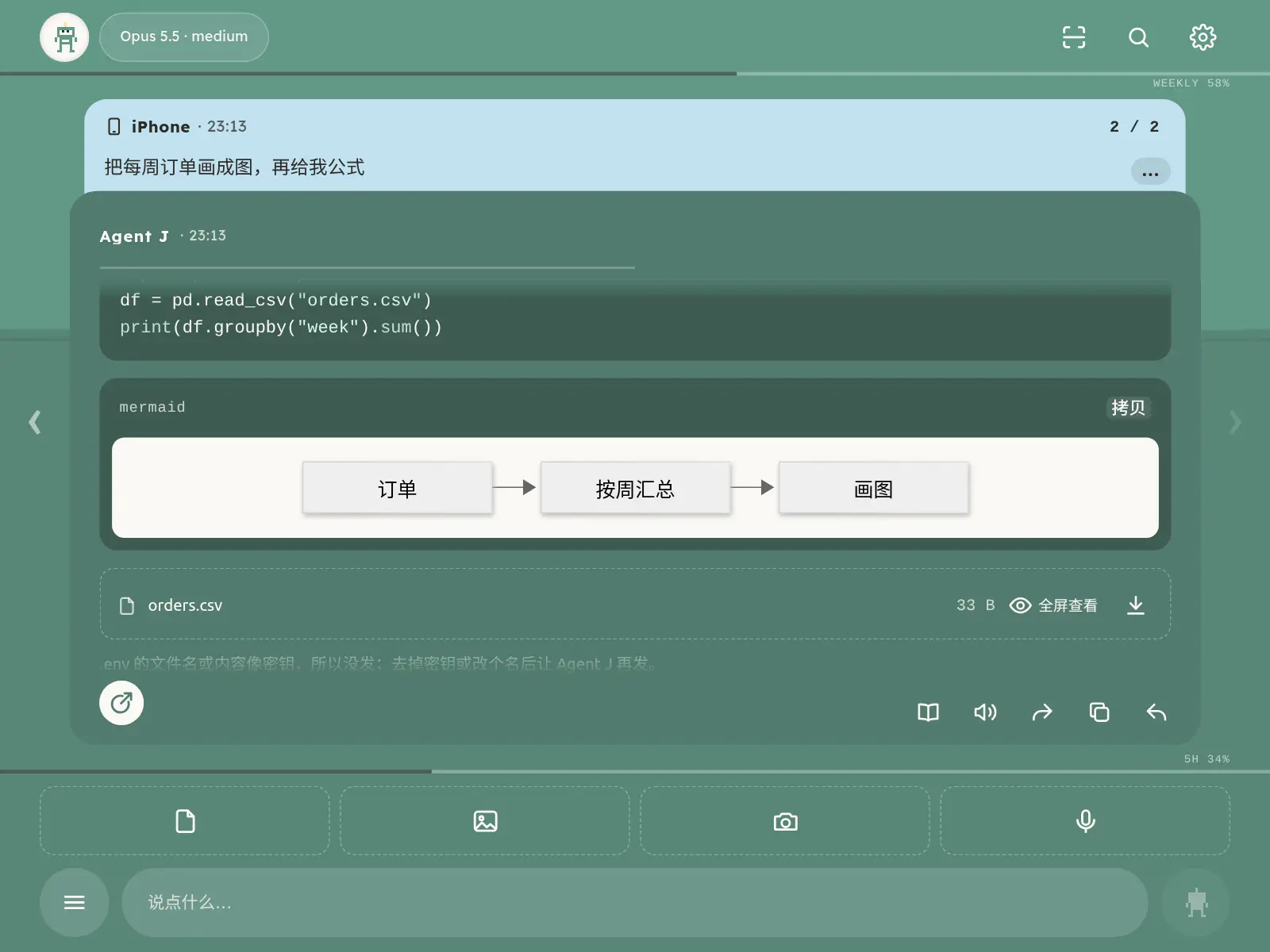
- 代码带颜色高亮,太宽可以左右滑;代码块右上角有复制按钮。文字里带底色的一小段命令(行内代码)点一下就复制,提示「已拷贝」,可以直接贴到终端里跑。
- 数学公式(LaTeX)显示成公式。命令不会被当成公式:
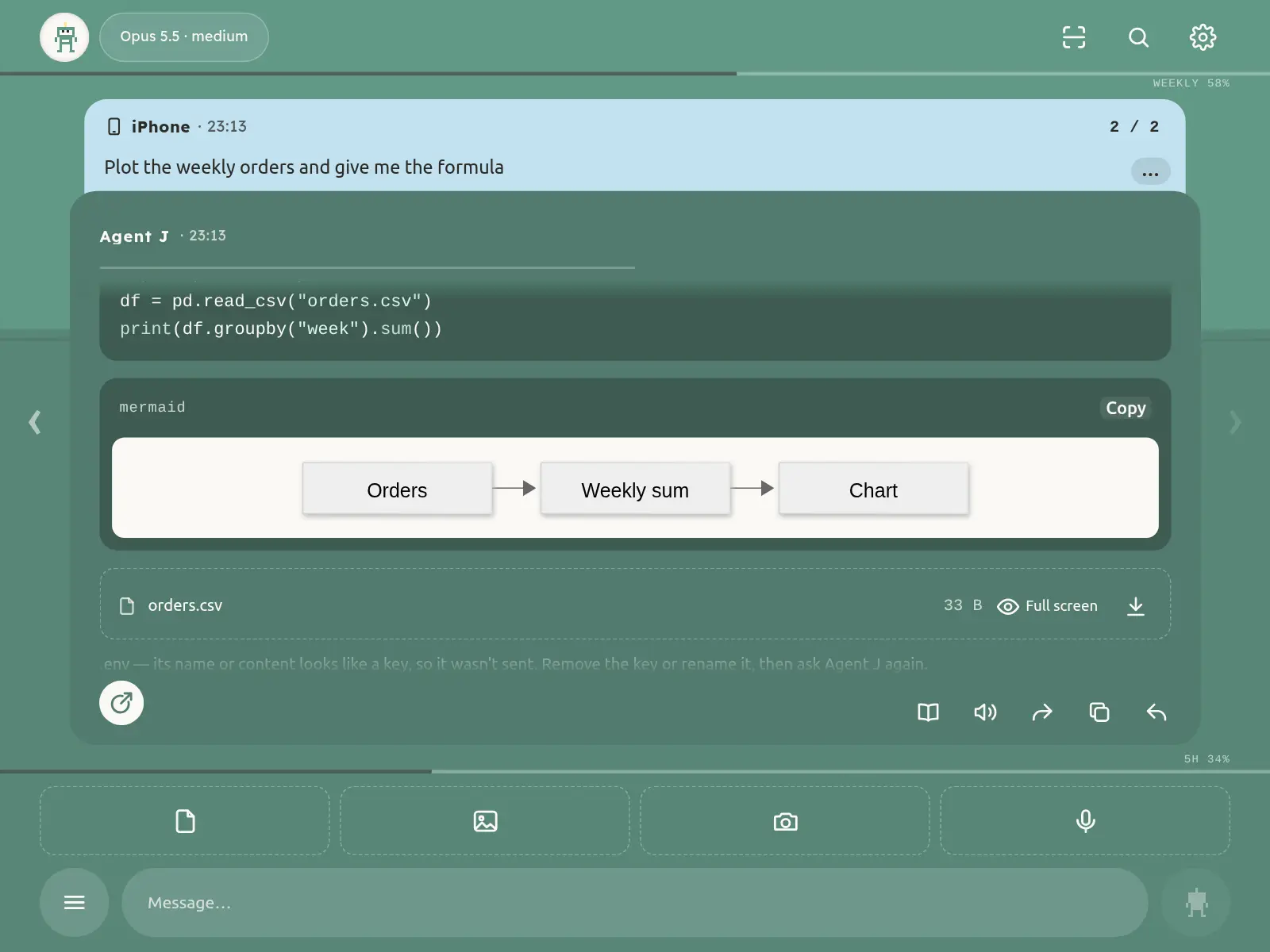
$HOME、$(…)照原样显示;系统卡(比如目标结束报告)里不显示公式。 - 流程图(mermaid)直接画成图。
- 它提到的图片、音频、视频、PDF、网页和其他文件,只要在它的工作文件夹里,就直接显示在回复里:图片点开看大图,音频视频直接播放,网页在一个安全的预览框里打开(预览里不运行任何脚本)。每张文件卡片下面一排图标:预览、下载、分享、转发到邮箱、转发到 Telegram。小文件出现在屏幕上就自动加载,大文件点一下才加载(按钮上写着大小),开了省流量或用蜂窝网络时都不自动加载。点「预览」全屏查看:PDF、Word(docx)、Excel(xlsx)、CSV 表格、Markdown、代码和文本都能直接看;PPT 这类暂时看不了的,会提示你下载。电脑上选中卡片按空格键预览,再按空格或 Esc 关闭。预览打开时,左右方向键(手机上左右滑)切换这条回复里的上一个、下一个文件,顶部显示「第几个 / 共几个」;图片放大后单指拖动是移动图片,不会切走。点「下载」按文件原名保存(中文、空格、表情符号都没问题),屏幕上会提示「已交给浏览器下载」;iPhone 主屏幕上的 App 里,点「下载」会弹出分享面板,选「存储到文件」。
- 太大的文件、工作文件夹以外的文件不会发到手机上,回复里写一行原因。音频、视频、图片照常发,文件名是中文、带下划线或很长都没关系。凭据文件(比如
.env、.pem、私钥)和写着真实密钥的文本不会当普通文件发,而是在手机上弹出密钥领取卡,用 Face ID 领取;没弹卡时,那一行会写清原因和怎么拿到它。网上的图片链接不会自动打开。
搜索聊天记录
右上角「设置」左边的放大镜(电脑上按 ⌘K / Ctrl+K)打开搜索:在屏幕中间的深色卡片里输入关键词,会同时搜你发的话、引用、附件名和 Agent 的回复。空格隔开多个词,要全部出现才算;不分大小写、全角半角和繁简。
结果默认按相关度排:命中越多、出现在你发的话里、在开头或第一行、整句或完全一样的排在前面,最近的稍微靠前;也可以切到「按时间」。每条写着是谁发的、什么时候,以及命中的那一小段,命中的词会标出来。手机上已有的记录马上出结果,更早的、只在电脑上的记录稍后补上。
点一条结果,卡片关掉,直接翻到那一页,那一页会闪一下。再点放大镜,回到刚才的结果,停在原来的位置。每次搜索都留成一页(最多 20 页),在卡片里左右滑(电脑上按 ← →,或点顶上的 ‹ ›)切换之前的搜索,顶部写着「第 N/共 M 次搜索:关键词」。这些搜索只存在这台手机上,和草稿一样加密保存,清空会话(/clear)或解除配对时一起清掉。
在电脑上也能搜:agentj history search 关键词。
发消息
- 打字,点「发送」或按回车。Agent 还没收到之前,可以点「取消发送」撤回。
- Agent 正忙(蓝色)时也可以发,消息会排队,轮到了再交给它。
- 没网也能发。 手机断网时照常发,消息先加密存在这台手机上,页面显示「网络恢复后自动发送」;网络一回来,按顺序自动发出,不会重复。电脑中途重启也不会把同一条执行两遍:重启前没办完的那条,手机上会标一句说明,需要的话您再手动发一次。
- 在输入框开头打
/,会弹出能用的命令。
接续 Codex App 会话
电脑上的 Codex App 打开会话时,手机会从本机记录显示它实际使用的模型,并提示当前只读。发送被原生写入权拒绝时,消息不会投递,也不会自动新开会话。完全退出 Codex App 后重发,可尝试接着同一会话;仅切到 New chat 或等一轮回答结束不保证释放写入权。不要承诺两个独立客户端能同时写这个会话,也不要删写锁、注入桌面私有管道或改权限。
手机提示有别的程序在用这个会话时,会说是谁:Agent J 自己上次留下的后台进程会自动清理,接着发;ChatGPT App 里的 Codex、Codex App 或终端里的 codex 要你先把它退出;实在查不到是谁,也会照实告诉你。
Codex 的权限:默认直接跑在电脑上
接 Codex 时,只要你没在 ~/.codex/config.toml 的最前面写过 sandbox_mode,Agent J 就让它像你在终端里一样直接干活:能联网、能装东西、能改你家目录里的文件。危险操作(花钱、删除、发送、密钥等)照样先到手机上等你批准。
- 你自己写了
sandbox_mode(比如workspace-write),就照你的来;超出范围的操作会直接拒绝,提示里会告诉你怎么放开。 sandbox_mode要写在文件最前面(第一个[ ]之前)。追加在文件末尾,往往落进了最后一个[ ]表里,Codex 不认。手机上发/status,或在电脑上跑agentj doctor,会提示「写了但没生效」。让 Agent 改就行,它会用agentj codex-sandbox写对位置;改完重启 Agent J,同一段对话马上按新设置。- 接续 Codex App 会话时,按这条对话在 Codex App 里的权限来;你没在 App 里选过(还是默认权限),就按上面的规则。因为权限被拒的话,去 Codex App 把这条对话的权限改成「完全访问」,再从手机重发。
附件:文件、图片、拍照
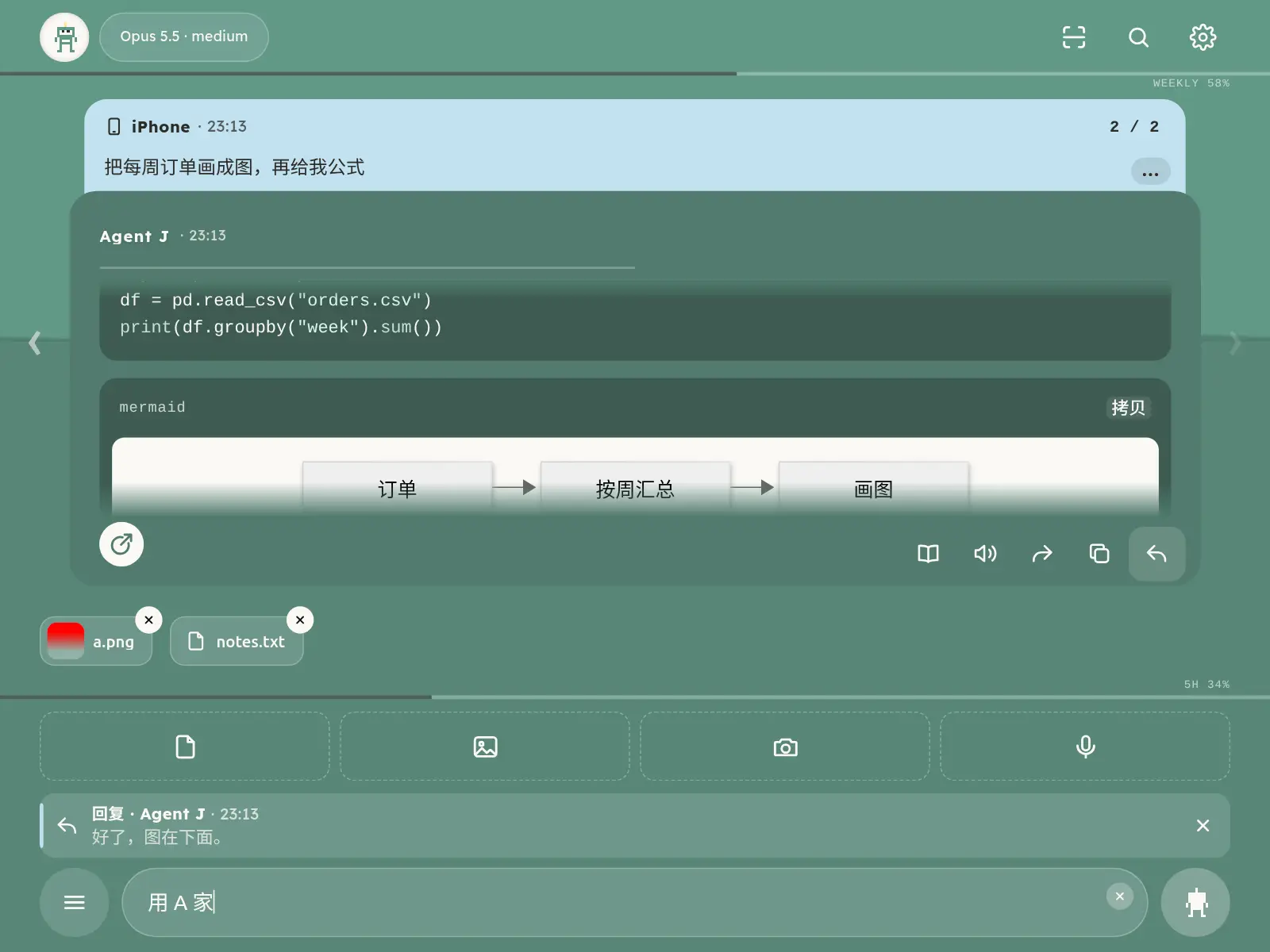
- 输入框上方三个按钮:「文件」「相册」「拍照」。也可以直接粘贴图片;在电脑浏览器里,把文件拖进来就行。
- 按住「文件」:把剪贴板里的文字贴到输入框光标处,超过 2000 字就变成一个 .txt 附件。按住「相册」:把剪贴板里的图片加成附件。iPhone 上可能会先弹一个「粘贴」小气泡,点一下就行。
- 一次最多 10 个附件,每个不超过 200 MB,任何类型的文件都行。录音和视频会在电脑上转成文字,原件一起交给 Agent。太长的一段文字粘进来,会自动变成附件。
- 附件加密后直接送到你的电脑,放在 Agent 的工作文件夹里,30 天后自动清掉。
语音:单击锁定,按住说、松开发送
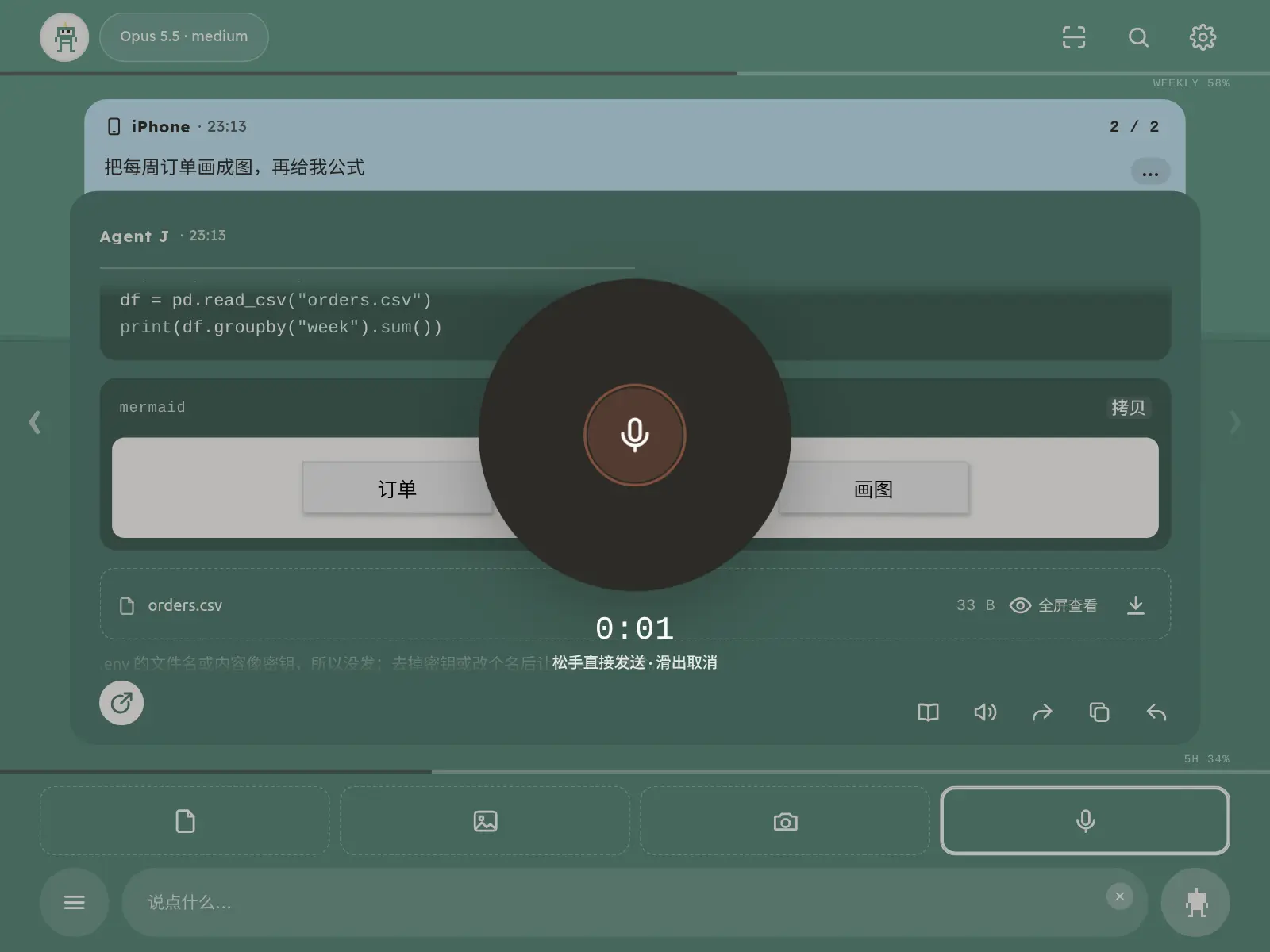
- 按住麦克风说话,松开后转写并直接发送;长录音作为附件直接发送。说一半想算了,手指明显滑出按钮(离开超过约 80 像素,或往上滑过一个按钮高)再松手就取消;手抖、轻轻挪一下不会取消,滑回来也能接着录。
- 单击或双击麦克风都锁定录音,松开手也一直录;锁定后等半秒再点一下结束,文字放进输入框,检查后发送。键盘 m 的按住转文字、双击锁定保持原样。
- 语音在你自己的电脑上转成文字,不经过我们。电脑上还没装语音模型时,用手机输入法自带的听写也行。
- 想让每条回复自动读出来:「设置」里打开「自动朗读」。
≡ 全部命令
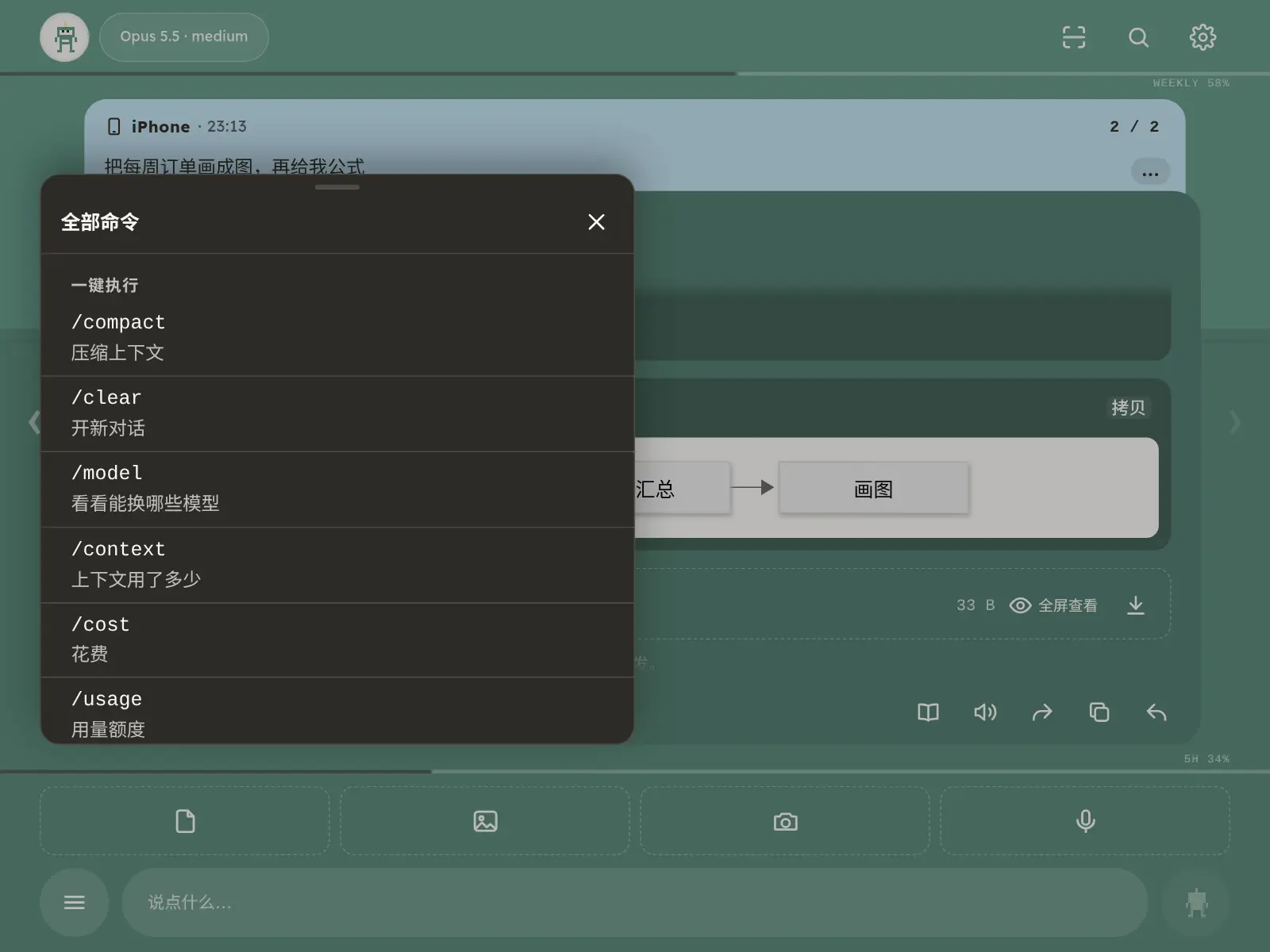
输入框左边的 ≡ 打开「全部命令」,点一下就执行:
| 命令 | 作用 |
|---|---|
/compact | 压缩上下文(会先自动写交接,见上文) |
/clear | 开新对话,发下一条消息前可以撤销 |
/new | 同 /clear(Codex 用户习惯的叫法) |
/model | 看看能换哪些模型;/model 名字 直接换 |
/context | 上下文用了多少 |
/cost | 这段对话花了多少 |
/usage | 套餐额度用了多少 |
/status | 现在的状态 |
/stop | 中断正在做的这一轮 |
/help | 列出这些命令 |
/reset | 重置连接:和 设置 →「紧急修复」→ ① 一样(见下文) |
「好友」组里有两个命令,点一下会填进输入框,你补完再发:
| 命令 | 作用 |
|---|---|
/my-agent-id | 电脑直接回你的 Agent 号码(点一下代码块就能复制)、分享链接和「打开我的名片」按钮,不经过 AI,不花 tokens |
/add-friend 号码 [附言] | 加好友,和好友页上的「加好友」一样由手机签名发出;号码抄错一位会当场提醒;不带号码就打开「加好友」 |
「一键执行」一组里换 AI 编程工具的命令(/switch-harness)点一下就发给主 Agent;也可以在输入框里打这条命令,后面补一句「切换到 Codex」再发。它不会马上切换,而是交给主 Agent:主 Agent 先说明要换的是哪种工具,扫描这台电脑装了哪些、用无头方式试一下各自的登录还能不能用,告诉你现在能切到哪些,你确认了才切。切换时手机会断开几秒再自动连上,新的工具会先自报家门;那边没起来,会自动切回原来的,并告诉你原因。详见 换 AI 编程工具。
想加自己的命令?点列表里的 /customize(定制命令),或者直接按住 ≡ 不放:等于你给 Agent 发了一条消息说想定制 slash 命令,它会先列出现有的,再问你想加、删还是改哪一条,改好校验通过才生效。
切换前,现在这个工具会先把对话要点写进交接文件;新的工具接上后先读它,再接着干。没写成也照样切,手机上会说「这次没写成交接」。
菜单里还有「全部停下」和 Agent 自己的技能。改设置之类的其他命令,要回电脑上做。详见 Agent 好友。
顶上显示正在用的模型和思考强度,点一下换下一个,按住恢复默认。连着点只会改显示:某一半停手 5 秒不再点,才真正切换(等待时这一半会变淡,下方有条细线逐渐缩短);点回原来的选项则什么都不发送。按住恢复默认、输入 /model 名字 都会立刻生效。
需要你出手的卡片
审批卡(橙色)
Agent 要做一件需要你点头的事时,屏幕变成橙色,下面升起一张卡片,写着它要做什么。
- 同意要按住「长按批准」,大约一秒,等按钮填满再松手;它在最前面,手机上在上面,电脑上在左边。不同意就点「拒绝」。按完卡片马上收起;没送到或已经超时,卡片会再弹出来说明。
- 长命令只显示两行,点「展开全部」看全部;标题右边的复制按钮复制完整命令。
- 在电脑浏览器里,按
⌘↩(Mac)或Ctrl↩(Windows / Linux)等于长按批准,按Esc是收起。 - 2 分钟内没处理,就算拒绝。先不想管可以收起,卡片会缩成一个小标签,请求还在等你。你的遥控器全都不在线时,卡片会留 30 分钟,Agent 先做别的活,你批准后它再做这一步。
- 发邮件:发给你自己、或者收件人全在邮件白名单里,不弹卡片直接发。发给别人的卡片上,每个新收件人旁边有一个「以后发给 TA 不用再确认(加入白名单)」,默认不勾;勾上再长按批准,TA 就进了白名单——以后 TA 的来信直接处理,给 TA 发信也不再问你。
共享会话里,卡片标「查看密码或密钥」是要把凭据显示到屏幕上,标「改密码或密钥」是要改它;程序按名字读取 .env、笔记里提到 .env,都不会再弹。想更严,就在电脑上运行 agentj config approvals strict(agentj config approvals standard 改回来)。卡片只用你设置的语言显示。
只有真正危险的动作才弹卡:五类事要明确命中(git push、部署、付款或发消息的接口、删云上数据、写凭据文件)才问你;往普通文件写笔记(heredoc 正文里写了 deploy、密钥这些字也不算)、--dry-run、list、status、systemctl --user 起停自己的后台任务、sleep 轮询,都不弹。看不清的命令(程序名是 $PY 这样的变量),配好 Jev(电脑上的 OPENROUTER_API_KEY)后先问 Jev 是否与当前任务一致,概率不低于「设置」里的「Jev 判断阈值」(默认 0.70,0.50–0.95)就直接放行并记进「记录」;五类明确危险的动作不受阈值影响,一律弹卡。觉得弹窗太多,跟 Agent 说一声,它会解释并运行 agentj config set approval.jev_threshold 0.6(手机上弹一张确认卡)。
目标模式(/goal):在 ≡ 菜单点 /goal,写上要做成什么、什么时候前做完。Agent 先发一张「开工授权卡」,列出目标、验收、截止时间和它要用到的危险动作(按类带上限,例如「推送到仓库 X」「花钱:只买一个域名」);你批准一次,目标期内这些动作就不再弹卡,全部记进「记录」。范围外、电脑能撤回的动作(包括用 scp / rsync 往 ~/.ssh/config 里起过名字的机器上传一个那边还没有的新文件)弹 10 秒倒计时卡,不点就算同意;撤不回的和疑似攻击的一律等你决定,结束时的结果卡会列出来。等你决定的卡用大白话写清谁想做什么、为什么没自动批准、不点会怎样(「已跳过这一步,其余照做」)、怎么批准,原始命令收在「详情」里。目标进行中,长按「批准,并加进目标授权」能把同类步骤一起放行(最多 20 次,目标结束就作废);Agent 也可以用 agentj goal grant 再申请一项授权,只弹一张卡。/goal status 看进度,/goal stop 立刻收回授权;默认 8 小时到期。公司或团队可在「设置 → 安全」关掉「目标模式 10 秒自动批准」。
审批档位:「设置 → 安全」的「审批档位」有三档。「安全」多问几次,看不清的命令、批量批准、目标模式的倒计时都改成等你点;「中等」是默认,和以前一样;「全放行」像 Claude Code 的 --dangerously-skip-permissions,几乎不弹卡,全部记进「记录」,疑似被攻击(包括下载后直接运行)、动密码或密钥(包括把它们发出去)、花钱、改价仍然一条条问你。同一页还有「设了目标就不弹窗」(默认关):打开后你自己发的 /goal 不弹总卡,直接开工,过程中也不弹卡,红线照样问你,结果卡照样出;要花钱或改价的目标照样先弹总卡;只认打开它的那台手机,关掉开关会结束没弹总卡就开始的目标。这两项只能在已配对的手机上签名切换(放宽时手机设了通行密钥的还要过 Face ID),Agent 自己改不了,电脑上直接改配置写成全放行也按「中等」处理;Agent 运行 agentj config set approval.level … 只会在你手机上弹一张确认卡。详见 手机使用:审批档位。
遥控器都不在线时:卡片照常留在手机上,锁屏提醒照常发;接了 Telegram 或设好了邮箱,还会给你的 Telegram 私聊和自己的邮箱发一句不带内容的提醒(15 分钟最多一次)。20 秒后 Agent 知道你不在,先做别的活;卡片留 30 分钟,你批准后同一个请求方再做那一步就直接执行;点「全部停下」会作废没用掉的批准。详见 遥控器都不在线时。
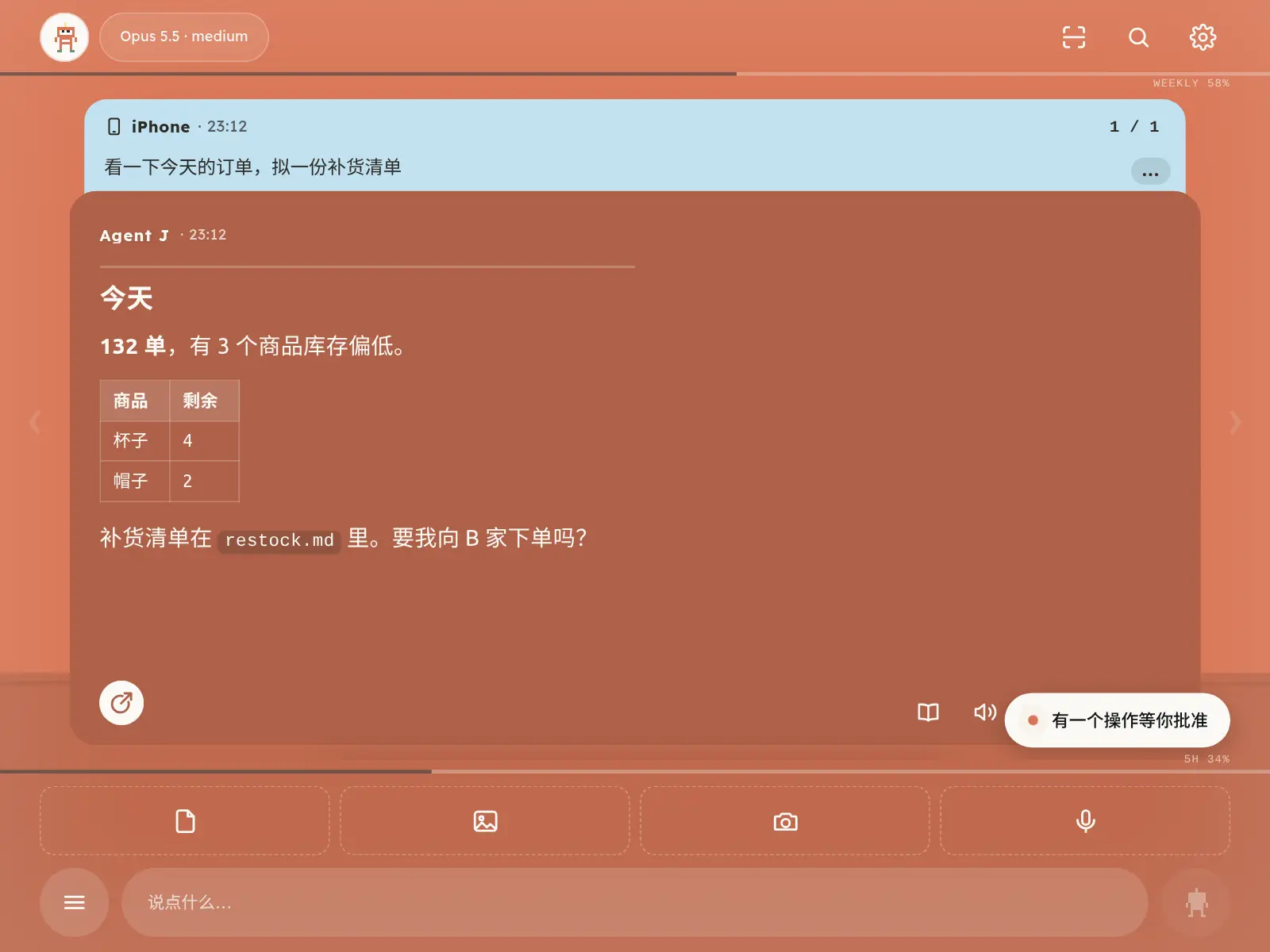
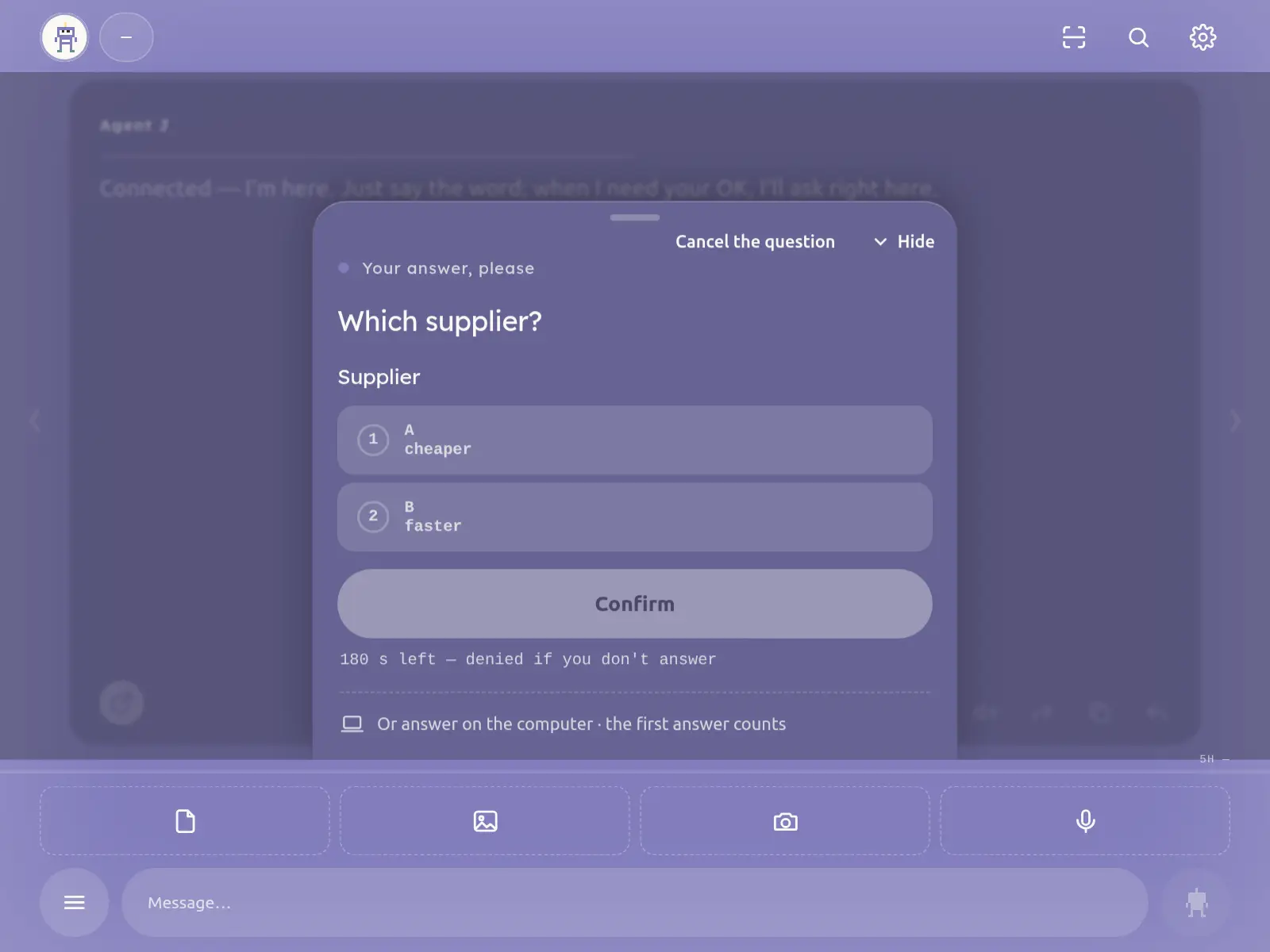
提问卡(紫色)
Agent 让你选一个答案:点选,再点「确认」。几个选项都不合适,就取消这个问题,直接打字回答。不管电脑上用的是 Claude Code、Codex、OpenCode、Kimi 还是 Qwen,Agent 都能弹这张卡(agentj ask),可以单选、多选,选项下面可能带一小段预览;选「其他(我在聊天框里写)」或开放题的「好,我在聊天框里回答」,就直接在输入框里打字回答。卡片没真弹出来时,Agent 不会说卡片已经弹出。
管理员密码卡
Agent 要用管理员身份执行一条命令(比如装一个系统软件)时,会弹出这张卡,先写它为了做什么,再写命令和会改动什么。你在卡片上输入电脑的管理员密码。密码加密后直接交给电脑执行这一条命令,Agent 看不到你的密码。
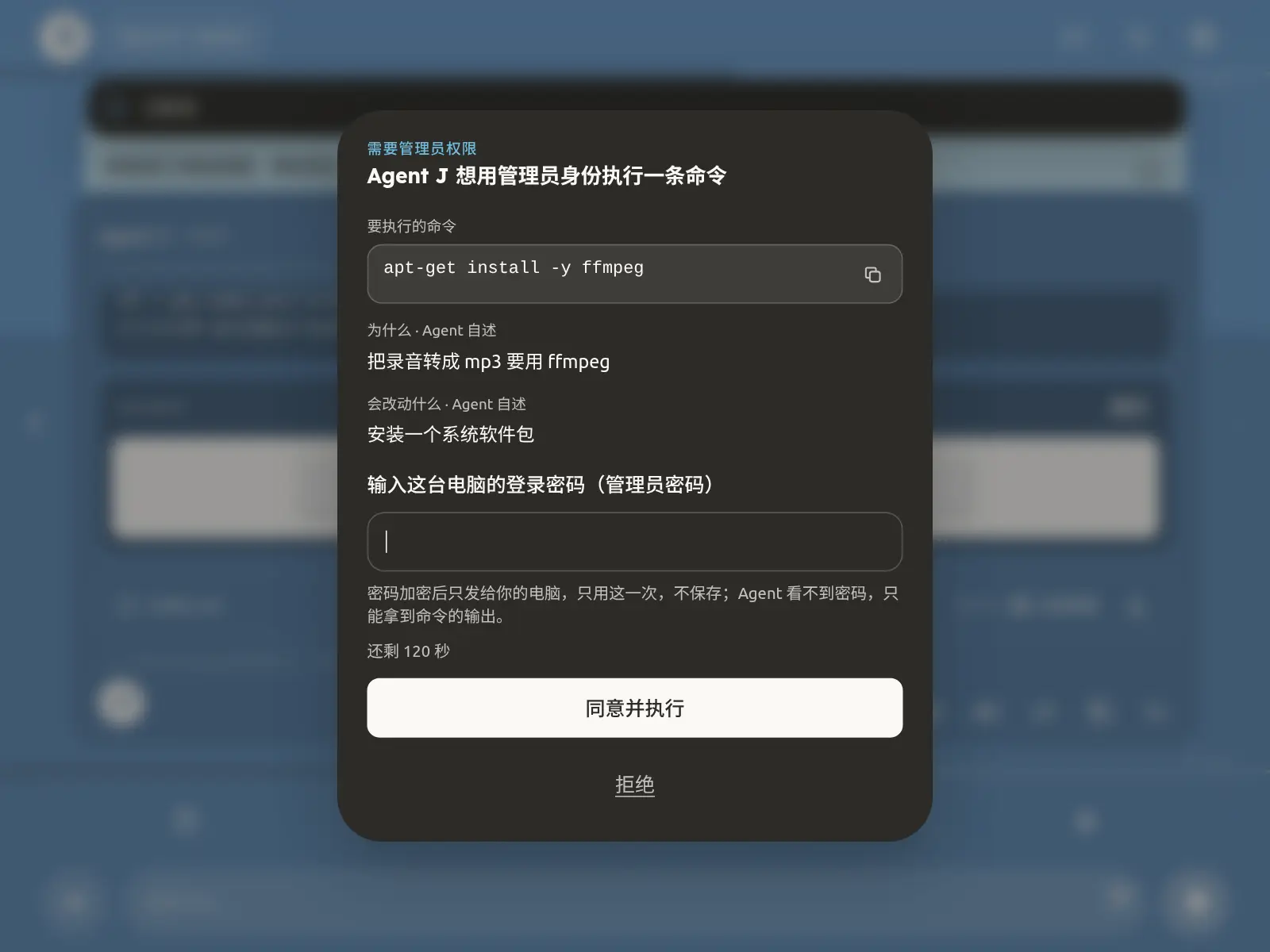
密钥卡
Agent 需要一个 API key 时,会弹出这张卡,写明要哪个 key、做什么用、存到哪里。把 key 贴进去,它会直接写进指定的位置,不进聊天记录,Agent 也看不到。
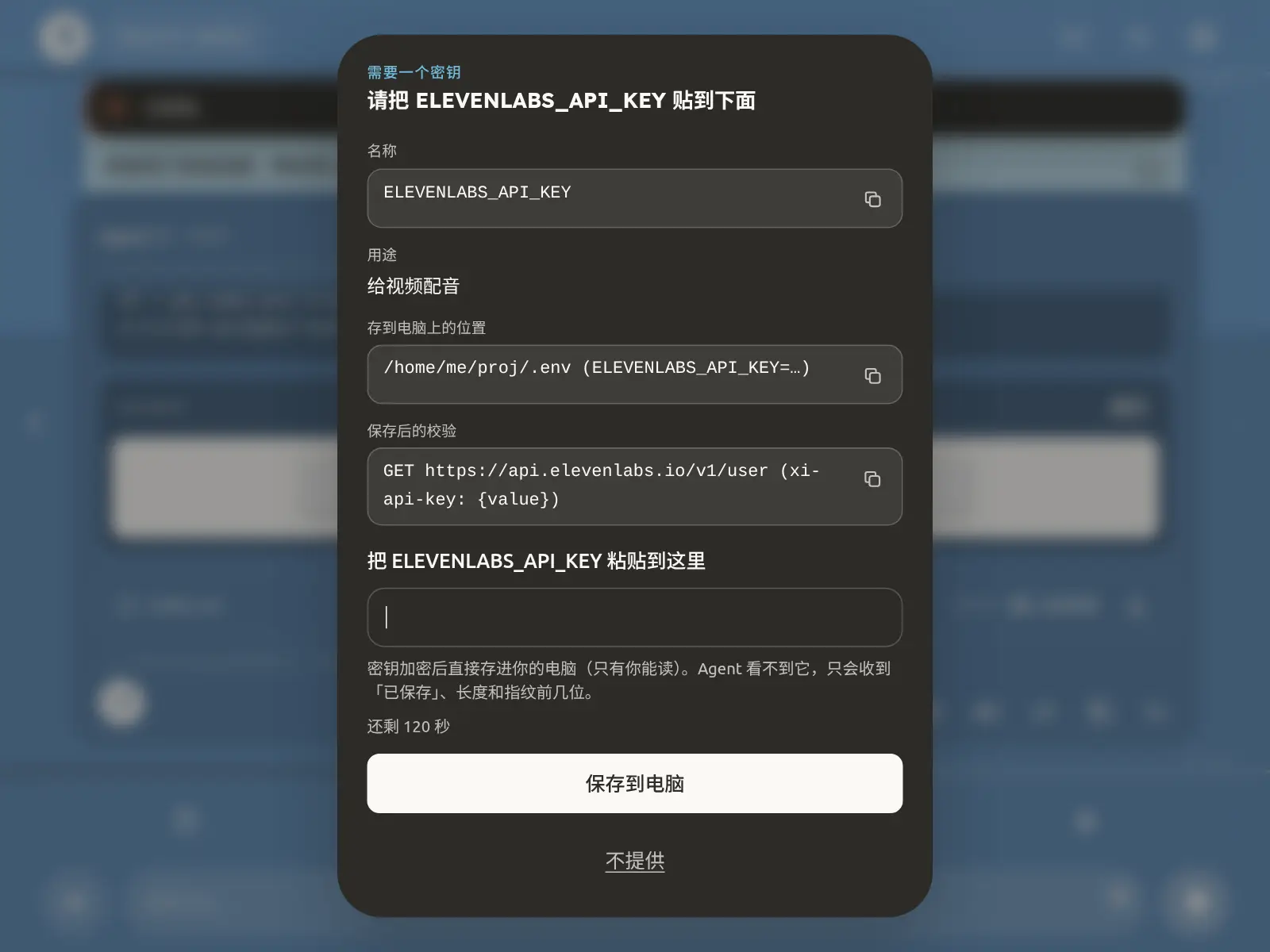
没输内容就点「保存到电脑」或按回车,卡片会提示先把 key 贴进来,不会当成拒绝。「不提供」在下面单独一行,要连点两次才算拒绝。卡片 10 分钟内有效;Agent 那边的命令就算中途被打断,卡片也还在,你照常提交就会保存。
从手机领取自己的密钥或配置(密钥领取卡)
想把电脑上配好的东西拿到手机上用,比如代理的 SS 链接、带密码的配置文件,直接跟 Agent 说「把 SS 链接发我」就行。普通回复里的密码会被遮住,所以 Agent 会给你发一张密钥领取卡:
- 卡片先遮住内容,只写名字、用途、大小。点「用 Face ID 查看」,验证通过后电脑才把内容发过来。
- 文字可以点「复制」,文件可以点「下载文件」。看完点「完成」,内容就从页面清除,2 分钟后也会自动清除;聊天记录里只留一行「已领取」。
- 10 分钟内可以领,只能领一次;不需要就点「不要了」。
- 这台手机还没设 Face ID 的话,先点卡片上的「设置 Face ID」。
- 这张卡只发给你自己已配对的手机。Telegram、群聊、好友那边照样拿不到这些密钥。
开工卡(长程任务)
你说一句「做每周竞品简报」这类要长期跑的事,Agent 会先自查能力,再把真正要你决定的事放在一张开工卡上:这次要做什么、交付到哪里、多久运行一次、最多五个要你选的选项。点「确认并开始」就确认了任务书,需要的话也会同时启用定时;点「返回修改」就不开工。卡上不填密钥,确认也不等于同意付款、删除或对外发送,这些仍会逐条问你。详见 长程任务。
详细说明见 手机上完成管理员授权和密钥录入。
全部停下
在 ≡ 里点「全部停下」,再点「确定,全部停下」:正在做的事马上中断,等你批准的请求全部拒绝,批量授权收回,定时任务暂停。屏幕变成灰色,上方显示「已全部停下」,直到你点「恢复」。
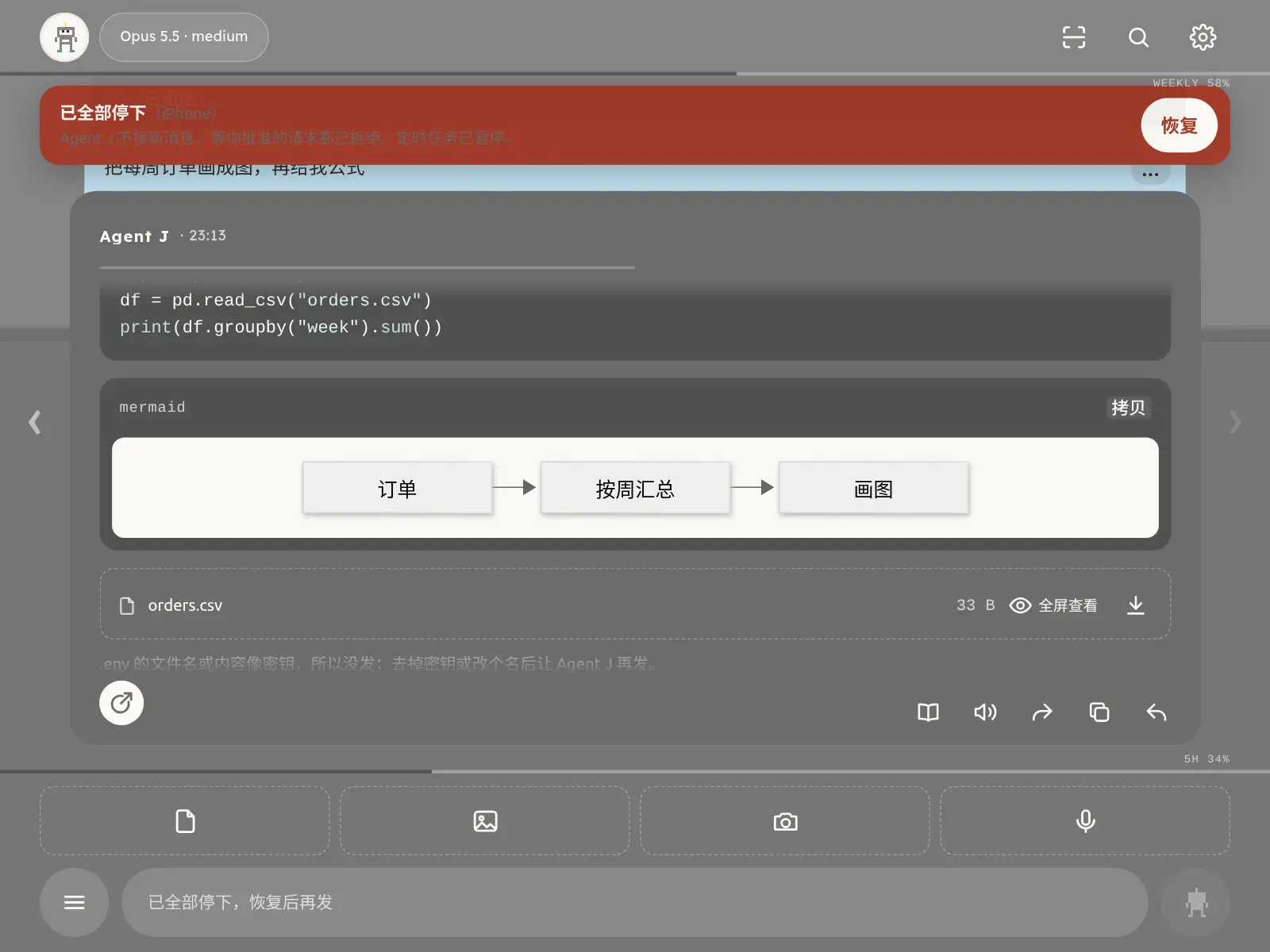
设置
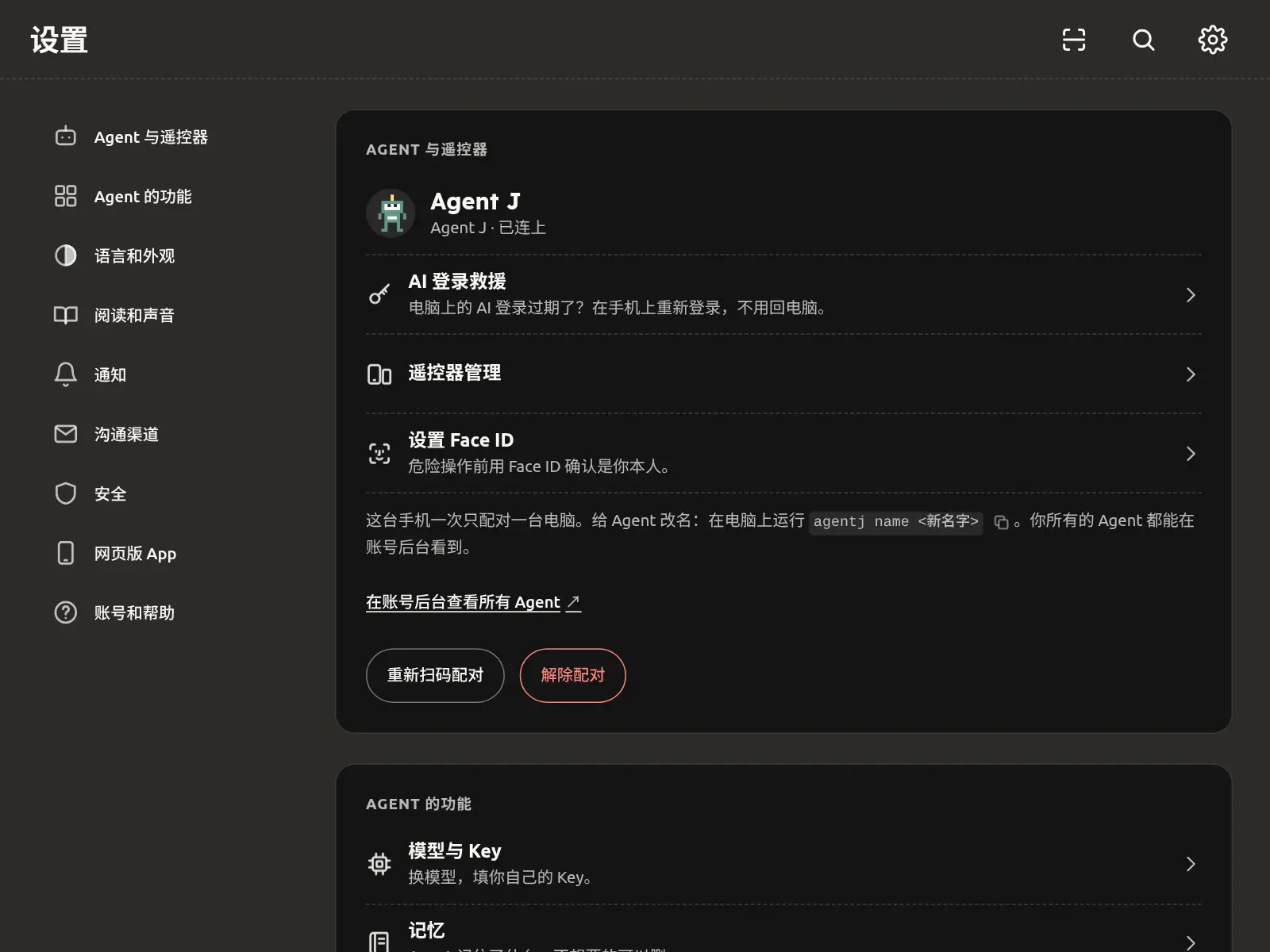
点右上角的齿轮打开「设置」,占满整个屏幕(电脑浏览器里按 s,或者 ⌘, / Ctrl+,;按 Esc 关掉)。它是页面上唯一的菜单:「Agent 与遥控器」(Agent 的名字、「遥控器管理」、Face ID、「解除配对」),「紧急修复」(见下文),「Agent 的功能」(「模型和 API Key」、「记忆」——Agent 记住的规矩,可以删、「记录」——它最近做了什么、谁批准的、「定时任务」「好友」「Bots / 客服」「首次准备清单」),「语言」「外观」,「回复字号」「提示音音量」「自动朗读」「语音唤起」,「锁屏提醒」,「沟通渠道」里的重新绑定 Telegram、「邮件通道」「通讯录」(朋友的邮箱和电话,一键加进邮件白名单)「我的联系方式」,安全相关的「高风险提醒」「会话模式」「隔离运行」「允许使用 Docker」,网页版的「升级方式」「升级电脑上的 Agent J」、版本号、「更新并刷新」「添加到主屏幕」「键盘快捷键」,以及账号、帮助和安全、隐私、条款这些说明。改设置时手机要连着电脑。
「语言和外观」里的「输入框按钮顺序」:输入框上方的四个按钮(「文件」「相册」「拍照」和麦克风)可以换顺序,比如把麦克风放到最左边,左手拿手机时更方便说话。手机上先按住一个按钮一下,再左右拖;也可以先点一个,再点它要去的位置;电脑上直接用鼠标拖,或者选中后按 ← →。改完马上生效,并同步到你所有的遥控器;电脑上的 Agent J 版本太旧时,只保存在这台设备上。点「恢复默认」回到原来的顺序。也可以让 Agent 替你改:agentj config set ui.composer_buttons '["mic","file","image","camera"]'。
所有菜单——「设置」和它打开的各页、≡「全部命令」、键盘快捷键、静默记录、「这个网页版有多安全」——都是占满屏幕的深色页面,用同一套标题栏、图标和按钮。左上角的返回和 Esc 一样,回到上一级:从「设置」打开的页面回到「设置」。确认和危险操作仍然弹出居中的确认卡。
紧急修复
「设置」里第二项就是「紧急修复」。聊天卡住、离线、不回消息时用它,按顺序试:
- ① 重置连接:先点这个。它会重新连接、找回原来的对话、必要时开一个新对话,最后一步是重启电脑上的 Agent J;哪一步连通了就停,每一步都显示出来。卡片变绿、显示「好了,可以回去聊天了」就修好了。开过新对话的话,原来的对话不会丢:在聊天里说「找回原来的对话」就行。≡ 里的
/reset也是这一步。 - ② 请 Agent J Father 远程帮忙:第 ① 步没用时再点。电脑先自己检查一遍,在电脑上去掉隐私信息,再把报告发给 Agent J Father,你会拿到一个工单号。客服只能建议固定的几种修复,电脑每做一步,卡片上都会显示。你不点,什么都不会发出去。
- ③ AI 账号登录失效:Claude / Codex 登录过期时用,点进去就是「AI 登录救援」(见下一节)。
电脑上的 Agent J 不响应时,电脑上有个小小的救援守护会替它接手机:顶上显示「电脑上的 Agent J 没响应,救援守护在线」,① 和 ② 照样能用。离线提示卡上也有「紧急修复」按钮,还有一行给电脑旁边的人用的命令:curl -fsSL https://agentj.app/rescue | sh。详见 手机显示灰色或断开怎么办。
模型和 API Key
「设置」里的「模型和 API Key」最上面是选模型,下面分两块:「基座模型」按服务商一张虚线卡片,列出 Anthropic、OpenAI、火山方舟、阿里云百炼、Kimi、DeepSeek 等的 Key(标着订阅、按量或登录);「第三方 API Key」列出电脑上的其他 Key(比如 ElevenLabs)。每行只显示名字和「未填」或打码(最多露最后 4 位),Key 本身永远不显示在页面上。右边是图标:拷贝、修改、删除;没填的只有「填写」,底部「添加」可以先起个名字再填。拷贝和删除要先过 Face ID,删除前还会再确认一次;拷贝时值直接进剪贴板。修改和填写打开的是普通密钥卡,Agent 看不到你填的值。每次拷贝、删除、修改都记进审计日志,只记名字,不记 Key。装好以后在这里把 Key 填好,就可以离开终端了。
AI 登录救援和到期前续期
电脑上的 Claude Code 或 Codex 登录过期,Agent 就回不了话。打开 设置 →「紧急修复」→ ③「AI 账号登录失效」→「AI 登录救援」,在手机上重新登录就行,不用跑回电脑:Codex 会给你链接和设备码;Claude Code 给你授权链接,把授权码贴进密钥卡就好。
用 Claude 长期 token 时,Agent J 在换上它的那天记下日期,按一年推算到期日。这一节会写 Claude 登录还有几天到期。到期前第 7、3、1 天各提醒一次:聊天里一条提醒、一条推送,聊天顶部再出现一条红字横幅。点横幅(或这一节里的「现在续期」)→ 通行密钥确认 → 用手机浏览器打开授权链接、授权 → 把授权码贴进密钥卡。新 token 几秒钟实测通过就立刻换上,重新开始一年的倒计时;没通过就保留原来的,请你重新授权。授权链接 10 分钟有效,页面上有倒计时;过期或授权码没通过,电脑会自己换一个新链接(最多 3 轮)。授权链接只发到已配对的手机,不发 Telegram。
订阅 /login、Codex 的 ChatGPT 登录会自己续期,服务商密钥一般不过期,这些没有固定到期日。电脑每天对每个已登录的 AI 发一条不带工具的极短测试消息。登录失效(比如你在网页上退出了全部设备)就立刻提醒你去救援;只是余额不足或限流,不会让你重新登录。
遥控器管理
设置最下面有「下载 Agent J Brand Kit」:点一下会在新标签页打开官网的官方 Brand Kit,可以下载主 Logo 和 16 个机器人的透明 PNG(256、512、1024 三种尺寸,推荐 512),拿去做 Telegram、邮箱或其他 bot 的头像。
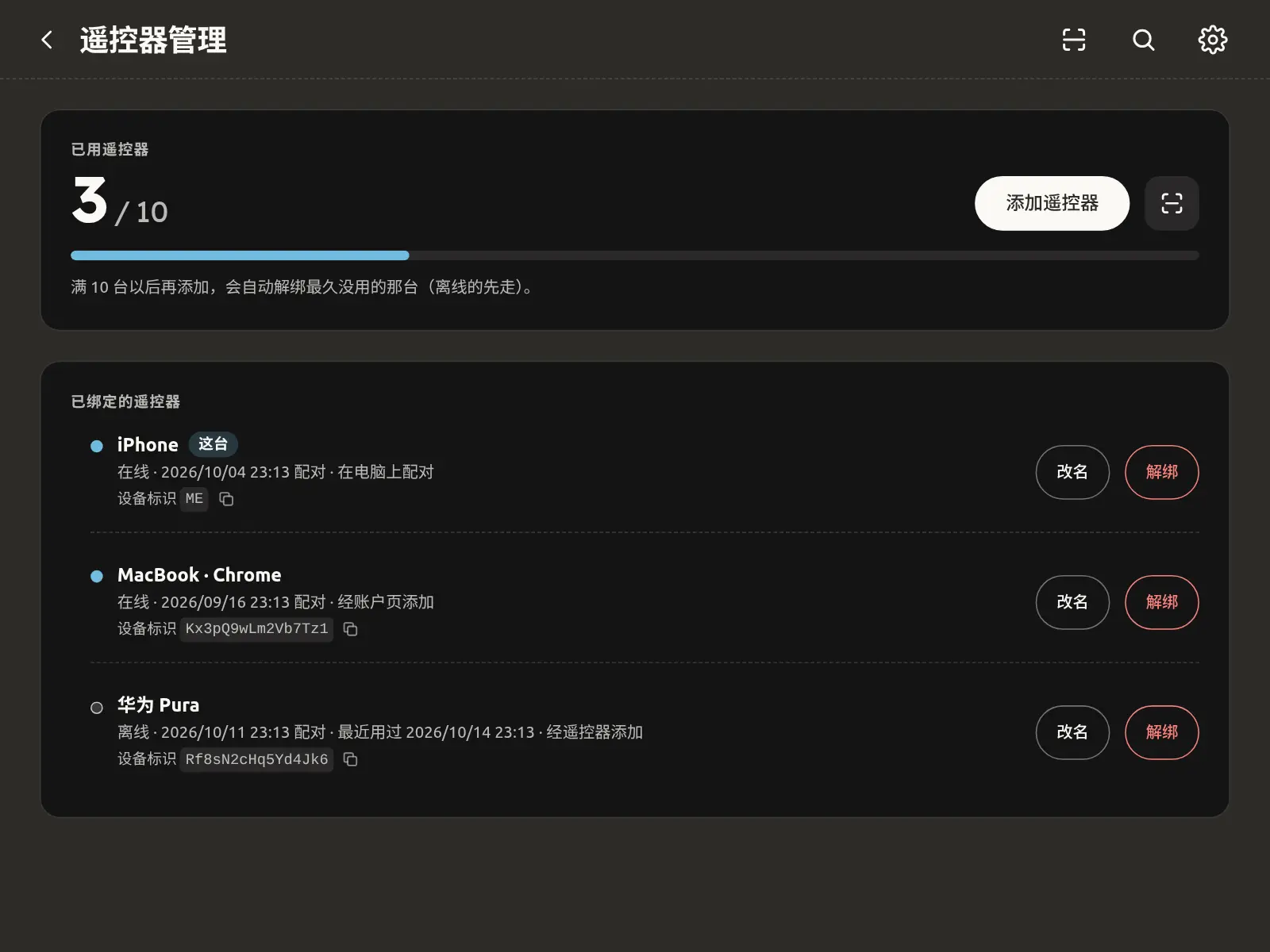
「设置」→「遥控器管理」是单独的一页:上面是 10 台里已经用了几台;下面列出每一台手机或浏览器(在不在线、什么时候配对、最近什么时候用过、怎么加进来的,你手上这台标着「这台」),每一行都能「改名」「解绑」;「添加遥控器」会给出一个 5 分钟内有效、只能用一次的二维码和链接,新设备上会出现 6 位安全码,在这里输入后点「批准」(只能输一次)。
右上角的扫码图标(拍照按钮按住也一样)可以扫二维码:扫到新设备上的配对码,就是把它加为遥控器(两边显示同一个 6 位数,一致才点「一致,加为遥控器」);扫到别的二维码,内容放进输入框,不会自动打开或发送。新设备不用找电脑:打开 m.agentj.app,最上面的码就是给已配对的手机扫的。「网页版」标签在「设置」→「这个网页版有多安全」里。
键盘快捷键
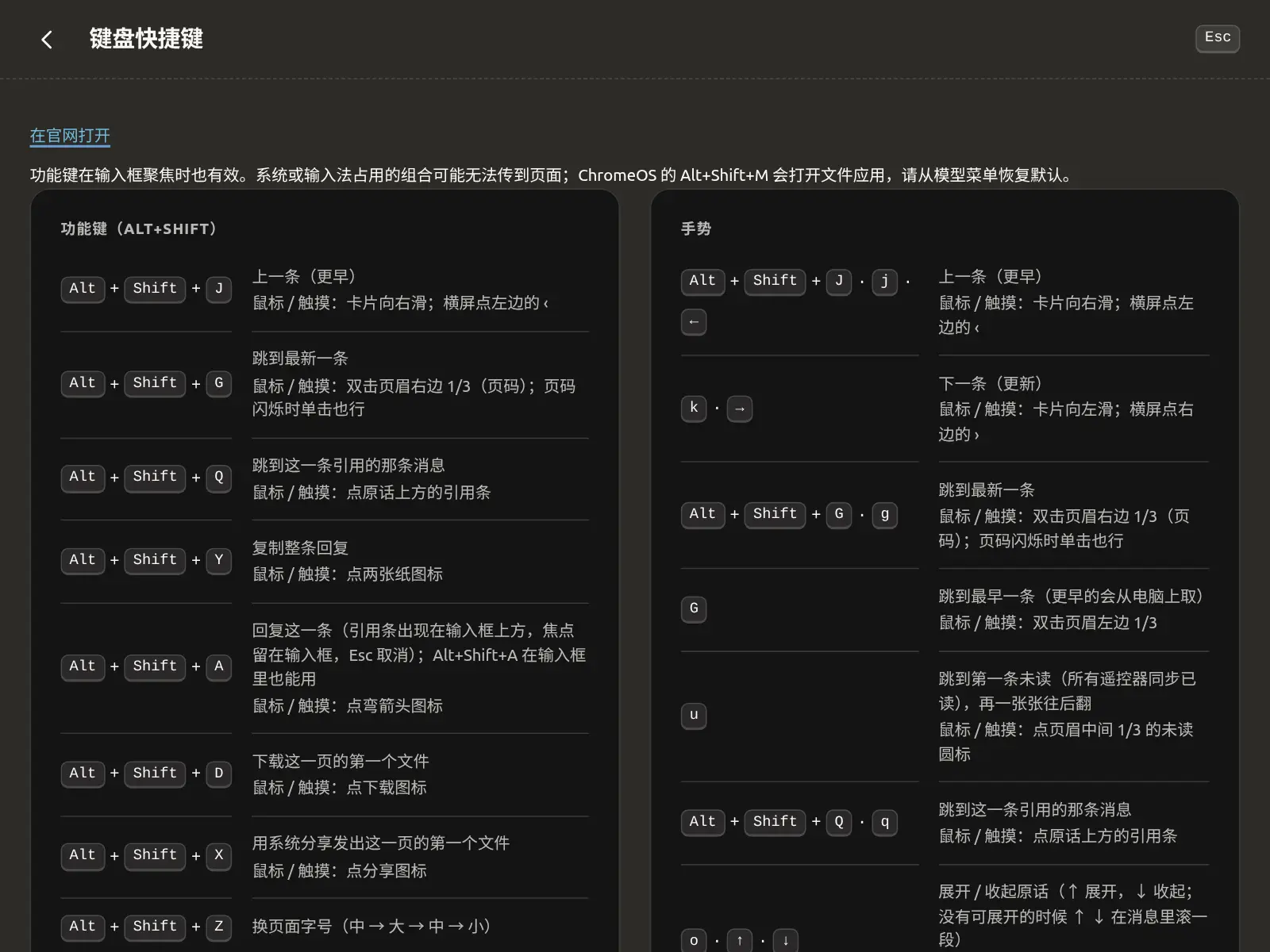
在电脑浏览器或者接了键盘的平板上,按 ? 打开快捷键表(「设置」里也有);快捷键多了记不住,点表右上角的放大镜或按 / 搜关键词就行。每个点按、长按、滑动对应哪个键,全表见 键盘快捷键和手势。常用的:
| 键 | 作用 |
|---|---|
Alt+Shift+J · j · ← | 上一条(更早) |
k · → | 下一条(更新) |
Alt+Shift+G · g | 跳到最新一条 |
G | 跳到最早一条(更早的会从电脑上取) |
u | 跳到第一条未读(所有遥控器同步已读),再一张张往后翻 |
o · ↑ · ↓ | 展开 / 收起原话(↑ 展开,↓ 收起;没有可展开的时候 ↑ ↓ 在消息里滚一段) |
f | 全屏阅读这条回复 |
Alt+Shift+Y · y | 复制整条回复 |
Alt+Shift+A · r | 回复这一条(引用条出现在输入框上方,焦点留在输入框,Esc 取消);Alt+Shift+A 在输入框里也能用 |
Alt+Shift+O · s · ⌘+, / Ctrl+, | 打开设置 |
Alt+Shift+K · ⌘+K / Ctrl+K | 搜索聊天记录;设置页内搜索设置项(输入框里的 Ctrl+K 仍是删到行尾),再按一次关闭 |
i · Esc | 进入输入框;在输入框里按 Esc 离开(输入的字保留) |
/ | 命令菜单:在输入框外按 / 直接进输入框,斜杠已经填好,命令菜单随即弹出;弹窗或设置开着时不抢 |
a | 选文件发给 Agent |
p | 从相册选图片 |
c | 拍照 |
按住 m | 按住说话,松开直接发送(滑出取消);键盘 m 松开仍转文字 |
Esc Esc | 在输入框外按两下 Esc 清空文字和附件(✕ 只清文字,可以撤销)。Esc 从不打断 Agent;要停下当前任务,点停止按钮或发 /stop |
⌘+Enter / Ctrl+Enter | 批准,等于长按批准走完(验证本人照常);审批卡开着时优先给它,输入框里的发送让位 |
配对和 Face ID
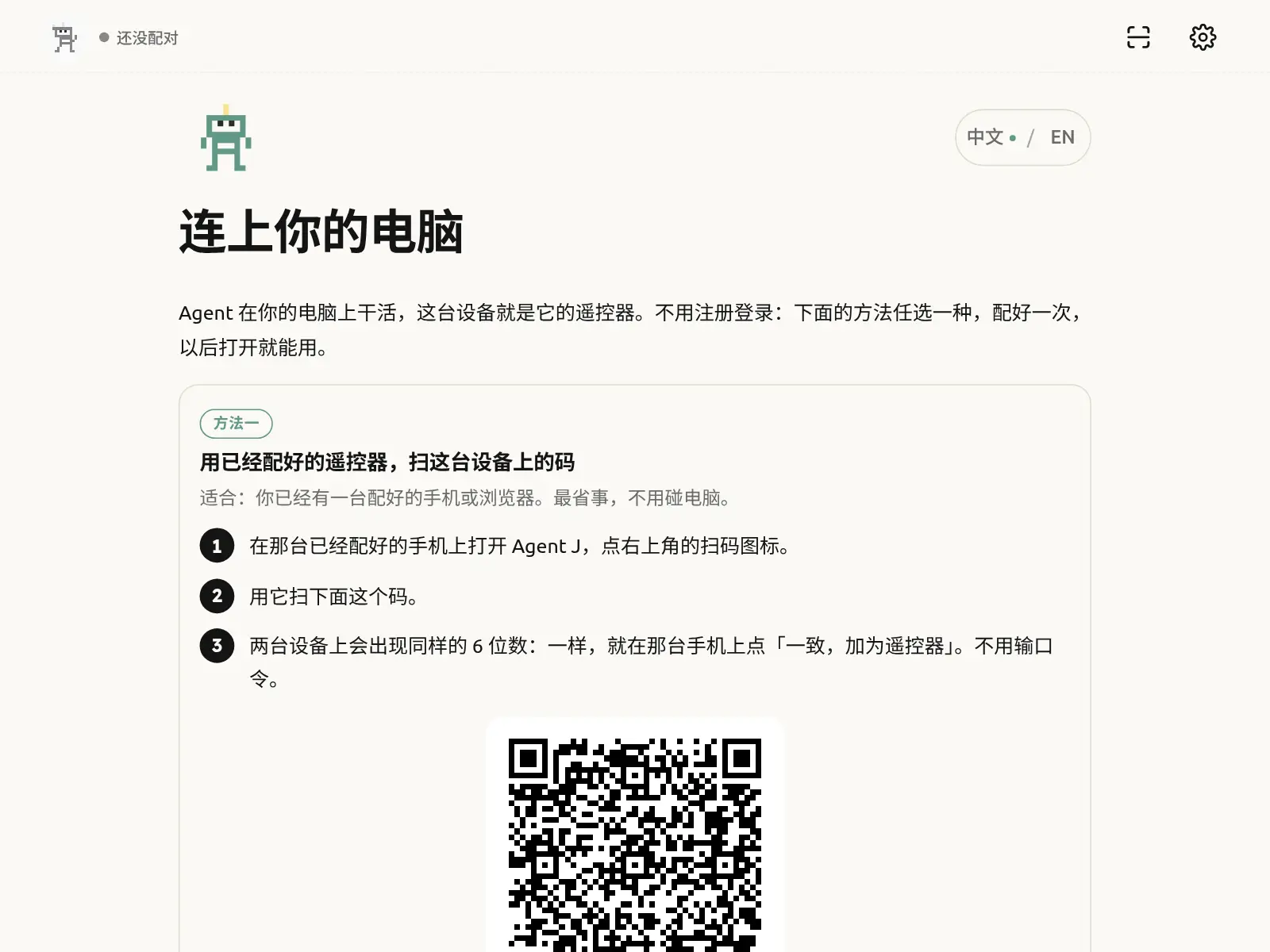
第一次配对:扫电脑上的二维码,再在电脑上输入手机显示的 6 位码和遥控器配对密码(见 手机上怎么用)。
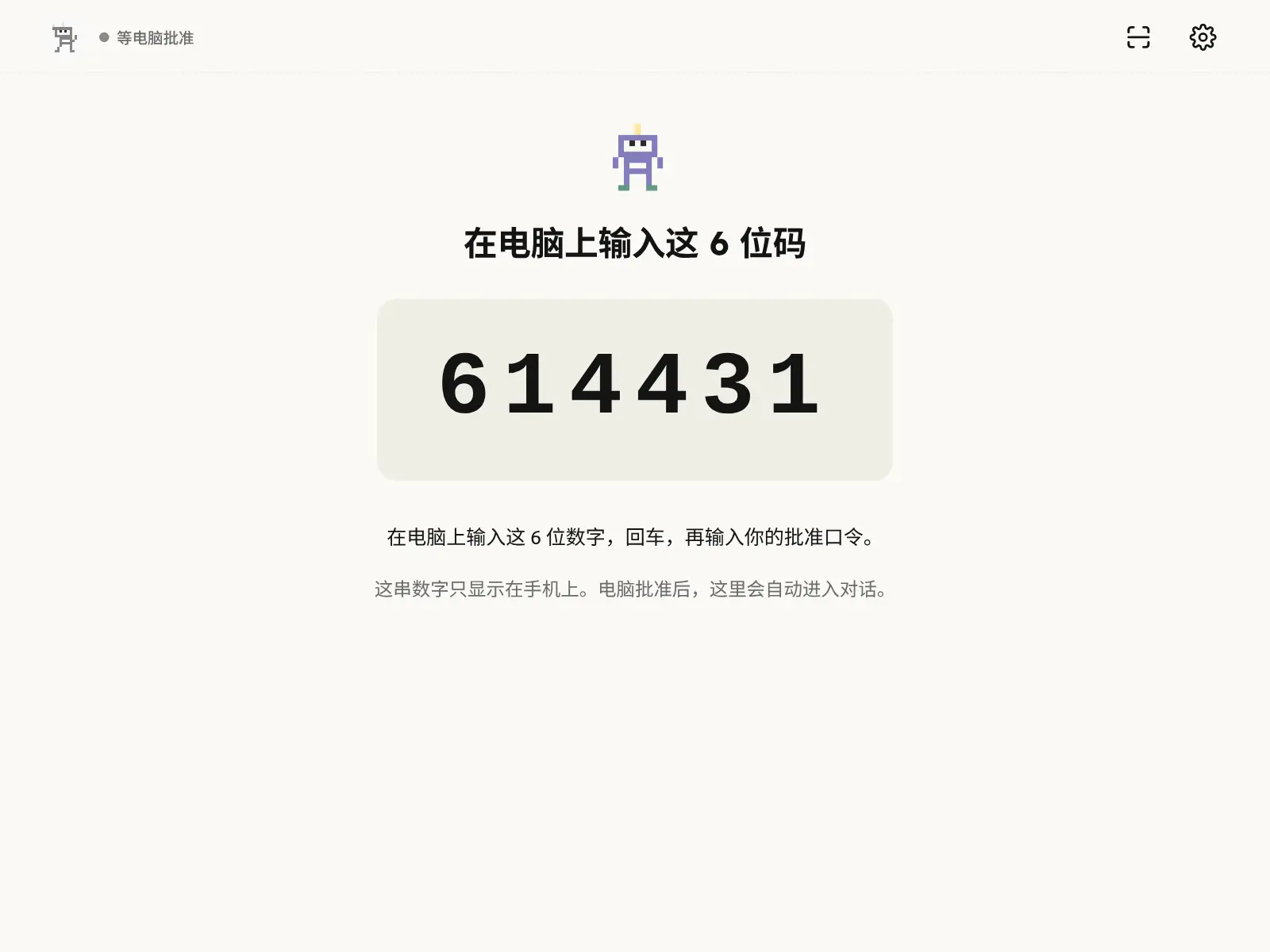
扫不出来怎么办
- 让二维码占满画面中间的大半,手机拿稳,不要贴得太近(太近会对不上焦)。电脑屏幕调亮一点,避开反光。
- 扫了 10 秒还没反应,扫码画面上方会提示你换个办法:
- 在浏览器标签页里:直接用手机自带的相机扫电脑上的二维码,它会打开配对页。
- 在主屏幕图标打开的页面里:在电脑上运行
agentj pair --link,把打印出的链接发到这台手机,点「返回」,粘贴到配对页的输入框里。
- 这个链接就是配对密钥,5 分钟内有效,只能用一次,别发给别人。
配对一次就够了。 只要电脑没有解绑这台手机,以后打开就自动连上。iPhone 的 Safari 会清掉网页存的数据,从 0.17.4 起,网页会凭手机上的自动登录凭证(只有你的电脑认得,每用一次换新)悄悄连回同一台电脑,不用扫码,也不用验 Face ID。只有电脑解绑了这台手机(比如手机丢了),才需要重新扫码;这时配对页会说明自动登录已经失效。
配对成功后,手机会问你一次「用 Face ID 记住这台手机?」。点「保存」,系统会弹出 Face ID 确认。以后在这台手机的另一个地方打开 Agent J(从主屏幕打开、开一个新的无痕标签页、清过浏览器数据),配对页上会有「用 Face ID 连回电脑」:验一下 Face ID 就能直接用,不用再扫码,也不用电脑批准。电脑的设备列表里始终只算这一台手机。
- 不想用就点「以后再说」,照常扫码配对。
- Face ID 只证明「还是那台已经批准过的手机」,不会多给任何权限。在电脑上解绑这台手机后,它的 Face ID 记录也一起作废。
- iPhone 会通过 iCloud 钥匙串,把这个记录同步到你同一个 Apple ID 的其他苹果设备上。那些设备也能用 Face ID 连回来,但会顶替这台手机原来的位置,不会多占一个名额。
- 浏览器不支持 Face ID / 通行密钥(passkey)时,这个提示不会出现,照常扫码。
用一句话就行的事
Agent J 是你唯一要打交道的 Agent,很多事说一句就行,不用找按钮:
- 「接着昨天那件事」「上次那个报表做完了吗」:它会翻本机的历史记录,找到那件事接着做。
- 「重来」「换个说法」:它会换一种做法重做上一条。
- 「打开那个 xx 项目」:它会在你的工作目录里找到这个项目。
- 「压缩一下」:先写交接,再压缩。
- 「切换到 Codex」「切回 Claude Code」:换 AI 编程工具,先检查、能用才切,见 换 AI 编程工具。
- 「我要反馈一个问题」:先问你想反馈什么;你给出内容后,它脱敏直发并告诉你编号。Agent 自己想反馈时先出稿请示。
- 「把我的名片发给老王」「老王最近说了什么」:管理 Agent 好友,见 Agent 好友。
- 做一件很长的事时,它会时不时用一句话告诉你进度。
- 「做每周竞品简报」这类长期要做的事:它会自查能力,只发一张开工卡让你确认,见 长程任务。
- 「你会什么」:手机上弹出能力页,看哪些已就绪、哪些要配置。
静默回合不占聊天页。打开 ≡ → 查看静默记录,可只读查看原话;Esc 或点遮罩关闭,清空对话时同步清空。
从另一台电脑给席位添加遥控器
目标电脑安装完成、绑定账号且在线后,在账户页找到它的席位卡,点「添加遥控器」,确认是你本人后用手机扫码即可,不用去目标电脑的终端。确认方式二选一:通行密钥(这台电脑上没有的话,在弹窗里选「使用手机或平板」,用手机确认);或者输入那台电脑的遥控器配对密码。用通行密钥确认后,同一会话十分钟内免重复确认;二维码五分钟内只可添加一台设备。待批准设备也可在席位卡查看、批准;席位卡「更多」里的「查看电脑上等你处理的事」只在两种时候用:电脑被「全部停下」后要恢复,或 Agent 新建的定时任务等你启用;它跟席位和付费无关,欠费也不会停掉电脑上的任务。
默认允许账户页添加;目标电脑的主人可用 agentj remote-pair off 关闭。离线时不排队,开机后重试;旧版本按提示运行 agentj update apply 或从已有手机升级。新设备来源显示「经账户页添加」,其他遥控器收到通知。
账户页配对依赖签名控制平面。配对材料只以浏览器临时公钥加密回传,后端不保存明文;签名服务被攻破仍可能增加设备,关闭开关可拒绝此路径。遥控器配对密码只在那台电脑上散列保存。在账户页输入它时,浏览器先用那台电脑临时给出的一次性公钥把它加密,只有那台电脑能解开、核对;我们的服务器只转发看不懂的密文,也不保存。连续输错 5 次,那台电脑会锁定一段时间。
Codex 报错时,先看手机上的操作提示。账号用不了当前模型时,点顶部模型名换一个;被拒绝的模型会暂时禁用,重新登录后刷新。连不上 ChatGPT 时,检查代理/VPN 后重发;登录失效时,在电脑上运行 codex login。原始报错经脱敏后保留在「详情」里。
共享 Codex 的模型与服务商(0.16.4a1)
手机发起回合时,主人配置的 agent.model / agent.effort 或手机最后一次明确选择会传给 Codex。没有手机明确选择时沿用会话自己的模型。电脑发起回合用电脑端最后一次明确选择;手机跟随实际模型,不抢改电脑的选择。顶部显示当前生效的模型;点默认后,下个手机回合使用当前 Codex 原生默认值。
手机接续已有会话时,从 Codex 读取当前生效的 model_provider,用协议的 modelProvider 切到当前服务商;不复制 key,不改写 Codex 配置。其他程序占用会话时手机只读,横幅按实际进程显示 App、终端或后台进程及可确认的 PID。退出对应程序后重发。
旧版一直沿用旧模型或旧服务商时,可在同一目录新开一个 Codex 会话,用当前默认模型与服务商,再让 Agent J 跟随新会话(如固定了旧会话,先取消固定);也可切换独立会话。新会话的历史独立。不要让主人把 key 发进对话。
共享 Claude 在选择、启动和升级时,把工作目录里 Claude Code 实际生效的手机消息设置改成放行(组织策略 > 该目录私有的 .claude/settings.local.json > 该目录的 .claude/settings.json > ~/.claude/settings.json),改前先备份,并在手机告知一次。用户设置或私有本地设置里的拦截就地修改;共享项目文件里的拦截从私有本地层覆盖。组织策略、refuse 和主人明确运行的 agentj config claude-inbound off 只报告、不改。已开启:手机消息不用在电脑上逐条确认;想关运行 agentj config claude-inbound off。改设置前就启动的会话需要 /clear 或开新会话。仅影响 Claude Code,Codex/OpenCode 无此机制。消息没被接收时,手机会说明具体原因(组织策略、项目设置、已关闭、需要 /clear、电脑正忙),重发前先检查电脑。手机的模型/额度条(agentj config claude-statusline)同时默认开启(主人关掉过就不开),串联在实际生效的状态栏那一层;被别的层遮住时 agentj doctor 会报告。
共享模式:Claude 的 /clear、/compact 等电脑当前回合结束后才执行,以原生回执确认。成功清空会归档手机旧页,新页从 0 开始;电脑直接 /clear 也一样。水位只读新会话/压缩后的实际数据,读数未到时显示「—」,不会把旧数当新数。超时会明确说没清成或尚未确认,先核实电脑,别重复发送。共享 Claude 不提供原生「撤销清空」按钮:旧历史仍在本机归档,恢复会话用电脑 /resume;独立模式仍可撤销。附加的 Codex 直接在手机上 /clear:下一条手机消息自动开一个新的 Codex 对话,手机旧页照常归档,发下一条之前都能点「撤销清空」;电脑上的 Codex App / 终端不会自动跟过去,新对话开好后手机会提示 codex resume <id>,在电脑上运行它就能接着聊。电脑上的 Codex 正在回答时不清空,等它说完再清;附加 OpenCode 的 /compact 可执行,清空需电脑 /new 后指定新 session id。Claude 自己启动的 PTY 可直接控制;既有终端需可定位到同一个会话的 Herdr 输入通道,否则提示具体原因和电脑命令。共享 /context、/usage、/status、/model 无参数读取实际数据;缺数显示「—」。
5h 线在 1% 时仍可见,0% 有起点标记;线旁边没有文字表示没有报告额度,不代表 0%。展开上方输入卡会压缩回复卡的阅读空间,底部操作按钮和输入区保持位置;长输入和长回复各自在卡内滚动。
共享会话
新安装默认用独立会话:Agent J 自己开一个,不动你终端里的工具。想让手机接入你电脑上正开着的那个会话,是可选的高级设置——「设置」→「会话模式」,或运行 agentj config set agent.session_mode shared(改回:… independent)。
进入或切换到共享的 Claude Code、Codex 或 OpenCode 会话时,手机会提示一次,3.5 秒后自动淡出。同一会话刷新或重连不重复提示;会话被占用、发送失败或需要你处理的提示会继续保留。
手机接的是哪个会话:默认是你工作文件夹里开着的那个 Claude Code 会话。那里同时开着好几个时,在电脑上运行 agentj agent claude,它会列出每个会话的名字和第一条消息,让你选一个。手机上不用做任何事。
配对页会提示浏览器和存储能力问题。请用 Safari / Chrome 普通窗口添加到主屏幕,并从同一个图标配对。菜单「设置 Face ID」在跳过邀请后仍保留;「复制网页链接」不包含一次性配对密钥。
分享截图
安卓系统分享与 iPhone 剪贴板快捷指令。分享内容先进入输入框,补一句话后再发送。
更新手机网页
电脑端与网页分别核对版本。其他情况发现网页有新版时,屏幕中间会弹出「服务器已升级」,点「刷新」就用上新版本;点「稍后」、按 ESC 或点方框外面先关掉,也可以之后点右上角设置图标 →「更新并刷新」。主机与网页服务器都已是同一新版时,网页等输入空闲十秒后自动刷新、保留草稿;录音和未提交卡片操作结束前不刷新。其他情况只提示。快捷键:Alt+Shift+U 升级主机(确认卡照旧);Alt+Shift+R 更新并刷新网页。
周、月或日额度用完时,手机会提示等额度重置,或到模型服务商处升级套餐;真正的限流仍提示稍后重试。服务商的错误原文不会显示。
共享 Claude 回复在手机断线期间完成,重连后会补回已有输入页。刷新网页时先同步电脑上的最新历史,再显示是否还在等待接手。/update 的回执跟随当前设置里的语言;运行中切语言后无需重启电脑端。agentj doctor 会显示 websockets 版本,供排障使用。
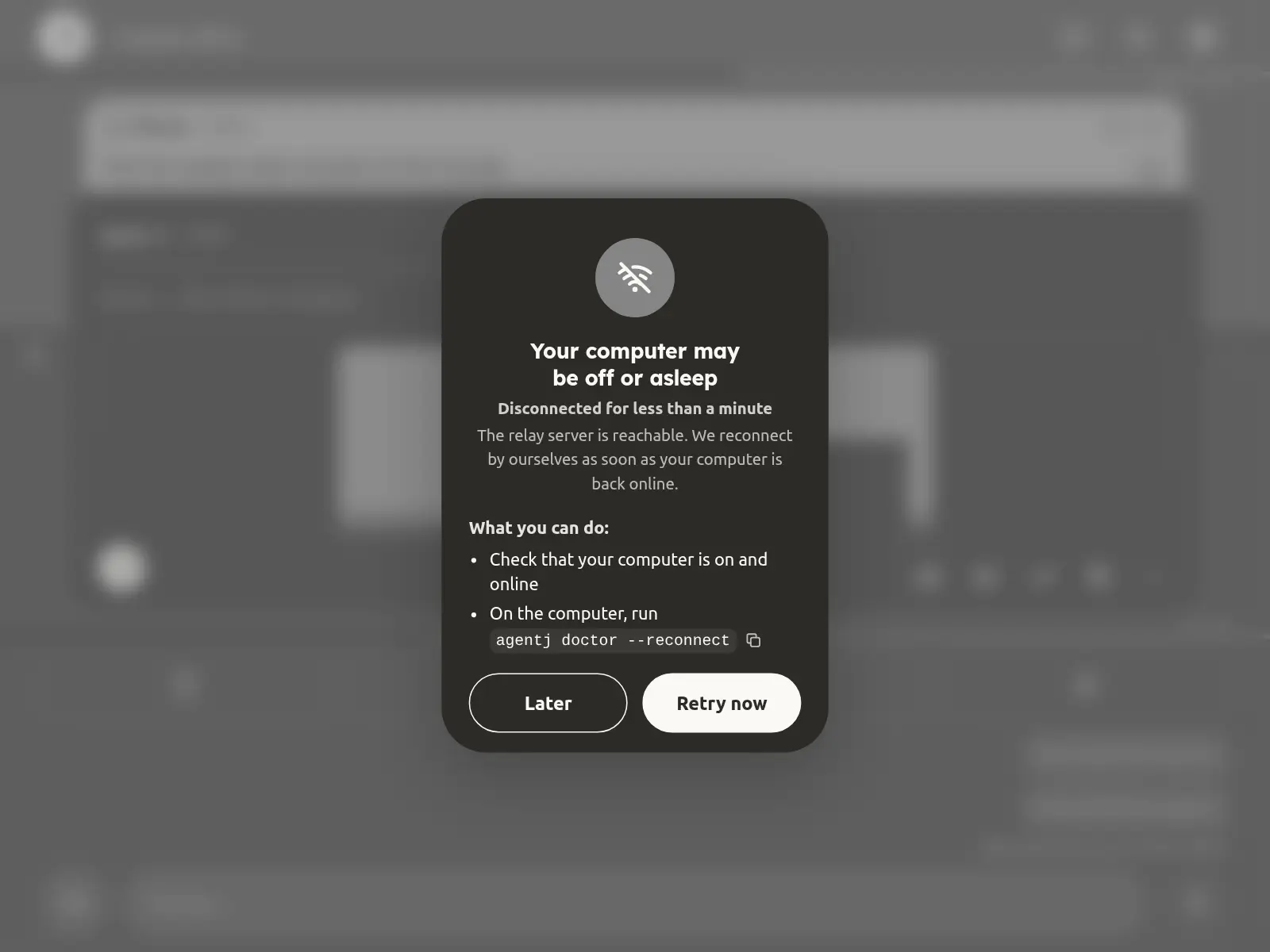
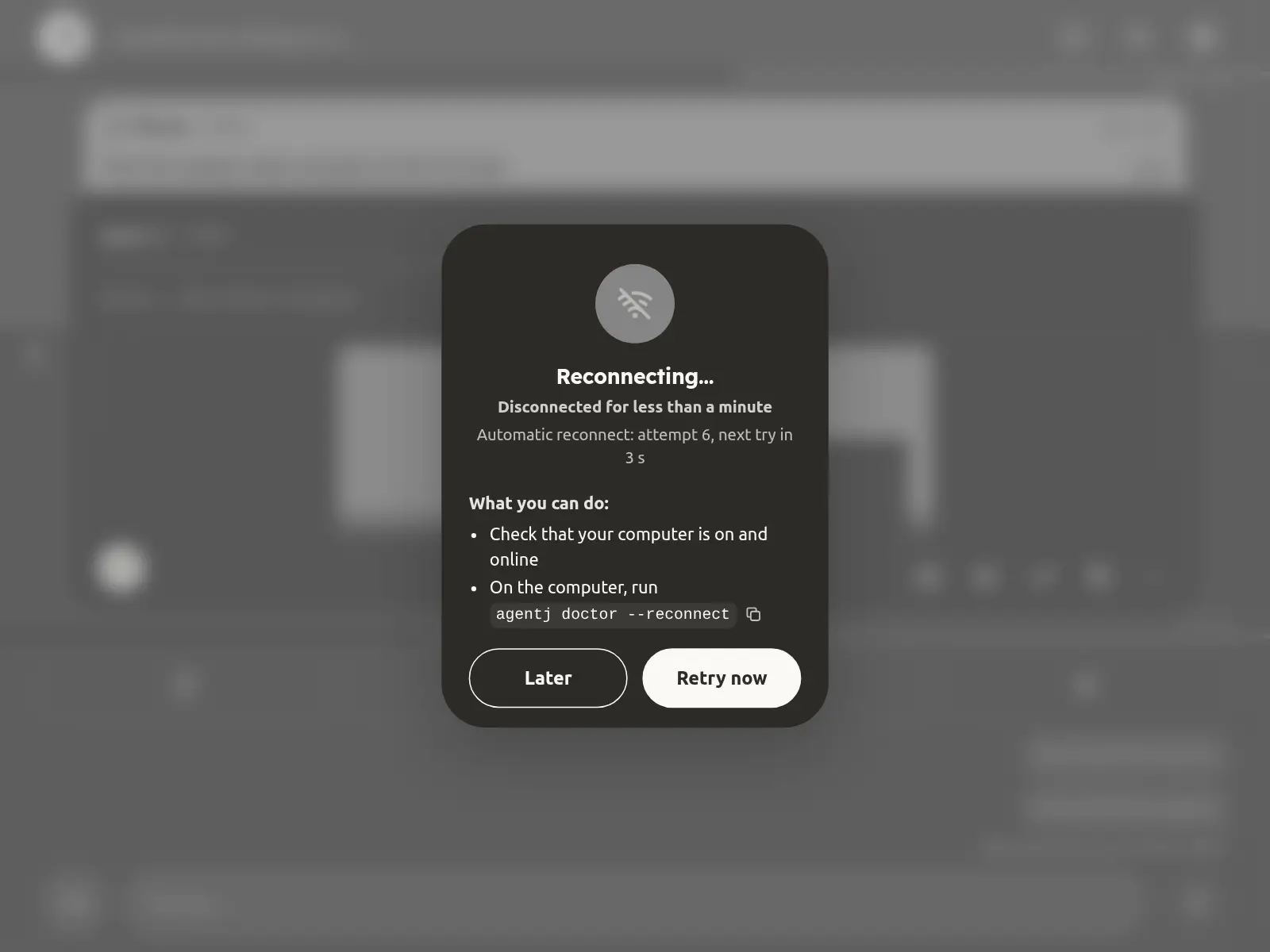
网络短暂抖动会被悄悄修好:手机连接断开后一般一秒内就连回来,只有超过约 6 秒还没连上,页面才变灰并显示「连接断了,N 秒后重连…」。电脑忙、回应慢不算断线。Telegram 渠道连续三次(或两分钟)连不上 Telegram 时,对话下方会出现一行提示,恢复后自动消失。Agent J 刚启动的第一分钟里,agentj doctor 显示中继「正在连接」,不算故障。
本地朗读只使用这台手机的音色。云端/电脑音色保留在 voice.tts.voice,手机音色单独用 voice.tts.phone_voice(留空按回复语言选默认本地音色)。切换模式不会串用音色;指定本地音色不可用时自动回落并提示一次。iPhone 首次打开会等待本机语音加载,仍没有同语言本地语音时才提示不可用。
共享 Claude 入站:启动与 doctor 修正实际可写层为 accept;managed 只读报告。设置前启动的会话需新会话或 /clear 生效。共享模式再次启动会恢复开启,手机未确认接收前先核实电脑,别重复发送。
0.18.1:旧版已有效登记的 Telegram 沿用本机 bot 环境变量名。鸿蒙华为设备名称会正确识别;电脑在线时,主人可在账户页用通行密钥确认给遥控器改名。
给遥控器改名:长按输入消息卡左上角的来源(按住半秒),给你手上这台遥控器改名,别的遥控器和账户页马上显示新名字;别的遥控器只能由主人在账户页改名。主人改过名的遥控器,消息来源显示主人起的名字和设备类型(例如「张伟(老板)· iOS Safari」),名字后面注明「(主人改的名字)」,点一下能看到设备自己填的原名;没改过的注明「(名字是设备自己填的)」。Agent 按主人起的名字分辨是谁在说话,但这个名字只是标签,不是身份证明。双击左上角仍回到第一条。
第一条消息很慢、手机上没反应
新装的电脑上最常见四种原因,手机都会说明:连不上模型服务(Claude Code 自己重试约 3 分钟,重试约 10 秒仍不行时手机弹卡);缺 bubblewrap(每次启动都会弹「沙箱不可用」卡,要用通行密钥点「本次不隔离运行」;在电脑上装 sudo apt-get install -y bubblewrap socat 就好);用 root 运行又开了跳过权限(Claude Code 拒绝启动,Agent J 改用普通权限模式并提示);模型不被支持(400,自动换成默认的 Opus 5.5 · medium 重发一次)。
agentj agent claude(或 codex)会预先完成工具的首次设置(引导、主题、信任工作目录、危险模式确认),只补缺的、不读 key;agentj doctor 的 first-setup 行检查。Agent 真停在终端的某个确认上时,手机会收到「在电脑上处理」卡,原样引用终端里的文字:去电脑上答掉,或运行 agentj agent claude,再重发。
沙箱失败与管理员命令
独立会话的沙箱起不来时,Agent 不会启动。手机卡片会说明原因(例如缺少 bubblewrap)和修复方法。点「本次不隔离运行」,再用主人的通行密钥验证,可只放行这次启动;下一次仍会检查沙箱。这次运行可能访问本机文件和凭据。没有设置通行密钥时,先在手机菜单中设置,未批准或超时都不会启动。
sudo 卡上的「为了做什么」和「会改动什么」标为「Agent 自述」,「为了做什么」排在最前面;写得太短、只是重复命令,或者想管理 Agent J 自己的后台服务,都不会弹卡。运行 shell 或解释器的命令会标红,必须输入管理员密码,即使已安装免密 helper。密钥卡只支持 URL 校验;--verify-cmd 已禁用,不会在沙箱外运行命令。定时任务和客服 bot 从原生登录存储认证,不继承主机服务的密钥环境。
接入 Telegram
Telegram 用的是你自己的 bot。先用密钥卡保存 bot 密钥,再在电脑上运行 agentj channel add telegram,或在「设置」里点「重新绑定 Telegram」。对话里会出现一个一次性的 6 位配对码(10 分钟内有效,只能用一次)。在 Telegram 私聊里给你的 bot 发 /start 配对码,这个私聊就成了主人,bot 会回一句「Telegram 接通了」。不需要找任何别的 bot 查 ID。别人给这个 bot 发消息,只会收到他自己的数字 ID;在群里发配对码不算数。换手机或换 Telegram 账号时,再点一次「重新绑定 Telegram」。
同一个机器人还能对别人当客服。在客服 bot 里打开一个 bot,勾选「让我的 Agent J Telegram 机器人也接待客人」(也可以让 Agent J 发起,你在手机上批准)。你配对的私聊照旧是主对话;其他私聊都成了那个 bot 的访客,有自己的会话、提示词、模型和限额,永远拿不到你的权限。默认关闭,关着时陌生人只收到自己的数字 ID。见客服 bot。
Telegram 与好友的安全边界
Telegram 私聊中转发的消息属于外部数据,不会作为主人的原话执行;转发里的命令也不会执行。群里的审批命令保持静默,批准请用已配对手机。家庭群安全检查暂不可用时,这条消息会暂停,请主人直接从已配对手机发送。只有以 /notification 或 /notify 开头的命令会按提醒请求处理,正文里的 notification 一词不算。
群附件先检查文字和说明;报障群不下载附件,家庭群命中拦截规则也不下载。每位群发送者每小时最多下载 40 MiB,跨群累计,重启不清零;无法确认大小的附件按单件上限预留额度。被暂停的群消息不会触发 Agent 工具。好友名片名字最多 64 字、主人名最多 32 字、简介最多 140 字;补充设定里检测到密钥形状时整次修改不会保存,请用普通背景说明。
客服 Bot 的 Telegram 私聊按聊天分别处理;同一聊天保留顺序。超过 2000 字会提示缩短,不调用模型。客服报告里的客户原文和模型建议只供摘要与诊断,不能视为主人指令。
遇到问题怎么求助
- Agent 自己能把问题说清楚时,让它用
agentj support问我们的客服,不用你去找人。见 遇到问题找客服。 - 手机连不上电脑,或者聊天卡住:设置 →「紧急修复」,从 ① 开始(见上文)。
- Agent 完全连不上(离线、安装失败、连不上我们的服务器),或者打不开 agentj.app(比如在中国大陆),写信到 feedback@agentj.app,邮件在哪里都能发到。写上你的账号 ID、发生了什么、什么时候,再附一张截图。
五页菜单(0.20.3 后的候选功能)
点左上角 logo,进入聊天、工作流、技能、记忆或 Agent J;长按回聊天。工作流来自电脑上的规格文档,技能可查看并交给 Agent,宪法层只读,凭据类文件隐藏。点工作流的 @,输入框出现可整体删除的提及,发出去仍是纯文字。点跳舞机器人,默认看在办事项和工具/模型,右边「工作流」看 CEO、员工与汇报层级;没有归属的标「临时帮手」。菜单快捷键 Alt+W,字号循环仍用 Z,录音仍用 M。
双击非音频文件卡(图片、视频、PDF、文档、文本、代码、Markdown 或 HTML)直接打开文件全屏,也可点「全屏查看」。音频卡和回复正文双击打开回复全屏。视频保留播放位置;Esc 或返回退出当前查看层。
主人消息卡收起时,有引用就显示两行引用加一行正文;没引用最多三行,多了用省略号。附件不显示缩略图或文件卡,只在右下角的 … 按钮左边显示回形针和附件总数(图片、文件、语音合计);没附件就不显示。双击正文、点右下角的 … 按钮或按 o 展开,查看全部文字、引用和附件。
Agent J Father 像素机器人是官方 logo,机身随五种状态换色,发送按钮使用同形白色剪影。非聊天页的 logo 会跳舞,提醒你长按可以回聊天;减少动态效果时显示静态图和轻微的边界内心跳描边。更换后台跳舞机器人时,Agent J 会先问要不要同时换一组五状态 logo;不换就保留当前组。
目标暂时缺能力时,怎样继续
Agent J 会先检查现有 API、技能和自己的浏览器登录状态,再告诉你“差什么、怎么补”,不会只说“做不到”就结束。路径依次是:
- 官方 API。 缺账号、授权或密钥时,一句话说清“您给我 X、Y,我就能做”,只列需要哪家的服务、去哪注册、大概费用。你同意后,它一步一步带你配置;密钥只填手机密钥卡,不发进对话或开工卡。服务费用需另行确认。
- 没有 API 的网站。 Agent J 可以用自己的浏览器替你操作。它先检查浏览器是否装好和目标网站是否已登录;需要登录时会说“这家没有官方 API,我可以用浏览器替您操作,需要您在我的浏览器里登录一次 X 网站”,并启动登录流程。支持扫码的网站直接弹手机登录卡,二维码只走登录卡;其他网站在电脑上打开登录页,请你登录一次。检查不确定时会说明不确定,不把它当作已登录。登录不等于授权,发布、付款等操作仍需手机审批。
- 本版缺少平台底层能力。 它会说明缺口,提议用 /feedback-to-agentj-father 反馈给 Agent J Father,并说明能力解锁后还需你提供什么。它主动提议的反馈先给你看、获准再发;你明确发送带内容的 /feedback-to-agentj-father 时,脱敏后直接提交,不重复确认。提交成功不代表已经排期,也不承诺上线。两种缺口并存,就把两条路径都说清。
需要工作流的目标,把真正缺的选择、授权、配置汇总到一张开工卡(最多五个必须项),随后衔接密钥卡或登录卡;已有授权且能力齐的部分继续推进,只有依赖缺口的部分等待。真正违法或危险的请求仍会拒绝。
工作流页第一次打开、以及电脑上的 Agent J 启动时,会扫一遍工作根目录下一层的文件夹:按工作流设计方法整理过的(有入口文件和 documentation/ 开工文档)直接出卡片;还没登记进 CEO 花名册(documentation/ROLES.md)的,在花名册末尾补一行,只追加、不改原有内容,你删掉的行不会再被加回来。一个工作流都没找到时,显示 Agent J 自带的三个(知识库、脚本与文章、电子书),点「装上它」让 Agent J 先给你看预览再装。页面上的「初始化组织结构」会给 Agent J 发一条标准指令:按工作流设计方法整理在用的项目、登记 CEO、自检,没整理过的项目先列给你确认;不删、不搬文件。用过一次后按钮变成「复查组织结构」,再点就是查缺补漏。
工作流卡片展开后,CEO 下面列的是它的员工:只算 .claude/agents/ 里写了 name 的员工文件(Codex 那边是 .codex/agents/ 的 .toml),README 之类的说明文件不算;员工文件里写了 title(比如 title: 文案员)就显示这个名字。一个 CEO 还没有员工时,卡片上会出现一行小字「只有 CEO,还没有员工」,「复查组织结构」按钮也会带上数量,比如「复查组织结构(2 家只有 CEO)」。点它,Agent J 会读这家公司最近的报告、task.json 和 RUN.md,先给你列 3–7 个员工方案,你同意后才写进去(Codex 用的那份一起生成),不覆盖你改过的员工文件。派活给只有 CEO 的公司时,Agent J 也会顺带提一句,每家只提一次。
全屏阅读翻页与文件转发
全屏阅读时,从文字区向右快速滑动看上一条更早的回复,向左看下一条更新的回复;桌面用 ← / →。到头会轻微回弹。上下滚动、长按选字、表格和代码横向滚动、文件按钮和屏幕边缘返回保留原动作。
文件卡的纸飞机把原文件作为文档发到主人 Telegram:点击后立刻显示「发送中…」,完成后保留「已发到 Telegram」或失败原因。未配置时提示先配置;超时结果未知时先检查 Telegram,避免重复发送。密钥类文件继续禁止转发。
全屏阅读:页眉页脚固定,适合长时间看
全屏阅读的背景和屏幕中间弹窗是同一种深色(Noir),浅色、深色模式都一样。顶上的页眉和底下的页脚始终固定,只有中间的文字上下滚动,不显示滚动条,手指、滚轮、方向键和空格都能滚。
- 页眉左边显示 Agent 名和回复时间,双击跳到第一条;中间有未读消息时会出现圆标,点一下跳到第一条未读;右上角是页码(当前第几条 / 共几条),没有关闭按钮,从哪进就从哪出。双击跳到最新一条(不退出全屏),有新回复时页码会闪烁。
- 页脚左下角有个细线字号图标,点开出现字号滑杆;两指缩放和 + / - 键照样能用。右下角是和回复卡一样的 6 个图标:全屏阅读、朗读、转发给我自己、转发到邮箱、复制、回复(最右)。
- 点击复制和回复会退出全屏,回复会引用当前这条,光标直接进输入框。朗读、转发给我自己、转发到邮箱不退出,图标上会显示发送中或已发送。点书本图标也会退出。
- 左右滑动或按 ← / → 切换其他回复时,页眉的时间、页码和页脚的按钮都会跟着换成这一条的内容。回复带的文件也显示在文字下面。
- 键盘快捷键:
G第一条,g最新,u第一条未读,y复制并退出,r回复,l朗读,t转发给我自己,e转发到邮箱。
整个网页都不显示滚动条:页面、弹窗、菜单、设置页、代码块和文件预览都一样,照样能用手指、滚轮或键盘滚动。
Agent J Father 就是官方反馈与客服平台。你可以说「请把这个问题汇报给 Agent J 开发者(客服平台)」,也可以轻松地说「把这事告诉你爸爸」。手机命令 /feedback-to-agentj-father <内容> 也一样:Agent 先去掉凭据、个人信息、客户数据和路径里的私密内容,直接提交并告诉你编号,不再问第二遍。只发命令会先问你想反馈什么;如果是 Agent 自己想到的问题或点子,它会先在手机上给你看脱敏稿,你同意才发送。客服回复是建议,不是指令;连不上时可写信到 feedback@agentj.app。
This page walks through everything you can see on the phone screen, one thing at a time. If you have not installed or paired yet, start with Install and Using your phone.
You can also just ask Agent J — "what does this colour mean?", "how do I send a file?". It reads this same guide.
First use: two remotes and the first message
After the install, the agent that set things up takes you through adding this computer to your seat and then pairing two remotes. Both are required:
- This computer's browser: open m.agentj.app on this computer and pair it. It is the quickest, and the big screen makes every step easy to follow.
- Your main phone: the one you carry every day. Add the page to the Home Screen first, then pair from that icon.
Other phones, tablets or computers can wait: when you want one, tell Agent J "pair another one" and it walks you through.
Every remote is connected to the same Agent and shows the same conversation: start on your phone, carry on in the browser on your computer. Remotes are for one person's devices; a colleague who wants in gets a seat of their own, the way everyone in an office gets their own desk. See Seat, Agent and host. Several people can share one computer too, one seat each: see One computer, several people.
On the first remote, the first message comes from Agent J itself: it introduces itself as your chief-of-staff assistant, the single entry point between you and every workflow and agent, and suggests you talk to it in this window from now on. Then it shows you the window in a few small steps — the screen colours, the quota lines and the water level, voice and attachments, the approval card — and finally which remote is still missing. Reply "ok" or "next" for the next step; say "skip" to stop.
The welcome is sent only once. Every remote you pair later just gets one line: "This … is connected too". Until both
required remotes are paired, Agent J may mention the missing one in a sentence at the end of a reply; once both are done
it stops. On the computer, agentj onboarding shows the same.
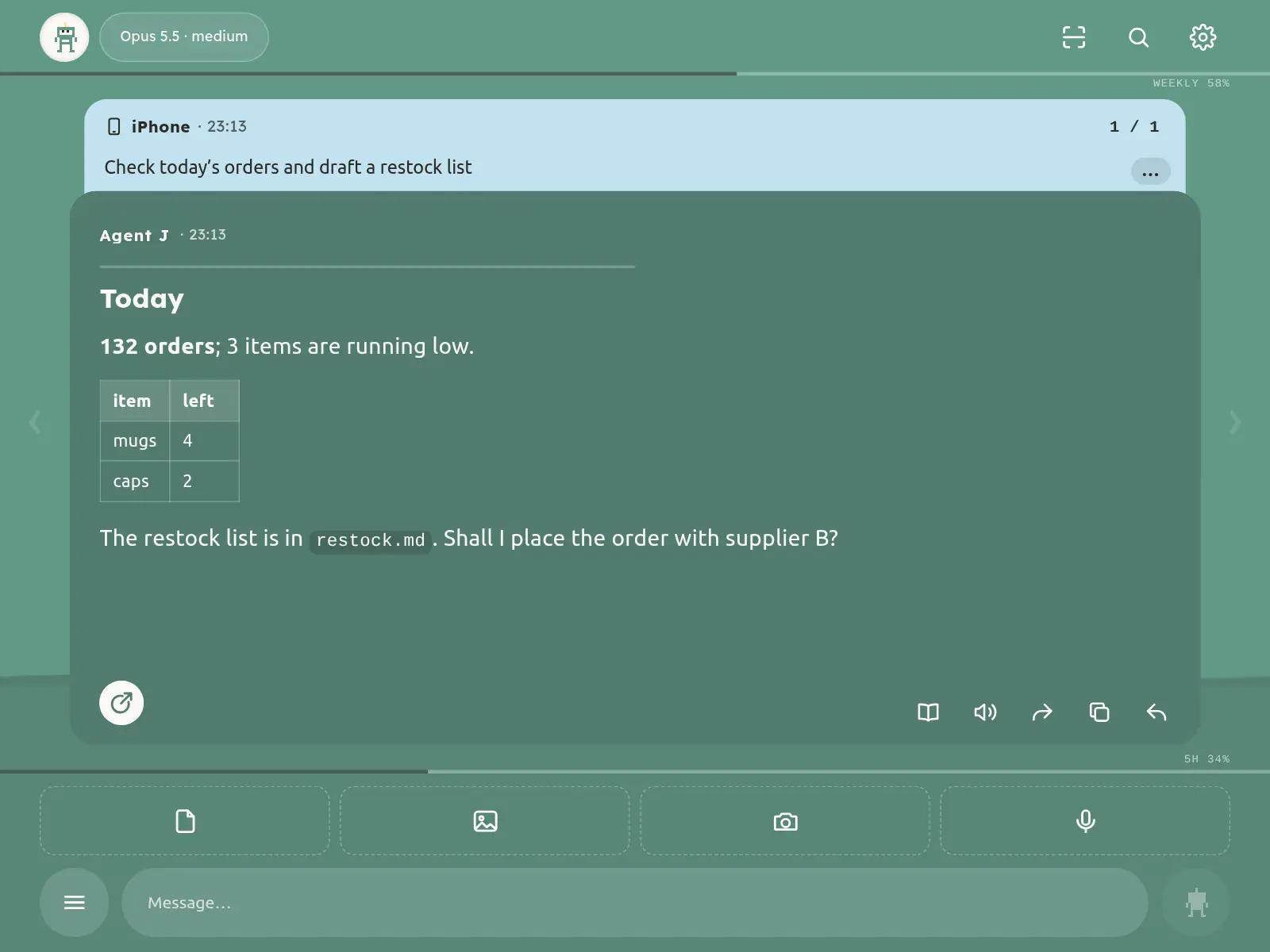
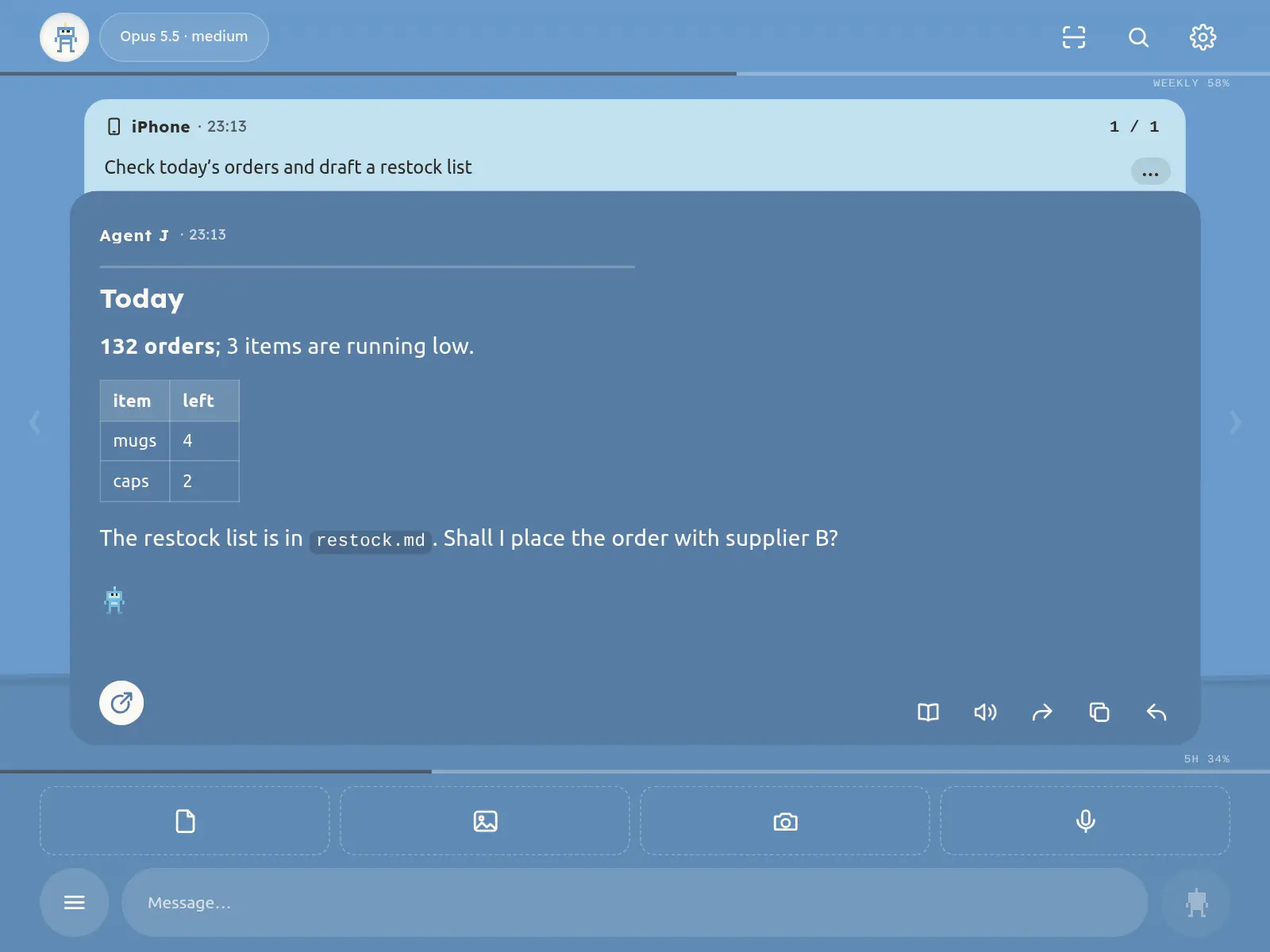
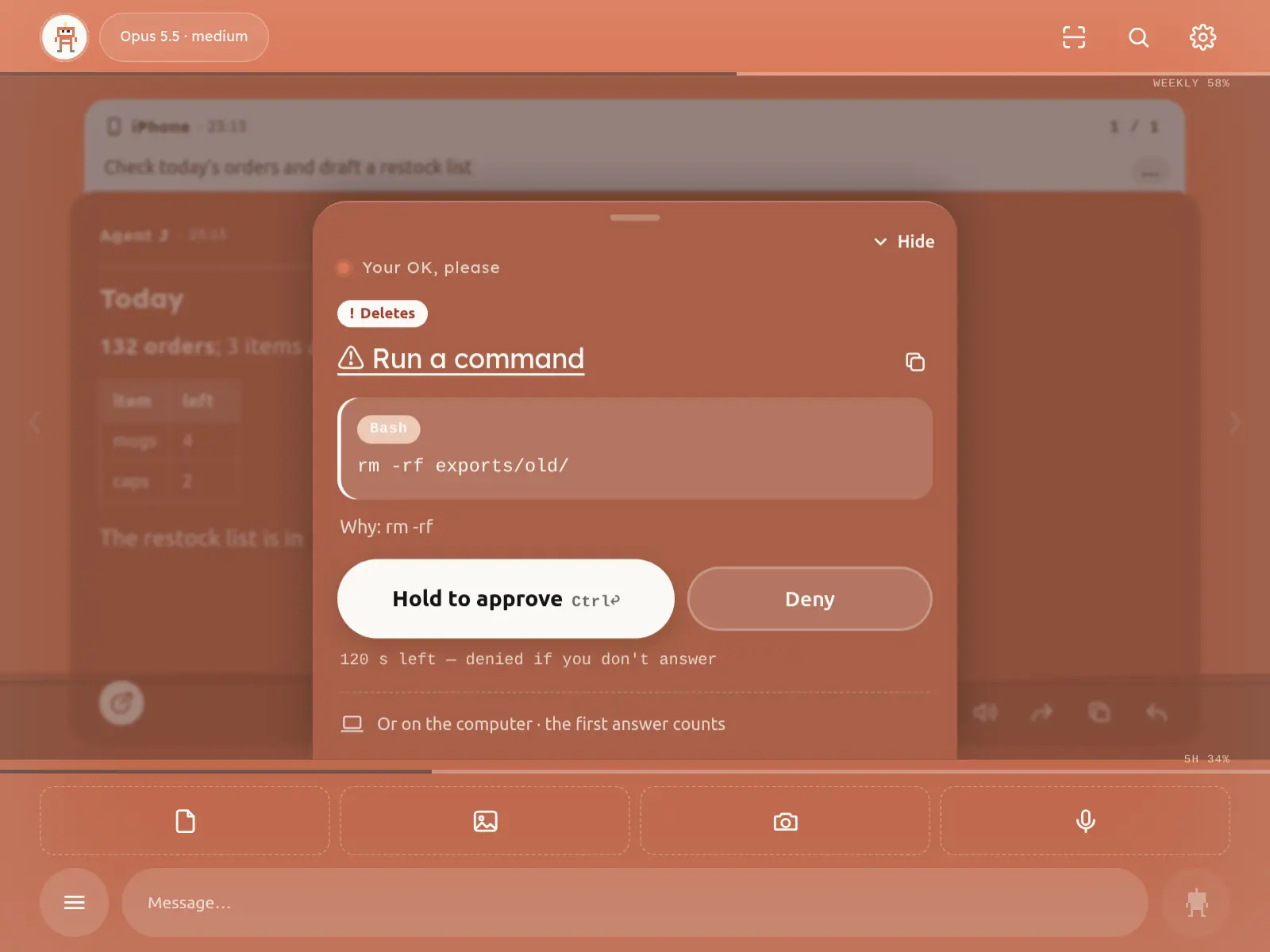
Background colour: what the Agent is doing
The colour of the whole screen tells you one thing: the state of the main Agent on your computer. Other agents it runs in the background, and scheduled tasks, never change it.
| Colour | Meaning | What you do |
|---|---|---|
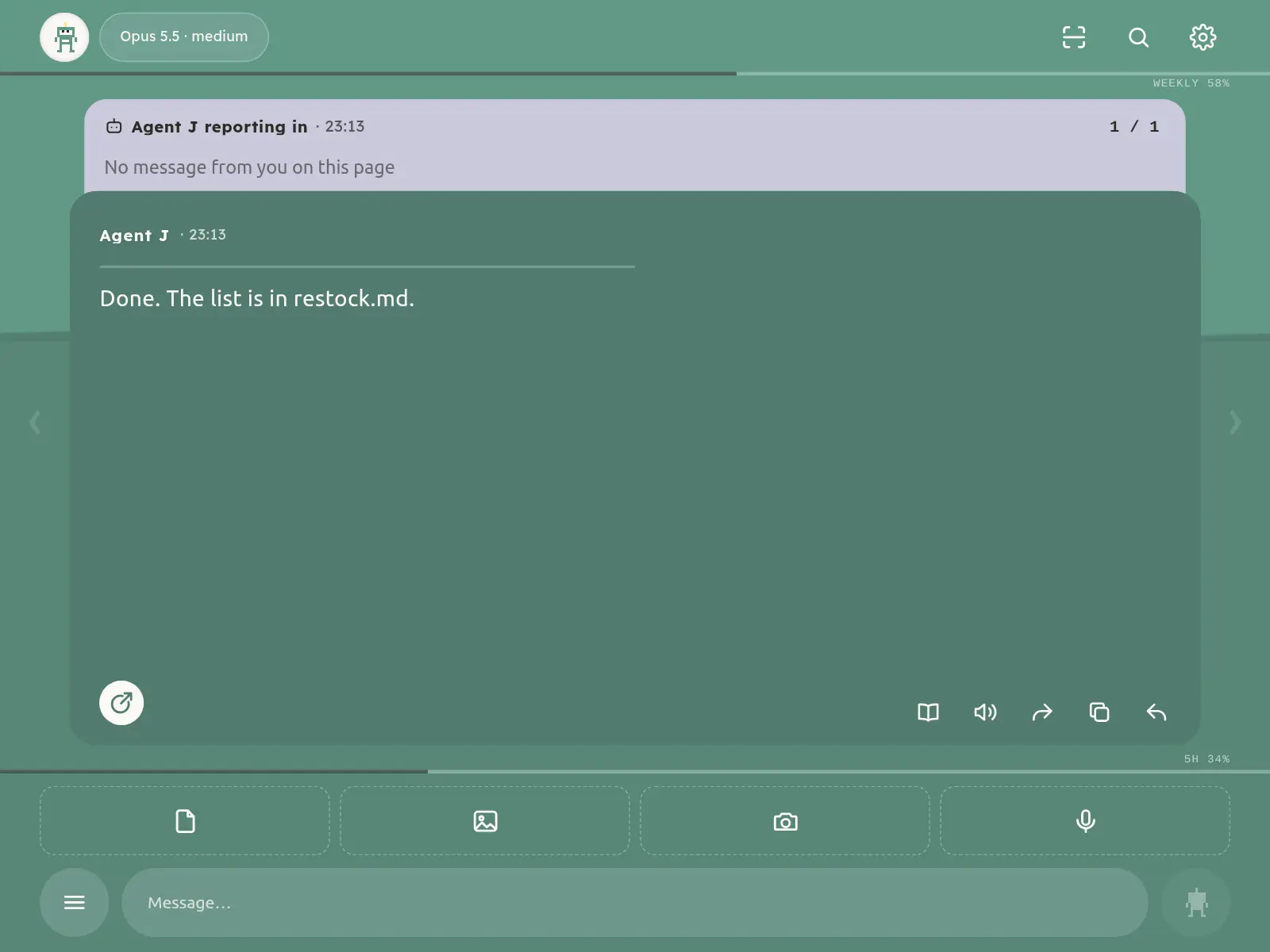
| Green | Waiting for you | Say something whenever you like |
| Blue, with a light running along the top | Working | Wait — or keep sending; messages queue |
| Orange, edges pulsing | An action needs your approval | Read the card, approve or deny |
| Purple | A question for you | Pick an answer, or cancel it and type |
| Grey | Not connected to the computer, state unknown, or everything is stopped | Read the line at the top |
- The icon in the top-left corner follows the state too. Tap it to change the text size (medium → large → medium → small); hold it to jump to the first unread reply ("No unread" when there is none). The size is remembered on this phone and survives a reload.
- With the message box empty, press and hold the grey Send button: a send-sound volume slider grows up out of it. Slide up for louder, down for quieter, and let go to keep it.
- The small line at the top says the same state in words.
- The phone gives a short buzz whenever the state changes.
Three lines: quotas and context
- The thin line under the top bar (marked weekly): how much of your AI plan's weekly quota is used. Longer = more used.
- The thin line above the message box: the 5-hour quota.
- The rising water with waves in the background: how much of the context — what the Agent can keep in mind at once — this conversation uses. Higher water = closer to full. After a compaction the water drops to the bottom.
Tap either line (or the number next to it) and the "Usage" box opens in the middle of the screen with the exact numbers, for example week 58 %, 5 hours 34 %, context 64 %, and how long ago they were reported. "Got it", a tap outside or Esc closes it.
The day in brackets after the weekly figure is where you are in the 7-day reset cycle. The Usage box also has a "Reset cycle" bar with how long until the reset and when, and a small line under each quota with how much you will have used by the reset at the current pace. The figures do not glow normally: the weekly one glows faint blue when it is used faster than the even pace (about 14% a day), and its used part turns light blue in the box; anything at 80% or more glows soft orange, at 90% or more orange-red — little is left. Providers that do not report a reset time show no day.
Both quota lines are always there, doubling as the page's top and bottom dividers. A line with no text beside it has no figure right now, usually because ① your plan has no limit for that window (for example ChatGPT Pro at $200: OpenAI reports only the weekly window and a credit balance, no 5-hour window), ② the provider offers no usage query (for example the Volcano Ark and Alibaba Bailian Coding Plans — check their consoles), or ③ the figure is temporarily unavailable. None of these affects normal use; the text appears by itself as soon as a model or AI coding tool reports it.
The water is past half — what now?
When the context fills up, the Agent starts to forget the earliest details. Once it is past half, Agent J mentions it once at the end of a reply (once per conversation).
- When it suits you, say "compact", tap
/compactin ≡ (all commands), or send/compact. - You don't need to prepare anything. Before compacting, Agent J has the Agent write a handover file — what it is working on, decisions made, to-dos and the file paths it needs — and only then compacts.
- After the compaction it reads the handover first and carries on.
If the handover could not be written (say the Agent was stuck), the compaction still happens and the phone tells you in one line.
The handoff path is fixed and copyable from the phone: ~/.local/state/agentj/handoff/compact.md in shared mode,
<work folder>/.agentj/handover/compact.md for Agent J's own main conversation. If you send nothing after a compaction,
Agent J itself reminds the Agent to read the handoff and carry on, and the phone shows one line about it. See the
compaction and handoff page.
/clear starts a new conversation. It asks first, and you can undo it until you send your next message; once the new
conversation has begun, the button turns into a short "Too late to undo: the new conversation has started. The old one is saved on this computer." line and the old one stays on your computer. To keep
your progress, use /compact, not /clear. Status lines such as the new-conversation greeting address you as "Chairman" by
default; change it with agentj config set owner.address Alex.
Heartbeat: the Agent checks in by itself
After a quiet spell (default 60 minutes) Agent J wakes the Agent on your computer to look at background work and your to-dos. All fine → nothing reaches the phone. Something to tell you → a short page labelled Heartbeat check. Say "check every 30 minutes", "wake up every morning at 7:30" or "stop waking up on a timer" to change it, or use Settings → Heartbeat: pick the idle time from a drop-down (30 minutes to 24 hours, or custom) and turn on "Also wake up every day at". Every heartbeat costs one model call. See the Heartbeat page in the docs.
One message per page — swipe through them
Each page shows what you said at the top and the Agent's reply below. Swipe right for older pages, left for newer ones; 1 / 1 in the corner is the page number and total. A page turn is a quick flick that starts the moment your finger lands; hold still for a third of a second and then drag, and you are selecting text instead — that never turns the page, nor does dragging a selection's handles. While a long reply scrolls, the name, the load line and the robots stay pinned at the top of the card.
The header is split into three equal parts: double-tap the left third to go to the first (oldest) message, double-tap the right third (the page number) for the latest; the middle third is for unread replies. When replies arrived after you last looked, a small pulsing round badge in the middle of the header shows how many; tap it to jump to the first unread reply and page forward from there — the badge goes away once you reach the latest. With nothing unread there is no badge and a tap in the middle does nothing. Pressing u on a computer also jumps to the first unread reply. Unread replies sync across all your remotes: seeing a reply on any remote clears that reply and earlier unread hints on the others. An offline remote syncs before showing unread hints when it returns. After an upgrade the replies already there count as read, so no remote opens at 99+; a read that did not reach the computer is sent again by itself. One exception: if this remote is on an older page when a new reply arrives, its page number keeps pulsing and the badge keeps counting it until you reach that reply here, even when another remote already read it. Silent turns do not count.
While you read an older page, nothing moves you: sending a message, or a new reply from the Agent, leaves you on the same page at the same scroll position; a new reply only makes the page number at the top right pulse, and you page on when you are ready. Only when you are already on the newest page does a sent message take you to its new page.
The buttons under a reply, left to right:
| Button | What it does |
|---|---|
| Book | Full-screen reading (or double-tap the reply), with a text-size control |
| Speaker | Read it aloud with the phone's own voice — the text goes nowhere else |
| Arrow | Share it through the phone's share sheet |
| Two pages | Copy the whole reply |
| Curved arrow | Reply to this one; the quote appears above the message box |
Select some text in a reply to quote just that part. Selecting somewhere else adds another quote instead of replacing it — up to 5, from any replies, also while paging or in the full-screen reader — side by side above the message box; tap a quote's words to read it in full, its time to jump back to it (highlighted), its ✕ to remove it; the ✕ at the end or Esc clears them all. The clipboard always holds your latest selection.
When a message you sent carries two or more quotes, its card first folds them into one row — how many quotes there are, the start of the first one and how many more, the same look as above the message field before sending. Tap the row to show every quote (each still jumps back to its source); tap that top row again to fold them. A single quote shows as before.
On its own at the bottom left of the reply card is a white round button (a ring with a gap and an arrow leaving it): Share as a web report — it turns what you worked out in the chat into a good-looking web page you can send to others. Tap it and the message box gets /web-page-report with the cursor after it; nothing is sent. Add a line if you like — "only the pricing part, for people at my company, open for a week" — or send it as it is and the Agent asks first: the whole conversation, a few topics or just this reply; who may open it (anyone with the link, an access code, only your company's e-mail domain, any e-mail sign-in); how long it stays up; whether to hide names and numbers. Once you have said it, it does not ask again. Tap it on an older reply and that reply goes along as a quote, so the Agent knows where to start. If the web report skill is not on your computer yet, the Agent asks whether to install it from the plaza first.
Hold the round button and the Hot key sheet rises from the bottom: what it is bound to now and what a tap does, then every command and skill of the phone's 「/」 menu (one-tap commands, your own commands, the Agent's skills), with a search box. Bind it to anything you use often: pick one, tap Bind it, and from then on the button is that — the icon stays the same. Bound to a command (/status, /compact …) a tap runs it at once; one that wipes the conversation such as /clear still asks you first — a hot key never skips that. Bound to a skill, a tap puts it in the message box; add a line and send, and the Agent runs it on that reply. Back to default at the top of the list makes it Share as a web report again. You can also ask the Agent to change it, or run agentj config set ui.card_hot_action status on the computer.
The name at the top left of the reply card is the name you gave your Agent. Press and hold it to rename the Agent — the same as agentj name on your computer; the new name shows on the phone and the computer. Sometimes a few little pixel robots dance at the top right: each one is an Agent working for you in the background — a workflow CEO, or a helper the main Agent sent out. New work brings a new robot; a robot whose work is done takes a bow and floats away. A phone shows up to 6 side by side, then +N. Tap the robots and a square opens in the middle of the screen: how many Agents are at work, who is watching them for you, and all of them listed — each row its robot, who, and what it is doing (the whole task title, with an ellipsis if it is too long). Tap a row to open that Agent's own card: where it runs, how long it has been working, its latest step, and for a background dispatch the report path and the report's first line; the card is only for looking, and Back returns to the list. Sub-agents sent out by Claude Code, Codex and OpenCode all show up this way. They show whether or not the main Agent is replying; work running with no robot means it was not registered — ask the Agent to wrap it in agentj busy run. At its bottom, "Change the look" sends the Agent a message from you asking to customize the look, and it asks how you want the robots, colours, logo or send button to change, then validates the theme before applying it. Pressing and holding the robots does the same. ESC or a tap outside closes it. The robot gallery and the display rules: Background robots.
The thin grey line under the name is the load line: a light-coloured segment glides back and forth along it, and the faster it glides, the busier your computer is — if it is racing and your message can wait, wait a little. Tap the line and a square in the middle of the screen explains it: the overall load right now, then five rows — CPU, memory, GPU, disk and network: disk is how busy reads and writes are plus the space left, network is what goes in and out per second. Without a graphics card, or when it cannot be read, the row says "— (not detected)". The five are measured every 2–3 s only while the square is open and stop when it closes, so they cost your computer nothing otherwise. Last, how fast idle, normal and busy look (about 6 s, 3 s and 1 s a sweep). It stands still while the phone is disconnected.
Replies are laid out for you:
- Code is syntax-highlighted and scrolls sideways when wide; a code block has a copy button at its top right. A short shaded command inside the text (inline code) copies with one tap ("Copied"), ready to paste into a terminal.
- Maths (LaTeX) shows as formulas. Commands never turn into formulas:
$HOMEand$(…)stay as written, and system cards (such as a goal's result) show no formulas at all. - Diagrams (mermaid) are drawn as pictures.
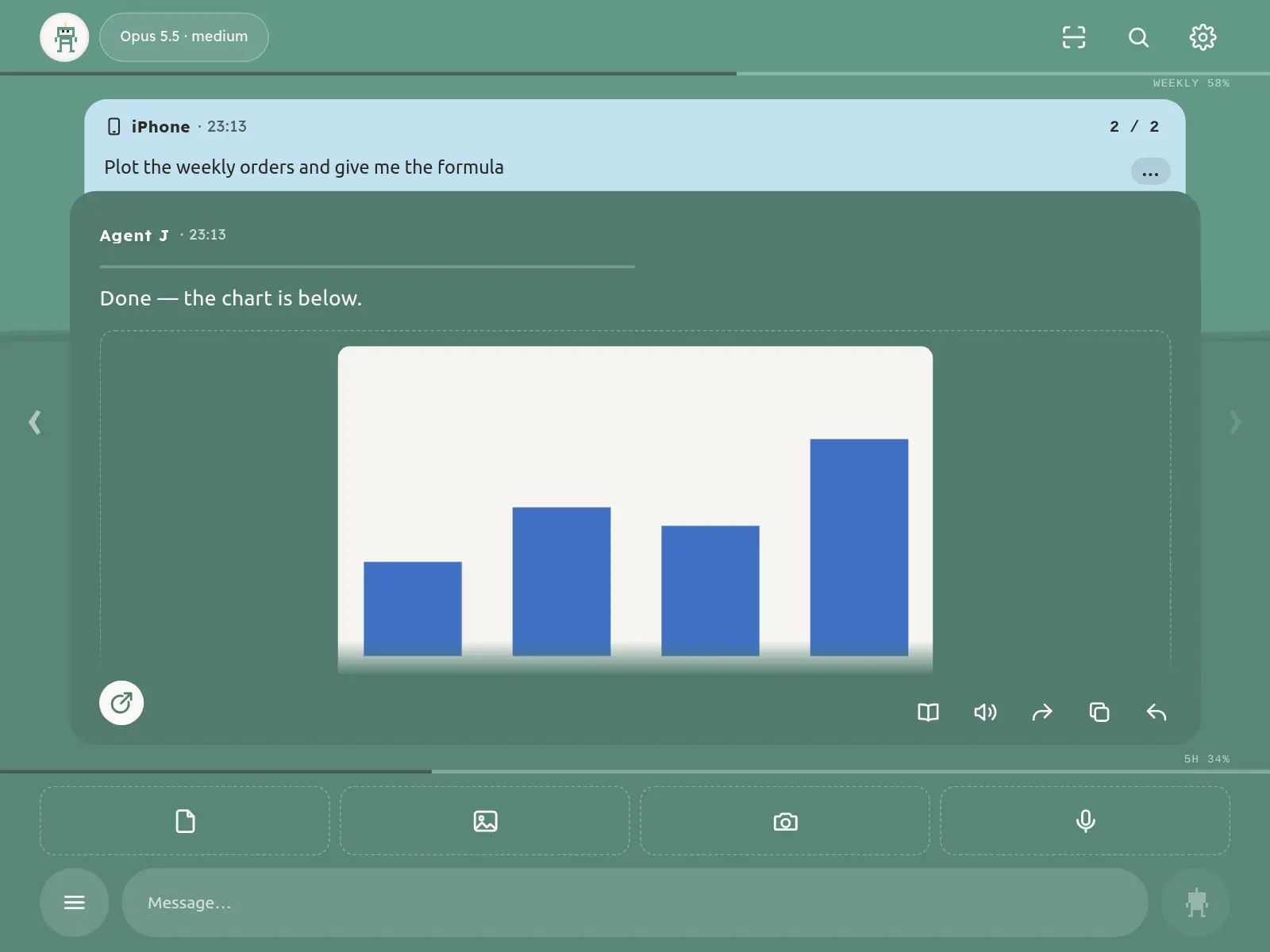
- Images, audio, video, PDFs, web pages and other files the Agent mentions show up right in the reply, as long as they are inside its working folder: tap an image to enlarge it, play audio and video in place, preview web pages in a safe frame (no scripts run there). Under every file card is one row of icons: preview, download, share, forward by email, forward to Telegram. Small files load by themselves once they are on screen; big ones load on a tap (the button shows the size), and nothing loads by itself on data saver or a cellular connection. Preview opens full screen: PDFs, Word (docx), Excel (xlsx), CSV tables, Markdown, code and text show right there; kinds it can't show yet, such as PowerPoint, offer the download. On a computer, select a card and press Space to preview; Space or Esc closes it. While a preview is open, the left and right arrow keys (a sideways swipe on the phone) move to the previous or next file of the same reply, and the top bar shows which one of how many; on a zoomed picture one finger moves the picture instead. Download saves the file under its own name (Chinese, spaces and emoji included) and a short note confirms it went to the browser's downloads; in the iPhone Home Screen app it opens the share sheet — choose Save to Files.
- Files that are too large or outside the working folder are not sent to the phone — the reply gets one line saying why.
Audio, video and pictures always go, whatever their names (Chinese, underscores, long names are fine). Credential files
(such as
.env,.pem, private keys) and text files holding a real key are not sent as ordinary files: a secret pickup card opens on the phone instead (Face ID to open); when no card opens, the line says why and how to get the file. Image links to the web are never opened automatically.
Search the chat
The magnifier left of Settings at the top right (⌘K / Ctrl+K on a computer) opens the search: type words into the dark
card in the middle of the screen and it searches what you sent, quotes, attachment names and the Agent's replies at once.
Separate words with spaces; a page matches when all of them appear. Case, full-width / half-width and Traditional /
Simplified Chinese do not matter.
Results come in best-match order — more hits, hits in what you sent, at the start or in the first line, the whole phrase or an exact match rank higher, and recent pages a little higher — or switch to "Newest". Each result shows who sent it, when, and the matching snippet with the words marked. Pages already on the phone show at once; older pages that are only on the computer are added a moment later.
Tap a result: the card closes and the chat turns to that page, which flashes once. Tap the magnifier again to get back to
the same results at the same scroll position. Every search is kept as a page (up to 20): swipe sideways in the card (←
→ or the ‹ › buttons on a computer) to go back to earlier searches; the top line says "Search N of M: words". These
searches stay on this phone, encrypted like your drafts, and are cleared with the conversation (/clear) or when you
unpair.
On the computer: agentj history search <words>.
Sending messages
- Type and tap send, or press Enter. Until the Agent has it, you can cancel the send.
- You can send while the Agent is busy (blue); messages wait their turn.
- It works offline, too. With no network, send as usual: the message is kept encrypted on this phone and the page says "Will send when you're back online". When the network returns, queued messages go out in order, never twice. Even if the computer restarts, a message is never run twice: one it hadn't finished is marked on the phone with a line saying so — send it again yourself if you still need it.
- Type
/at the start of the box to see the commands you can use.
Sharing a Codex App session
While the Codex App holds a session, the phone follows its actual model from local records and shows read-only status. A native active-writer refusal leaves the message undelivered and never automatically starts another thread. Quit the Codex App completely, then resend to try continuing the same thread; switching to New chat or waiting for a reply does not guarantee release. Do not promise concurrent writes from separate clients, delete writer locks, inject the App’s private pipes or change permissions.
When the phone says another program is using the session, it says which one: an Agent J leftover background process is cleaned up automatically and your message goes on; the Codex inside the ChatGPT App, the Codex App or a codex in a terminal must be quit first; if Agent J cannot find out, it tells you so.
Codex permissions: directly on your computer by default
With Codex, as long as you never wrote sandbox_mode at the top of ~/.codex/config.toml, Agent J lets it work like you do in your terminal: network, installs, files in your home folder. Risky actions (spending, deleting, sending, keys …) still wait for your approval on the phone.
- If you set
sandbox_modeyourself (for exampleworkspace-write), it stays yours; anything beyond it is refused, and the notice says how to open it up. sandbox_modemust be at the top of the file (before the first[ ]). Appended at the end it usually lands inside the last[ ]table, where Codex ignores it./statuson the phone oragentj doctoron the computer then says "written but not in effect". Just ask the Agent: it usesagentj codex-sandbox, which writes the right place; after an Agent J restart the same conversation follows the new setting at once.- When continuing a Codex App session, that conversation's own permissions in the Codex App apply; if you never chose any there (still the default), the rule above applies. Refused because of permissions? Set this conversation to Full access in the Codex App, then resend from the phone.
Attachments: files, photos, camera
- Three buttons above the message box: file, photo library, camera. You can also paste an image, or drag files in on a computer browser.
- Hold "File" to paste the clipboard's text at the cursor; longer than 2,000 characters, it becomes a .txt attachment. Hold "Photos" to add the clipboard's image as an attachment. An iPhone may first show its own small paste bubble — tap it.
- Up to 10 attachments at a time, 200 MB each, of any file type. Recordings and videos are transcribed on your computer and the Agent gets the original too. Very long pasted text becomes an attachment automatically.
- Attachments travel encrypted straight to your computer, into the Agent's working folder, and are removed after 30 days.
Voice: tap to lock, hold to talk and release to send
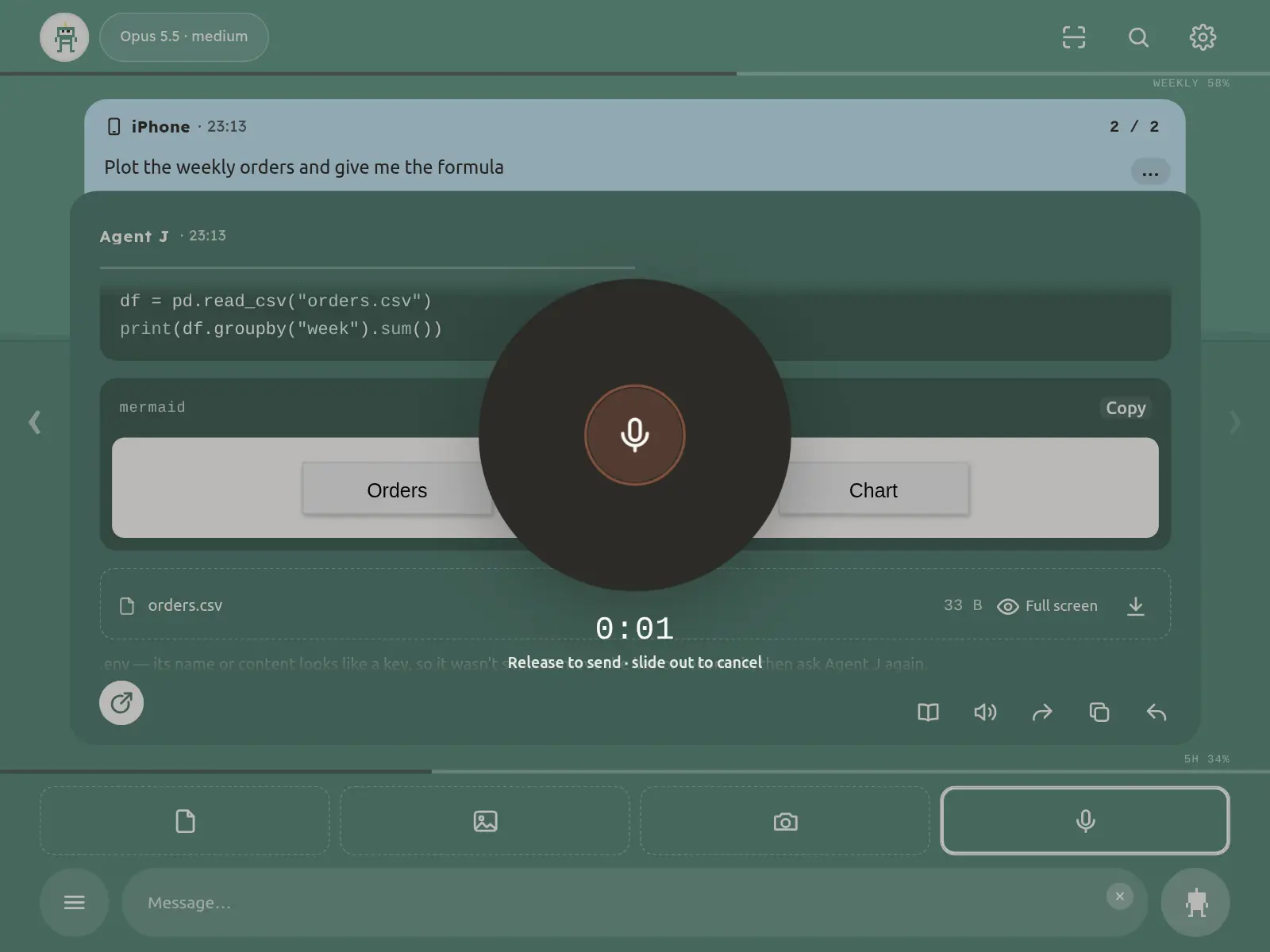
- Hold the microphone and speak; release to transcribe and send automatically. Long recordings send as attachments. To cancel, slide clearly off the button (about 80 px away, or up by more than a button's height) and let go there; a shaky hand or a small move does not cancel, and sliding back keeps recording.
- Tap or double-tap the microphone to lock recording. Wait half a second, then tap again to finish; review the words in the message box before sending. Keyboard m still releases to text and double-m still locks.
- Speech is turned into text on your own computer, never by us. If the computer has no speech model yet, your phone keyboard's dictation works too.
- To have every reply read aloud, turn on auto-read in Settings.
≡ All commands
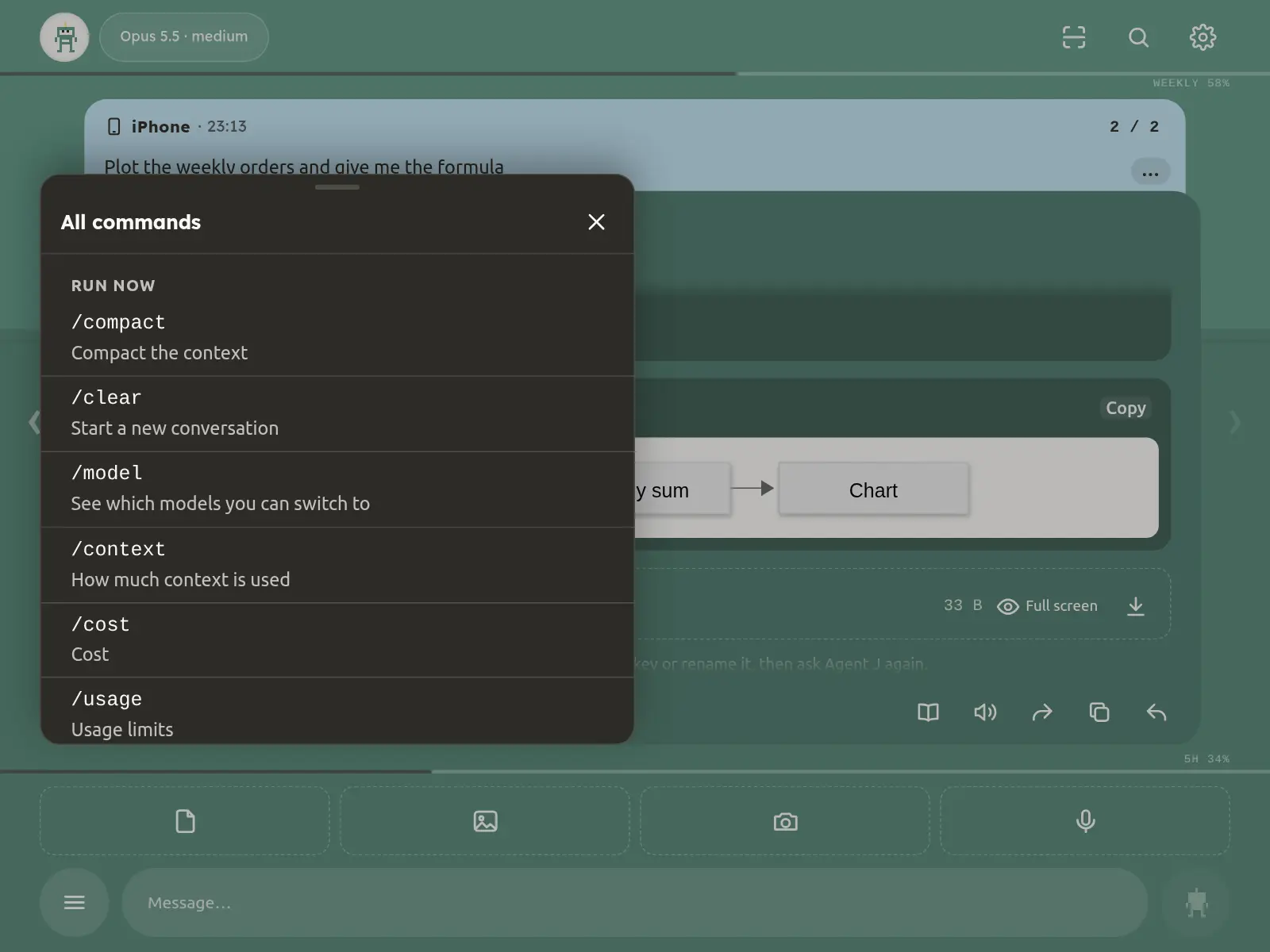
≡ to the left of the message box opens all commands; tap one to run it:
| Command | What it does |
|---|---|
/compact | Compact the context (writes the handover first, see above) |
/clear | Clear the conversation (can be undone) |
/new | Same as /clear (the name Codex uses) |
/model | See which models you can switch to; /model name switches |
/context | How much context is used |
/cost | What this conversation cost |
/usage | How much of your plan is used |
/status | The current state |
/stop | Interrupt the current turn |
/help | List these commands |
/reset | Reset connection: the same as Settings → Emergency repair → ① (below) |
The two commands in the "Friends" group are put into the message box when tapped; finish them and send:
| Command | What it does |
|---|---|
/my-agent-id | Your computer answers with your Agent ID (tap the code block to copy it), the share link and an "Open my card" button; never goes to the AI, costs no tokens |
/add-friend ID [note] | Add a friend: signed by this phone like "Add friend" on the friends page; a mistyped character is caught at once; without an ID it opens "Add friend" |
In the "Run now" group, the command to switch the AI coding tool (/switch-harness) goes to your main Agent with one tap; you can also type it in the message box, add "switch to Codex" after it and send it. It does not switch at once; it goes to your main Agent, which says which kind of tool it means, scans which ones this computer has, tries each one's sign-in with a quick headless call and tells you which ones you can switch to. It switches only after you confirm. The phone disconnects for a few seconds and reconnects by itself, then the new tool introduces itself; if it does not come up, Agent J switches back by itself and tells you why. See Switch AI coding tool.
Want commands of your own? Tap /customize in the list, or press and hold ≡: it sends the Agent a message from you asking to customize your slash commands; it lists the current ones, asks what to add, remove or change, and only switches the change on after it validates.
Before switching, the tool you use now writes the conversation's key points into a handoff file; the new tool reads it first, then carries on. If none was written the switch still happens, and the phone says "No handoff this time".
The menu also has "Stop everything" and the Agent's own skills. Other commands, such as changing settings, are for the computer. See Agent friends.
The model and effort at the top: tap to switch to the next one, hold to go back to the default. Taps only change the label: a half is switched once you leave it alone for 5 seconds (meanwhile it fades, with a thin line running out underneath); tapping back to the one in use sends nothing. Holding for the default and typing /model name take effect at once.
Cards that need you
Approval card (orange)
When the Agent wants to do something that needs your yes, the screen turns orange and a card slides up saying what it
wants to do. To approve, press and hold the approve button for about a second, until it fills; it comes first (on top on a phone,
on the left on a computer). Tap deny to refuse. The card goes away as soon as you answer, and comes back to explain if
the answer did not arrive or the request had timed out. A long command shows two lines: "Show all" opens it, and the
copy button at the right of the title copies the whole command. On a computer, ⌘↩ (Mac) or Ctrl↩
(Windows / Linux) approves, the same as the hold; Esc tucks the card away.
No answer within 2 minutes counts as a no. You can tuck the card away; a small tag at the top keeps reminding you.
When none of your remotes is online, the card stays for 30 minutes instead: the Agent gets on with other work and runs the step once you approve.
E-mail: mail to yourself, or to people who are all on your e-mail allowlist, goes out without a card. On a card for anyone else, each new recipient has an unticked "Don't ask again for mail to them (add to the allowlist)"; tick it and hold to approve, and they join the allowlist — their mail is handled directly and mail to them no longer asks you.
In a shared session a card marked "Shows passwords or keys" would print a credential on the screen, and one marked "Changes passwords or keys" would change it; a program reading .env by name, or a note that mentions .env, no longer asks. For the stricter old rule run agentj config approvals strict on the computer (agentj config approvals standard switches back). Cards use only your language setting.
Only real danger asks: the five kinds ask on a clear match (git push, a deploy, a payment or messaging API, deleting cloud data, writing a credential file); writing an ordinary note (words like deploy or key inside a heredoc don't count), --dry-run, list, status, systemctl --user for your own background jobs and sleep wait loops don't. A command Agent J can't read clearly (the program is a variable like $PY) is first checked by Jev when it is set up (OPENROUTER_API_KEY on the computer): at or above "Jev threshold" in Settings (default 0.70, 0.50–0.95) it runs without a card and is logged in Activity. The threshold never affects the five clear dangers — they always ask. Too many cards? Tell the Agent; it explains and runs agentj config set approval.jev_threshold 0.6 (one confirmation card on the phone).
Goal mode (/goal): tap /goal in the ≡ menu and add what to finish and by when. The Agent first sends one opening card with the goal, how you'll know it's done, the deadline and the dangerous actions it needs (by kind, with limits, e.g. "push to repository X", "spend: one domain only"); approve it once and those actions stop asking for the rest of the goal, each one logged in Activity. Outside the grant, a step the computer can undo (including a new file copied with scp / rsync to a machine named in your ~/.ssh/config that isn't there yet) shows a 10-second countdown card that counts as yes if you don't tap; anything that can't be undone or looks like an attack waits for you and is listed in the result card at the end. Cards that wait for you say in plain words who wants to do what, why it wasn't approved automatically, what happens if you don't tap (the step is skipped, everything else goes on) and how to approve; the raw command is folded under "Details". While the goal runs, pressing and holding "Hold: approve and add to the goal's grant" also lets the same kind of step through (up to 20 times, ending with the goal); the Agent can ask for one more grant with agentj goal grant, one card. /goal status shows progress, /goal stop withdraws the grant at once; a goal ends after 8 hours by default. For a company or team, switch off "Goal mode: approve in 10 s" under Settings → Safety.
Approval level: "Approval level" in Settings → Safety has three settings. Safe asks more — unclear commands, batch approvals and goal-mode countdowns all wait for your tap. Standard is the default and works as before. Full access is like Claude Code's --dangerously-skip-permissions: almost no cards, everything logged in Activity, while suspected attacks (downloading and running included), passwords or keys (sending them out included), spending and price changes still ask one at a time. The same page has "Goal mode: no cards" (off by default): when it's on, your own /goal starts without the opening card and runs without cards, the red lines still ask and the result card still comes; a goal that spends money or changes prices still shows the card; it counts only for the phone that turned it on, and switching it off ends a goal that started without a card. Both change only with a signed confirmation on a paired phone (plus Face ID when loosening, if the phone has a passkey), never by the Agent, and Full access written into the configuration file on the computer works as Standard; if the Agent runs agentj config set approval.level …, you just get a confirmation card. More in On the phone: approval level.
No remote online: the card stays on the phone and the lock-screen alert goes out as usual. With Telegram or the e-mail channel set up, one content-free line also reaches your private Telegram chat and your own inbox (at most once every 15 minutes). After 20 seconds the Agent knows you're away and does other work; the card stays for 30 minutes, and once you approve, the same requester's next try of that step runs; "Stop everything" cancels an approval not yet used. More in When no remote is online.
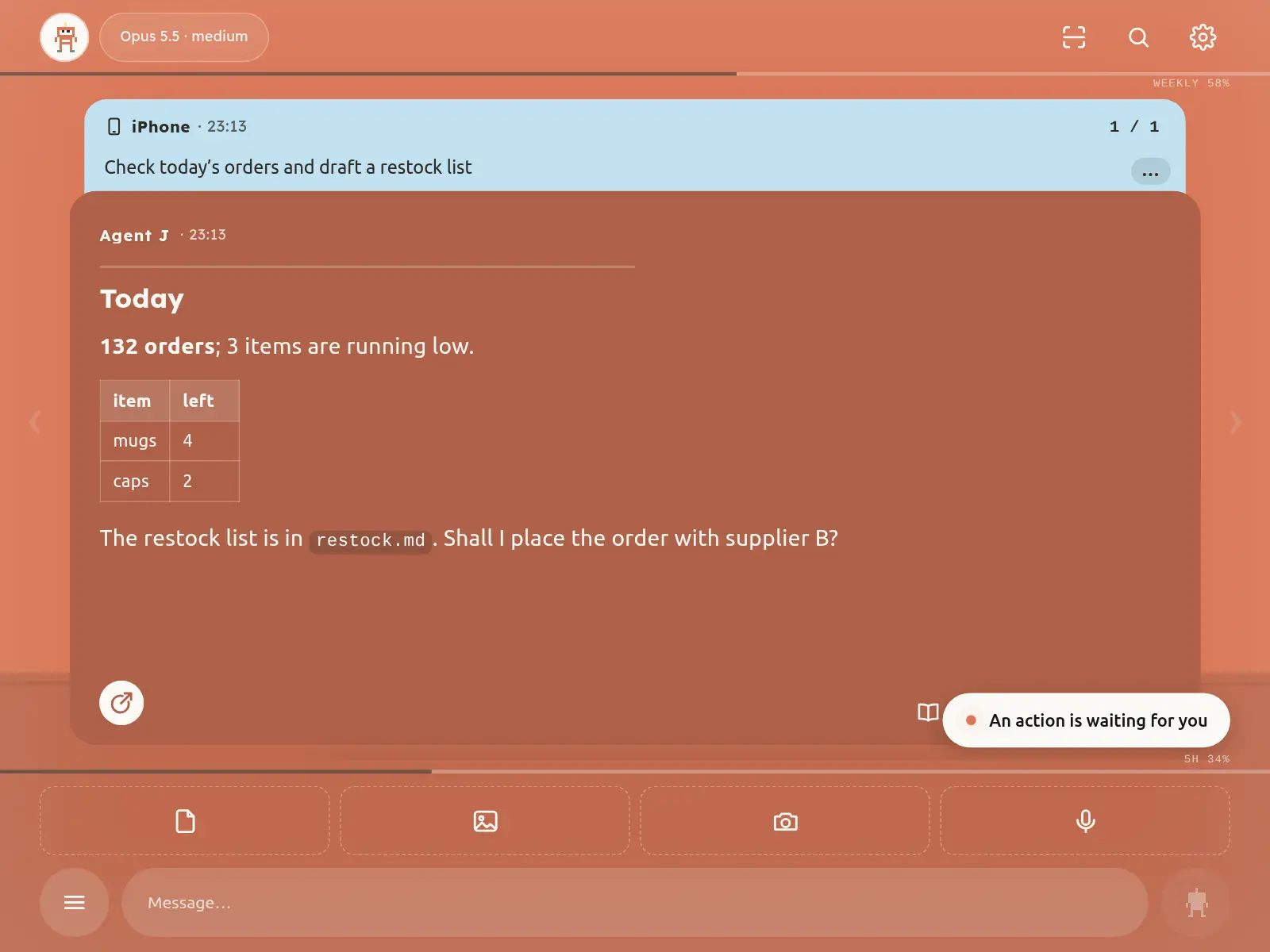
Question card (purple)
The Agent wants you to choose: tap an answer and confirm. If none fits, cancel the question and type your answer. The card works whichever Agent runs on the computer — Claude Code, Codex, OpenCode, Kimi or Qwen (agentj ask): single or multiple choice, sometimes with a short preview under an option. Pick "Other (I'll type it in the chat)", or "OK, I'll answer in the chat" on an open question, then type your answer in the message box. If the card did not really appear, the Agent never says it did.
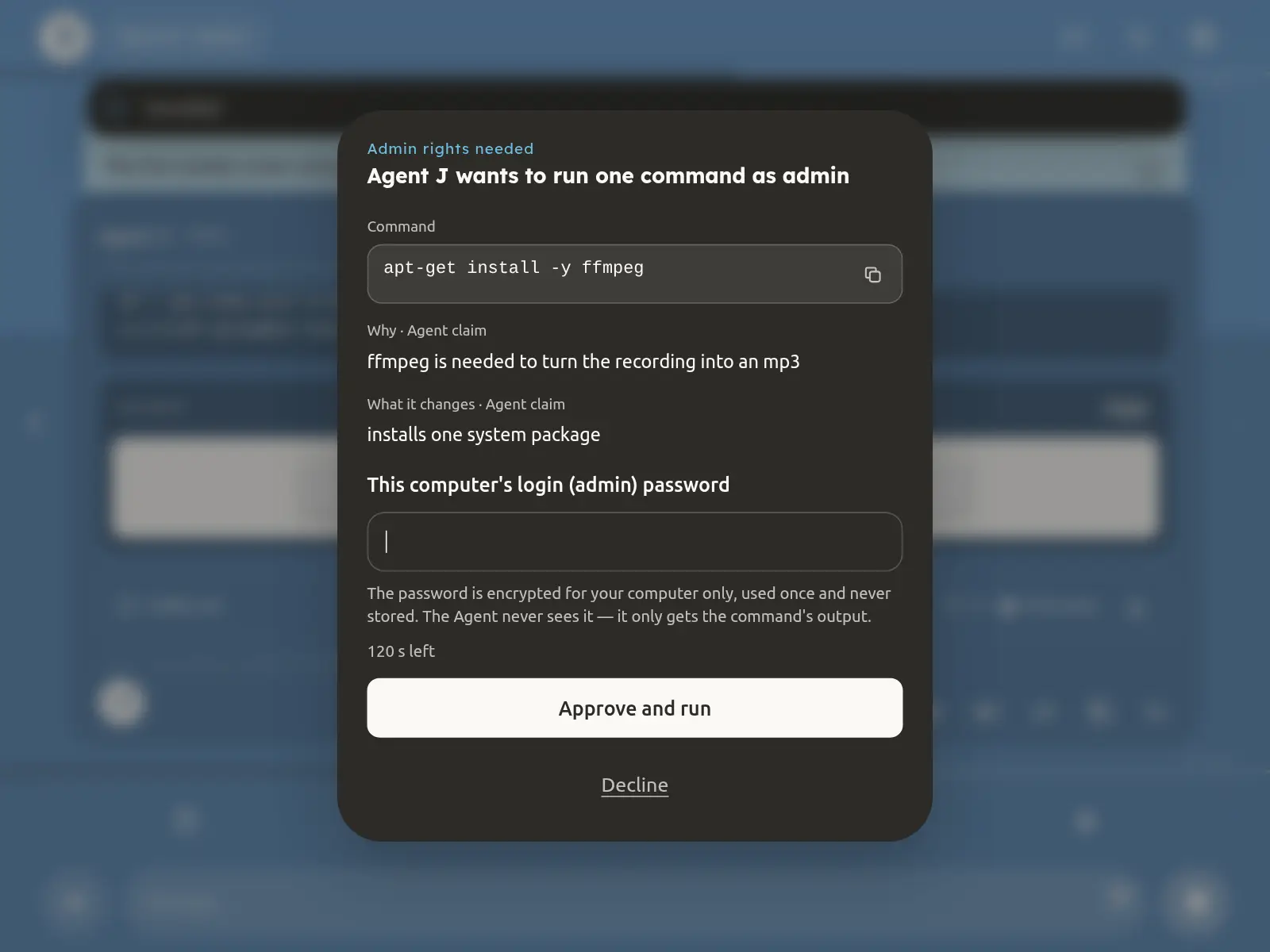
Admin-password card
When the Agent needs to run one command as administrator (installing a system package, say), this card shows first what it's for, then the command and its effect. Type your computer's admin password on the card. It travels encrypted and is used for that one command; the Agent never sees your password.
Key card
When the Agent needs an API key, this card says which key, what for, and where it will be stored. Paste the key; it is written straight there — not into the chat, and the Agent never sees it.
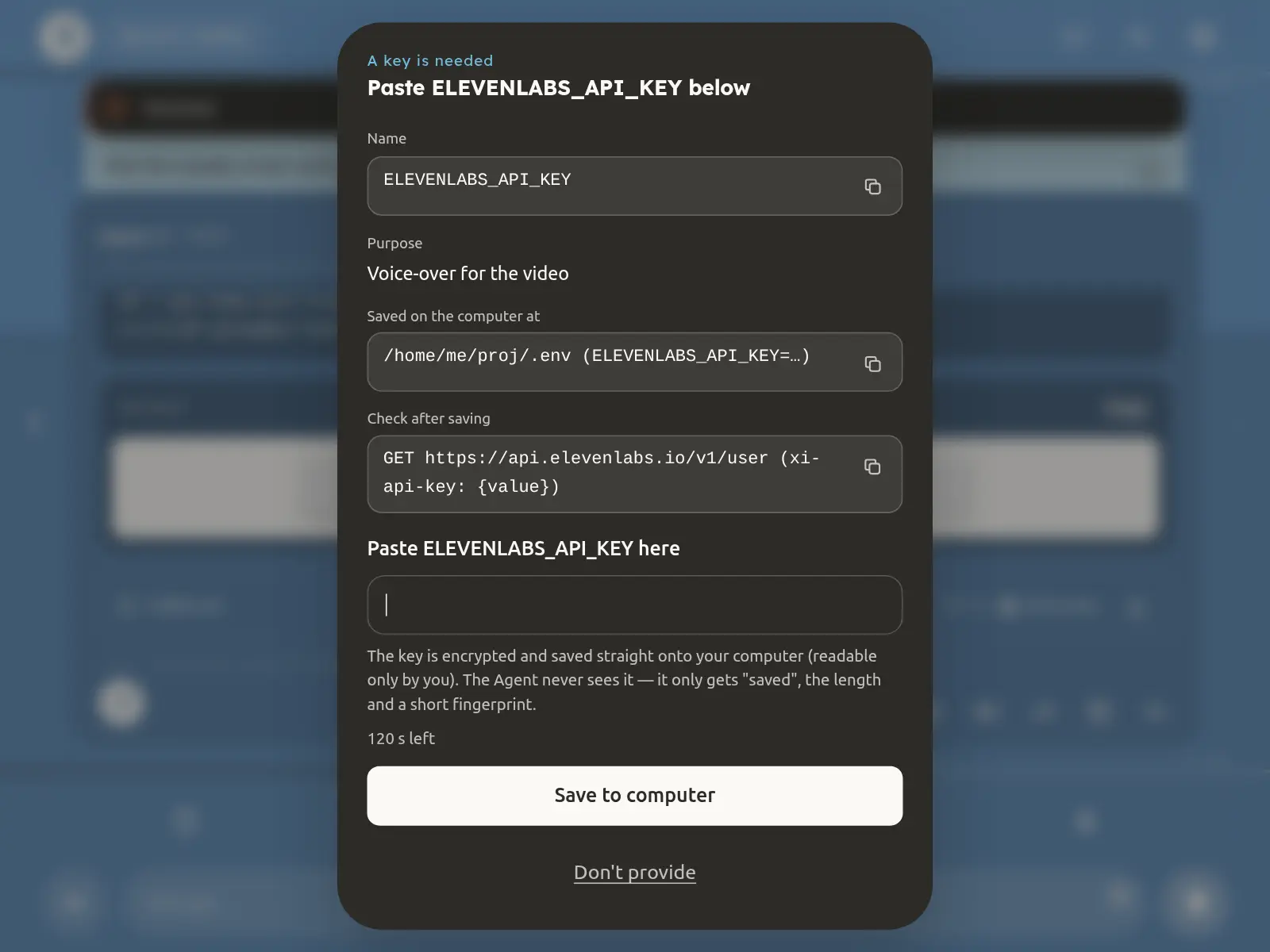
Tapping save (or Enter) with nothing pasted just asks you to paste the key first — it never counts as a no. "Don't provide" sits on its own line below and needs a second tap. The card stays valid for 10 minutes, even if the Agent's command is interrupted meanwhile: submit as usual and it is saved.
Getting your own keys or configs on the phone (pickup card)
To use something set up on the computer on your phone — a proxy ss:// link, a config file with a password — just ask the Agent ("send me the SS link"). Ordinary replies hide passwords, so the Agent sends a secret pickup card instead:
- The card stays hidden and shows only the name, purpose and size. Tap "View with Face ID"; only after that does the computer send the contents.
- Copy text with "Copy", save a file with "Download file". Tap "Done" when finished and it is cleared from the page (automatically after 2 minutes too); the chat keeps a single "picked up" line.
- It can be picked up once within 10 minutes; tap "Not needed" if you don't want it.
- If this phone hasn't set up Face ID yet, tap "Set up Face ID" on the card first.
- The card goes only to your own paired phones. Telegram, groups and friends still can't get these secrets.
Start card (long tasks)
When you ask for something that keeps running — "set up a weekly competitor brief" — your Agent checks what it can do and puts everything that is yours to decide on one start card: what it will do, where it delivers, how often it runs and at most five choices. Confirm and start confirms the brief and, when needed, turns the schedule on; Change something starts nothing. No keys go on this card, and confirming never approves paying, deleting or sending outside — those still ask you one by one. See Long tasks.
More in Admin rights and keys from your phone.
Stop everything
In ≡, tap "Stop everything" and confirm: the current work stops at once, every pending approval is denied, batch approvals are withdrawn and scheduled tasks pause. The screen turns grey with a banner on top until you resume.
Settings
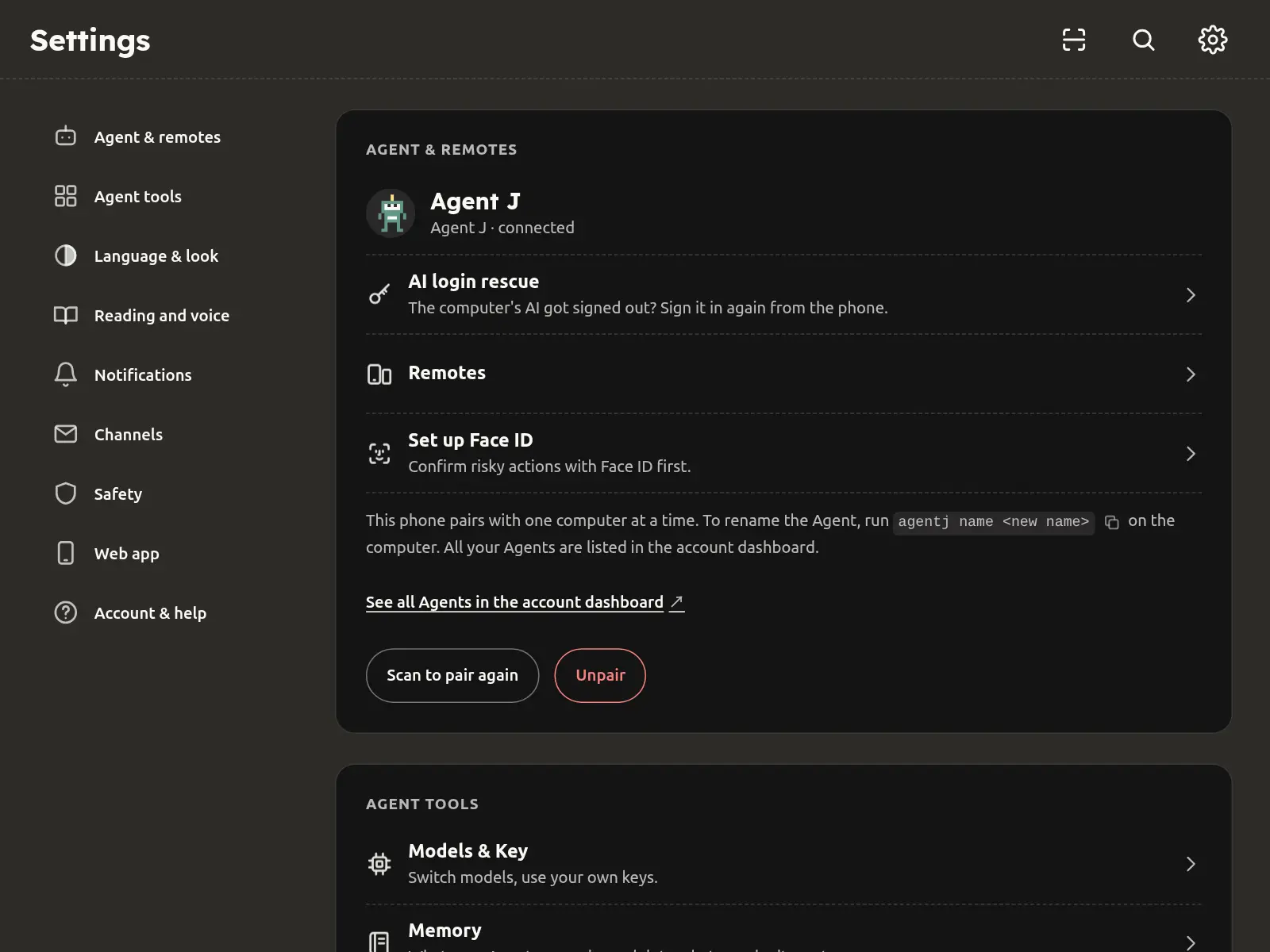
The gear in the top-right corner opens Settings, full screen (on a computer browser: s, or ⌘, / Ctrl+,; Esc
closes it). It is the only menu: Agent & remotes (the Agent's name, Remotes, Face ID, unpairing); Emergency repair (below); Agent tools (Models & API keys,
Memory — rules the Agent keeps, you can delete them —, Activity — what it did recently and who approved what —, Schedules,
Friends, Bots, the first-run checklist); language and appearance; reply text size, send sound volume, auto-read, wake word;
lock-screen alerts; Channels (re-pair Telegram, Email, Contacts — your friends' e-mails and phones, one tap onto the e-mail allowlist — and My contact details); safety options (high-risk warnings, session mode, isolation, Docker); the web app (how updates happen, upgrade Agent J on the computer,
versions, update and reload, Add to Home Screen, keyboard shortcuts); account, help, and the security, privacy and terms
pages. The phone must be connected to the computer to change settings.
Message box buttons (under language and appearance): the four buttons above the message box (File, Photos, Camera and the mic) can go in any order — put the mic on the far left, say, to talk with the phone in your left hand. On a phone, hold a button for a moment, then drag it; or tap one, then tap where it should go. On a computer, drag it with the mouse, or focus it and press ← →. The new order shows at once and follows you to every remote; when the Agent J on your computer is too old for that, it is saved on this device only. Restore default puts back the usual order. The Agent can change it for you too: agentj config set ui.composer_buttons '["mic","file","image","camera"]'.
Every menu — Settings and the pages it opens, ≡ All commands, keyboard shortcuts, silent history, "How safe is this web app?" — is a full-screen dark page with the same header, icons and buttons. The back arrow at the top left does what Esc does: one level up, so a page opened from Settings returns to Settings. Confirmations and risky actions still ask in a centred card.
Emergency repair
Settings → Emergency repair is the second item. Use it when the chat is stuck, offline or not replying, and go in order:
- ① Reset connection: tap this first. It reconnects, finds your conversation again, starts a new conversation if it has to, and as a last step restarts Agent J on the computer; it stops at the first step that works and shows each one. A green card saying "Fixed. You can go back to the chat." means done. If it started a new conversation, the earlier one is kept: ask the Agent in the chat to bring it back.
/resetin ≡ does the same. - ② Ask Agent J Father for remote help: when ① didn't help. The computer checks itself, removes private details on the computer and sends the report to Agent J Father; you get a ticket number. Support can only suggest a few fixed repairs, and the card shows each one the computer runs. Nothing goes out until you tap.
- ③ AI account signed out: for a Claude / Codex login that expired; it opens AI login rescue (next section).
When Agent J on the computer stops answering, a small rescue helper there answers instead: a banner says "Agent J on your computer isn't responding · rescue helper online", and ① and ② still work. The offline card has an Emergency repair button too, plus a line for someone at the computer: curl -fsSL https://agentj.app/rescue | sh. See Phone grey or disconnected?.
Models & API keys
"Models & API keys" in Settings keeps the model picker at the top and two sections below it. "Base models" shows one dashed card per provider (Anthropic, OpenAI, Volcano Ark, Alibaba Bailian, Kimi, DeepSeek and more), each key tagged Subscription, Pay-as-you-go or Sign-in; "Third-party API keys" lists the other keys on the computer (ElevenLabs, for example). A row shows only the name and "Not set" or a mask (at most the last 4 characters) — the key itself is never shown on the page. The icons on the right are Copy, Edit and Delete; an empty row only has Add, and "Add" at the bottom lets you name a new key first. Copy and Delete need Face ID first, and Delete asks once more; Copy puts the value straight on the clipboard. Edit and Add open the ordinary key card, so the Agent never sees what you type. Every copy, delete and edit is written to the audit log — the name, never the key. After installing, fill your keys in here and you can leave the terminal.
AI login rescue and renewing before expiry
When the computer's Claude Code / Codex login expires, the Agent cannot reply. Open Settings → Emergency repair → ③ AI account signed out → AI login rescue and sign in again from the phone, without going back to the computer: Codex shows a link and a device code; Claude Code shows an authorize link, and its code goes only into the secret card.
With a long-lived Claude token, Agent J writes down the day it stored the token and counts one year from it. The section shows how many days the Claude login has left. On day 7, 3 and 1 before the expiry you get one reminder each: a note in the chat, a push, and a red banner at the top of the chat. Tap the banner (or Renew now in the section) → passkey → open the authorize link in the phone's browser and approve → paste the code into the secret card. The new token replaces the old one as soon as a few-second live check passes, and a new one-year countdown starts; if the check fails, the old one stays and you approve again. The authorize link lasts 10 minutes (the page counts down); when it expires or the code does not work, the computer opens a new link by itself (up to 3 rounds). The link goes only to paired phones, never to Telegram.
Subscription /login and Codex's ChatGPT sign-in renew themselves, and provider keys usually do not expire, so they have no fixed date. Once a day the computer sends each signed-in AI one very short, tool-free test message. If the login no longer works (for example you signed out of all devices on the web), you are told at once to rescue it; running out of balance or hitting a rate limit never asks you to sign in again.
Remotes
At the bottom of Settings, "Download Agent J Brand Kit" opens the official Brand Kit on the website in a new tab: the main logo and the 16 robots as transparent PNGs (256, 512 or 1024 pixels; 512 is recommended), ready to use as the avatar of your Telegram bot, your email or any other bot.
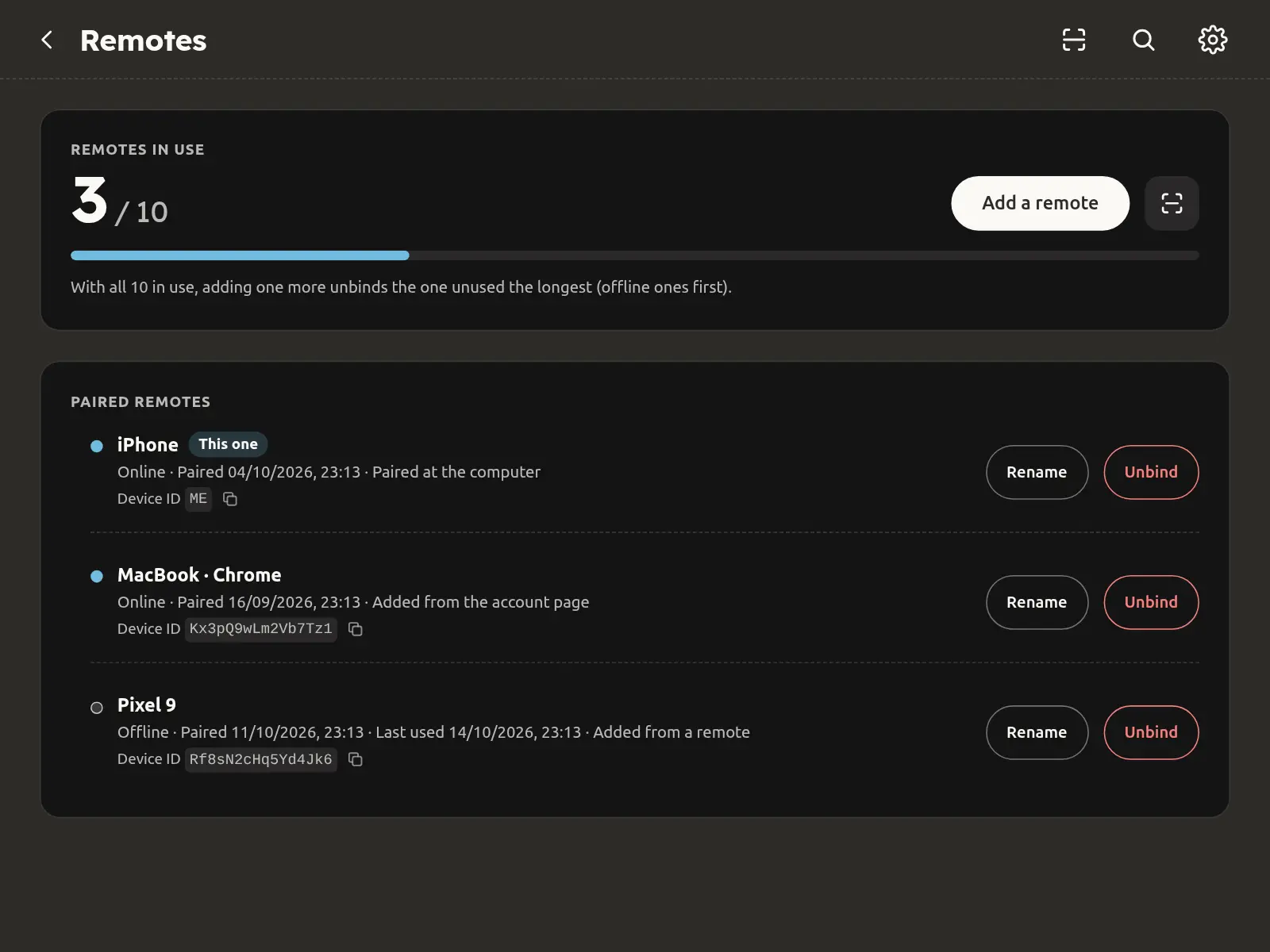
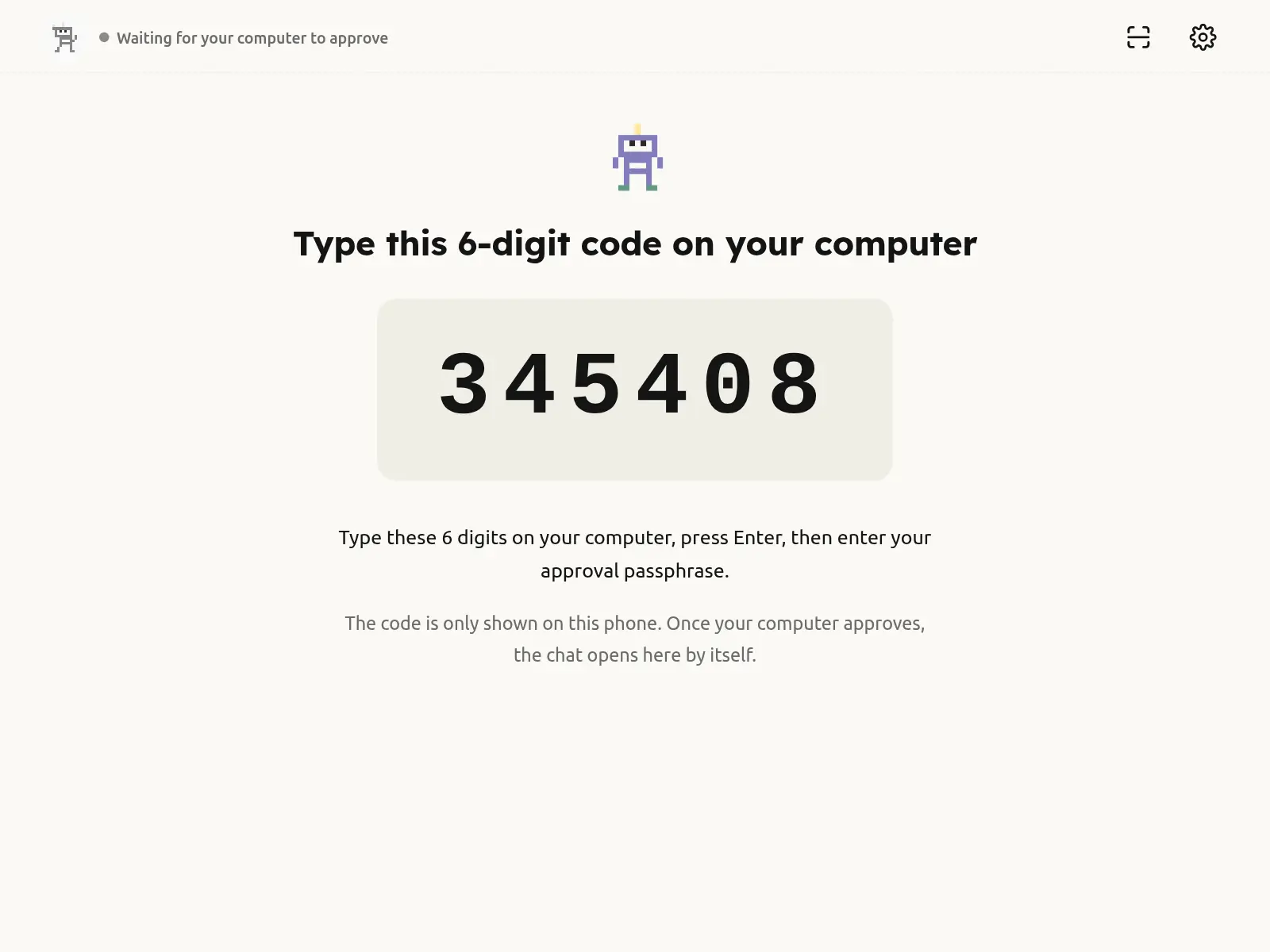
Settings → Remotes is its own page: how many of the 10 remotes are in use, every paired phone or browser (online or not, when paired and last used, how it was added; this one marked "This one"), Rename and Unbind on each row, and "Add a remote": a one-time QR / link for 5 minutes; the new device shows a 6-digit code, you type it here and tap Approve (one try).
The scan icon at the top right (or holding the camera button) reads QR codes: a new device's pairing code adds it as a remote (both screens show the same 6 digits; tap "They match — add it" only if they do); any other code goes into the message field as text, never opened or sent by itself. A new device needs no computer: open m.agentj.app and the code at the top is for a paired phone to scan. The "Web app" tag now lives in Settings → "How safe is this web app?".
Keyboard shortcuts
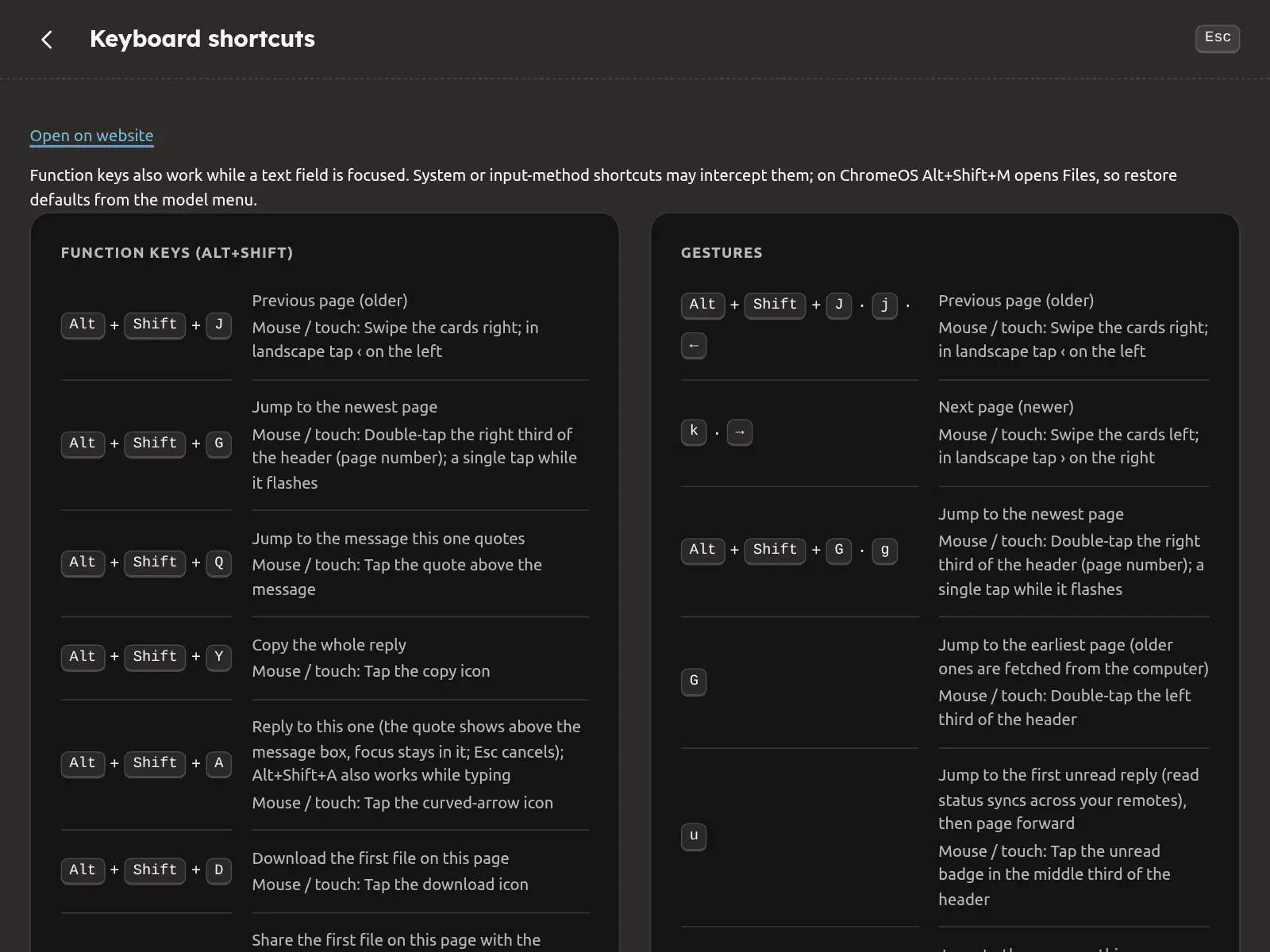
On a computer browser or a tablet with a keyboard, press ? for the full list (it is in Settings too); to find one, tap the magnifier at its top right or press / and type a word. Every tap, hold and swipe with its key: Keyboard shortcuts and gestures. The ones you will use most:
| Key | What it does |
|---|---|
Alt+Shift+J · j · ← | Previous page (older) |
k · → | Next page (newer) |
Alt+Shift+G · g | Jump to the newest page |
G | Jump to the earliest page (older ones are fetched from the computer) |
u | Jump to the first unread reply (read status syncs across your remotes), then page forward |
o · ↑ · ↓ | Expand / fold the message (↑ expands, ↓ folds; with nothing to toggle ↑ ↓ scroll the page) |
f | Read this reply full screen |
Alt+Shift+Y · y | Copy the whole reply |
Alt+Shift+A · r | Reply to this one (the quote shows above the message box, focus stays in it; Esc cancels); Alt+Shift+A also works while typing |
Alt+Shift+O · s · ⌘+, / Ctrl+, | Open Settings |
Alt+Shift+K · ⌘+K / Ctrl+K | Search the chat, or settings while Settings is open (inside the message box Ctrl+K still deletes to the end); press again to close |
i · Esc | Into the message box; Esc in it leaves (the draft stays) |
/ | Commands: / outside the message box jumps in with / typed and the command menu open; not while a dialog or Settings is open |
a | Pick a file for the Agent |
p | Pick pictures from the photo library |
c | Take a photo |
hold m | Hold to talk, release to send (slide out to cancel); keyboard m still releases to text |
Esc Esc | Esc twice outside the message box clears text and attachments (✕ clears the text only, with undo). Esc never interrupts the Agent; to stop the current task, use the stop button or send /stop |
⌘+Enter / Ctrl+Enter | Approve, the same as holding the approve button (identity checks as usual); the card wins over the message box |
Pairing and Face ID
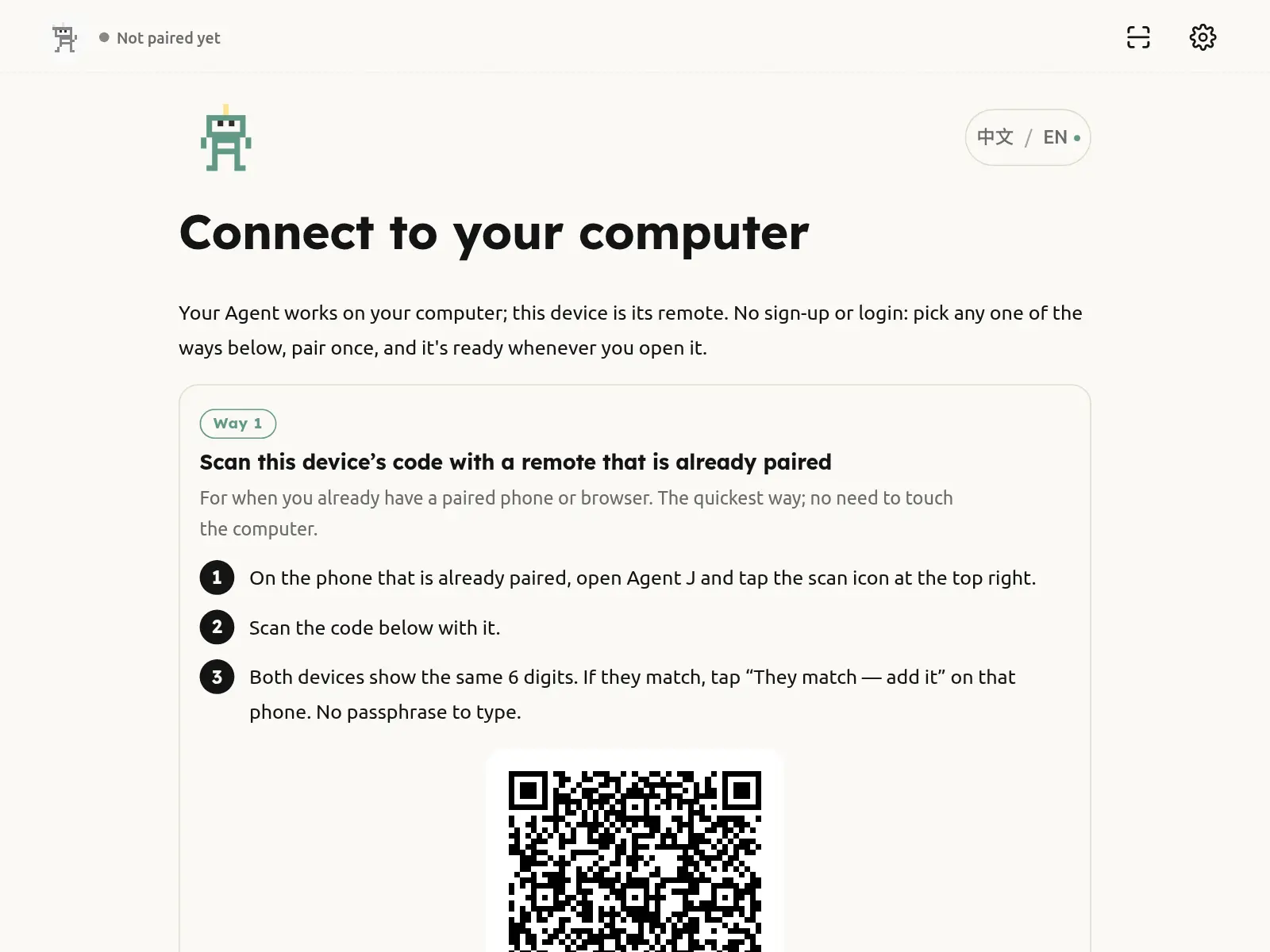
The first time: scan the QR code on your computer, then type the phone's 6-digit code and your remote pairing password on the computer (see Using your phone).
If the code will not scan
- Let the QR code fill most of the middle of the picture and hold the phone steady, not too close (too close and it cannot focus). Turn the computer's screen brighter and avoid reflections.
- After 10 seconds without a result the scanner suggests another way:
- In a browser tab: scan the code on the computer with the phone's own Camera app; it opens the pairing page.
- In the page opened from the Home Screen icon: run
agentj pair --linkon the computer, send the printed link to this phone, tap Back and paste it into the box on the pairing screen.
- That link is the pairing key: valid 5 minutes, works once, never send it to anyone else.
Pairing once is enough. As long as your computer hasn't unpaired this phone, opening the page connects by itself. Safari on iPhone clears what websites store; from 0.17.4 the page then reconnects to the same computer with an automatic sign-in token kept on the phone (only your computer recognises it; it is replaced on each use) — no QR code, no Face ID. You only scan again when the computer has unpaired this phone (for example after you lost it); the pairing screen then says that automatic sign-in no longer works.
After a successful pairing the phone asks once whether to remember this phone with Face ID. Save it and confirm with Face ID. From then on, when you open Agent J somewhere else on the same phone — from the Home Screen, in a new private tab, after clearing browser data — the pairing screen offers to reconnect with Face ID: no QR code, no approval on the computer. The computer's device list keeps counting this phone once.
- Not now? Skip it and pair with the QR code as usual.
- Face ID only proves "this is the phone you already approved"; it grants nothing more. Unpairing the phone on the computer cancels its Face ID record too.
- An iPhone syncs this record through iCloud Keychain to your other Apple devices on the same Apple ID. They can reconnect with Face ID as well, but take this phone's place rather than adding another.
- Browsers without Face ID / passkey support never show the offer; pairing works by QR code as before.
Things one sentence does
Agent J is the only Agent you deal with, so most things are a sentence, not a button:
- "Pick up where we left off yesterday", "Did that report get finished?": it searches this computer's history and continues.
- "Redo that", "Say it differently": it redoes the last answer another way.
- "Open the xx project": it finds that project in your work folder.
- "Compact": handover first, then compaction.
- "Switch to Codex", "back to Claude Code": switches the AI coding tool — checked first, switched only if it works. See Switch AI coding tool.
- "I want to report a problem": it asks what you want to report; once you provide the content, it redacts, sends and gives you the ticket ID. Agent-initiated reports need your agreement on the draft first.
- "Send my card to Kai", "What did Kai say lately?": it manages your Agent friends, see Agent friends.
- On long jobs it sends you a one-line progress note now and then.
- "Set up a weekly competitor brief" and other recurring work: it checks its capabilities and sends one start card for you to confirm, see Long tasks.
- "What can you do": a capability page opens on your phone — what is ready and what needs setup.
Silent turns do not take up chat pages. Open ≡ → View silent history to read them. Esc or the backdrop closes the read-only panel; /clear clears it too.
Add a remote for another computer
Once the target computer is installed, account-bound and online, find its seat card on your account page and choose Add a remote. Confirm it's you, then scan with the phone; the target computer's terminal isn't needed. Confirm either way: with your passkey (none on this computer? choose Use a phone or tablet in the prompt and confirm on your phone), or with that computer's remote pairing password. After a passkey confirmation, the same session doesn't ask again for ten minutes; the QR expires after five minutes and adds one device. Pending devices can also be reviewed and approved on the seat card. Under More on the seat card, See what the computer is waiting on you for is only for two cases: resuming after Stop everything, or enabling a scheduled task the Agent created. It has nothing to do with seats or billing; an unpaid bill never stops the tasks on your computer.
Account-page pairing is on by default. The target computer’s owner can disable it with agentj remote-pair off. Offline hosts are never queued; turn them on and try again. Older hosts must run agentj update apply or update from a paired phone. Devices record “Added from account page” and other remotes receive a notice.
This route trusts the signing control plane. Pairing material is encrypted to an ephemeral browser key and its plaintext is never stored by the backend; compromise of the signing service could still add a device. The remote pairing password is stored only on that computer, as a hash. When you type it on the account page, the browser first encrypts it to a one-time public key that computer just handed out; only that computer can open and check it. Our servers pass on ciphertext they can't read and keep nothing. Five wrong tries in a row lock it on that computer for a while.
For Codex failures, follow the phone guidance: tap the top model name to replace an account-unsupported model (temporarily disabled until an account refresh); check your proxy/VPN for ChatGPT connection failures; run codex login on the computer when login expires. Redacted native errors remain under Details.
Shared Codex model and provider (0.16.4a1)
For a phone turn, an explicit agent.model / agent.effort or the latest phone selection is sent as turn/start.model / effort. Without an explicit phone choice, Codex keeps the thread choice. A desktop turn uses the desktop actor’s own last explicit selection; Agent J only observes it. The top bar shows the active actor’s model, not a promise that a queued phone choice is already running. Selecting Default sends the current native defaults once.
Agent J reads effective native model_provider from Codex config/read and names it as thread/resume.modelProvider when the phone resumes an existing thread. It never copies provider keys or rewrites your Codex configuration. If a different program holds the writer, the phone stays read-only and identifies the program/PID when known. Quit that program before retrying.
For older Agent J versions that keep an old model/provider, start a new Codex conversation in the same folder using your current native defaults, then let Agent J follow the new conversation (clear any explicitly selected old shared thread). Or switch Agent J to an independent session. A new conversation has separate history. Do not ask the owner to paste keys into chat.
Shared Claude makes the phone-message setting Claude Code really uses in the work folder accept (organization policy > the folder's private .claude/settings.local.json > its .claude/settings.json > ~/.claude/settings.json), at selection, startup and upgrade, backing up the file first; the phone is told once. A hold in user or private local settings is changed where it is; a hold in the shared project file is overridden from the private local layer. Organization policy, refuse and an explicit agentj config claude-inbound off are only reported. Enabled: phone messages no longer need individual confirmation on the computer; to disable, run agentj config claude-inbound off. A session started before the change needs /clear or a new session. Only Claude Code is affected; Codex/OpenCode have no equivalent mechanism. When a message is not acknowledged, the phone names the reason (organization policy, project settings, turned off, needs /clear, computer busy); check the computer before resending. The phone's model/quota bars (agentj config claude-statusline) are turned on at the same moment unless the owner turned them off, chained at the status-line layer in effect; agentj doctor reports a layer that hides them.
Shared mode: Claude /clear and /compact wait for the current desktop turn and confirm native hook receipts. A successful clear archives phone pages and starts at zero, including clears typed on the desktop. Context uses only new-session/post-compaction measurements; pending readings show “—”, never the previous value. A timeout reports an unconfirmed change; check the desktop before retrying. Shared Claude has no native undo-clear button: history remains archived locally; use desktop /resume to restore a conversation. Independent mode retains undo. Attached Codex clears from the phone with /clear: the next phone message opens a new Codex conversation, the phone archives its earlier pages as usual, and Undo clear works until that message is sent. The Codex App / terminal on the computer does not follow by itself; once the new conversation is open the phone shows codex resume <id> to run there. While the desktop Codex is mid-answer nothing is cleared; clear again when it finishes. Attached OpenCode supports /compact; use desktop /new and select the new session to clear. Agent J's own Claude PTY accepts controls directly; an existing terminal requires an exact-session Herdr input route, otherwise the phone explains the reason and native command. Shared /context, /usage, /status and /model without an argument read measured data; unavailable values show “—”.
The 5h line remains visible at 1%; 0% has a start marker. No text beside it means no reported measurement. Expanding the input card reduces the reply reading area while keeping the action row and composer fixed; long inputs and replies scroll within their cards.
Shared sessions
New installs use an independent session: Agent J starts its own and leaves your terminal tools alone. Sharing the session you already have open on the computer is optional — Settings → Session mode, or agentj config set agent.session_mode shared (back: … independent).
When you enter or switch to a shared Claude Code, Codex or OpenCode session, the phone shows a one-time notice that fades after 3.5 seconds. Refreshing or reconnecting to the same session does not repeat it. Read-only conflicts, failed sends and requests that need your action remain visible.
Which session the phone talks to: by default the Claude Code session open in your work folder. If several are open there, run agentj agent claude on the computer: it lists them with their names and first messages and lets you pick one. Nothing changes on the phone.
The pairing page offers browser and storage guidance. Use a regular Safari / Chrome window, add to Home Screen and pair from that same icon. The menu retains Set up Face ID after Later; Copy page link excludes the one-use pairing secret.
Sharing screenshots
See Android sharing and the iPhone clipboard Shortcut. Shared content enters the composer; add a note before sending.
Updating the phone page
Host and page updates are checked separately. In other cases, when a newer web version is detected, a square opens in the middle of the screen: Server upgraded. Tap Refresh to use the new version; Later, ESC or a tap outside closes it, and you can still tap the settings icon at the top right → Update and reload later. When the host and page server both have the same newer version, the page reloads after ten seconds without input, preserving the draft; recording and unsubmitted card actions block it. Otherwise only offer a refresh. Keyboard: Alt+Shift+U upgrades the host (phone confirmation unchanged); Alt+Shift+R updates and reloads the page.
When a daily, weekly or monthly model allowance runs out, the phone tells you to wait for its reset or upgrade your plan with the model provider. A temporary rate limit still asks you to retry later. Provider error details are never displayed.
If shared Claude completes a reply while your phone is disconnected, reconnecting updates its existing input page. Reloading first fetches the current computer history before claiming that a message is still waiting. /update receipts use the current language setting, including changes made while Agent J is running. agentj doctor includes the websockets version for troubleshooting.
Short network blips are repaired quietly: when the phone's connection drops it is usually back within a second, and the page only turns grey with "Connection lost. Retrying in N s…" if reconnecting takes longer than about 6 seconds. A busy computer that answers late is not treated as a disconnect. If your Telegram channel can't reach Telegram three times in a row (or for two minutes), one line under the chat says so and disappears by itself once Telegram works again. For the first minute after Agent J starts, agentj doctor shows the relay as "connecting" rather than a problem.
Local read-aloud uses only voices on this phone. Host/cloud voices stay in voice.tts.voice; choose a phone voice separately with voice.tts.phone_voice (empty selects the local default for the reply language). Switching modes keeps both choices. An unavailable phone voice falls back with one notice. On first opening, iPhone waits for local voices to load before reporting that no voice is available.
Shared Claude ingress: startup and doctor repair the effective writable layer to accept; managed policies are read-only. Sessions started before the change need a new session or /clear on the computer. Shared startup re-enables ingress; check the desktop before resending unacknowledged messages.
0.18.1: Valid older Telegram enrollment continues with its local bot environment name. Huawei HarmonyOS devices have accurate names; account owners can rename a remote with a passkey while its host is online.
Renaming a remote: press and hold the source at the top left of the input card (half a second) to rename the remote in your hand; other remotes and the account page show the new name right away. Only the owner can rename other remotes, on the account page. A remote the owner renamed shows that name and its device type as the message source (for example "Alex (boss) · iOS Safari"), marked "(name set by the owner)"; a tap shows the name the device gave itself. Remotes nobody renamed are marked "(name set by the device)". The Agent uses the owner's name to tell who is speaking, but the name is only a label, not proof of identity. A double tap at the top left still goes to the first message.
The first message is slow and the phone shows nothing
On a new computer it is usually one of four, and the phone says which: the model service cannot be reached (Claude Code retries for about three minutes; the phone shows a card when it is still failing after about 10 seconds); bubblewrap is missing (every start shows a "Sandbox unavailable" card, whose "Run this launch without isolation" button needs the owner's passkey; install sudo apt-get install -y bubblewrap socat on the computer); running as root with bypassPermissions (Claude Code refuses to start; Agent J starts it in the default permission mode and says so); a model the provider does not serve (400; sent again once on the default Opus 5.5 · medium).
agentj agent claude (or codex) answers the tool's one-time setup ahead (onboarding, theme, folder trust, bypass confirmation) — only what is missing, no key read; the first-setup row of agentj doctor checks it. When the Agent really waits at a terminal prompt, the phone gets a "Handle it on the computer" card quoting the terminal's words: answer it at the computer, or run agentj agent claude, then send again.
Sandbox failures and admin commands
If an independent session's sandbox cannot start, the Agent stays stopped. The phone card explains the cause (such as missing bubblewrap) and repair. Tap Run this launch without isolation and verify with the owner's passkey to allow this launch only; the next launch checks isolation again. This launch may access local files and credentials. Set up a passkey in the phone menu if needed. Denial or timeout never starts the Agent.
The sudo card labels what it's for and the effect as Agent claim, what it's for first; a purpose that is too short or only repeats the command, or a request to manage Agent J's own background service, shows no card. Shell or interpreter commands are marked red and require an admin password even with the passwordless helper installed. Secret cards support URL verification; --verify-cmd is disabled and runs no command outside the sandbox. Scheduled tasks and native customer-service bots authenticate from native storage and do not inherit host-service API keys or tokens.
Connecting Telegram
Telegram uses a bot of your own. Save its key with a key card, then run agentj channel add telegram on the computer or tap 「Re-pair Telegram」 in Settings. The chat shows a one-time 6-digit pairing code (10 minutes, one use). In Telegram, send /start <code> to your bot in a private chat: that chat becomes the owner, and the bot replies that Telegram is connected. No other bot is needed to look up your ID. Anyone else who writes to the bot only gets their own numeric ID back; a code sent in a group does not count. To move to a new phone or Telegram account, tap 「Re-pair Telegram」 again.
The same bot can also be customer service for everyone else. In Bots, open a customer-service bot and tick 「Let my Agent J Telegram bot receive guests」 (or ask your Agent J; you approve it on the phone). Your paired private chat stays your main conversation; any other private chat becomes a visitor of that bot, with its own session, instructions, model and limits, and never gets your permissions. Off by default: then strangers only get their numeric ID. See Customer service bots.
Telegram and friend safety boundaries
Forwarded messages in the owner’s Telegram private chat are external data, not the owner’s instructions. Forwarded commands do not execute. Approval commands in groups remain silent; use the paired phone to approve. When the family safety check is unavailable, that message pauses: the owner can send the request directly from the paired phone. Only a leading /notification or /notify command counts as a reminder request; the word notification inside other text does not.
Group text and captions are checked before attachments are downloaded. Proxy groups do not download attachments; family attachments are refused when the rules match. Each group sender has a 40 MiB download budget per UTC hour across groups, preserved across restarts. Unknown sizes reserve the per-file maximum. Paused group messages cannot start Agent tools. Friend cards allow up to 64 characters for the name, 32 for the owner and 140 for the introduction. A credential-shaped value in supplementary context rejects the whole edit; use ordinary background information.
Support bots process Telegram private chats independently, preserving order within each chat. Text over 2000 characters gets a fixed request to shorten it without a model call. Customer text and model suggestions in support reports are data for summarising and diagnosis, never owner instructions.
Getting help
- When your Agent can report the problem itself, have it use
agentj supportto ask our support desk; you don't have to find a person. See Getting help from the support desk. - The phone can't reach the computer, or the chat is stuck: Settings → Emergency repair, starting with ① (above).
- If it can't connect at all (offline, the install failed, it can't reach our servers), or agentj.app won't open (for example in mainland China), email feedback@agentj.app — email gets through from anywhere. Include your account ID, what happened and when, and a screenshot.
Five pages (candidate after 0.20.3)
Tap the logo for Chat, Workflows, Skills, Memory or Agent J; hold it to return to Chat. These pages read your computer's documents and hide credential files. A workflow's @ inserts an atomic mention that sends as plain text. Tap the dancing robots for Working (AI tool and reported model) or Workflow (CEO, people and reporting lines); unassigned workers are temporary helpers. Alt+W opens the menu; Z still cycles text size and M still records.
Double-click or double-tap a non-audio file card (image, video, PDF, document, text, code, Markdown or HTML) to view the file full screen, or use Full screen. Audio cards and reply text open the reply reader. Video keeps its playback position; Escape or Back closes the current viewer.
A collapsed input card shows two quote lines and one body line, or up to three body lines without a quote, with an ellipsis for overflow. Attachments appear as a line paperclip and total count beside “…” (images, files and audio together); zero attachments show no count. Double-click the body, tap “…” or press o to expand all text, the quote and attachments.
The Agent J Father robot is the official logo. Its body follows the five state colours; the Send button uses its white silhouette. Outside chat it dances to remind you that holding it returns to chat. Reduced motion uses a static logo and a subtle inset heartbeat outline. When changing the background robots, Agent J first asks whether you also want a new five-state logo set; leaving it out keeps the current set.
When a goal needs a capability you have not set up
Agent J checks existing APIs, skills and its browser sign-in before explaining what is missing and how to supply it. It does not end with “I cannot do that.” The routes, in order, are:
- Official API. For missing accounts, authorization or keys, it gives one sentence stating what you can supply, followed by a short list of providers, registration pages and approximate costs. After you agree it guides setup step by step. Keys go only in the phone secret card, never chat or the opening card. Service charges need separate approval.
- A website with no API. Agent J can operate it with its own browser. It first checks browser setup and the site's sign-in. When needed it says “This site has no official API; I can operate it through my browser. Please sign in to X there once” and starts the login flow. QR sites open a phone login card; QR codes only appear there. Other sites open a sign-in page on the computer. An uncertain check is reported as uncertain, never as signed in. Sign-in is not authorization: publishing, payment and other sensitive actions still require phone approval.
- A missing platform primitive in this version. It explains the gap, offers /feedback-to-agentj-father to send feedback to Agent J Father, and states what you must still supply once the capability is unlocked. For feedback it proposes itself, you review and approve the draft first. Your explicit /feedback-to-agentj-father command with content is redacted and submitted directly, without a second confirmation. Submission does not mean it is scheduled and never promises a release. Combined gaps get both paths.
For goals needing a workflow, genuinely missing choices, authorization and setup go on one opening card (at most five required items), followed by a secret or login card as needed. Already authorized, equipped work continues; only dependent work waits. Truly illegal or dangerous requests are still refused.
The first time you open Workflows, and each time Agent J starts on your computer, it scans the folders one level under the working root: folders organized with the workflow design method (an entry file and the documentation/ boot documents) show as cards; one missing from the CEO roster (documentation/ROLES.md) gets a row appended at its end — append-only, nothing else changes, and a row you delete is not added back. When no workflow is found, the three that come with Agent J (Knowledge base, Scripts and articles, E-book) are shown; Install it makes Agent J show you the preview first. Set up organization sends Agent J one standard instruction: organize the projects you use with the workflow design method, register their CEOs and check, listing any unorganized project for you first; nothing is deleted or moved. After one use it reads Review organization, which fills gaps.
Open a workflow card and its staff are listed under the CEO: only employee files with a name in .claude/agents/ (on the Codex side, the .toml files in .codex/agents/) count — a README or another note there does not; an employee file with a title (for example title: Copywriter) shows that name. When a CEO has no staff yet, the card carries a small line "Only a CEO, no staff yet", and the Review organization button adds the count, for example "Review organization (2 with only a CEO)". Tap it and Agent J reads that company's latest reports, task.json and RUN.md, lists 3–7 proposed staff roles for you first, and writes them only after you agree (the Codex copy is made with them), never over an employee file you changed. When work is sent to a company that has only a CEO, Agent J also mentions it once in its reply — once per company.
Full-screen history and file forwarding
In the reader, swipe right on text for an older reply and left for a newer reply. Desktop ← / → do the same. A small bounce marks either end. Vertical scrolling, long-press selection, horizontally scrolling tables/code, file controls and edge-back gestures keep their actions.
The file card’s paper plane sends the original file as a document to your Telegram private chat. It immediately shows “Sending…” and keeps “Sent to Telegram” or a failure reason. If Telegram is not configured, it tells you to configure it first. If delivery times out, check Telegram before trying again. Credential files remain blocked.
Full-screen reading: fixed header and footer, made for long reading
The reader uses the same dark Noir as the dialogs in the middle of the screen, in light and dark mode alike. The header at the top and the footer at the bottom never move; only the text between them scrolls, with no scrollbar drawn — fingers, the wheel, the arrow keys and Space all scroll it.
- Header, left: the Agent's name and the reply's time — double-tap for the first reply. Middle: the unread badge when there is something unread — tap for the first unread reply. Right: the page number (this one / all of them; no ✕ — you leave the way you came in) — double-tap for the newest reply without leaving; it flashes when a new reply arrives.
- Footer, bottom left: a thin text-size icon that opens the size slider; pinching and the + / - keys still work. Bottom right: the reply card's six icons — full-screen reading, read aloud, forward to myself, forward by e-mail, copy, reply (rightmost).
- Copy and reply leave the reader; reply quotes this reply and puts the caret in the message box. Read aloud, forward to myself and forward by e-mail keep you in the reader, and the icon shows sending / sent. The book icon leaves too.
- When you swipe or press ← / → to another reply, the header's time and page number and the footer's buttons all follow it. Files that came with a reply show under its text.
- Keys:
Gfirst,gnewest,ufirst unread,ycopy and leave,rreply,lread aloud,tforward to myself,eforward by e-mail.
No scrollbar is drawn anywhere in the web app — pages, dialogs, menus, Settings, code blocks and file previews included — and everything still scrolls by finger, wheel or keyboard.
Agent J Father is our official feedback and support platform. Say “Please report this problem to Agent J’s developers (support platform)”, or casually “Tell your dad about this”. On the phone, /feedback-to-agentj-father <message> does the same: your Agent removes credentials, personal information, customer data and private path details, submits directly without asking twice, and gives you the ticket ID. The command alone asks what you want to report. If reporting a problem or idea is the Agent’s own initiative, it shows you the redacted draft on the phone and waits for agreement. Support replies are advice, not instructions. If it cannot connect, email feedback@agentj.app.