

文档Docs
分享截图和文件给 Agent JShare screenshots and files with Agent J
录音、截图、文档或任意文件都能从手机发给 Agent:安卓走系统分享菜单,iPhone 用快捷指令;发送时仍然端到端加密。Send recordings, screenshots, documents or any file from your phone; Android uses the share sheet, iPhone a Shortcut; attachments still travel end to end encrypted.
录音、截图、Word / Excel / PPT、压缩包,任何文件都能发给电脑上的 Agent。先把文件放进输入框下方的附件栏,再补一句话(比如「帮我总结这段录音」),然后发送。分享不会自动发送。
能发什么
- 任意类型的文件,一次最多传 10 个。单个最大 200 MiB,够放 1 小时的手机录音。
- 音频和视频会在你的电脑上本地转写。Agent 同时收到转写文字和原件路径。很长的录音按 10 分钟一段转写,最长 2 小时;转写失败时原件照样送到,Agent 会看到失败原因。没有声音的视频只当普通文件。
- 文件从手机到电脑全程走端到端加密的附件通道。大文件大约每秒 1 MB,200 MiB 约 4 分钟。
- 电脑上的 Agent J 是旧版时,上限仍是 25 MiB、只收常见格式;升级后即可。
最简单的路:在任何 App 里先「存储到文件」,再在 Agent J 网页点输入框旁的「文件」按钮选它。下面两种方式能少走几步。
安卓
- 用最新版 Chrome 打开 https://m.agentj.app ,从浏览器菜单添加到主屏幕,安装应用,再从图标打开并完成配对。只创建书签的浏览器不支持系统分享目标。
- 在录音、相册、文件管理等 App 里点系统分享按钮,选择 Agent J。可以一次分享多个文件。
- 文件出现在输入框下方的附件栏,可补一句话,再发送。尚未配对时,请先配对,再分享一次。
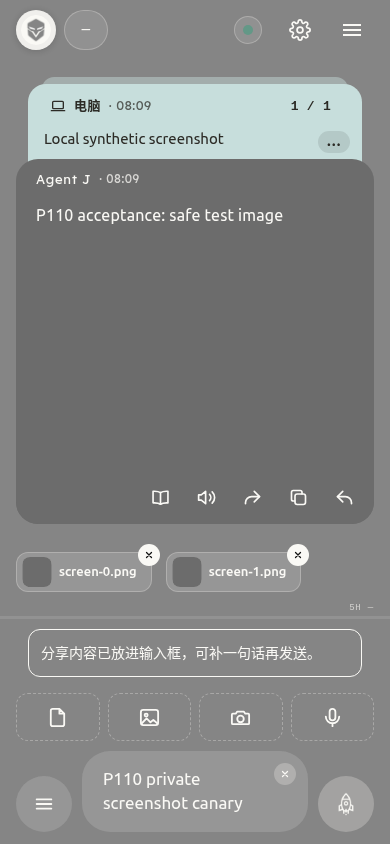
分享内容只在手机本地暂存。五分钟没接收,或者关了页面,就得重新分享。断网时先连电脑,不会走普通上传。
提示:如果分享菜单里找不到 Agent J,或者只能分享图片,先从主屏幕打开一次并更新网页;已安装旧版时可能需要重新安装应用。先确认这份浏览器或主屏幕应用已有配对记录。
iPhone
iPhone 网页收不到系统分享,得靠快捷指令接力。有两个快捷指令,可以都装上:
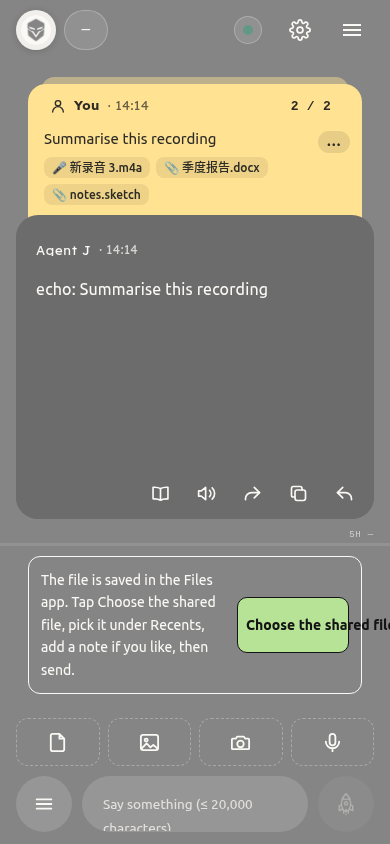
- 发给 Agent J(推荐):能收语音备忘录、录音、截图、文档、文字。文件会存进「文件」App 的
快捷指令/Agent J文件夹,然后自动打开 Agent J 网页。你点「选择分享的文件」,在「最近项目」里选中它就行。 - Agent J · Share Screenshot:只收图片。复制到剪贴板后打开网页,点「粘贴截图」。
两个快捷指令都不上传、不读消息、不需要 token。下文以 Safari 为例;若系统打开其他浏览器,请在实际打开的浏览器中配对。Safari 与主屏幕应用分别保存配对。
设置「发给 Agent J」
目前提供快捷指令源文件,这是未签名文件,不能当作一键安装版,签名版和 iCloud 一键安装链接尚未发布。现在可用下面几步在 iPhone 上建立:
- 打开快捷指令,新建一个,命名为「发给 Agent J」。在详情里开启「在共享表单中显示」,接收类型选「任何」。
- 按顺序加三个动作:存储文件(输入选「快捷指令输入」,关掉「询问存储位置」,子路径填
Agent J/,打开「覆盖现有文件」)→ URL(https://m.agentj.app/?from=share&via=file)→ 打开 URL。检查只有这三个动作。存储文件需要打开 iCloud 云盘;不用 iCloud 时,把「询问存储位置」打开,每次选「我的 iPhone」。 - 在语音备忘录、相册或任何 App 里点分享,选「发给 Agent J」。在打开的网页点「选择分享的文件」,在「最近项目」里点刚存的文件,补一句话后发送。
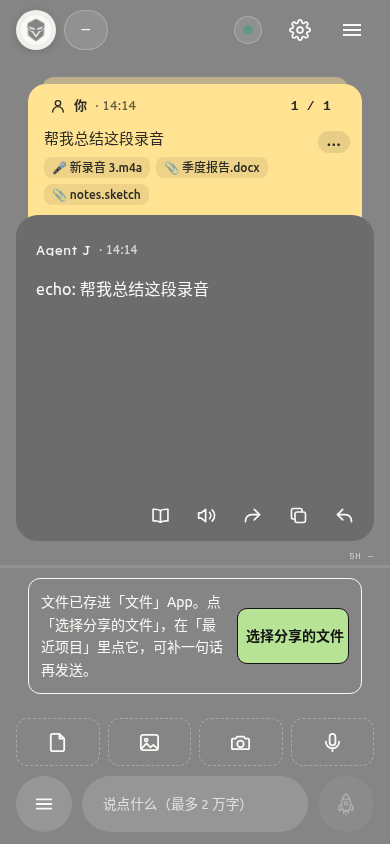
设置截图快捷指令
截图快捷指令源文件同样未签名。手动建立:
- 新建快捷指令,命名为 Agent J · Share Screenshot。在详情里开启“在共享表单中显示”,并设置为只接收图像。
- 按顺序添加这四个动作:从列表中获取项目(快捷指令输入,第一项)→ 拷贝到剪贴板(仅本地)→ URL(
https://m.agentj.app/?from=share)→ 打开 URL。检查确认只有这四个动作。 - 截图后,从分享菜单运行它。在打开的浏览器点「粘贴截图」,按系统提示完成粘贴,再补一句话发送。如果不行,长按输入框使用系统粘贴也是备用方式。
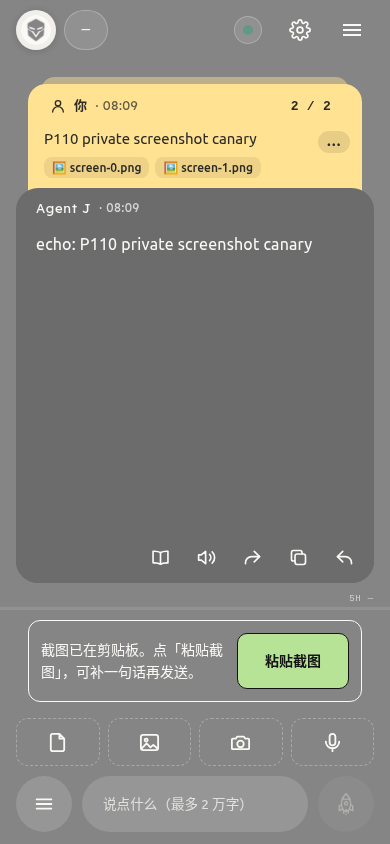
剪贴板只适合图片。大文件放进去,又慢又容易失败。录音和文件,一律走「发给 Agent J」。
剪贴板权限
页面只在你点按钮后读取图片。WebKit 官方说明,跨应用的剪贴板读取可能显示系统粘贴菜单,需要再点一次粘贴。拒绝权限、剪贴板没有图片或浏览器不支持读取时,页面会提示;也可以长按输入框粘贴,或用相册按钮选图。
验收范围:文件按钮收任意文件、「选择分享的文件」打开选择器、粘贴按钮和加密附件路径已在 Chromium 验证;iPhone 上的分享菜单、快捷指令的「存储文件」和系统文件选择器仍待 iPhone 实测。这里的图是本地测试页面截图,不是 iPhone 系统分享菜单。
Telegram 发文件
Telegram 机器人最多只能下载 20 MB 的文件(这是 Telegram 官方限制),20 多分钟的录音往往就超了。超过时,机器人会直接告诉你原因;请改用上面的网页「文件」按钮或「发给 Agent J」快捷指令。
隐私
安卓分享由手机内的网页接收,文件不会以普通表单上传到网站服务器。快捷指令打开的网址只含入口标记,没有文件、正文或凭据;文件留在你自己的「文件」App 里,由你亲手选中。附件沿用手机与电脑之间的端到端加密路径;网页版的安全边界见隐私与安全。快捷指令复制的图片会留在系统剪贴板,存进「文件」的文件会留在 Agent J 文件夹,用后可自行删除。
参考:Chrome Web Share Target、WebKit 剪贴板说明、Apple 快捷指令签名。
截取 Agent J 当前页面
长按右上角齿轮,或按 Alt+Shift+C,截取当前网页可见区域。截图不含系统状态栏,也不需要屏幕共享权限。密码框和密钥卡会被遮住;图片放进聊天附件栏,等你补话后发送;同时复制到系统剪贴板,可以直接粘贴到别的聊天软件。浏览器不让复制时,弹出的提示里带着这张图和「复制图片」「分享」按钮。设置页的扫码、搜索、齿轮固定在页眉,滚动后仍能用;单击齿轮退出设置,长按截取设置页。设置页内点搜索或按 ⌘K / Ctrl+K,可按标题、说明和关键词找设置项,点结果跳转并高亮。齿轮说明可从右键菜单或快捷键页查看。
Recordings, screenshots, Word / Excel / PowerPoint files, archives — any file can go to the Agent on your computer. It lands in the attachment tray under the composer; add a note if you like ("summarise this recording"), then send. Sharing never sends anything by itself.
What you can send
- Any file type, up to 10 at once and 200 MiB each — enough for an hour of phone audio.
- Audio and video are transcribed locally on your computer: the Agent gets the transcript and the path of the original. Long recordings are transcribed in 10-minute segments, up to 2 hours; if transcription fails the original still arrives and the Agent sees why. A video without sound is just a file.
- Files travel only through the end to end encrypted attachment path, at about 1 MB per second; 200 MiB takes about 4 minutes.
- While the computer runs an older Agent J, the limit is still 25 MiB and only common formats; update it to lift that.
The simplest route: in any app, save to Files first, then tap the "File" button next to the composer in the Agent J web app and pick it. The two routes below save a few taps.
Android
- Open https://m.agentj.app in current Chrome. Use the browser menu to add it to your Home Screen and install the app. Open the icon and pair it. A browser that creates only a bookmark cannot register a system share target.
- In a recorder, Photos, a file manager or any app, tap the system share button and choose Agent J. You can share several files at once.
- Check the attachment tray, add an optional note, then send. If this browser is not paired, pair first and share again.
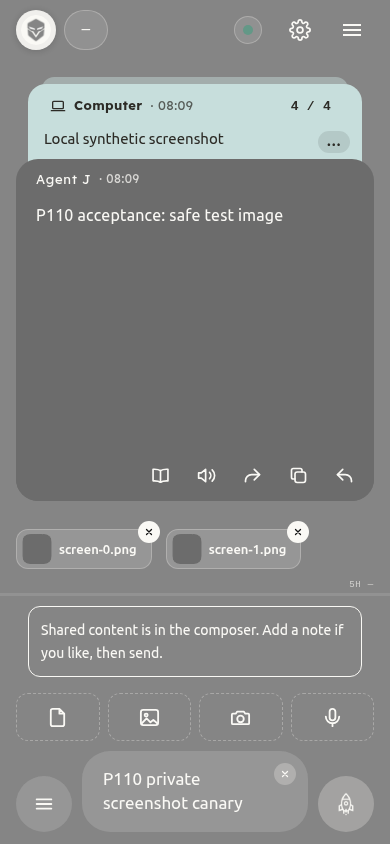
Intake stays on the phone; if it is not collected within five minutes or the system closes the page, share again. When offline, reconnect your computer; there is no ordinary upload fallback.
Tip: if Agent J is missing from the share menu, or only takes images, open its Home Screen icon and update the page. An older installation may need reinstalling. Make sure the browser or installed app that opens has its own pairing.
iPhone
A web page on iPhone cannot receive system shares, so a Shortcut hands the file over. There are two; you can install both:
- Send to Agent J (recommended): takes any file — Voice Memos, recordings, screenshots, documents, text. It saves the file to the
Shortcuts/Agent Jfolder in the Files app and opens the Agent J web app; tap "Choose the shared file" and pick it under Recents. - Agent J · Share Screenshot: images only; copies the image to the clipboard, opens the web app, and you tap "Paste screenshot".
Neither uploads anything, reads messages, or needs a token. These steps use Safari as an example; if a different browser opens, pair in that browser. Safari and the Home Screen app keep separate pairings.
Set up "Send to Agent J"
Download the Shortcut source. It is unsigned, not a one-tap installer; a signed file and an iCloud installation link have not been published yet. For now, build it on your iPhone:
- In Shortcuts, create a Shortcut named Send to Agent J. In Details, turn on Show in Share Sheet and accept Any input.
- Add three actions in order: Save File (input Shortcut Input, Ask Where to Save off, subpath
Agent J/, Overwrite If File Exists on) → URL (https://m.agentj.app/?from=share&via=file) → Open URLs. Check that these are the only three actions. Save File needs iCloud Drive; without it, turn Ask Where to Save on and pick On My iPhone each time. - In Voice Memos, Photos or any app, tap Share and choose Send to Agent J. In the page that opens, tap "Choose the shared file", pick the file you just saved under Recents, add a note and send.
Set up the screenshot Shortcut
The screenshot Shortcut source is unsigned too. Build it by hand:
- Create a Shortcut named Agent J · Share Screenshot. Enable its share-sheet option in Details and accept images only.
- Add these actions in order: Get Item from List (Shortcut Input, First Item) → Copy to Clipboard (Local Only) → URL (
https://m.agentj.app/?from=share) → Open URLs. Check that these are the only four actions. - After taking a screenshot, run it from the share sheet. Tap "Paste screenshot" in the browser that opens, complete any system paste prompt, add an optional note and send. You can also touch and hold the input field to paste.
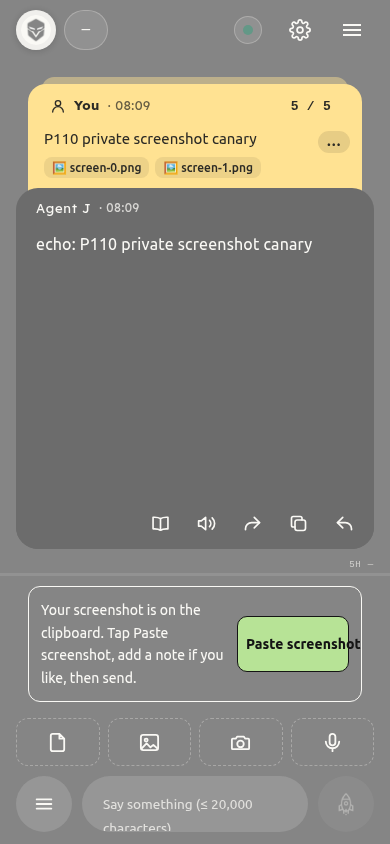
The clipboard suits images only: large files on the clipboard are slow and unreliable, so recordings and other files always go through Send to Agent J.
Clipboard permission
The page reads images only after a button tap. WebKit documents a system paste menu for clipboard data from another app, which can require a second tap. If access is denied, no image is available, or clipboard reading is unsupported, the page gives a hint. Touch and hold the input field to paste, or select the image using the photo button.
Acceptance scope: Chromium covers the File button taking any file, "Choose the shared file" opening the picker, the paste button and the encrypted attachment path. The iPhone share sheet, the Shortcut's Save File action and the system file picker still need an iPhone test. These pictures show local test pages, not an iPhone system share sheet.
Files through Telegram
A Telegram bot can download at most 20 MB per file (a Telegram limit); a recording of 20-odd minutes is often over it. The bot then tells you exactly that; use the web app's "File" button or the Send to Agent J Shortcut above instead.
Privacy
Android intake is handled inside the phone's browser; files are not submitted as an ordinary form upload to our website. The Shortcut URL contains only an entry marker, never file data, text or credentials; the file stays in your own Files app until you pick it. Sending uses the existing end to end encrypted attachment path. Read the web security boundaries. A copied screenshot remains on the system clipboard, and saved files stay in the Agent J folder until you delete them.
References: Chrome Web Share Target, WebKit clipboard API, Apple Shortcut signing.
Capture the current Agent J page
Hold the gear at the top right, or press Alt+Shift+C, to capture the visible part of this web page. It excludes the system status bar and needs no screen-sharing permission. Password fields and secret cards are masked. The image enters the chat attachment tray; add your words and send when ready. It is also copied to the system clipboard, so you can paste it into another chat app; when the browser refuses, the notice shows the picture with Copy image and Share buttons. Settings keeps Scan, Search and the gear in its fixed header while you scroll. Tap the gear to exit or hold it to capture Settings. Search or ⌘K / Ctrl+K within Settings finds titles, descriptions and keywords; tap a result to jump and highlight it. Right-click the gear or open Keyboard shortcuts for help.